










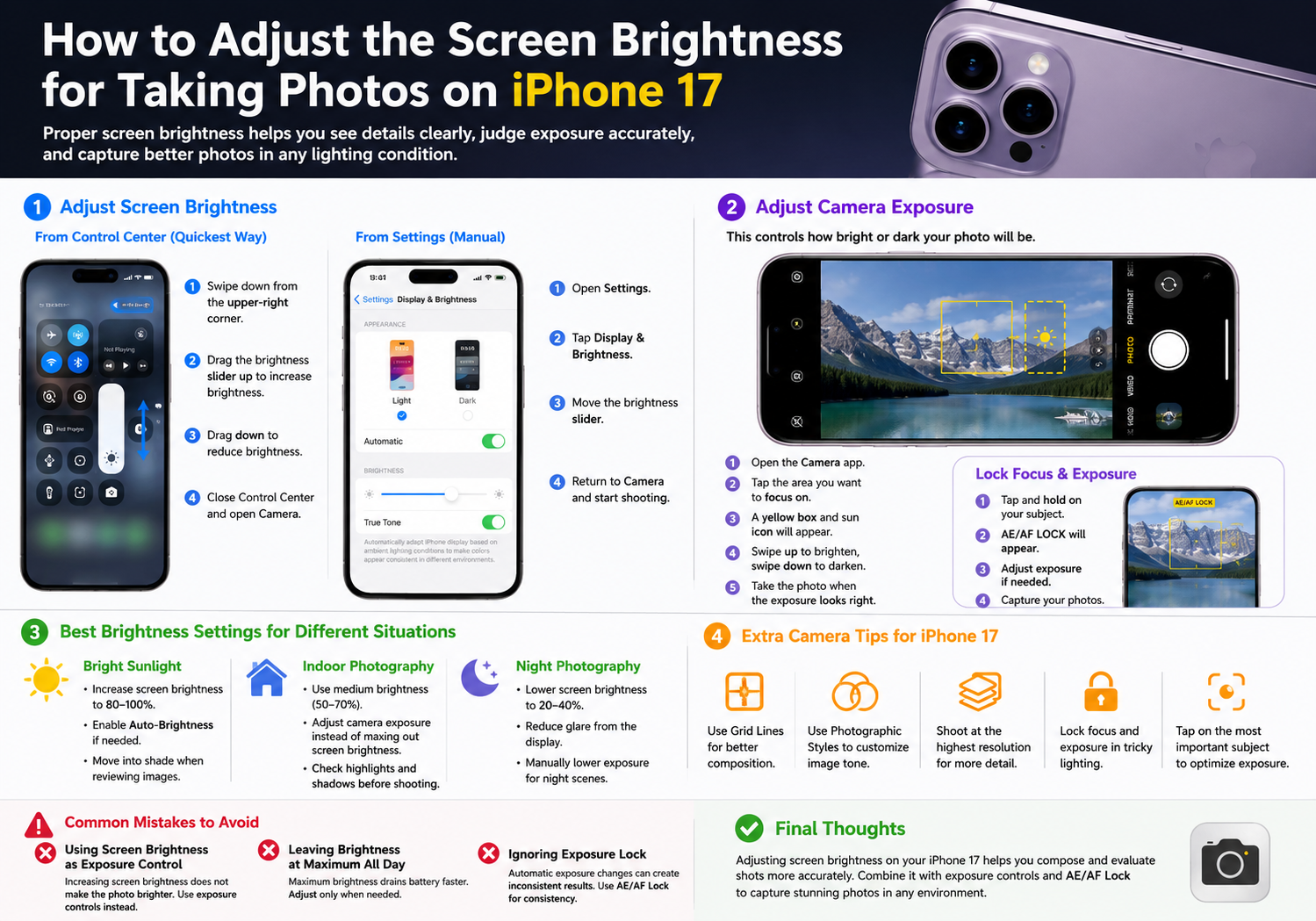
iPhone 17 features one of Apple’s most advanced camera systems, making it easier than ever to capture stunning photos. However, many users overlook an important factor that can affect how they compose and evaluate shots: screen brightness. Adjusting your screen brightness properly can help you see details more clearly, judge exposure more accurately, and improve your overall photography experience.
Whether you’re shooting in bright sunlight, indoors, or at night, here’s how to adjust the screen brightness and camera exposure on your iPhone 17 for better photos.
Why Screen Brightness Matters When Taking Photos
Your iPhone’s display acts as the camera viewfinder. If the screen is too bright or too dim, it can be difficult to accurately judge how your final photo will look.
For example:
- A very bright screen may make dark photos appear properly exposed.
- A dim screen can make images seem darker than they actually are.
- Outdoor sunlight often requires higher brightness for visibility.
- Night photography is easier when screen brightness is reduced.
Photography experts often recommend adjusting screen brightness according to ambient lighting conditions to better evaluate exposure while shooting.
Method 1: Adjust Screen Brightness from Control Center
The quickest way to change brightness on an iPhone 17 is through Control Center.
Steps:
- Swipe down from the upper-right corner of the screen.
- Locate the Brightness slider (sun icon).
- Drag the slider upward to increase brightness.
- Drag the slider downward to reduce brightness.
- Close Control Center and open the Camera app.
This method is ideal when moving between different lighting environments, such as going from indoors to outdoors.
Method 2: Adjust Brightness Through Settings
You can also manually set brightness through the Settings app.
Steps:
- Open Settings.
- Tap Display & Brightness.
- Move the Brightness slider left or right.
- Return to the Camera app and continue shooting.
This approach is useful when you want more consistent brightness levels during longer photography sessions.
Adjust Camera Exposure for Brighter or Darker Photos
Many users confuse screen brightness with photo brightness. In reality, if your photos appear too bright or too dark, you should adjust the camera’s exposure rather than only changing the display brightness.
How to Adjust Exposure
- Open the Camera app.
- Tap the area you want to focus on.
- A yellow focus box will appear.
- Next to the box, you’ll see a sun icon.
- Swipe upward to brighten the image.
- Swipe downward to darken the image.
- Take the photo once the exposure looks correct.
This allows you to manually control how bright or dark the final image will be before pressing the shutter button.
Lock Focus and Exposure
If lighting conditions keep changing, the iPhone may automatically readjust exposure. To prevent this:
- Tap and hold on your subject.
- Wait until AE/AF LOCK appears.
- Adjust the exposure slider if necessary.
- Capture your photos.
Exposure and focus locking help maintain consistent brightness across multiple shots.
Best Brightness Settings for Different Situations
Bright Sunlight
- Increase screen brightness to 80–100%.
- Enable Auto-Brightness if needed.
- Move into shade when reviewing images.
A brighter display makes it easier to see details under direct sunlight.
Indoor Photography
- Use medium brightness (50–70%).
- Adjust camera exposure instead of maxing out screen brightness.
- Check highlights and shadows before shooting.
Night Photography
- Lower screen brightness to 20–40%.
- Reduce glare from the display.
- Manually lower exposure for city lights and night scenes.
Many photographers deliberately reduce exposure at night to preserve highlights and avoid overexposed light sources.
Additional Camera Tips for iPhone 17
To improve your photography further:
- Enable Grid Lines for better composition.
- Use Photographic Styles to customize image tone.
- Shoot at the highest available resolution when detail matters.
- Lock focus and exposure for difficult lighting conditions.
- Tap on the most important subject to optimize exposure.
Common Mistakes to Avoid
Using Screen Brightness as Exposure Control
Increasing screen brightness does not make the actual photo brighter. Instead, use the camera’s exposure adjustment tools.
Leaving Brightness at Maximum All Day
Maximum brightness can drain battery life more quickly. Adjust it only when needed, especially outdoors.
Ignoring Exposure Lock
Automatic exposure changes can create inconsistent results, especially when shooting multiple photos of the same subject. Using AE/AF Lock can help maintain consistent image quality.
Final Thoughts
Adjusting screen brightness on the iPhone 17 can make it easier to compose shots and evaluate scenes in different lighting conditions. However, for truly brighter or darker photos, you’ll want to use the built-in exposure controls in the Camera app. By combining proper screen brightness settings with manual exposure adjustments and AE/AF Lock, you can capture more accurate, professional-looking photos in virtually any environment.
With just a few simple adjustments, your iPhone 17 can deliver clearer, better-balanced images whether you’re shooting outdoors in bright sunlight or capturing low-light scenes at night.