







Facebook Twitter Instagram
    Trending
    • ILIFE Cordless Stick Vacuum Cleaner Now on Amazon at Just $179.99
    • Huawei Mate XT2 Reportedly Adopts New U-Shaped Tri-Fold Design with Fully Protected Inner Display
    • Honor WIN2 Tipped for October Launch with 2nm Snapdragon Chip, 10,000mAh Battery, and Active Cooling
    • New Samsung Galaxy Z Flip8 and Galaxy Z Fold8 Renders Surface Ahead of July 22 Galaxy Unpacked Event
    • Xiaomi Redmi Note 17 Series Specifications Leak Ahead of July 14 Launch: Snapdragon 4 Gen 4, Up to 9,000mAh Battery
    • Tell You How My Dog Become a Service Dog?
    • DT NO.1 E08 Smart Cycling Glasses Review: AI-Powered Vision for Outdoor Adventures
    • Yocan Black Pocket Concentrate Vaporizer Review: Precision Dabbing in a Pocket-Sized Device
    Facebook YouTube
    IGeeKphone China Phone, Tablet PC, VR, RC Drone News, Reviews
    • HOME
    • BREAKING NEWS
      • AI NEWS
    • Amazon
    • PHONE
      • Top Phones For Your First Choice
      • Phone Comparison
      • Xiaomi
      • Blackview
      • Doogee
      • Black Shark
      • Geekbuying
      • Banggood
      • TEMU
      • TikTok
      • Aliexpress
      • Walmart
      • MercadoLibre
      • Lazada
    • TOP VAPE Awards for 2026
    • VAPES
      • E-CIGAR Upcoming
      • Vape News
      • Vape Deals
      • Vape Comparison
      • Vape Guide
      • VAPE LAWS
      • Giveaway
    • BEST VAPE
      • Best Vape Stores
      • Best Starter Vape Kits
      • Best Vapes for Beginners
      • Best Disposable Vapes
      • Best Pod Systems
      • Best Pod Mod Vapes
      • Best Mods
      • Best Nicotine Pouches
      • Best Clearomizers/Tanks
      • Best E-Liquid
      • Best EGO/Pens
      • Best Vapes for Nic Salt E-Juice
      • Best Vapes to Quit Smoking
      • RDA vs. RDTA vs. RTA
    • Best Vape Brand 2026
      • VAPORESSO
      • VOOPOO
      • OXVA
      • NEXA BAR
      • MASKKING VAPE
      • SP2S
      • IPLAY
      • TODOO
      • MRFOG
      • LOSTVAPE
      • VEIIK
    • REVIEW
      • E-cigar Review
      • Phones
      • Tablet PC
      • TV Box
      • RC Drone
      • Wearables
      • Camera
      • Accessories
      • VR Headset
    • MORE
      • TABLET
        • Chuwi
        • INNOCN
        • Teclast
        • Top Tablet for Your First Choice
        • Tablet/Laptop Comparison
      • RC DRONE
      • CAMERA
      • WEARABLES
        • OneOdio
        • BlitzWolf
        • Top Smartwatch for First Choice
      • 3D PRINTER
        • 3D Printer Review
        • Anycubic
        • FLSUN
        • Xtool
        • LONGER
        • Top 3D printer to Choose First
      • POWER STATION
        • Oukitel
        • FOSSIBOT
      • GAMING
        • Top Gaming Products
      • E-BIKE
        • Samebike
        • Happyrun
        • ENGWE
      • SMART HOME
      • TV BOX
      • ACCESSORIES
      • VR HEADSET
      • CLOTHES
      • AUTO CAR
    • DEAL
    • Shop
    IGeeKphone China Phone, Tablet PC, VR, RC Drone News, Reviews
    You are at:Home»Guide»How to Adjust the Screen Brightness for Taking Photos on iPhone 17
    Guide

    How to Adjust the Screen Brightness for Taking Photos on iPhone 17

    Brady CottonBy Brady CottonJune 16, 2026
    Facebook Twitter Pinterest LinkedIn Tumblr Email

    iPhone 17 features one of Apple’s most advanced camera systems, making it easier than ever to capture stunning photos. However, many users overlook an important factor that can affect how they compose and evaluate shots: screen brightness. Adjusting your screen brightness properly can help you see details more clearly, judge exposure more accurately, and improve your overall photography experience.

    Whether you’re shooting in bright sunlight, indoors, or at night, here’s how to adjust the screen brightness and camera exposure on your iPhone 17 for better photos.

    Why Screen Brightness Matters When Taking Photos

    Your iPhone’s display acts as the camera viewfinder. If the screen is too bright or too dim, it can be difficult to accurately judge how your final photo will look.

    For example:

    • A very bright screen may make dark photos appear properly exposed.
    • A dim screen can make images seem darker than they actually are.
    • Outdoor sunlight often requires higher brightness for visibility.
    • Night photography is easier when screen brightness is reduced.

    Photography experts often recommend adjusting screen brightness according to ambient lighting conditions to better evaluate exposure while shooting.

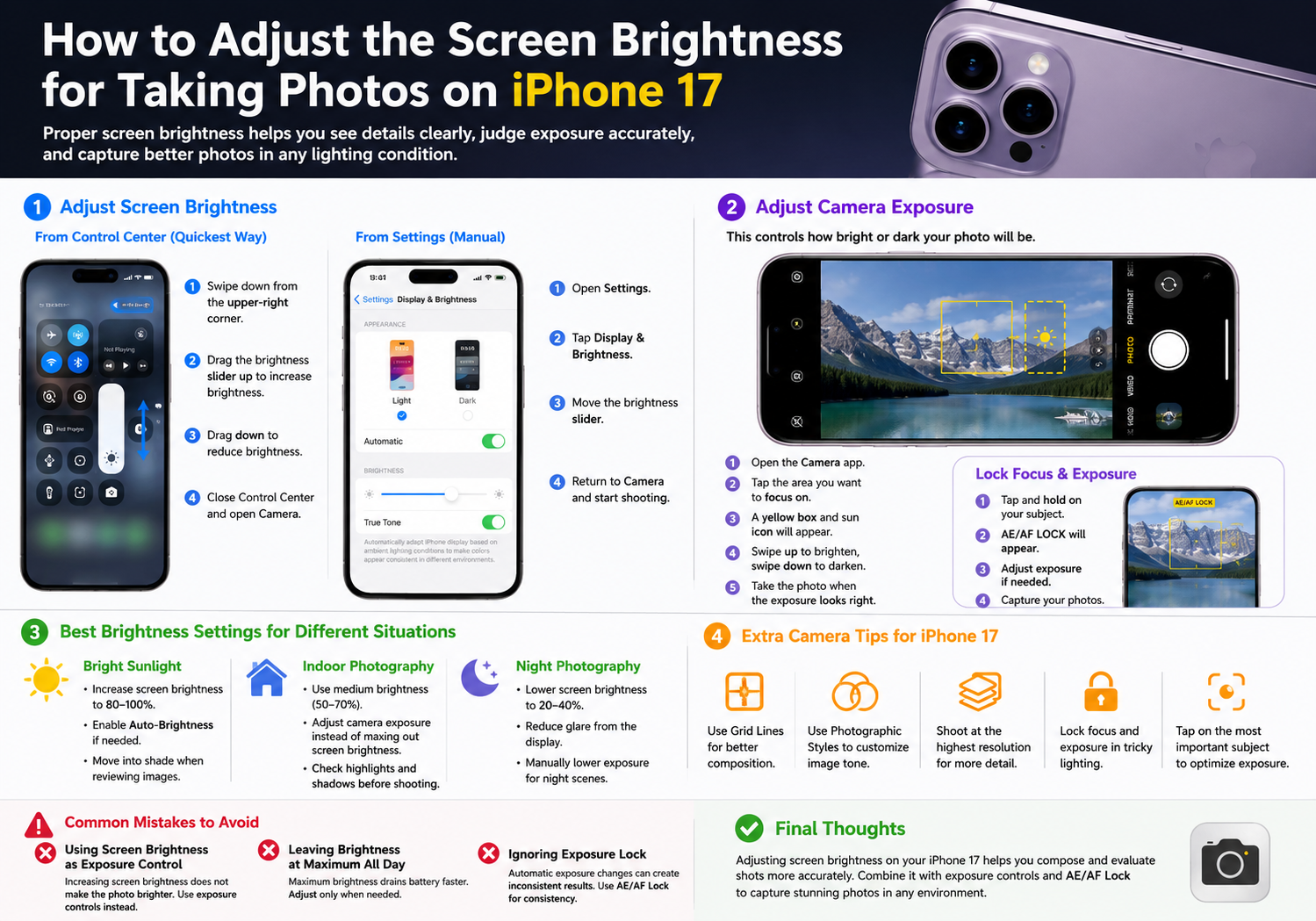
    Method 1: Adjust Screen Brightness from Control Center

    The quickest way to change brightness on an iPhone 17 is through Control Center.

    Steps:

    1. Swipe down from the upper-right corner of the screen.
    2. Locate the Brightness slider (sun icon).
    3. Drag the slider upward to increase brightness.
    4. Drag the slider downward to reduce brightness.
    5. Close Control Center and open the Camera app.

    This method is ideal when moving between different lighting environments, such as going from indoors to outdoors.

    Method 2: Adjust Brightness Through Settings

    You can also manually set brightness through the Settings app.

    Steps:

    1. Open Settings.
    2. Tap Display & Brightness.
    3. Move the Brightness slider left or right.
    4. Return to the Camera app and continue shooting.

    This approach is useful when you want more consistent brightness levels during longer photography sessions.

    Adjust Camera Exposure for Brighter or Darker Photos

    Many users confuse screen brightness with photo brightness. In reality, if your photos appear too bright or too dark, you should adjust the camera’s exposure rather than only changing the display brightness.

    How to Adjust Exposure

    1. Open the Camera app.
    2. Tap the area you want to focus on.
    3. A yellow focus box will appear.
    4. Next to the box, you’ll see a sun icon.
    5. Swipe upward to brighten the image.
    6. Swipe downward to darken the image.
    7. Take the photo once the exposure looks correct.

    This allows you to manually control how bright or dark the final image will be before pressing the shutter button.

    Lock Focus and Exposure

    If lighting conditions keep changing, the iPhone may automatically readjust exposure. To prevent this:

    1. Tap and hold on your subject.
    2. Wait until AE/AF LOCK appears.
    3. Adjust the exposure slider if necessary.
    4. Capture your photos.

    Exposure and focus locking help maintain consistent brightness across multiple shots.

    Best Brightness Settings for Different Situations

    Bright Sunlight

    • Increase screen brightness to 80–100%.
    • Enable Auto-Brightness if needed.
    • Move into shade when reviewing images.

    A brighter display makes it easier to see details under direct sunlight.

    Indoor Photography

    • Use medium brightness (50–70%).
    • Adjust camera exposure instead of maxing out screen brightness.
    • Check highlights and shadows before shooting.

    Night Photography

    • Lower screen brightness to 20–40%.
    • Reduce glare from the display.
    • Manually lower exposure for city lights and night scenes.

    Many photographers deliberately reduce exposure at night to preserve highlights and avoid overexposed light sources.

    Additional Camera Tips for iPhone 17

    To improve your photography further:

    • Enable Grid Lines for better composition.
    • Use Photographic Styles to customize image tone.
    • Shoot at the highest available resolution when detail matters.
    • Lock focus and exposure for difficult lighting conditions.
    • Tap on the most important subject to optimize exposure.

    Common Mistakes to Avoid

    Using Screen Brightness as Exposure Control

    Increasing screen brightness does not make the actual photo brighter. Instead, use the camera’s exposure adjustment tools.

    Leaving Brightness at Maximum All Day

    Maximum brightness can drain battery life more quickly. Adjust it only when needed, especially outdoors.

    Ignoring Exposure Lock

    Automatic exposure changes can create inconsistent results, especially when shooting multiple photos of the same subject. Using AE/AF Lock can help maintain consistent image quality.

    Final Thoughts

    Adjusting screen brightness on the iPhone 17 can make it easier to compose shots and evaluate scenes in different lighting conditions. However, for truly brighter or darker photos, you’ll want to use the built-in exposure controls in the Camera app. By combining proper screen brightness settings with manual exposure adjustments and AE/AF Lock, you can capture more accurate, professional-looking photos in virtually any environment.

    With just a few simple adjustments, your iPhone 17 can deliver clearer, better-balanced images whether you’re shooting outdoors in bright sunlight or capturing low-light scenes at night.

    Share. Facebook Twitter Pinterest LinkedIn Tumblr Email

    Related Posts

    Top 5 Reasons GaN Chargers Are Revolutionizing Device Charging

    How to switch from dual graphics cards to independent graphics card? Methods for adjusting computer graphics cards.

    Using VIX in Analysis: Oil Trading and the Role of Volatility Indexes

    Leave A Reply Cancel Reply

    You must be logged in to post a comment.

    voopoopintch
    oxva nexlim 2
    sp2s sen x disposable vape
    • Popular
    • 3D Printer REVIEW
    • XIAOMI
    June 21, 2026

    iPlay LUMO 8K Review – A Compact Prefilled Pod Kit with Big Flavor and Everyday Convenience

    June 21, 2026

    iPlay HOOLA 150K Review – A Cloud-Chasing Giant with Music, Modes & Massive Longevity

    June 21, 2026

    Vaporesso VIBE SE 2 Review – Simple on the Outside, Surprisingly Smart on the Inside

    June 21, 2026

    VOOPOO DRAG H40 Pro Review – The Return of the Pocket Powerhouse

    December 26, 2025

    ACMER ASCARVA 4S: Precision CNC Power for Makers, DIYers & Small Workshops

    June 23, 2024

    ACMER P2 20W Laser Engraver Fixed Focus Engraving: Hands on Review

    May 30, 2024

    xTool F1 Ultra Review: World’s First 20W Fiber & 20W Diode Laser Engraver

    May 30, 2024

    Anycubic Kobra 3 Combo Review: The Multicolor Masterpiece?

    July 11, 2026

    Xiaomi Redmi Note 17 Series Specifications Leak Ahead of July 14 Launch: Snapdragon 4 Gen 4, Up to 9,000mAh Battery

    July 10, 2026

    Xiaomi Band 11 Series Certified Ahead of Launch, Retains 233mAh Battery Capacity

    July 9, 2026

    Xiaomi 18 Pro Specifications Leak: 2nm Snapdragon 8 Elite Gen 6, Dual 200MP Cameras, and 7,000mAh Battery

    July 9, 2026

    Redmi Note 17 Pro is equipped with a 9000mAh Xiaomi Jinshajiang battery: it supports 67W fast charging.

    fc 26 coins
    New Arrivals
    • Veev One Plus Pod System Kit Veev One Plus Pod System Kit
    • Xiaomi 18T Xiaomi 18T
    • Xiaomi 18T Pro Xiaomi 18T Pro
    • Huawei Mate 80 Air Huawei Mate 80 Air
    • Xiaomi Poco F9 Ultra Xiaomi Poco F9 Ultra
    • JNR Falcon Mini 20K Puffs Refillable Vape Kit JNR Falcon Mini 20K Puffs Refillable Vape Kit
    • Hyrise Hybrid Vaporizer Kit Hyrise Hybrid Vaporizer Kit
    • Hyrise Hydden 510 Thread Battery 1000mAh Hyrise Hydden 510 Thread Battery 1000mAh
    • Smoant Flex Neo Pod System Kit Smoant Flex Neo Pod System Kit
    About
  • Igeekphone.com provides the first global tech news and reviews about smartphone, vapes, e-cigar, smart home, 3D printers, e-bike,tablets, RC drones, VR headset, and other accessories. It's the best platform to improve your brand and product.
  • Contact us: info@igeekphone.com
  • Check Our Privacy Policy Here.
  • Note: *Right now we have US editor and EU editors for review, especially for Amazon US and EU.
  • *Shop and Compare Price Here*
  • Facebook
  • Youtube
  • OUR BEST VAPE PARTNERS
  • VAPE ONLINE STORE
  • HAYATI PRO MAX PLUS
  • VAPORESSO
  • VOOPOO
  • OXVA
  • NEXA
  • MASKKING
  • SP2S
  • IPLAY
  • TODOO
  • OTHER BEST PARTNERS
  • SVBONY
  • Chuwi
  • Blackview
  • Fossibot
  • Unihertz
  • Flsun
  • Anycubic
  • Xtool
  • Oukitel
  • Mukkpet Ebike
  • Ugreen
  • Copyright © 2026 igeekphone

    Type above and press Enter to search. Press Esc to cancel.