







Facebook Twitter Instagram
    Trending
    • How to Clean System Log Files on an Android Phone?
    • Does the United States Ban Imports of Disposable Vaping Products?
    • Redmi Game Tablet 5 Pro is launched with an Ultra-High 185Hz Refresh Rate
    • Honor X80 Pro Max smartphone Released: 5th generation Snapdragon 6 mobile platform, 11000mAh battery, starting from 1999 yuan.
    • P36S Retro 64G Handheld Game Console Review: Affordable Retro Gaming in Your Pocket
    • Monster AC390 TWS Earbuds Review: Open-Ear Comfort Meets Modern Wireless Audio
    • VIPCOO H3 Electric Dirt Bike Review: Affordable Off-Road Power with Serious Performance
    • Xiaomi Mijia 1S 4K Cinema UST Projector Review: A Giant Home Theater in Minimal Space
    Facebook YouTube
    IGeeKphone China Phone, Tablet PC, VR, RC Drone News, Reviews
    • HOME
      • NEWS
        • DeepSeek
        • ChatGPT
        • Minecraft
    • Amazon
    • PHONE
      • Top Phones For Your First Choice
      • Phone Comparison
      • Xiaomi
      • Blackview
      • Doogee
      • Black Shark
      • Geekbuying
      • Banggood
      • TEMU
      • TikTok
      • Aliexpress
      • Walmart
      • MercadoLibre
      • Lazada
    • TOP VAPE Awards for 2026
    • VAPES
      • E-CIGAR Upcoming
      • Vape News
      • Vape Deals
      • Vape Comparison
      • Vape Guide
      • Giveaway
    • BEST VAPE
      • Best Vape Stores
      • Best Starter Vape Kits
      • Best Vapes for Beginners
      • Best Disposable Vapes
      • Best Pod Systems
      • Best Pod Mod Vapes
      • Best Mods
      • Best Nicotine Pouches
      • Best Clearomizers/Tanks
      • Best E-Liquid
      • Best EGO/Pens
      • Best Vapes for Nic Salt E-Juice
      • Best Vapes to Quit Smoking
      • RDA vs. RDTA vs. RTA
    • Best Vape Brand 2026
      • VAPORESSO
      • VOOPOO
      • OXVA
      • NEXA BAR
      • MASKKING VAPE
      • SP2S
      • IPLAY
      • TODOO
      • MRFOG
      • LOSTVAPE
      • VEIIK
    • REVIEW
      • E-cigar Review
      • Phones
      • Tablet PC
      • TV Box
      • RC Drone
      • Wearables
      • Camera
      • Accessories
      • VR Headset
    • MORE
      • TABLET
        • Chuwi
        • INNOCN
        • Teclast
        • Top Tablet for Your First Choice
        • Tablet/Laptop Comparison
      • RC DRONE
      • CAMERA
      • WEARABLES
        • OneOdio
        • BlitzWolf
        • Top Smartwatch for First Choice
      • 3D PRINTER
        • 3D Printer Review
        • Anycubic
        • FLSUN
        • Xtool
        • LONGER
        • Top 3D printer to Choose First
      • POWER STATION
        • Oukitel
        • FOSSIBOT
      • GAMING
        • Top Gaming Products
      • E-BIKE
        • Samebike
        • Happyrun
        • ENGWE
      • SMART HOME
      • TV BOX
      • ACCESSORIES
      • VR HEADSET
      • CLOTHES
      • AUTO CAR
    • DEAL
    • VAPE LAWS
    • Shop
    IGeeKphone China Phone, Tablet PC, VR, RC Drone News, Reviews
    You are at:Home»Vape Guide»How to Clean System Log Files on an Android Phone?
    Vape Guide

    How to Clean System Log Files on an Android Phone?

    Brady CottonBy Brady CottonJune 23, 2026
    Facebook Twitter Pinterest LinkedIn Tumblr Email

    Over time, Android smartphones generate various system logs that record device activities, app behavior, errors, crashes, and diagnostic information. While these log files are useful for developers and troubleshooting, they can sometimes consume storage space and contribute to system clutter.

    If your Android phone is running low on storage or you simply want to clean unnecessary system files, understanding how to safely manage and remove log files can help improve storage efficiency without affecting device performance.

    What Are Android System Log Files?

    System log files are records generated by the Android operating system and installed applications. These logs help developers and system administrators diagnose problems, monitor performance, and troubleshoot software issues.

    Common types of Android logs include:

    • System logs
    • Crash logs
    • Application logs
    • Kernel logs
    • Debug logs
    • Event logs

    Most log files are stored in protected system directories and are automatically managed by Android. However, some logs may accumulate in accessible storage locations, especially after software updates, app crashes, or diagnostic testing.
    Do Log Files Take Up Significant Storage?

    In most cases, Android log files consume relatively little storage. However, excessive logging caused by malfunctioning apps, beta software, or developer settings can generate large log files that occupy hundreds of megabytes or even several gigabytes.

    Signs that log files may be consuming excessive storage include:

    • Unexplained storage usage
    • Large “Other” storage category
    • Frequent system crash reports
    • Developer options enabled for debugging
    • Persistent app error logs

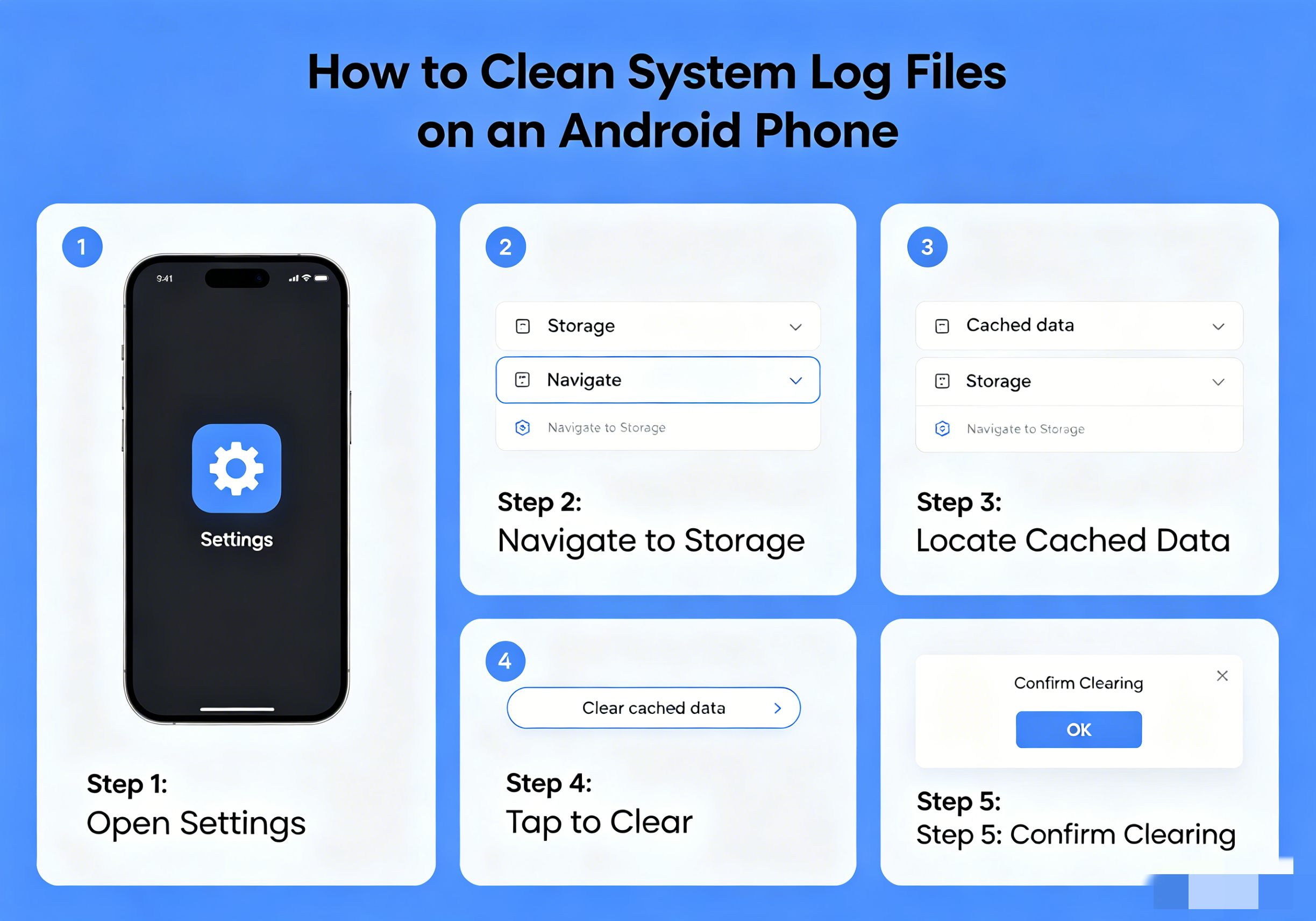
    Method 1: Clear Cached Data

    The easiest way to remove temporary logs and system-generated files is by clearing cached data.

    Steps:

    1. Open Settings
    2. Tap Storage
    3. Select Cached Data (if available)
    4. Confirm cache deletion

    On newer Android versions:

    1. Open Settings
    2. Tap Apps
    3. Select an app
    4. Tap Storage
    5. Choose Clear Cache

    This process removes temporary files and may eliminate certain log-related data without affecting personal information.

    Method 2: Use Android’s Built-In Storage Cleaner

    Most Android manufacturers include built-in cleanup tools.

    Samsung Devices

    1. Open Settings
    2. Tap Battery and Device Care
    3. Select Storage
    4. Tap Clean Now

    Xiaomi Devices

    1. Open Security App
    2. Tap Cleaner
    3. Scan device
    4. Remove junk files

    OnePlus Devices

    1. Open Files
    2. Tap Clean
    3. Review recommended cleanup items

    These tools often identify residual log files, temporary data, and unused files.

    Method 3: Delete Log Files Using a File Manager

    Some log files may be accessible through a file management application.

    Common Locations

    • /Download
    • /Android/data
    • /MIUI/debug_log
    • /log
    • /BugReports
    • /CrashReports

    Steps

    1. Install a trusted file manager.
    2. Navigate to storage folders.
    3. Search for:
      • .log
      • bugreport
      • crash
      • dump
    4. Review files carefully.
    5. Delete only known log files.

    Avoid removing files from system directories unless you fully understand their purpose.

    Method 4: Remove Bug Reports

    Android can generate detailed bug reports for diagnostics.

    To Delete Bug Reports

    1. Open Settings
    2. Tap Storage
    3. Open Files
    4. Locate the Bug Reports folder
    5. Delete old reports

    Bug reports can be surprisingly large, especially after system crashes or troubleshooting sessions.

    Method 5: Disable Excessive Logging in Developer Options

    Developer settings can generate additional logs.

    To Check Developer Options

    1. Open Settings
    2. Tap Developer Options
    3. Review settings such as:
      • USB Debugging
      • Verbose Logging
      • Bug Report Shortcut
      • System Tracing

    Disable features you no longer need.

    If you do not use developer tools, consider turning Developer Options off entirely.

    Method 6: Clear System Cache Partition (If Supported)

    Some Android devices allow users to clear the cache partition through recovery mode.

    General Procedure

    1. Turn off the phone.
    2. Enter Recovery Mode.
    3. Select Wipe Cache Partition.
    4. Confirm action.
    5. Reboot the device.

    This process removes temporary system files without deleting personal data.

    Note that many modern Android devices have removed this option.

    Method 7: Use ADB to Clear Logcat Logs

    Advanced users can clear active Android logs using Android Debug Bridge (ADB).

    Command

    adb logcat -c
    

    This command clears the current Logcat buffer.

    Requirements:

    • USB debugging enabled
    • Android SDK Platform Tools installed
    • Computer connection

    This method is intended primarily for developers and technical users.

    What Not to Delete

    Avoid deleting:

    • System folders
    • Android OS files
    • App databases
    • Configuration files
    • Unknown files in root directories

    Removing critical system files can cause application crashes or device instability.

    How Often Should You Clean Log Files?

    For most users, manual log cleanup is rarely necessary. Android automatically manages most system logs and temporary files.

    Consider cleaning logs if:

    • Storage is running low
    • You frequently test apps
    • Developer options are enabled
    • The device generates repeated crash reports
    • A troubleshooting session created large diagnostic files

    A monthly cleanup is generally sufficient.

    Benefits of Cleaning Log Files

    Proper maintenance can provide several benefits:

    • More available storage space
    • Reduced file system clutter
    • Easier troubleshooting
    • Faster file indexing
    • Better organization of internal storage

    However, users should not expect dramatic performance improvements solely from deleting log files.

    Final Thoughts

    Cleaning system log files on Android can help reclaim storage space and remove unnecessary diagnostic data. For most users, built-in storage cleaning tools and cache management features are sufficient. Advanced users can go further by reviewing bug reports, deleting accessible log files, or using ADB commands to clear active logs.

    The key is to remove only unnecessary logs while avoiding critical system files. With occasional maintenance, your Android phone can stay organized, efficient, and free from excessive storage clutter.

    Share. Facebook Twitter Pinterest LinkedIn Tumblr Email

    Related Posts

    Does the United States Ban Imports of Disposable Vaping Products?

    Mesh vs. Regular vs. Ceramic Vape Coils: Which One Is Right for You?

    Dovpo Flipside Squonk Bottle: A Simple Upgrade for Reliable Bottom-Feeding Performance

    Leave A Reply Cancel Reply

    You must be logged in to post a comment.

    voopoopintch
    oxva xlim go lite
    sp2s sen x disposable vape
    • Popular
    • 3D Printer REVIEW
    • XIAOMI
    June 21, 2026

    iPlay LUMO 8K Review – A Compact Prefilled Pod Kit with Big Flavor and Everyday Convenience

    June 21, 2026

    iPlay HOOLA 150K Review – A Cloud-Chasing Giant with Music, Modes & Massive Longevity

    June 21, 2026

    Vaporesso VIBE SE 2 Review – Simple on the Outside, Surprisingly Smart on the Inside

    June 21, 2026

    VOOPOO DRAG H40 Pro Review – The Return of the Pocket Powerhouse

    December 26, 2025

    ACMER ASCARVA 4S: Precision CNC Power for Makers, DIYers & Small Workshops

    June 23, 2024

    ACMER P2 20W Laser Engraver Fixed Focus Engraving: Hands on Review

    May 30, 2024

    xTool F1 Ultra Review: World’s First 20W Fiber & 20W Diode Laser Engraver

    May 30, 2024

    Anycubic Kobra 3 Combo Review: The Multicolor Masterpiece?

    June 23, 2026

    Xiaomi Mijia 1S 4K Cinema UST Projector Review: A Giant Home Theater in Minimal Space

    June 22, 2026

    Xiaomi 18 Pro Max camera leaks: First to feature a brand-new 200-megapixel main camera with a 1/1.28-inch large sensor + LOFIC

    June 21, 2026

    Qualcomm Snapdragon 8E6 Pro architecture leak: There are two versions. Xiaomi 18 is the global first launch.

    June 21, 2026

    Xiaomi’s top-of-the-line flagship! MIX Fold 5 to be launched in the second half of the year: First release with Xuanji O3

    fc 26 coins
    New Arrivals
    • Vivo V80e Vivo V80e
    • Vivo V80 Lite 5G Vivo V80 Lite 5G
    • Vivo iQOO Neo 12 Vivo iQOO Neo 12
    • Dovpo Flipside Squonk Bottle Dovpo Flipside Squonk Bottle
    • Reign Bar Amber 70K Disposable Vape Reign Bar Amber 70K Disposable Vape
    • Xiaomi 19T Xiaomi 19T
    • Xiaomi 19T Pro Xiaomi 19T Pro
    • Motorola Edge 80 Ultra Motorola Edge 80 Ultra
    • Olit Hookalit Nex 120K Disposable Vape Kit Olit Hookalit Nex 120K Disposable Vape Kit
    About
  • Igeekphone.com provides the first global tech news and reviews about smartphone, vapes, e-cigar, smart home, 3D printers, e-bike,tablets, RC drones, VR headset, and other accessories. It's the best platform to improve your brand and product.
  • Contact us: info@igeekphone.com
  • Check Our Privacy Policy Here.
  • Note: *Right now we have US editor and EU editors for review, especially for Amazon US and EU.
  • *Shop and Compare Price Here*
  • Facebook
  • Youtube
  • Mashable is a global, multi-platform media and entertainment company

    For more queries and news contact us on this

    Email: info@mashablepartners.com

  • OUR BEST VAPE PARTNERS
  • VAPE ONLINE STORE
  • HAYATI PRO MAX PLUS
  • VAPORESSO
  • VOOPOO
  • OXVA
  • NEXA
  • MASKKING
  • SP2S
  • IPLAY
  • TODOO
  • OTHER BEST PARTNERS
  • SVBONY
  • Chuwi
  • Blackview
  • Fossibot
  • Unihertz
  • Flsun
  • Anycubic
  • Xtool
  • Oukitel
  • Mukkpet Ebike
  • Ugreen
  • Copyright © 2026 igeekphone

    Type above and press Enter to search. Press Esc to cancel.