










Over time, Android smartphones generate various system logs that record device activities, app behavior, errors, crashes, and diagnostic information. While these log files are useful for developers and troubleshooting, they can sometimes consume storage space and contribute to system clutter.
If your Android phone is running low on storage or you simply want to clean unnecessary system files, understanding how to safely manage and remove log files can help improve storage efficiency without affecting device performance.
What Are Android System Log Files?
System log files are records generated by the Android operating system and installed applications. These logs help developers and system administrators diagnose problems, monitor performance, and troubleshoot software issues.
Common types of Android logs include:
- System logs
- Crash logs
- Application logs
- Kernel logs
- Debug logs
- Event logs
Most log files are stored in protected system directories and are automatically managed by Android. However, some logs may accumulate in accessible storage locations, especially after software updates, app crashes, or diagnostic testing.
Do Log Files Take Up Significant Storage?
In most cases, Android log files consume relatively little storage. However, excessive logging caused by malfunctioning apps, beta software, or developer settings can generate large log files that occupy hundreds of megabytes or even several gigabytes.
Signs that log files may be consuming excessive storage include:
- Unexplained storage usage
- Large “Other” storage category
- Frequent system crash reports
- Developer options enabled for debugging
- Persistent app error logs
Method 1: Clear Cached Data
The easiest way to remove temporary logs and system-generated files is by clearing cached data.
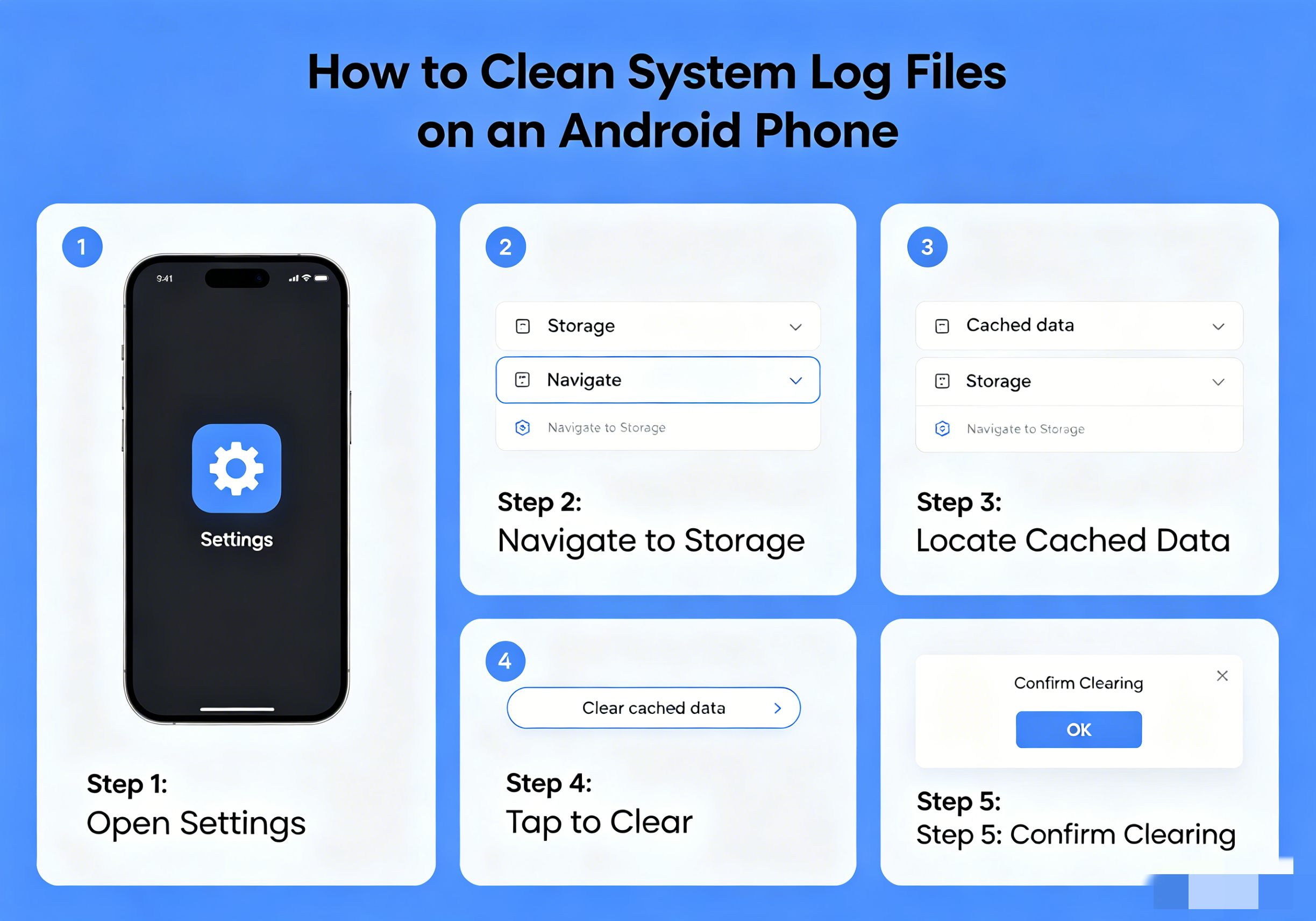
Steps:
- Open Settings
- Tap Storage
- Select Cached Data (if available)
- Confirm cache deletion
On newer Android versions:
- Open Settings
- Tap Apps
- Select an app
- Tap Storage
- Choose Clear Cache
This process removes temporary files and may eliminate certain log-related data without affecting personal information.
Method 2: Use Android’s Built-In Storage Cleaner
Most Android manufacturers include built-in cleanup tools.
Samsung Devices
- Open Settings
- Tap Battery and Device Care
- Select Storage
- Tap Clean Now
Xiaomi Devices
- Open Security App
- Tap Cleaner
- Scan device
- Remove junk files
OnePlus Devices
- Open Files
- Tap Clean
- Review recommended cleanup items
These tools often identify residual log files, temporary data, and unused files.
Method 3: Delete Log Files Using a File Manager
Some log files may be accessible through a file management application.
Common Locations
- /Download
- /Android/data
- /MIUI/debug_log
- /log
- /BugReports
- /CrashReports
Steps
- Install a trusted file manager.
- Navigate to storage folders.
- Search for:
- .log
- bugreport
- crash
- dump
- Review files carefully.
- Delete only known log files.
Avoid removing files from system directories unless you fully understand their purpose.
Method 4: Remove Bug Reports
Android can generate detailed bug reports for diagnostics.
To Delete Bug Reports
- Open Settings
- Tap Storage
- Open Files
- Locate the Bug Reports folder
- Delete old reports
Bug reports can be surprisingly large, especially after system crashes or troubleshooting sessions.
Method 5: Disable Excessive Logging in Developer Options
Developer settings can generate additional logs.
To Check Developer Options
- Open Settings
- Tap Developer Options
- Review settings such as:
- USB Debugging
- Verbose Logging
- Bug Report Shortcut
- System Tracing
Disable features you no longer need.
If you do not use developer tools, consider turning Developer Options off entirely.
Method 6: Clear System Cache Partition (If Supported)
Some Android devices allow users to clear the cache partition through recovery mode.
General Procedure
- Turn off the phone.
- Enter Recovery Mode.
- Select Wipe Cache Partition.
- Confirm action.
- Reboot the device.
This process removes temporary system files without deleting personal data.
Note that many modern Android devices have removed this option.
Method 7: Use ADB to Clear Logcat Logs
Advanced users can clear active Android logs using Android Debug Bridge (ADB).
Command
adb logcat -c
This command clears the current Logcat buffer.
Requirements:
- USB debugging enabled
- Android SDK Platform Tools installed
- Computer connection
This method is intended primarily for developers and technical users.
What Not to Delete
Avoid deleting:
- System folders
- Android OS files
- App databases
- Configuration files
- Unknown files in root directories
Removing critical system files can cause application crashes or device instability.
How Often Should You Clean Log Files?
For most users, manual log cleanup is rarely necessary. Android automatically manages most system logs and temporary files.
Consider cleaning logs if:
- Storage is running low
- You frequently test apps
- Developer options are enabled
- The device generates repeated crash reports
- A troubleshooting session created large diagnostic files
A monthly cleanup is generally sufficient.
Benefits of Cleaning Log Files
Proper maintenance can provide several benefits:
- More available storage space
- Reduced file system clutter
- Easier troubleshooting
- Faster file indexing
- Better organization of internal storage
However, users should not expect dramatic performance improvements solely from deleting log files.
Final Thoughts
Cleaning system log files on Android can help reclaim storage space and remove unnecessary diagnostic data. For most users, built-in storage cleaning tools and cache management features are sufficient. Advanced users can go further by reviewing bug reports, deleting accessible log files, or using ADB commands to clear active logs.
The key is to remove only unnecessary logs while avoiding critical system files. With occasional maintenance, your Android phone can stay organized, efficient, and free from excessive storage clutter.