










Protecting your privacy is more important than ever, especially when apps request access to your personal photos. If you own an iPhone XR, Apple makes it easy to control which apps can view your photo library. Whether you want to allow access to only a few images or block access completely, you can manage photo permissions in just a few steps.
This guide explains how to restrict app access to photos on an iPhone XR and why adjusting these settings can help keep your personal memories secure.
Why Restrict Photo Access?
Many apps request permission to access your Photos library. While some apps genuinely need this permission—for example, social media apps, photo editors, or messaging apps—others may request access even when it’s not essential.
Restricting access helps you:
- Protect personal and private photos
- Prevent unnecessary data collection
- Share only the images you choose
- Improve your overall privacy
- Reduce the risk of accidental uploads
Apple’s privacy controls let you decide exactly how much access each app receives.
Check Your iPhone’s iOS Version
The available photo permission options depend on your iOS version.
- iOS 14 and later: You can allow access to selected photos, all photos, or no photos.
- Earlier iOS versions: Apps can usually be allowed or denied access to your entire photo library.
Updating to the latest version supported by your iPhone XR provides the best privacy features.
How to Restrict Photo Access for an App
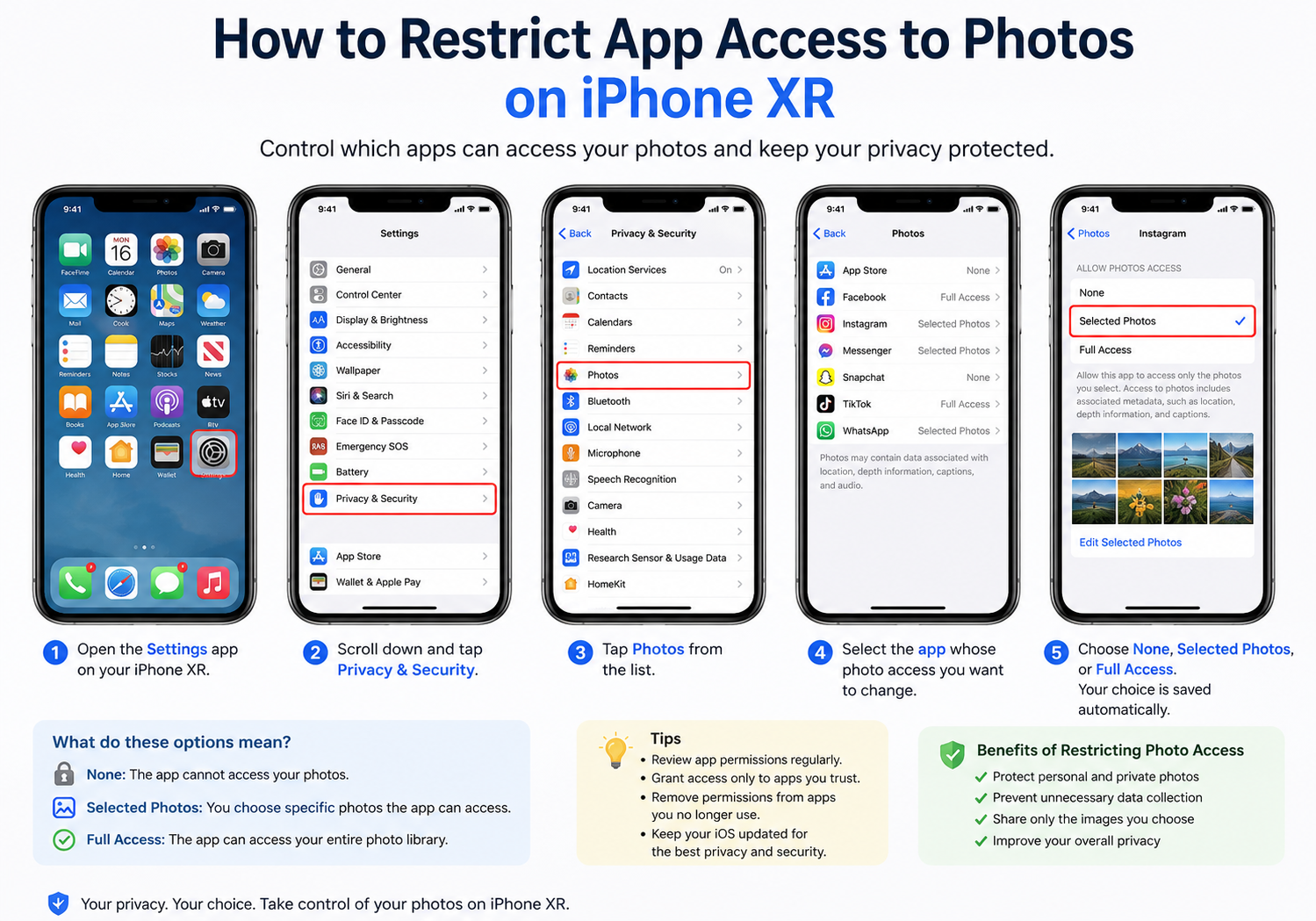
Follow these steps to change photo permissions:
- Open the Settings app.
- Scroll down and tap Privacy & Security.
- Tap Photos.
- Select the app you want to manage.
- Choose one of the available permission options.
Depending on your iOS version, you’ll see options such as:
None
Selecting None completely blocks the app from accessing your photo library. The app won’t be able to view or upload your images unless you grant permission later.
Selected Photos
This option lets you choose only specific photos that the app can access. It’s ideal if you only need to share a few images while keeping the rest of your library private.
Full Access
This allows the app to view your entire photo library. Choose this only for apps you trust and that genuinely require complete access.
Change Photo Access Later
If you’ve already granted permission to an app, you can change it at any time.
Simply return to:
Settings → Privacy & Security → Photos
Select the app and choose a different permission level.
Changes take effect immediately, so there’s no need to restart your iPhone.
Manage Permissions from App Settings
Some apps may also prompt you to update photo permissions when you try to upload an image.
If you accidentally denied access earlier, the app may display a message asking you to open Settings and update the permission manually.
Review App Permissions Regularly
It’s a good idea to review your privacy settings every few months.
To see which apps have access to your photos:
- Open Settings.
- Tap Privacy & Security.
- Select Photos.
You’ll see a list of apps that have requested access. Remove permissions for apps you no longer use or no longer trust.
Tips to Protect Your Privacy
For better security on your iPhone XR, consider these best practices:
- Only grant photo access to trusted apps.
- Use Selected Photos whenever possible.
- Remove permissions from unused apps.
- Keep your iPhone updated with the latest supported iOS version.
- Review app permissions after installing new applications.
- Delete apps you no longer need.
Frequently Asked Questions
Can I allow an app to access only a few photos?
Yes. If your iPhone XR is running iOS 14 or later, choose Selected Photos when granting permission. You can pick only the images you want the app to access.
What happens if I choose “None”?
The app won’t be able to view, upload, or save photos unless you change the permission later.
Can I change permissions after installing an app?
Yes. Go to Settings → Privacy & Security → Photos, select the app, and update its access level at any time.
Does restricting photo access affect the Camera app?
No. Restricting photo access only limits an app’s ability to access your photo library. Camera permissions are managed separately.
Final Thoughts
iPhone XR offers powerful privacy controls that make it easy to manage photo permissions for every app. By limiting access to only the photos you want to share—or blocking access altogether—you can better protect your personal information while still enjoying the features of your favorite apps.
Taking a few minutes to review your photo permissions is a simple but effective way to improve your privacy and keep your digital memories secure.