







Facebook Twitter Instagram
    Trending
    • ILIFE Cordless Stick Vacuum Cleaner Now on Amazon at Just $179.99
    • Huawei Mate XT2 Reportedly Adopts New U-Shaped Tri-Fold Design with Fully Protected Inner Display
    • Honor WIN2 Tipped for October Launch with 2nm Snapdragon Chip, 10,000mAh Battery, and Active Cooling
    • New Samsung Galaxy Z Flip8 and Galaxy Z Fold8 Renders Surface Ahead of July 22 Galaxy Unpacked Event
    • Xiaomi Redmi Note 17 Series Specifications Leak Ahead of July 14 Launch: Snapdragon 4 Gen 4, Up to 9,000mAh Battery
    • Tell You How My Dog Become a Service Dog?
    • DT NO.1 E08 Smart Cycling Glasses Review: AI-Powered Vision for Outdoor Adventures
    • Yocan Black Pocket Concentrate Vaporizer Review: Precision Dabbing in a Pocket-Sized Device
    Facebook YouTube
    IGeeKphone China Phone, Tablet PC, VR, RC Drone News, Reviews
    • HOME
    • BREAKING NEWS
      • AI NEWS
    • Amazon
    • PHONE
      • Top Phones For Your First Choice
      • Phone Comparison
      • Xiaomi
      • Blackview
      • Doogee
      • Black Shark
      • Geekbuying
      • Banggood
      • TEMU
      • TikTok
      • Aliexpress
      • Walmart
      • MercadoLibre
      • Lazada
    • TOP VAPE Awards for 2026
    • VAPES
      • E-CIGAR Upcoming
      • Vape News
      • Vape Deals
      • Vape Comparison
      • Vape Guide
      • VAPE LAWS
      • Giveaway
    • BEST VAPE
      • Best Vape Stores
      • Best Starter Vape Kits
      • Best Vapes for Beginners
      • Best Disposable Vapes
      • Best Pod Systems
      • Best Pod Mod Vapes
      • Best Mods
      • Best Nicotine Pouches
      • Best Clearomizers/Tanks
      • Best E-Liquid
      • Best EGO/Pens
      • Best Vapes for Nic Salt E-Juice
      • Best Vapes to Quit Smoking
      • RDA vs. RDTA vs. RTA
    • Best Vape Brand 2026
      • VAPORESSO
      • VOOPOO
      • OXVA
      • NEXA BAR
      • MASKKING VAPE
      • SP2S
      • IPLAY
      • TODOO
      • MRFOG
      • LOSTVAPE
      • VEIIK
    • REVIEW
      • E-cigar Review
      • Phones
      • Tablet PC
      • TV Box
      • RC Drone
      • Wearables
      • Camera
      • Accessories
      • VR Headset
    • MORE
      • TABLET
        • Chuwi
        • INNOCN
        • Teclast
        • Top Tablet for Your First Choice
        • Tablet/Laptop Comparison
      • RC DRONE
      • CAMERA
      • WEARABLES
        • OneOdio
        • BlitzWolf
        • Top Smartwatch for First Choice
      • 3D PRINTER
        • 3D Printer Review
        • Anycubic
        • FLSUN
        • Xtool
        • LONGER
        • Top 3D printer to Choose First
      • POWER STATION
        • Oukitel
        • FOSSIBOT
      • GAMING
        • Top Gaming Products
      • E-BIKE
        • Samebike
        • Happyrun
        • ENGWE
      • SMART HOME
      • TV BOX
      • ACCESSORIES
      • VR HEADSET
      • CLOTHES
      • AUTO CAR
    • DEAL
    • Shop
    IGeeKphone China Phone, Tablet PC, VR, RC Drone News, Reviews
    You are at:Home»Guide»How to Restrict App Access to Photos on iPhone XR?
    Guide

    How to Restrict App Access to Photos on iPhone XR?

    Brady CottonBy Brady CottonJune 29, 2026
    Facebook Twitter Pinterest LinkedIn Tumblr Email

    Protecting your privacy is more important than ever, especially when apps request access to your personal photos. If you own an iPhone XR, Apple makes it easy to control which apps can view your photo library. Whether you want to allow access to only a few images or block access completely, you can manage photo permissions in just a few steps.

    This guide explains how to restrict app access to photos on an iPhone XR and why adjusting these settings can help keep your personal memories secure.

    Why Restrict Photo Access?

    Many apps request permission to access your Photos library. While some apps genuinely need this permission—for example, social media apps, photo editors, or messaging apps—others may request access even when it’s not essential.

    Restricting access helps you:

    • Protect personal and private photos
    • Prevent unnecessary data collection
    • Share only the images you choose
    • Improve your overall privacy
    • Reduce the risk of accidental uploads

    Apple’s privacy controls let you decide exactly how much access each app receives.

    Check Your iPhone’s iOS Version

    The available photo permission options depend on your iOS version.

    • iOS 14 and later: You can allow access to selected photos, all photos, or no photos.
    • Earlier iOS versions: Apps can usually be allowed or denied access to your entire photo library.

    Updating to the latest version supported by your iPhone XR provides the best privacy features.

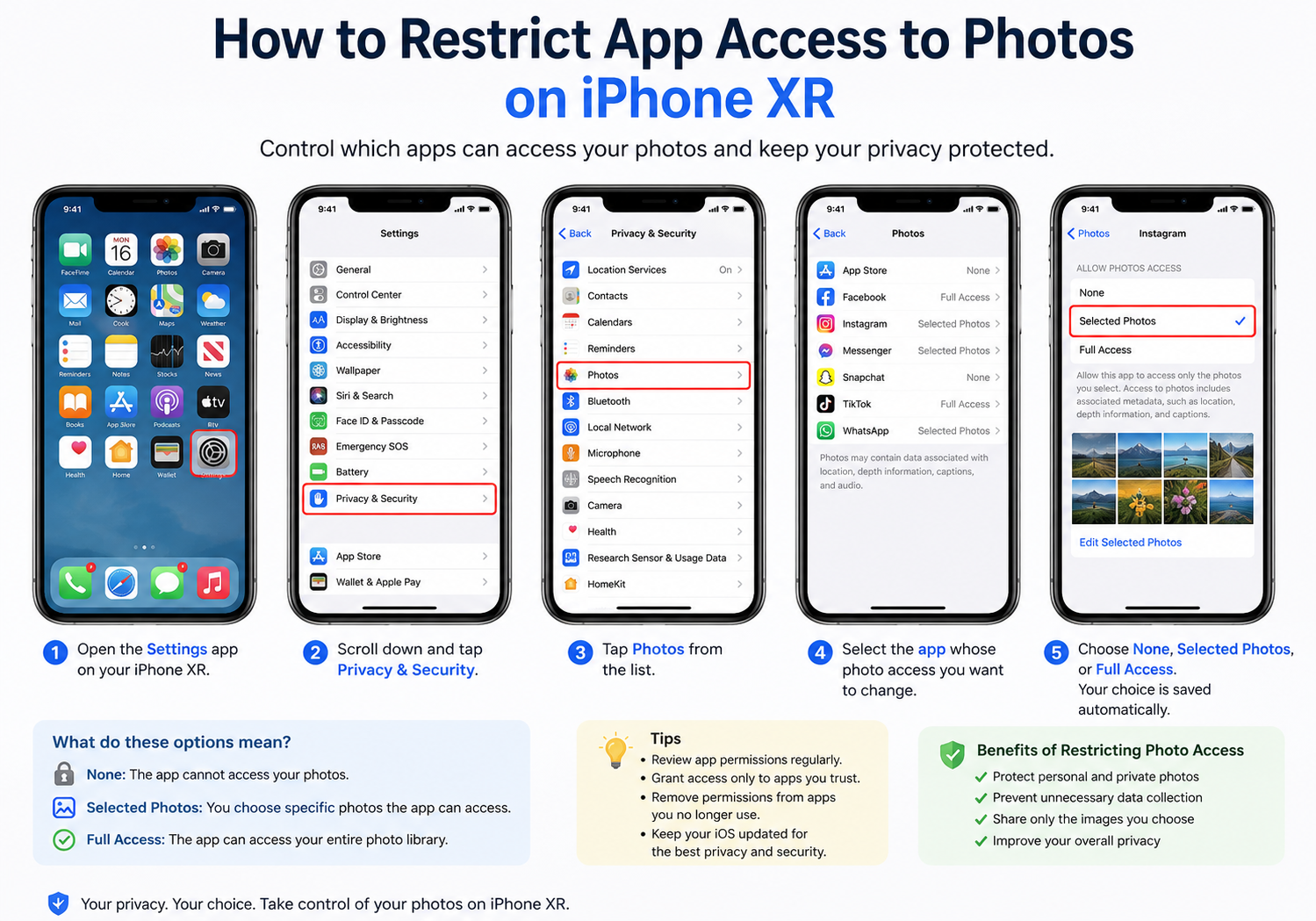
    How to Restrict Photo Access for an App

    Follow these steps to change photo permissions:

    1. Open the Settings app.
    2. Scroll down and tap Privacy & Security.
    3. Tap Photos.
    4. Select the app you want to manage.
    5. Choose one of the available permission options.

    Depending on your iOS version, you’ll see options such as:

    None

    Selecting None completely blocks the app from accessing your photo library. The app won’t be able to view or upload your images unless you grant permission later.

    Selected Photos

    This option lets you choose only specific photos that the app can access. It’s ideal if you only need to share a few images while keeping the rest of your library private.

    Full Access

    This allows the app to view your entire photo library. Choose this only for apps you trust and that genuinely require complete access.

    Change Photo Access Later

    If you’ve already granted permission to an app, you can change it at any time.

    Simply return to:

    Settings → Privacy & Security → Photos

    Select the app and choose a different permission level.

    Changes take effect immediately, so there’s no need to restart your iPhone.

    Manage Permissions from App Settings

    Some apps may also prompt you to update photo permissions when you try to upload an image.

    If you accidentally denied access earlier, the app may display a message asking you to open Settings and update the permission manually.

    Review App Permissions Regularly

    It’s a good idea to review your privacy settings every few months.

    To see which apps have access to your photos:

    1. Open Settings.
    2. Tap Privacy & Security.
    3. Select Photos.

    You’ll see a list of apps that have requested access. Remove permissions for apps you no longer use or no longer trust.
    Tips to Protect Your Privacy

    For better security on your iPhone XR, consider these best practices:

    • Only grant photo access to trusted apps.
    • Use Selected Photos whenever possible.
    • Remove permissions from unused apps.
    • Keep your iPhone updated with the latest supported iOS version.
    • Review app permissions after installing new applications.
    • Delete apps you no longer need.

    Frequently Asked Questions

    Can I allow an app to access only a few photos?

    Yes. If your iPhone XR is running iOS 14 or later, choose Selected Photos when granting permission. You can pick only the images you want the app to access.

    What happens if I choose “None”?

    The app won’t be able to view, upload, or save photos unless you change the permission later.

    Can I change permissions after installing an app?

    Yes. Go to Settings → Privacy & Security → Photos, select the app, and update its access level at any time.

    Does restricting photo access affect the Camera app?

    No. Restricting photo access only limits an app’s ability to access your photo library. Camera permissions are managed separately.

    Final Thoughts

    iPhone XR offers powerful privacy controls that make it easy to manage photo permissions for every app. By limiting access to only the photos you want to share—or blocking access altogether—you can better protect your personal information while still enjoying the features of your favorite apps.

    Taking a few minutes to review your photo permissions is a simple but effective way to improve your privacy and keep your digital memories secure.

    Share. Facebook Twitter Pinterest LinkedIn Tumblr Email

    Related Posts

    Top 5 Reasons GaN Chargers Are Revolutionizing Device Charging

    How to switch from dual graphics cards to independent graphics card? Methods for adjusting computer graphics cards.

    Using VIX in Analysis: Oil Trading and the Role of Volatility Indexes

    Leave A Reply Cancel Reply

    You must be logged in to post a comment.

    voopoopintch
    oxva nexlim 2
    sp2s sen x disposable vape
    • Popular
    • 3D Printer REVIEW
    • XIAOMI
    June 21, 2026

    iPlay LUMO 8K Review – A Compact Prefilled Pod Kit with Big Flavor and Everyday Convenience

    June 21, 2026

    iPlay HOOLA 150K Review – A Cloud-Chasing Giant with Music, Modes & Massive Longevity

    June 21, 2026

    Vaporesso VIBE SE 2 Review – Simple on the Outside, Surprisingly Smart on the Inside

    June 21, 2026

    VOOPOO DRAG H40 Pro Review – The Return of the Pocket Powerhouse

    December 26, 2025

    ACMER ASCARVA 4S: Precision CNC Power for Makers, DIYers & Small Workshops

    June 23, 2024

    ACMER P2 20W Laser Engraver Fixed Focus Engraving: Hands on Review

    May 30, 2024

    xTool F1 Ultra Review: World’s First 20W Fiber & 20W Diode Laser Engraver

    May 30, 2024

    Anycubic Kobra 3 Combo Review: The Multicolor Masterpiece?

    July 11, 2026

    Xiaomi Redmi Note 17 Series Specifications Leak Ahead of July 14 Launch: Snapdragon 4 Gen 4, Up to 9,000mAh Battery

    July 10, 2026

    Xiaomi Band 11 Series Certified Ahead of Launch, Retains 233mAh Battery Capacity

    July 9, 2026

    Xiaomi 18 Pro Specifications Leak: 2nm Snapdragon 8 Elite Gen 6, Dual 200MP Cameras, and 7,000mAh Battery

    July 9, 2026

    Redmi Note 17 Pro is equipped with a 9000mAh Xiaomi Jinshajiang battery: it supports 67W fast charging.

    fc 26 coins
    New Arrivals
    • Veev One Plus Pod System Kit Veev One Plus Pod System Kit
    • Xiaomi 18T Xiaomi 18T
    • Xiaomi 18T Pro Xiaomi 18T Pro
    • Huawei Mate 80 Air Huawei Mate 80 Air
    • Xiaomi Poco F9 Ultra Xiaomi Poco F9 Ultra
    • JNR Falcon Mini 20K Puffs Refillable Vape Kit JNR Falcon Mini 20K Puffs Refillable Vape Kit
    • Hyrise Hybrid Vaporizer Kit Hyrise Hybrid Vaporizer Kit
    • Hyrise Hydden 510 Thread Battery 1000mAh Hyrise Hydden 510 Thread Battery 1000mAh
    • Smoant Flex Neo Pod System Kit Smoant Flex Neo Pod System Kit
    About
  • Igeekphone.com provides the first global tech news and reviews about smartphone, vapes, e-cigar, smart home, 3D printers, e-bike,tablets, RC drones, VR headset, and other accessories. It's the best platform to improve your brand and product.
  • Contact us: info@igeekphone.com
  • Check Our Privacy Policy Here.
  • Note: *Right now we have US editor and EU editors for review, especially for Amazon US and EU.
  • *Shop and Compare Price Here*
  • Facebook
  • Youtube
  • OUR BEST VAPE PARTNERS
  • VAPE ONLINE STORE
  • HAYATI PRO MAX PLUS
  • VAPORESSO
  • VOOPOO
  • OXVA
  • NEXA
  • MASKKING
  • SP2S
  • IPLAY
  • TODOO
  • OTHER BEST PARTNERS
  • SVBONY
  • Chuwi
  • Blackview
  • Fossibot
  • Unihertz
  • Flsun
  • Anycubic
  • Xtool
  • Oukitel
  • Mukkpet Ebike
  • Ugreen
  • Copyright © 2026 igeekphone

    Type above and press Enter to search. Press Esc to cancel.