










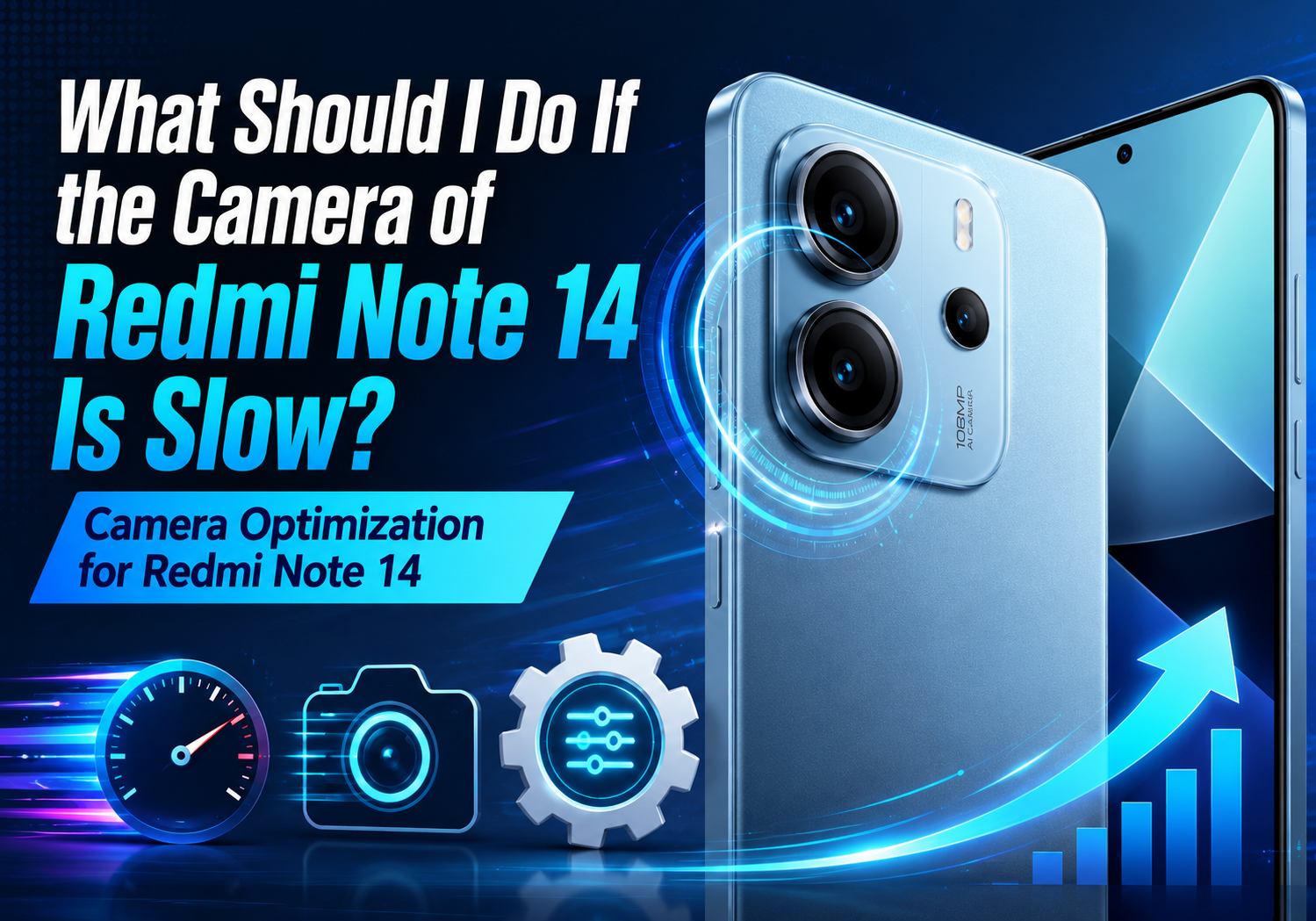
Redmi Note 14 offers an impressive camera system for its price, allowing users to capture detailed photos, record high-resolution videos, and take advantage of Xiaomi’s AI-powered imaging features. However, some users may occasionally notice that the camera takes longer than expected to launch, focus, or process images.
Fortunately, most camera lag issues are software-related and can be resolved with a few simple optimizations. In this guide, we’ll explore the common causes of a slow Redmi Note 14 camera and show you how to improve its performance.
Why Is the Redmi Note 14 Camera Slow?
Several factors can affect camera performance, including:
- Insufficient available RAM
- Nearly full internal storage
- Background apps consuming system resources
- Outdated system software
- Camera app cache accumulation
- AI processing for high-resolution photos
- Power-saving mode limiting performance
Identifying the cause is the first step toward restoring smooth camera operation.
1. Restart Your Redmi Note 14
A simple restart can resolve temporary system glitches that may slow down the camera.
To restart:
- Press and hold the Power button.
- Tap Restart.
- Wait for the phone to reboot completely.
Restarting clears temporary memory and stops background processes that may interfere with camera performance.
2. Update HyperOS and the Camera App
Xiaomi frequently releases software updates that improve camera speed, image processing, and system stability.
To check for updates:
- Open Settings.
- Tap About phone.
- Select HyperOS Update.
- Download and install any available updates.
Also update the Camera app through the GetApps store if an update is available.
3. Free Up Storage Space
When storage becomes nearly full, the camera may take longer to save photos and videos.
To improve performance:
- Delete unnecessary photos and videos.
- Remove unused apps.
- Clear downloaded files.
- Transfer media to cloud storage or a computer.
For optimal performance, try to keep at least 10–15% of internal storage free.
4. Close Background Applications
Too many apps running simultaneously can consume memory and CPU resources.
To close background apps:
- Open the Recent Apps screen.
- Swipe away unused applications.
- Tap Clear All if available.
This frees RAM for the camera app.
5. Clear Camera App Cache
Corrupted cache files can slow camera startup and image processing.
To clear the cache:
- Go to Settings.
- Select Apps.
- Tap Manage Apps.
- Find Camera.
- Choose Storage.
- Tap Clear Cache.
Avoid selecting Clear Data unless necessary, as it may reset your camera settings.
6. Disable Battery Saver
Battery-saving modes reduce CPU performance to extend battery life, which may affect camera responsiveness.
To disable it:
- Open Settings.
- Tap Battery.
- Turn off Battery Saver.
For the best camera experience, use the phone in Normal Performance mode.
7. Lower Camera Resolution When Appropriate
Capturing 50MP or 108MP photos requires significantly more processing than standard shooting modes.
If speed is more important than maximum resolution:
- Use the default Photo mode.
- Avoid Ultra HD mode unless needed.
- Disable unnecessary AI enhancements for quick snapshots.
Lower-resolution photos process much faster.
8. Turn Off Unnecessary Camera Features
Some AI functions require additional image processing.
Consider temporarily disabling features such as:
- AI Scene Detection
- HDR (when not needed)
- Motion Photo
- Beauty filters
- Real-time filters
Reducing processing can noticeably improve shooting speed.
9. Check Camera Permissions
Occasionally, permission conflicts may affect camera performance.
Verify permissions by:
- Opening Settings.
- Going to Apps > Permissions.
- Ensuring the Camera app has access to the required permissions.
10. Boot into Safe Mode
Third-party apps can sometimes interfere with camera performance.
Booting into Safe Mode temporarily disables downloaded applications, allowing you to determine whether another app is causing the slowdown.
If the camera works normally in Safe Mode, uninstall recently installed apps one by one until the issue is resolved.
11. Reset Camera Settings
If you’ve changed numerous camera settings, restoring the defaults may help.
Open the Camera app:
- Tap Settings.
- Scroll down.
- Select Restore Default Settings.
This won’t delete your photos but will reset camera preferences.
12. Perform a Factory Reset (Last Resort)
If none of the above solutions work, backing up your data and performing a factory reset can eliminate persistent software issues.
Before resetting:
- Back up photos and videos.
- Save important documents.
- Sync contacts and messages.
Then navigate to:
Settings → About Phone → Factory Reset
Only use this option after trying all other troubleshooting steps.
Additional Tips for Better Camera Performance
To keep your Redmi Note 14 camera running smoothly over time:
- Keep HyperOS updated.
- Restart your phone every few days.
- Avoid filling internal storage completely.
- Close heavy gaming apps before taking photos.
- Use a high-speed microSD card (if your model supports expandable storage).
- Clean the camera lenses regularly with a microfiber cloth.
- Avoid shooting while the phone is overheating.
Final Thoughts
A slow camera on the Redmi Note 14 is usually caused by software, storage, or memory limitations rather than hardware defects. Simple maintenance tasks like updating HyperOS, clearing the camera cache, freeing up storage, and closing background apps can significantly improve camera responsiveness.
If performance issues persist even after trying all the optimization methods above, the problem may be related to a software bug or hardware fault. In that case, contacting Xiaomi customer support or visiting an authorized service center is the best next step.
With proper optimization, the Redmi Note 14’s camera should provide fast focusing, smooth image processing, and reliable performance for everyday photography.