







Facebook Twitter Instagram
    Trending
    • Huawei Mate 90 Series Reportedly Set for September Debut, Expected to Introduce Kirin 9050 Chip
    • DJI Osmo 360 II Leaks in Real-World Testing with NFC Support and Larger Battery
    • Kimi Responds to Musk’s AI Challenge: “Welcome to the 2 Trillion+ Club”
    • Nexa Ultra II vs Nexa Flex Review: Which Disposable Vape Is the Better Choice?
    • Vaporesso XROS 6 vs XROS Pro 2 Review: Which XROS Pod Kit Is Right for You?
    • Blackview Unveils LINK 5, the World’s First Smart Tablet Powered by Android 17
    • Breeze Pro Disposable Vape Review: A Compact 2,000-Puff Disposable with Rich Flavor and Hassle-Free Performance
    • Vaporesso Armour OCTA Vape Mod Kit Review: A Powerful Single-Battery Mod with 220W Output and Neo Pulse Technology
    Facebook YouTube
    IGeeKphone China Phone, Tablet PC, VR, RC Drone News, Reviews
    • HOME
    • BREAKING NEWS
      • AI NEWS
    • Amazon
    • PHONE
      • Top Phones For Your First Choice
      • Phone Comparison
      • Xiaomi
      • Blackview
      • Doogee
      • Black Shark
      • Geekbuying
      • Banggood
      • TEMU
      • TikTok
      • Aliexpress
      • Walmart
      • MercadoLibre
      • Lazada
    • TOP VAPE Awards for 2026
    • VAPES
      • E-CIGAR Upcoming
      • Vape News
      • Vape Deals
      • Vape Comparison
      • Vape Guide
      • VAPE LAWS
      • Giveaway
    • BEST VAPE
      • Best Vape Stores
      • Best Starter Vape Kits
      • Best Vapes for Beginners
      • Best Disposable Vapes
      • Best Pod Systems
      • Best Pod Mod Vapes
      • Best Mods
      • Best Nicotine Pouches
      • Best Clearomizers/Tanks
      • Best E-Liquid
      • Best EGO/Pens
      • Best Vapes for Nic Salt E-Juice
      • Best Vapes to Quit Smoking
      • RDA vs. RDTA vs. RTA
    • Best Vape Brand 2026
      • VAPORESSO
      • VOOPOO
      • OXVA
      • NEXA BAR
      • MASKKING VAPE
      • SP2S
      • IPLAY
      • TODOO
      • MRFOG
      • LOSTVAPE
      • VEIIK
    • REVIEW
      • E-cigar Review
      • Phones
      • Tablet PC
      • TV Box
      • RC Drone
      • Wearables
      • Camera
      • Accessories
      • VR Headset
    • MORE
      • TABLET
        • Chuwi
        • INNOCN
        • Teclast
        • Top Tablet for Your First Choice
        • Tablet/Laptop Comparison
      • RC DRONE
      • CAMERA
      • WEARABLES
        • OneOdio
        • BlitzWolf
        • Top Smartwatch for First Choice
      • 3D PRINTER
        • 3D Printer Review
        • Anycubic
        • FLSUN
        • Xtool
        • LONGER
        • Top 3D printer to Choose First
      • POWER STATION
        • Oukitel
        • FOSSIBOT
      • GAMING
        • Top Gaming Products
      • E-BIKE
        • Samebike
        • Happyrun
        • ENGWE
      • SMART HOME
      • TV BOX
      • ACCESSORIES
      • VR HEADSET
      • CLOTHES
      • AUTO CAR
    • DEAL
    • Shop
    IGeeKphone China Phone, Tablet PC, VR, RC Drone News, Reviews
    You are at:Home»Guide»What Should I Do If the Camera of Redmi Note 14 Is Slow? Camera Optimization Guide for Redmi Note 14
    Guide

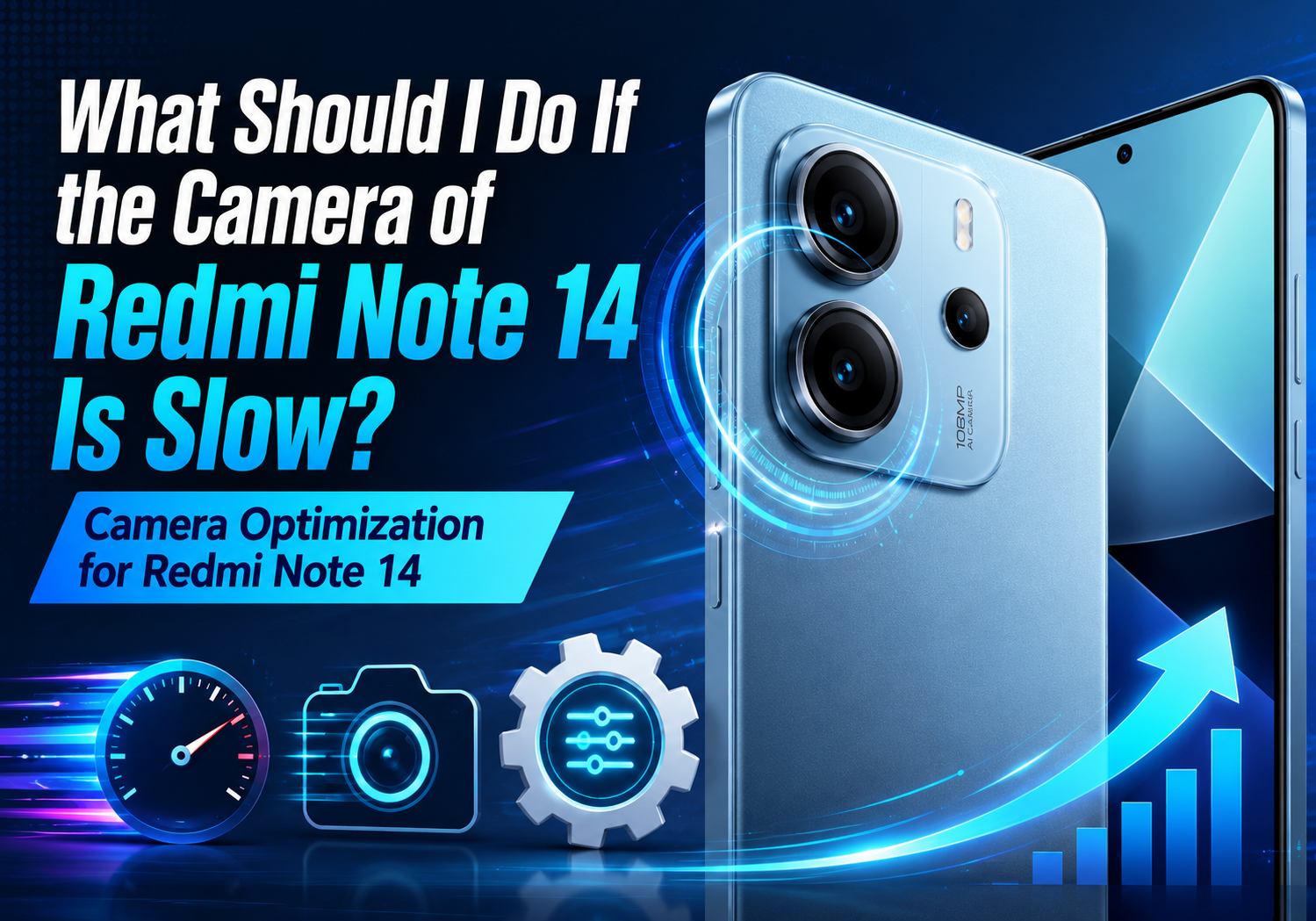
    What Should I Do If the Camera of Redmi Note 14 Is Slow? Camera Optimization Guide for Redmi Note 14

    Brady CottonBy Brady CottonJuly 20, 2026
    Facebook Twitter Pinterest LinkedIn Tumblr Email

    Redmi Note 14 offers an impressive camera system for its price, allowing users to capture detailed photos, record high-resolution videos, and take advantage of Xiaomi’s AI-powered imaging features. However, some users may occasionally notice that the camera takes longer than expected to launch, focus, or process images.

    Fortunately, most camera lag issues are software-related and can be resolved with a few simple optimizations. In this guide, we’ll explore the common causes of a slow Redmi Note 14 camera and show you how to improve its performance.

    Why Is the Redmi Note 14 Camera Slow?

    Several factors can affect camera performance, including:

    • Insufficient available RAM
    • Nearly full internal storage
    • Background apps consuming system resources
    • Outdated system software
    • Camera app cache accumulation
    • AI processing for high-resolution photos
    • Power-saving mode limiting performance

    Identifying the cause is the first step toward restoring smooth camera operation.

    1. Restart Your Redmi Note 14

    A simple restart can resolve temporary system glitches that may slow down the camera.

    To restart:

    1. Press and hold the Power button.
    2. Tap Restart.
    3. Wait for the phone to reboot completely.

    Restarting clears temporary memory and stops background processes that may interfere with camera performance.

    2. Update HyperOS and the Camera App

    Xiaomi frequently releases software updates that improve camera speed, image processing, and system stability.

    To check for updates:

    1. Open Settings.
    2. Tap About phone.
    3. Select HyperOS Update.
    4. Download and install any available updates.

    Also update the Camera app through the GetApps store if an update is available.

    3. Free Up Storage Space

    When storage becomes nearly full, the camera may take longer to save photos and videos.

    To improve performance:

    • Delete unnecessary photos and videos.
    • Remove unused apps.
    • Clear downloaded files.
    • Transfer media to cloud storage or a computer.

    For optimal performance, try to keep at least 10–15% of internal storage free.

    4. Close Background Applications

    Too many apps running simultaneously can consume memory and CPU resources.

    To close background apps:

    1. Open the Recent Apps screen.
    2. Swipe away unused applications.
    3. Tap Clear All if available.

    This frees RAM for the camera app.

    5. Clear Camera App Cache

    Corrupted cache files can slow camera startup and image processing.

    To clear the cache:

    1. Go to Settings.
    2. Select Apps.
    3. Tap Manage Apps.
    4. Find Camera.
    5. Choose Storage.
    6. Tap Clear Cache.

    Avoid selecting Clear Data unless necessary, as it may reset your camera settings.

    6. Disable Battery Saver

    Battery-saving modes reduce CPU performance to extend battery life, which may affect camera responsiveness.

    To disable it:

    1. Open Settings.
    2. Tap Battery.
    3. Turn off Battery Saver.

    For the best camera experience, use the phone in Normal Performance mode.

    7. Lower Camera Resolution When Appropriate

    Capturing 50MP or 108MP photos requires significantly more processing than standard shooting modes.

    If speed is more important than maximum resolution:

    • Use the default Photo mode.
    • Avoid Ultra HD mode unless needed.
    • Disable unnecessary AI enhancements for quick snapshots.

    Lower-resolution photos process much faster.

    8. Turn Off Unnecessary Camera Features

    Some AI functions require additional image processing.

    Consider temporarily disabling features such as:

    • AI Scene Detection
    • HDR (when not needed)
    • Motion Photo
    • Beauty filters
    • Real-time filters

    Reducing processing can noticeably improve shooting speed.

    9. Check Camera Permissions

    Occasionally, permission conflicts may affect camera performance.

    Verify permissions by:

    1. Opening Settings.
    2. Going to Apps > Permissions.
    3. Ensuring the Camera app has access to the required permissions.

    10. Boot into Safe Mode

    Third-party apps can sometimes interfere with camera performance.

    Booting into Safe Mode temporarily disables downloaded applications, allowing you to determine whether another app is causing the slowdown.

    If the camera works normally in Safe Mode, uninstall recently installed apps one by one until the issue is resolved.

    11. Reset Camera Settings

    If you’ve changed numerous camera settings, restoring the defaults may help.

    Open the Camera app:

    1. Tap Settings.
    2. Scroll down.
    3. Select Restore Default Settings.

    This won’t delete your photos but will reset camera preferences.

    12. Perform a Factory Reset (Last Resort)

    If none of the above solutions work, backing up your data and performing a factory reset can eliminate persistent software issues.

    Before resetting:

    • Back up photos and videos.
    • Save important documents.
    • Sync contacts and messages.

    Then navigate to:

    Settings → About Phone → Factory Reset

    Only use this option after trying all other troubleshooting steps.

    Additional Tips for Better Camera Performance

    To keep your Redmi Note 14 camera running smoothly over time:

    • Keep HyperOS updated.
    • Restart your phone every few days.
    • Avoid filling internal storage completely.
    • Close heavy gaming apps before taking photos.
    • Use a high-speed microSD card (if your model supports expandable storage).
    • Clean the camera lenses regularly with a microfiber cloth.
    • Avoid shooting while the phone is overheating.

    Final Thoughts

    A slow camera on the Redmi Note 14 is usually caused by software, storage, or memory limitations rather than hardware defects. Simple maintenance tasks like updating HyperOS, clearing the camera cache, freeing up storage, and closing background apps can significantly improve camera responsiveness.

    If performance issues persist even after trying all the optimization methods above, the problem may be related to a software bug or hardware fault. In that case, contacting Xiaomi customer support or visiting an authorized service center is the best next step.

    With proper optimization, the Redmi Note 14’s camera should provide fast focusing, smooth image processing, and reliable performance for everyday photography.

    Share. Facebook Twitter Pinterest LinkedIn Tumblr Email

    Related Posts

    What Should I Do If My Phone is Getting Slower and Laggy?

    Redefining Email Communication: Venturing Beyond Apple Mail

    Everything You Need to Know About Washing Machine Repair in Burnaby

    Leave A Reply Cancel Reply

    You must be logged in to post a comment.

    voopoopintch
    oxva nexlim 2
    sp2s sen x disposable vape
    • Popular
    • 3D Printer REVIEW
    • XIAOMI
    July 13, 2026

    OXVA Nexlim 2 Mini Pod Vape Hands on Review

    July 13, 2026

    OXVA Nexlim 2 Pod Vape Hands on Review

    June 21, 2026

    iPlay LUMO 8K Review – A Compact Prefilled Pod Kit with Big Flavor and Everyday Convenience

    June 21, 2026

    iPlay HOOLA 150K Review – A Cloud-Chasing Giant with Music, Modes & Massive Longevity

    December 26, 2025

    ACMER ASCARVA 4S: Precision CNC Power for Makers, DIYers & Small Workshops

    June 23, 2024

    ACMER P2 20W Laser Engraver Fixed Focus Engraving: Hands on Review

    May 30, 2024

    xTool F1 Ultra Review: World’s First 20W Fiber & 20W Diode Laser Engraver

    May 30, 2024

    Anycubic Kobra 3 Combo Review: The Multicolor Masterpiece?

    July 19, 2026

    Xiaomi 17 Max Becomes One of the First Smartphones to Receive China’s Highest AI L3 Certification

    July 18, 2026

    The new Xiaomi 18 series phones are suspected to have been put on the market, and they support UWB (Ultra-Wideband) technology.

    July 18, 2026

    Xiaomi Redmi K Pad 2 Adds New 16GB+256GB Model with 8.8-inch 3K Display and Flagship Performance

    July 17, 2026

    Xiaomi 18 Pro Leak Reveals Signature Full-Width Rear Display, Powered by Next-Generation Snapdragon 8 Elite 6

    fc 26 coins
    New Arrivals
    • Breeze Pro Disposable Vape Breeze Pro Disposable Vape
    • Vaporesso Armour OCTA Vape Mod Kit Vaporesso Armour OCTA Vape Mod Kit
    • Redmi 16C 5G Redmi 16C 5G
    • Redmi 16C 4G Redmi 16C 4G
    • Honor GT 2 Honor GT 2
    • Mellow Fellow Fillable Vaporizer Mellow Fellow Fillable Vaporizer
    • Vivo V80 Vivo V80
    • Vivo V80 Pro Vivo V80 Pro
    • RELX Creator Pro Battery Device World Cup Limited Edition RELX Creator Pro Battery Device World Cup Limited Edition
    About
  • Igeekphone.com provides the first global tech news and reviews about smartphone, vapes, e-cigar, smart home, 3D printers, e-bike,tablets, RC drones, VR headset, and other accessories. It's the best platform to improve your brand and product.
  • Contact us: info@igeekphone.com
  • Check Our Privacy Policy Here.
  • Note: *Right now we have US editor and EU editors for review, especially for Amazon US and EU.
  • *Shop and Compare Price Here*
  • Facebook
  • Youtube
  • OUR BEST VAPE PARTNERS
  • VAPE ONLINE STORE
  • HAYATI PRO MAX PLUS
  • VAPORESSO
  • VOOPOO
  • OXVA
  • NEXA
  • MASKKING
  • SP2S
  • IPLAY
  • TODOO
  • OTHER BEST PARTNERS
  • SVBONY
  • Chuwi
  • Blackview
  • Fossibot
  • Unihertz
  • Flsun
  • Anycubic
  • Xtool
  • Oukitel
  • Mukkpet Ebike
  • Ugreen
  • Copyright © 2026 igeekphone

    Type above and press Enter to search. Press Esc to cancel.