










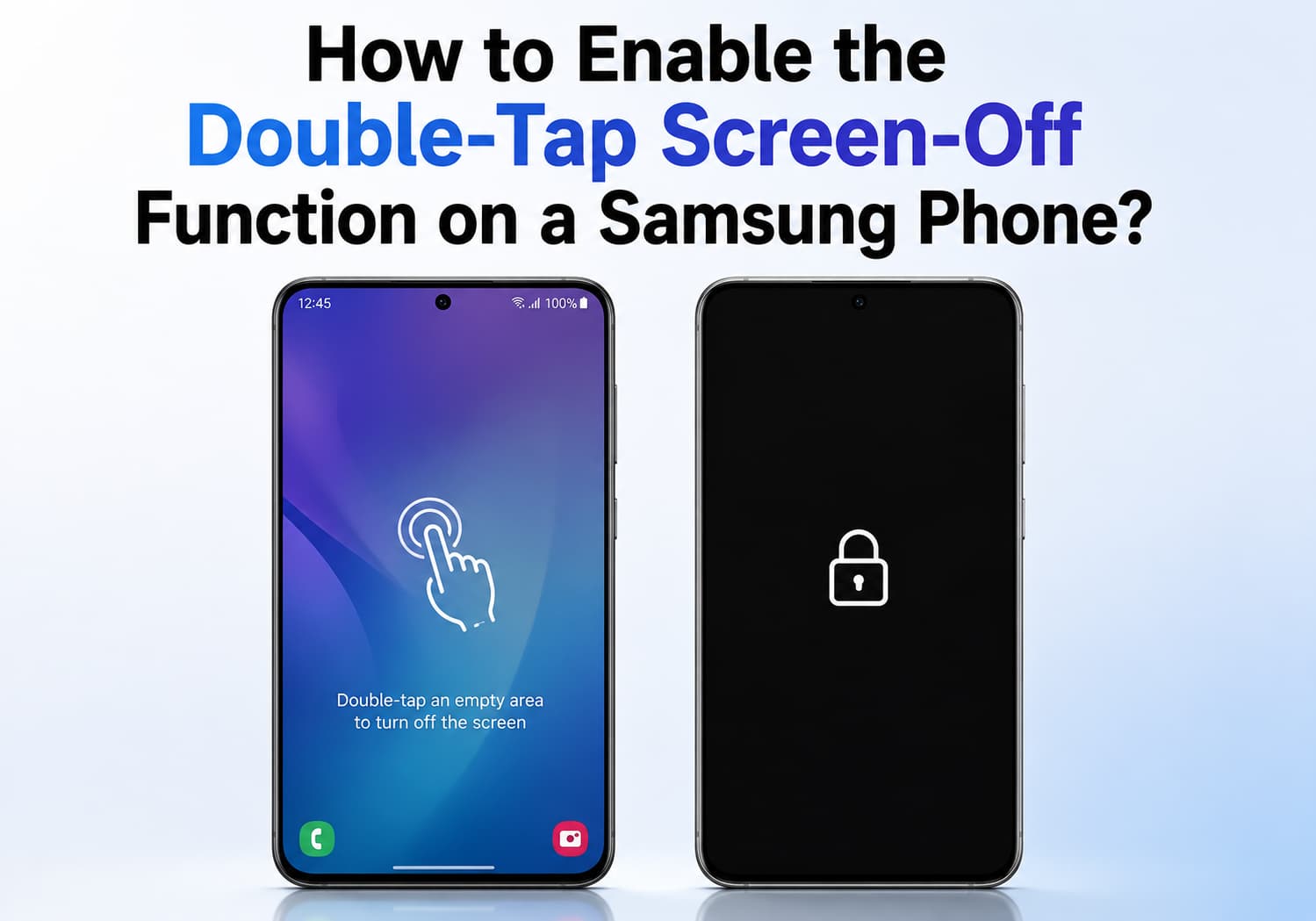
Samsung smartphones are packed with convenient gestures that make daily use faster and more intuitive. One of the most useful features is Double Tap to Turn Off the Screen, allowing you to lock your device simply by tapping twice on an empty area of the Home screen or Lock screen—without pressing the power button.
If you’re looking to reduce wear on the power button or simply prefer gesture controls, here’s everything you need to know about enabling and using this feature on your Samsung Galaxy phone.
What Is Double-Tap Screen Off?
The Double Tap to Turn Off Screen feature lets you quickly put your Samsung phone to sleep by double-tapping an empty space on the Home screen. It works alongside Samsung’s Double Tap to Wake feature, providing a seamless way to wake and lock your device without using the physical power button.
Benefits include:
- Reduces wear on the power button
- Faster one-handed operation
- Convenient for large-screen devices
- Helps extend the lifespan of physical buttons
Method 1: Enable Double Tap to Wake and Sleep
Most Samsung phones running One UI 3.0 or later support this feature.
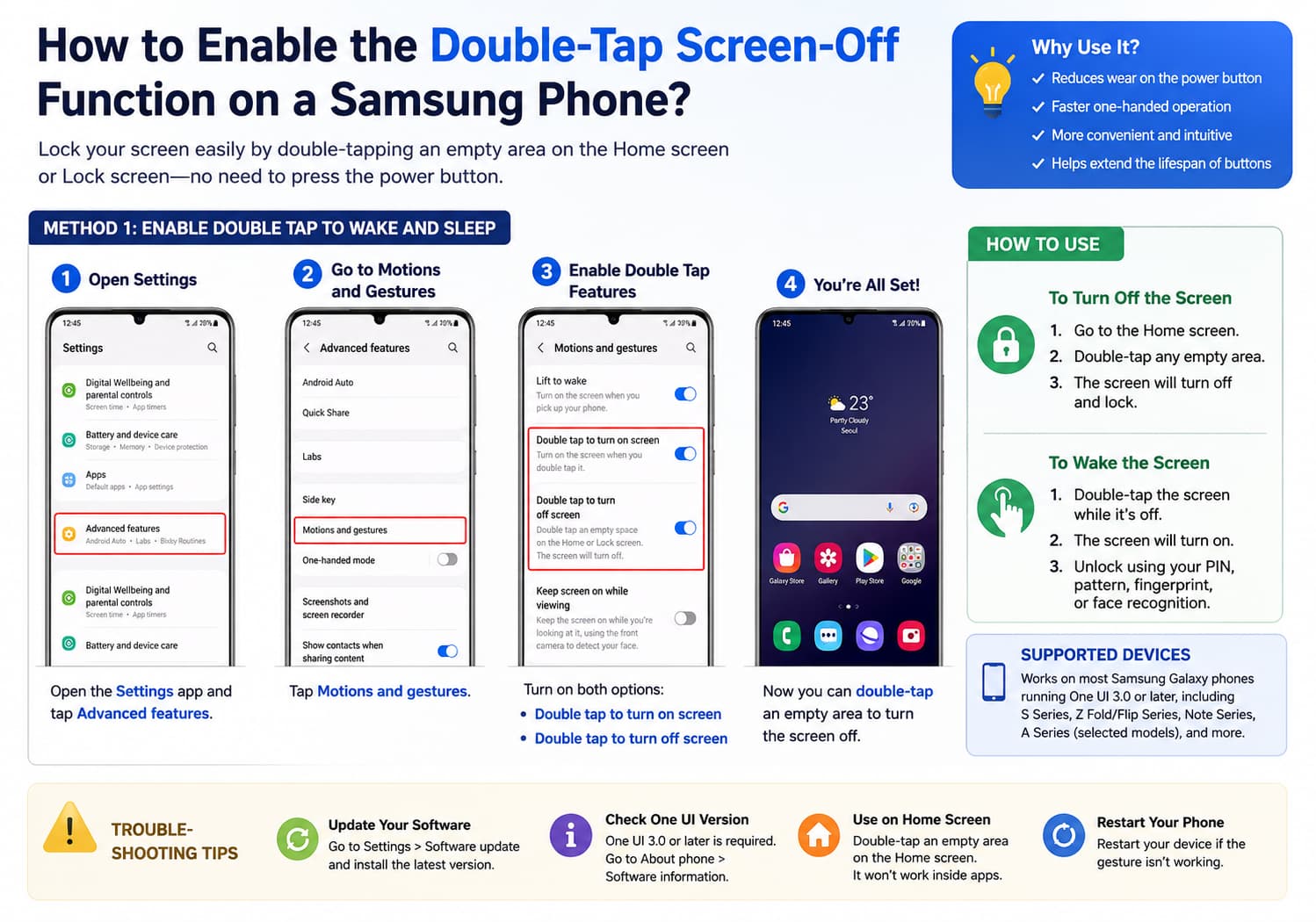
Step 1: Open Settings
Launch the Settings app on your Galaxy smartphone.
Step 2: Go to Advanced Features
Scroll down and tap:
Advanced features
Step 3: Select Motions and Gestures
Tap:
Motions and gestures
Step 4: Enable Double Tap Features
Turn on the following options:
- Double tap to turn on screen
- Double tap to turn off screen
Once enabled, you can:
- Double-tap the screen while it’s off to wake the phone.
- Double-tap an empty area of the Home screen or Lock screen to turn the display off.
Method 2: Enable Through the Home Screen Settings
Some One UI versions place the screen-off option inside the Home screen settings.
- Press and hold an empty area on the Home screen.
- Tap Settings.
- Enable Double tap to turn off screen (if available).
How to Use It
After enabling the feature:
To Turn Off the Screen
- Return to the Home screen.
- Double-tap any empty area.
- The display will immediately lock.
To Wake the Phone
Simply double-tap the screen while it is off.
If your phone is secured with fingerprint recognition or facial recognition, you can continue unlocking it normally after waking the display.
Which Samsung Phones Support It?
The feature is available on most Galaxy devices running modern versions of One UI, including:
- Galaxy S Series
- Galaxy Z Fold Series
- Galaxy Z Flip Series
- Galaxy Note Series
- Galaxy A Series (selected models)
- Galaxy M Series (selected models)
Older Galaxy models or devices running earlier versions of One UI may not include this feature.
What If the Option Is Missing?
If you can’t find the setting, try the following:
Update Your Software
Go to:
Settings → Software update → Download and install
Installing the latest version of One UI may add the feature if it’s supported by your device.
Check One UI Version
Navigate to:
Settings → About phone → Software information
Generally, One UI 3.0 and later support double-tap gestures.
Restart Your Phone
A simple restart may resolve temporary software glitches affecting gesture controls.
Confirm You’re on the Home Screen
Double-tap screen off only works when tapping an empty area of the Home screen (and on some models, the Lock screen). It will not work while you’re using apps.
Troubleshooting Tips
If the gesture isn’t working:
- Make sure Double tap to turn off screen is enabled.
- Double-tap an empty area rather than an app icon or widget.
- Remove any third-party launcher temporarily to test the feature.
- Restart your phone after enabling the setting.
- Ensure your screen protector isn’t interfering with touch sensitivity.
Why Use Double-Tap Screen Off?
Many Samsung users prefer gesture controls because they provide a smoother and more convenient experience. Frequent use of the physical power button can eventually contribute to wear over time, especially for users who unlock and lock their phones dozens of times each day.
Combined with Samsung’s fingerprint sensor and face recognition, the double-tap gesture allows for quick, effortless access while keeping hardware button usage to a minimum.
Final Thoughts
The Double Tap to Turn Off Screen feature is one of Samsung’s most practical One UI conveniences. Once enabled, it lets you lock your Galaxy phone instantly with a simple double tap, eliminating the need to press the power button repeatedly.
Whether you’re using a flagship Galaxy S series device or a recent Galaxy A model, enabling this gesture can make everyday navigation faster, more comfortable, and more efficient. If you don’t see the option on your phone, updating to the latest version of One UI is the first step to checking whether your device supports this handy feature.