







Facebook Twitter Instagram
    Trending
    • A7 Smart 1080P WiFi PTZ Security Camera Review: A Smart Home Surveillance Camera with Motion Detection and Two-Way Audio
    • ZLL Beast SG603 MAX RC Quadcopter Review: A Feature-Packed GPS Drone with 5G FPV, Dual Camera and 3-Axis Gimbal
    • YH Toys YH16001 PRO RC Car Review at $118.99: A 70km/h Brushless 4WD Monster Truck Built for Off-Road Fun
    • FlytecRC T25 AURORA BALL RC Quadcopter Review: A Fun LED Stunt Drone for Kids and Beginners
    • Introduction: The Cold Weather Dilemma in Airsoft GBB Systems
    • KiiBOOM Phantom81 Lite Review: Out-of-the-Box “Creamy” for $100
    • What Makes a Phone Good for Natural Portraits? How the OPPO Find X9 Ultra Handles Bokeh and Edge Detail
    • NEXA Ultra II vs Champs 50K Review: Specifications and Key Differences
    Facebook YouTube
    IGeeKphone China Phone, Tablet PC, VR, RC Drone News, Reviews
    • HOME
    • BREAKING NEWS
      • AI NEWS
    • Amazon
    • PHONE
      • Top Phones For Your First Choice
      • Phone Comparison
      • Xiaomi
      • Blackview
      • Doogee
      • Black Shark
      • Geekbuying
      • Banggood
      • TEMU
      • TikTok
      • Aliexpress
      • Walmart
      • MercadoLibre
      • Lazada
    • TOP VAPE Awards for 2026
    • VAPES
      • E-CIGAR Upcoming
      • Vape News
      • Vape Deals
      • Vape Comparison
      • Vape Guide
      • VAPE LAWS
      • Giveaway
    • BEST VAPE
      • Best Vape Stores
      • Best Starter Vape Kits
      • Best Vapes for Beginners
      • Best Disposable Vapes
      • Best Pod Systems
      • Best Pod Mod Vapes
      • Best Mods
      • Best Nicotine Pouches
      • Best Clearomizers/Tanks
      • Best E-Liquid
      • Best EGO/Pens
      • Best Vapes for Nic Salt E-Juice
      • Best Vapes to Quit Smoking
      • RDA vs. RDTA vs. RTA
    • Best Vape Brand 2026
      • VAPORESSO
      • VOOPOO
      • OXVA
      • NEXA BAR
      • MASKKING VAPE
      • SP2S
      • IPLAY
      • TODOO
      • MRFOG
      • LOSTVAPE
      • VEIIK
    • REVIEW
      • E-cigar Review
      • Phones
      • Tablet PC
      • TV Box
      • RC Drone
      • Wearables
      • Camera
      • Accessories
      • VR Headset
    • MORE
      • TABLET
        • Chuwi
        • INNOCN
        • Teclast
        • Top Tablet for Your First Choice
        • Tablet/Laptop Comparison
      • RC DRONE
      • CAMERA
      • WEARABLES
        • OneOdio
        • BlitzWolf
        • Top Smartwatch for First Choice
      • 3D PRINTER
        • 3D Printer Review
        • Anycubic
        • FLSUN
        • Xtool
        • LONGER
        • Top 3D printer to Choose First
      • POWER STATION
        • Oukitel
        • FOSSIBOT
      • GAMING
        • Top Gaming Products
      • E-BIKE
        • Samebike
        • Happyrun
        • ENGWE
      • SMART HOME
      • TV BOX
      • ACCESSORIES
      • VR HEADSET
      • CLOTHES
      • AUTO CAR
    • DEAL
    • Shop
    IGeeKphone China Phone, Tablet PC, VR, RC Drone News, Reviews
    You are at:Home»Guide»How to Enable the Double-Tap to Turn Off the Screen on a Samsung Phone?
    Guide

    How to Enable the Double-Tap to Turn Off the Screen on a Samsung Phone?

    Brady CottonBy Brady CottonJuly 24, 2026
    Facebook Twitter Pinterest LinkedIn Tumblr Email

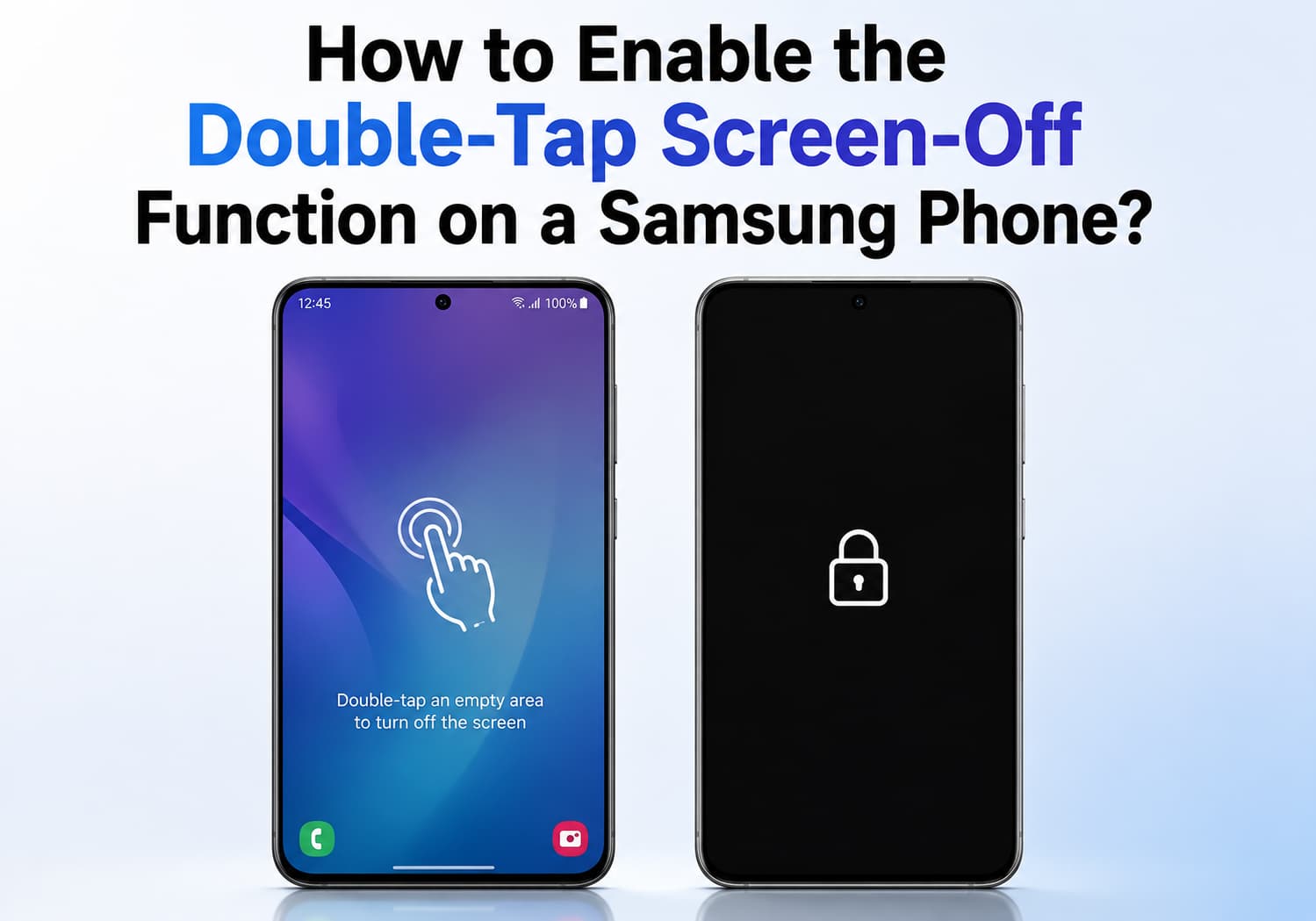
    Samsung smartphones are packed with convenient gestures that make daily use faster and more intuitive. One of the most useful features is Double Tap to Turn Off the Screen, allowing you to lock your device simply by tapping twice on an empty area of the Home screen or Lock screen—without pressing the power button.

    If you’re looking to reduce wear on the power button or simply prefer gesture controls, here’s everything you need to know about enabling and using this feature on your Samsung Galaxy phone.

    What Is Double-Tap Screen Off?

    The Double Tap to Turn Off Screen feature lets you quickly put your Samsung phone to sleep by double-tapping an empty space on the Home screen. It works alongside Samsung’s Double Tap to Wake feature, providing a seamless way to wake and lock your device without using the physical power button.

    Benefits include:

    • Reduces wear on the power button
    • Faster one-handed operation
    • Convenient for large-screen devices
    • Helps extend the lifespan of physical buttons

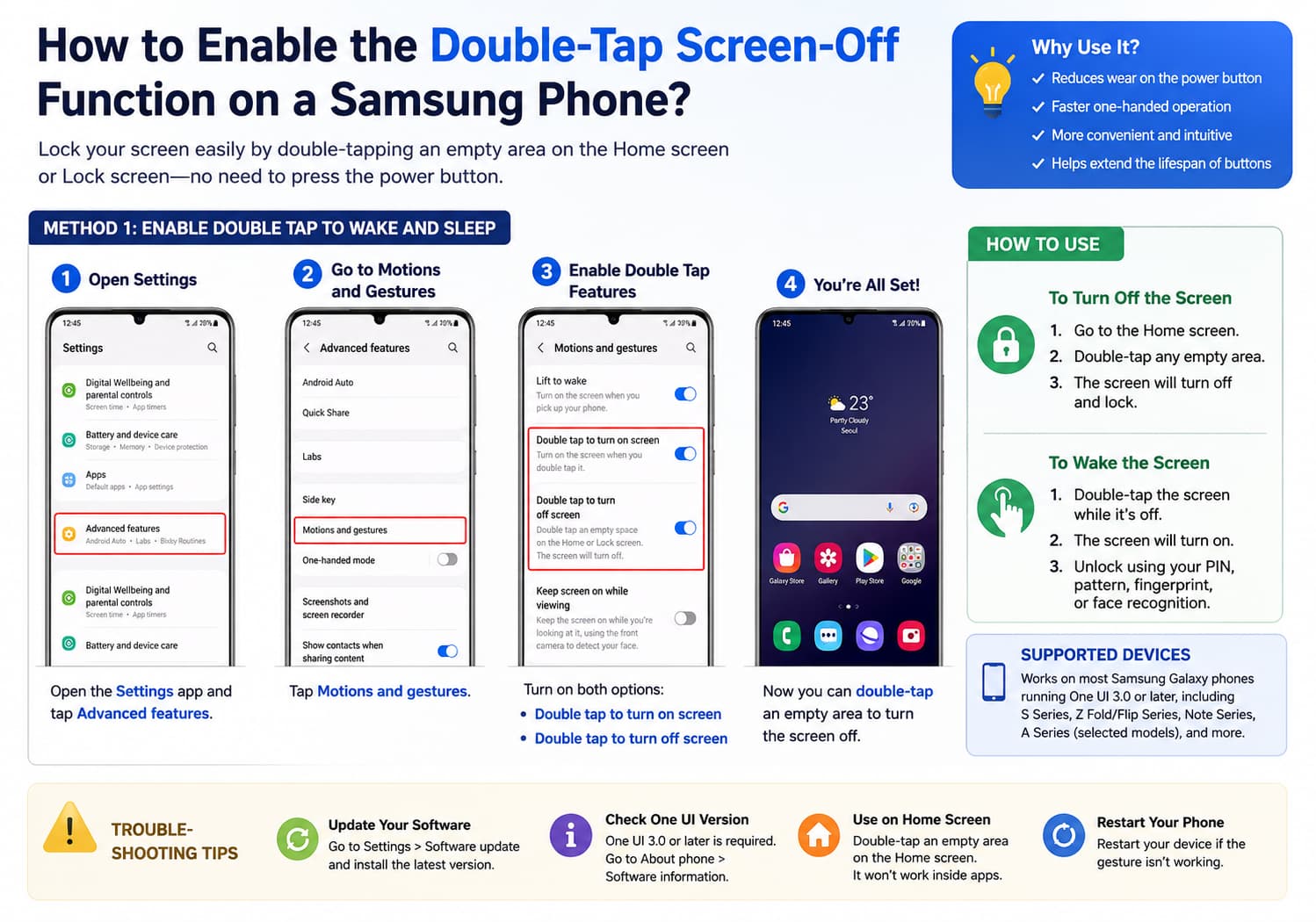
    Method 1: Enable Double Tap to Wake and Sleep

    Most Samsung phones running One UI 3.0 or later support this feature.

    Step 1: Open Settings

    Launch the Settings app on your Galaxy smartphone.

    Step 2: Go to Advanced Features

    Scroll down and tap:

    Advanced features

    Step 3: Select Motions and Gestures

    Tap:

    Motions and gestures

    Step 4: Enable Double Tap Features

    Turn on the following options:

    • Double tap to turn on screen
    • Double tap to turn off screen

    Once enabled, you can:

    • Double-tap the screen while it’s off to wake the phone.
    • Double-tap an empty area of the Home screen or Lock screen to turn the display off.

    Method 2: Enable Through the Home Screen Settings

    Some One UI versions place the screen-off option inside the Home screen settings.

    1. Press and hold an empty area on the Home screen.
    2. Tap Settings.
    3. Enable Double tap to turn off screen (if available).

    How to Use It

    After enabling the feature:

    To Turn Off the Screen

    1. Return to the Home screen.
    2. Double-tap any empty area.
    3. The display will immediately lock.

    To Wake the Phone

    Simply double-tap the screen while it is off.

    If your phone is secured with fingerprint recognition or facial recognition, you can continue unlocking it normally after waking the display.

    Which Samsung Phones Support It?

    The feature is available on most Galaxy devices running modern versions of One UI, including:

    • Galaxy S Series
    • Galaxy Z Fold Series
    • Galaxy Z Flip Series
    • Galaxy Note Series
    • Galaxy A Series (selected models)
    • Galaxy M Series (selected models)

    Older Galaxy models or devices running earlier versions of One UI may not include this feature.
    What If the Option Is Missing?

    If you can’t find the setting, try the following:

    Update Your Software

    Go to:

    Settings → Software update → Download and install

    Installing the latest version of One UI may add the feature if it’s supported by your device.

    Check One UI Version

    Navigate to:

    Settings → About phone → Software information

    Generally, One UI 3.0 and later support double-tap gestures.

    Restart Your Phone

    A simple restart may resolve temporary software glitches affecting gesture controls.

    Confirm You’re on the Home Screen

    Double-tap screen off only works when tapping an empty area of the Home screen (and on some models, the Lock screen). It will not work while you’re using apps.

    Troubleshooting Tips

    If the gesture isn’t working:

    • Make sure Double tap to turn off screen is enabled.
    • Double-tap an empty area rather than an app icon or widget.
    • Remove any third-party launcher temporarily to test the feature.
    • Restart your phone after enabling the setting.
    • Ensure your screen protector isn’t interfering with touch sensitivity.

    Why Use Double-Tap Screen Off?

    Many Samsung users prefer gesture controls because they provide a smoother and more convenient experience. Frequent use of the physical power button can eventually contribute to wear over time, especially for users who unlock and lock their phones dozens of times each day.

    Combined with Samsung’s fingerprint sensor and face recognition, the double-tap gesture allows for quick, effortless access while keeping hardware button usage to a minimum.

    Final Thoughts

    The Double Tap to Turn Off Screen feature is one of Samsung’s most practical One UI conveniences. Once enabled, it lets you lock your Galaxy phone instantly with a simple double tap, eliminating the need to press the power button repeatedly.

    Whether you’re using a flagship Galaxy S series device or a recent Galaxy A model, enabling this gesture can make everyday navigation faster, more comfortable, and more efficient. If you don’t see the option on your phone, updating to the latest version of One UI is the first step to checking whether your device supports this handy feature.

    Share. Facebook Twitter Pinterest LinkedIn Tumblr Email

    Related Posts

    Introduction: The Cold Weather Dilemma in Airsoft GBB Systems

    What Makes a Phone Good for Natural Portraits? How the OPPO Find X9 Ultra Handles Bokeh and Edge Detail

    Ensure Component Integrity and Reduce Risk with Expert Inspection Services

    Leave A Reply Cancel Reply

    You must be logged in to post a comment.

    voopoopintch
    oxva nexlim 2
    sp2s sen x disposable vape
    • Popular
    • 3D Printer REVIEW
    • XIAOMI
    July 13, 2026

    OXVA Nexlim 2 Mini Pod Vape Hands on Review

    July 13, 2026

    OXVA Nexlim 2 Pod Vape Hands on Review

    June 21, 2026

    iPlay LUMO 8K Review – A Compact Prefilled Pod Kit with Big Flavor and Everyday Convenience

    June 21, 2026

    iPlay HOOLA 150K Review – A Cloud-Chasing Giant with Music, Modes & Massive Longevity

    December 26, 2025

    ACMER ASCARVA 4S: Precision CNC Power for Makers, DIYers & Small Workshops

    June 23, 2024

    ACMER P2 20W Laser Engraver Fixed Focus Engraving: Hands on Review

    May 30, 2024

    xTool F1 Ultra Review: World’s First 20W Fiber & 20W Diode Laser Engraver

    May 30, 2024

    Anycubic Kobra 3 Combo Review: The Multicolor Masterpiece?

    August 10, 2026

    Global REDMI Note 17 Pro Max Spotted on Geekbench with Snapdragon 6 Gen 5 and 9,210mAh Battery Rumors

    August 10, 2026

    REDMI K100 Pro Max “Blazing Blue” Edition Revealed Ahead of August 11 Launch with Snapdragon 8 Elite Gen5 and 185Hz Display

    August 10, 2026

    Xiaomi Mijia Launches Its First Standalone Ice Maker, Producing Ice in Just 6 Minutes

    August 10, 2026

    Xiaomi Mijia Fog-Free Humidifier 3 Launches with 1500mL/h Humidification Capacity and Smart Home Features

    fc 26 coins
    New Arrivals
    • VOZOL SWAP 70K Disposable Vape VOZOL SWAP 70K Disposable Vape
    • Oppo Reno16 F Oppo Reno16 F
    • Oppo Reno16c Oppo Reno16c
    • RODMAN Playoffs 50K Zero Nicotine Disposable Vape RODMAN Playoffs 50K Zero Nicotine Disposable Vape
    • Vivo T5 Lite Vivo T5 Lite
    • Vivo T5e Vivo T5e
    • Vivo X Fold 6 Vivo X Fold 6
    • Huawei MatePad Pro 2026 Huawei MatePad Pro 2026
    • VOOPOO Vmate Max 2 Pod System Kit VOOPOO Vmate Max 2 Pod System Kit
    About
  • Igeekphone.com provides the first global tech news and reviews about smartphone, vapes, e-cigar, smart home, 3D printers, e-bike,tablets, RC drones, VR headset, and other accessories. It's the best platform to improve your brand and product.
  • Contact us: info@igeekphone.com
  • Check Our Privacy Policy Here.
  • Note: *Right now we have US editor and EU editors for review, especially for Amazon US and EU.
  • *Shop and Compare Price Here*
  • Facebook
  • Youtube
  • OUR BEST VAPE PARTNERS
  • VAPE ONLINE STORE
  • VAPORESSO
  • VOOPOO
  • OXVA
  • NEXA
  • MASKKING
  • SP2S
  • IPLAY
  • TODOO
  • OTHER BEST PARTNERS
  • SVBONY
  • Chuwi
  • Blackview
  • Fossibot
  • Unihertz
  • Flsun
  • Anycubic
  • Xtool
  • Oukitel
  • Mukkpet Ebike
  • Ugreen
  • Copyright © 2026 igeekphone

    Type above and press Enter to search. Press Esc to cancel.