










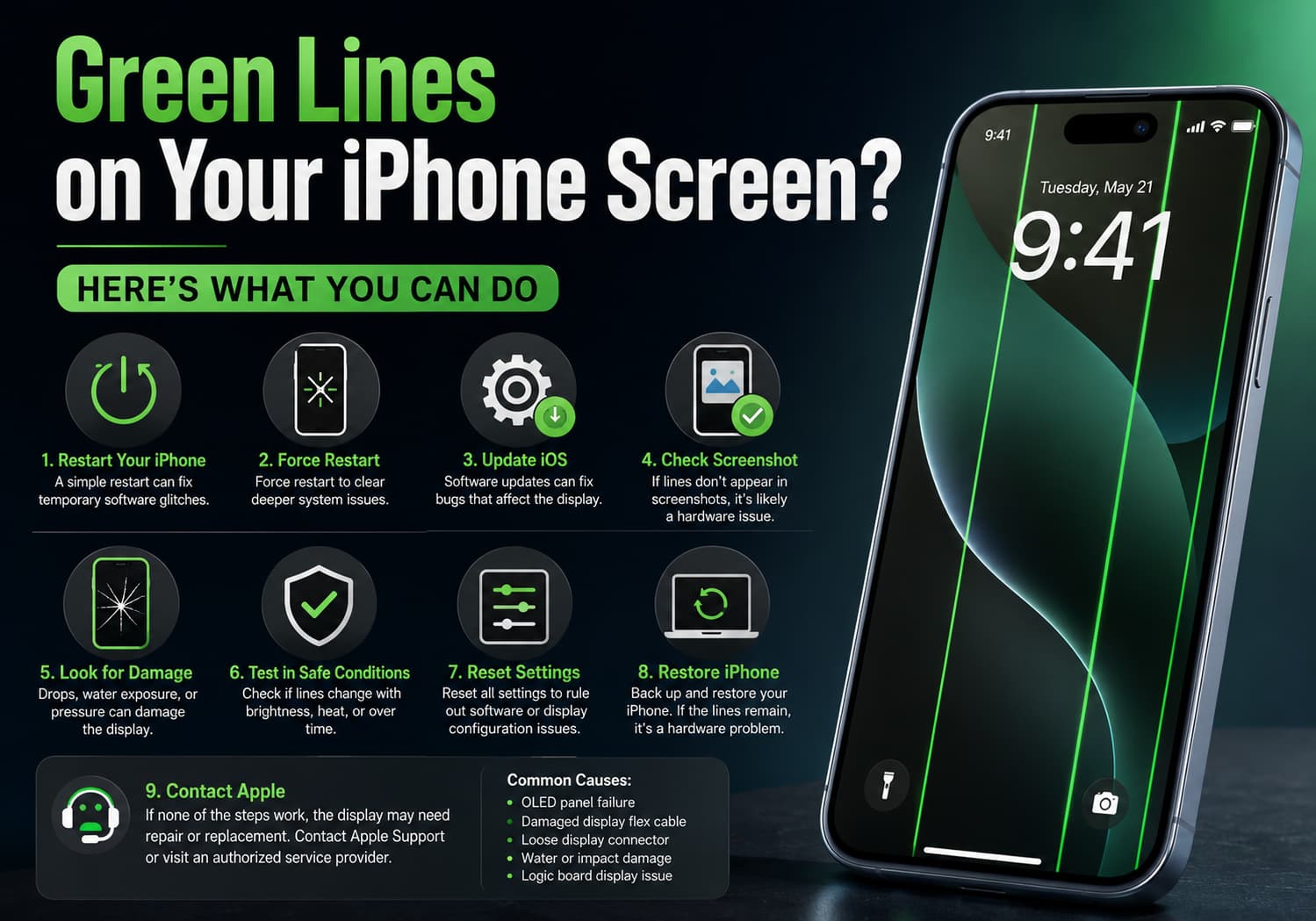
Seeing green vertical or horizontal lines appear on your iPhone display can be alarming. The issue may be caused by a software glitch, a loose display connection, physical damage, or a failing OLED panel. Fortunately, there are several troubleshooting steps you can try before considering a screen replacement.
1. Restart Your iPhone
The first step is a simple restart. Temporary software bugs can sometimes cause display abnormalities.
- iPhone with Face ID: Press and hold the Side button and either Volume button, then slide to power off.
- Wait 30 seconds and turn it back on.
If the green lines disappear, the issue was likely temporary.
2. Force Restart the Device
If a normal restart doesn’t help, try a force restart.
For iPhone 8 and later:
- Quickly press and release Volume Up.
- Quickly press and release Volume Down.
- Press and hold the Side button until the Apple logo appears.
3. Update iOS
Occasionally, display issues can be related to software bugs that Apple fixes in later updates.
Go to:
Settings → General → Software Update
Install the latest available version of iOS.
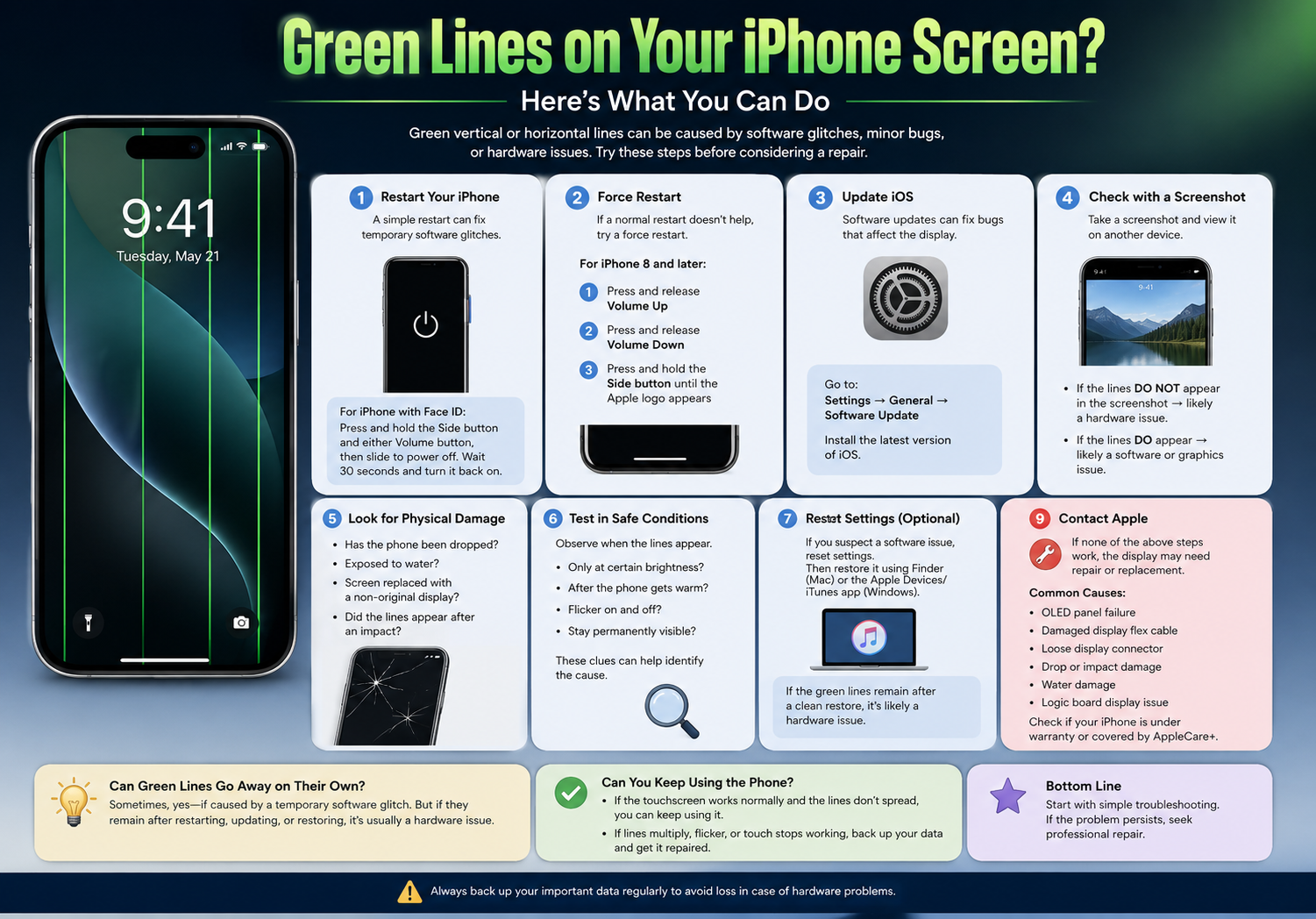
4. Check Whether the Lines Appear in Screenshots
Take a screenshot:
- Face ID models: Side button + Volume Up.
Then view the screenshot on another device.
- If the green lines do not appear in the screenshot, the problem is almost certainly hardware-related (the display itself).
- If they do appear, it may indicate a software or graphics issue.
5. Look for Signs of Physical Damage
Ask yourself:
- Has the iPhone been dropped recently?
- Has it been exposed to water?
- Has the screen been replaced with a non-original display?
- Did the lines appear after an impact?
Physical damage is one of the most common causes of permanent green lines.
6. Test in Safe Conditions
Observe whether the lines:
- Only appear at certain brightness levels
- Appear only after the phone gets warm
- Flicker on and off
- Stay permanently visible
These clues can help determine whether the OLED panel is beginning to fail.
7. Reset Settings (Optional)
If you suspect a software issue, you can reset system settings without deleting your data.
Go to:
Settings → General → Transfer or Reset iPhone → Reset → Reset All Settings
This resets settings such as Wi-Fi passwords and display preferences but does not erase your photos or apps.
8. Restore iPhone (Last Software Step)
Back up your iPhone first.
Then restore it using Finder (Mac) or the Apple Devices/iTunes app (Windows).
If the green lines remain immediately after a clean restore, the problem is almost certainly hardware-related.
9. Contact Apple or an Authorized Service Provider
If none of the above steps work, the display may need to be repaired or replaced.
Common hardware causes include:
- OLED panel failure
- Damaged display flex cable
- Loose display connector
- Damage from drops or pressure
- Water damage
- Logic board display circuit issues (less common)
If your iPhone is still under warranty or covered by AppleCare+, Apple may repair it depending on the cause of the issue.
Can Green Lines Go Away on Their Own?
Sometimes, yes—but only if they were caused by a temporary software glitch.
If the lines:
- Stay visible after restarting,
- Appear immediately when the phone boots,
- Continue after updating or restoring iOS,
they usually indicate a hardware problem that will not resolve itself.
Can You Keep Using the Phone?
You generally can if:
- The touchscreen still responds normally.
- The lines don’t spread.
- The display remains readable.
However, if the lines begin multiplying, the screen flickers, or touch stops working, it’s best to back up your data immediately and arrange for repair.
Final Thoughts
Green lines on an iPhone screen are most often associated with display hardware issues, especially on OLED-equipped models, although software glitches can occasionally produce similar symptoms. Start with simple troubleshooting—restart the device, update iOS, and test with a screenshot. If the issue persists after these steps, professional diagnosis is the safest next step.