










Modern smartphones are equipped with powerful safety features, and Samsung Galaxy devices include an Emergency SOS function that can quickly alert trusted contacts or emergency services when you’re in danger. Whether you’re traveling alone, exercising outdoors, or simply want extra peace of mind, enabling Emergency SOS is a smart precaution.
In this guide, we’ll explain what Samsung’s Emergency SOS feature does, how to activate it, and how to customize it for maximum protection.
What Is Samsung Emergency SOS?
Emergency SOS is a built-in safety feature available on most Samsung Galaxy smartphones running One UI. When activated, it allows you to quickly request help by pressing the Side (Power) button multiple times.
Depending on your region and device, Emergency SOS can:
- Call local emergency services
- Send your current location to emergency contacts
- Share photos captured by your phone’s cameras
- Record a short audio clip
- Notify your chosen emergency contacts that you need assistance
These features can be invaluable during emergencies when you may not have time to unlock your phone or make a manual call.
How to Enable Emergency SOS
Follow these steps to activate the feature:
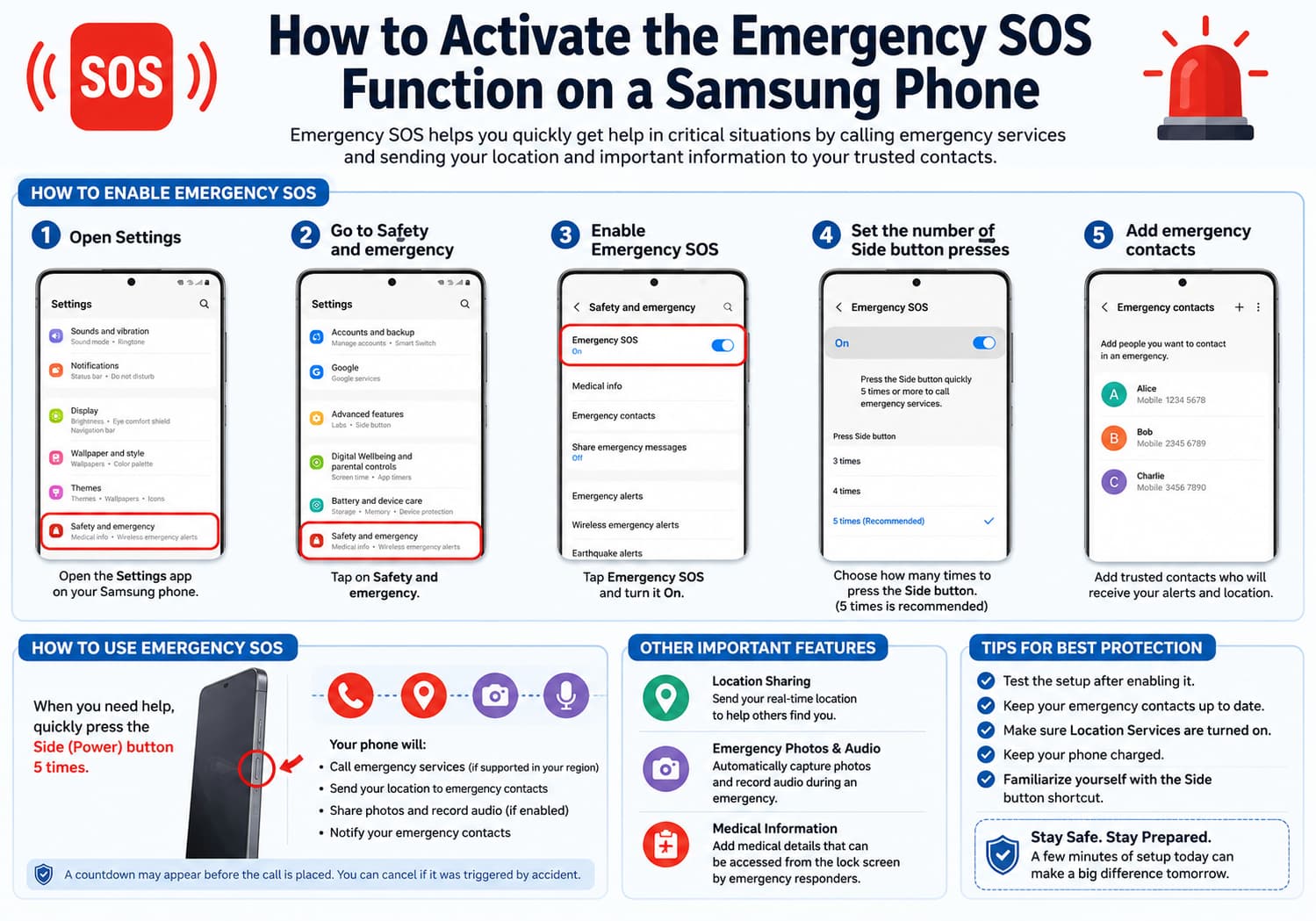
Step 1: Open Settings
Launch the Settings app on your Samsung Galaxy phone.
Step 2: Go to Safety and Emergency
Scroll down and tap:
Settings → Safety and emergency
On some older Galaxy devices, you may find this under:
Settings → Advanced features → Send SOS messages
Step 3: Enable Emergency SOS
Tap Emergency SOS and turn the feature On.
You can then choose how many times you need to press the Side button (usually five rapid presses) to activate the emergency function.
Add Emergency Contacts
Emergency SOS works best when trusted contacts are configured.
To add them:
- Open Settings
- Tap Safety and emergency
- Select Emergency contacts
- Tap Add contact
- Choose family members or trusted friends
These contacts can receive alerts and your location when Emergency SOS is activated.
Enable Location Sharing
Sharing your real-time location helps rescuers or family members find you quickly.
To enable location sharing:
- Open Settings
- Go to Safety and emergency
- Turn on Location sharing during emergencies (if available)
Your phone will automatically send GPS coordinates after Emergency SOS is triggered.
Enable Automatic Photos and Audio Recording
Many Samsung Galaxy models allow the phone to automatically capture evidence during an emergency.
Available options may include:
- Take photos using the front and rear cameras
- Record ambient audio
- Send media files to emergency contacts
These features can provide valuable information if you’re unable to communicate.
How to Use Emergency SOS
Once configured, using Emergency SOS is simple.
When you need help:
- Quickly press the Side (Power) button the required number of times (typically five).
- Your phone will begin the emergency process.
- Depending on your settings, it may:
- Contact emergency services
- Notify your emergency contacts
- Share your live location
- Record photos or audio
Some devices display a countdown before placing the emergency call, allowing you to cancel if it was triggered accidentally.
Set Up Medical Information
Samsung also lets you store important medical information that can be accessed from the lock screen.
To add it:
- Open Settings
- Tap Safety and emergency
- Select Medical info
- Enter details such as:
- Blood type
- Allergies
- Medical conditions
- Medications
- Emergency contact information
First responders may be able to view this information without unlocking your phone.
Tips for Using Emergency SOS Effectively
To ensure the feature works when you need it most:
- Test the setup after enabling it (avoid placing real emergency calls).
- Keep your emergency contacts up to date.
- Ensure Location Services are enabled.
- Keep your phone charged before traveling.
- Learn the Side button shortcut so you can activate it without looking at your phone.
Compatible Samsung Devices
Emergency SOS is available on most recent Samsung Galaxy smartphones, including:
- Galaxy S series
- Galaxy Z Fold series
- Galaxy Z Flip series
- Galaxy A series
- Galaxy M series (selected models)
The exact options available may vary depending on your device model, One UI version, and region.
Frequently Asked Questions
Does Emergency SOS always call emergency services?
Not necessarily. The behavior depends on your region, carrier support, and your device settings. In some countries, it can automatically call local emergency services, while in others it may only notify your emergency contacts.
Can Emergency SOS work without internet?
Yes. Emergency calls can generally be placed over a cellular network without mobile data or Wi-Fi, provided you have network coverage. However, features such as live location sharing or sending photos may require a data connection.
Can I disable Emergency SOS later?
Yes. Simply return to Settings → Safety and emergency → Emergency SOS and switch the feature off at any time.
Final Thoughts
Samsung’s Emergency SOS is one of the most valuable safety features built into Galaxy smartphones. With just a few minutes of setup, your phone can quickly notify trusted contacts, share your location, and even contact emergency services when every second matters.
Whether you’re commuting, hiking, traveling alone, or simply preparing for unexpected situations, enabling Emergency SOS is a simple step that can provide an extra layer of security and peace of mind.