









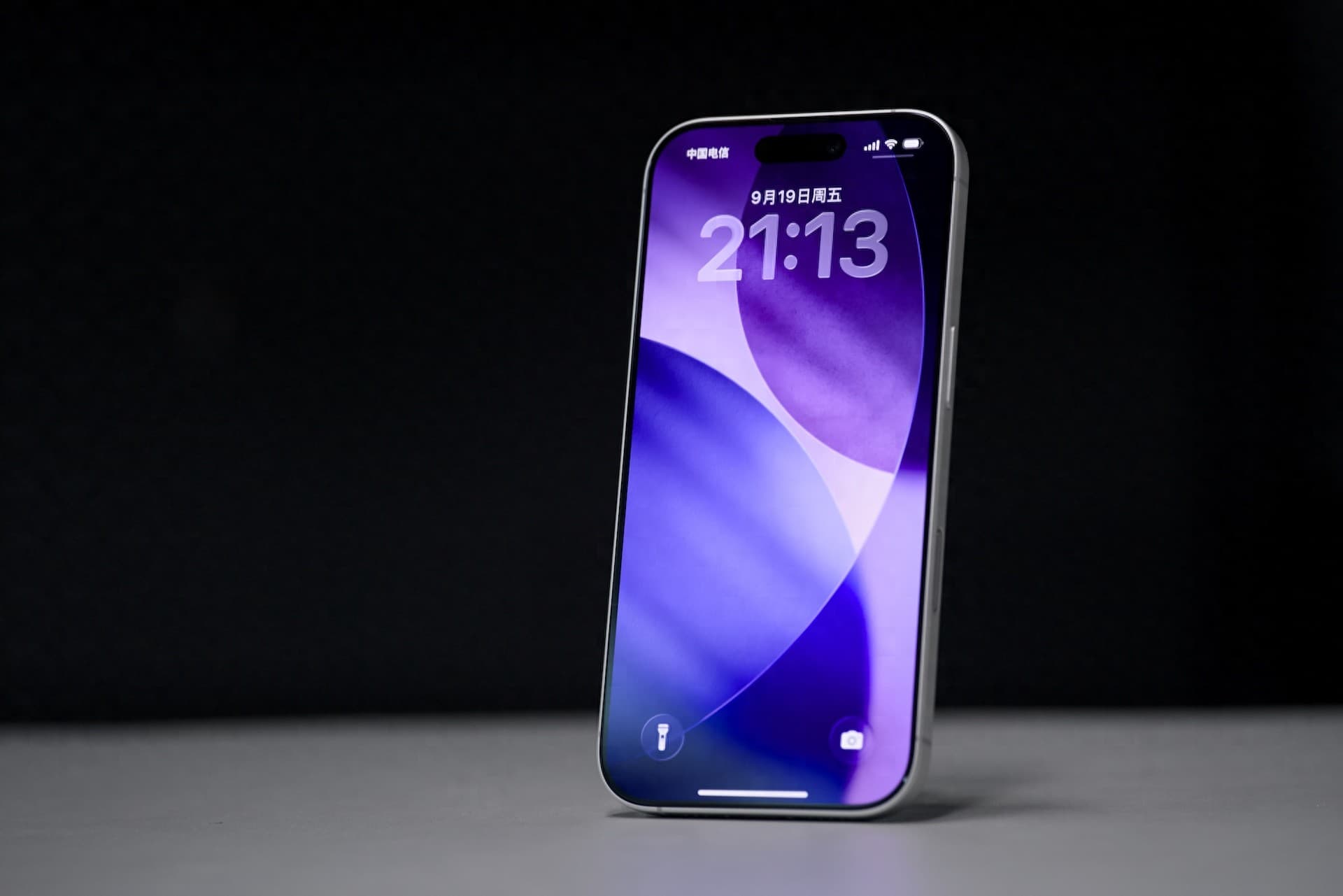
A new iPhone 17 can become cluttered surprisingly quickly, especially if you’re also exploring other iPhone 17 tips and guides. After installing social media apps, games, shopping tools, work apps and other services, finding a specific app can become more difficult than it needs to be.
Fortunately, you can rearrange apps, create folders, move app icons between Home Screen pages and hide pages you rarely use. You can also keep less important apps in the App Library instead of filling every available space.
That makes Home Screen organization an ongoing system rather than a one-time cleanup task, and you can find more iPhone 17 tips and tutorials on iGeekPhone.
How to Rearrange Apps on iPhone 17
Moving an app to a different position is the easiest way to start organizing your Home Screen.
- Touch and hold an empty area on the Home Screen until the app icons start to jiggle.
- Press and hold the app you want to move.
- Drag it to a new position on the same page.
- Move it toward the edge of the screen if you want to place it on another Home Screen page.
- Tap the Home Screen background when you are finished.
You do not need to arrange every app at once. Start with the applications you use several times a day and leave less important apps for later.
Where Should You Put Your Most-Used Apps?
A practical Home Screen should reflect your daily habits rather than follow an alphabetical arrangement.
For example, you might place Messages, Phone, Safari, Camera and Maps where they are easiest to reach. If you use a particular work, shopping or social-media app constantly, that app may deserve a more convenient position than an Apple app you rarely open.
There is also no requirement to fill every space. Leaving some areas empty can make the Home Screen easier to scan and can give a wallpaper more room to stand out.
Create Folders to Reduce Home Screen Clutter
Folders are useful when several apps serve a similar purpose.
To create a folder, enter Home Screen editing mode and drag one app directly onto another. The iPhone will automatically create a folder, which you can rename.
Instead of creating a separate folder for every small category, keep your system simple. For example, you could use:
- Work: Email, documents, cloud storage and meeting apps
- Social: Social networking and messaging services
- Shopping: Retail and shopping apps
- Entertainment: Streaming, music and video apps
- Travel: Maps, airlines, hotels and transportation
- Games: Games that you do not open every day
The goal of a folder is not to create a perfect filing system. It is to reduce the number of icons competing for your attention.
Use the Dock for Apps You Open Constantly
The Dock is different from the rest of the Home Screen because it remains available as you move between pages.
That makes it a good location for apps you use repeatedly throughout the day.
A simple setup might be:
Phone | Messages | Safari | Camera
Another user might get more value from:
Messages | Maps | Mail | Music
There is no universally correct Dock arrangement. Choose the apps that you reach for most often.
Organize iPhone 17 Home Screen Pages by Purpose
If you have creating dozens of folders or applications, putting everything on one page can make the phone harder to navigate.
Instead, give different pages different purposes.
Page 1: Daily Apps
Keep communication, browser, camera, maps and other frequently used apps here.
Page 2: Work and Productivity
Use this page for email, calendars, notes, cloud storage, office software and task-management apps.
Page 3: Entertainment
Put streaming services, music apps, games and social-media applications here.
Page 4: Occasional Apps
Travel, shopping, utilities and other apps that you only use occasionally can be moved to a separate page.
This system means you can often predict where an app should be before you even start searching for it.
Hide Home Screen Pages Without Deleting Apps
You do not have to delete apps simply because you do not want to see them every day.
If an entire Home Screen page contains apps you rarely use, you can hide that page while keeping the applications installed.
To manage your Home Screen pages:
- Touch and hold an empty area of the Home Screen.
- Tap the page indicator near the bottom of the display.
- Select or deselect the pages you want to show.
- Finish by tapping the Home Screen.
Hidden pages can be restored later.
This is particularly useful if you want a cleaner first Home Screen without deleting apps you may need in the future.
Let the App Library Handle Less-Used Apps
The App Library is useful for applications that you want to keep installed but do not need to see constantly.
Swipe left past your Home Screen pages to access it. Your installed apps are automatically organized into categories, and you can also search for an application by name.
A useful way to think about the two systems is:
Home Screen = apps you want immediate access to
App Library = apps you want to keep but rarely open
This approach prevents every downloaded application from taking up valuable Home Screen space.
Stop Newly Downloaded Apps From Filling the Home Screen
If you regularly install applications, new icons can quickly undo all the organization work you have done.
On iPhone, you can choose where newly downloaded apps appear.
Go to:
Settings → Home Screen & App Library
You can choose whether new applications are added directly to the Home Screen or placed in the App Library instead.
For people who frequently install apps, choosing the App Library option can help keep the main Home Screen stable.
You can always move an application from the App Library to the Home Screen later.
Design the Home Screen Around One-Handed Use
A visually symmetrical Home Screen may look attractive, but it is not necessarily the most comfortable layout.
Think about where your thumb naturally reaches when you hold the iPhone 17.
If you normally use the phone with one hand, consider placing frequently used apps closer to the lower part of the display. Apps that you rarely open can sit farther away or inside folders.
This small adjustment can make a bigger difference in daily use than simply rearranging icons by category.
Keep Widgets Useful Instead of Filling the Screen
Widgets can provide information without requiring you to open an application, but too many widgets can make the Home Screen feel crowded.
Consider keeping only widgets that provide information you actually check.
Useful choices can include:
- Weather
- Calendar
- Reminders
- Battery information
- Music
- Maps or travel information
A simple rule works well: if a widget does not save you time or provide information you regularly need, it may not deserve Home Screen space.
Three Practical iPhone 17 Home Screen Layouts
There is no single arrangement that works for everyone. Here are three approaches you can adapt.
1. Minimalist Layout
First page: Essential daily apps and one useful widget
Second page: Work and productivity apps
Third page: Entertainment and social apps
Everything else: App Library
This is a good choice if you want the first screen to remain clean.
2. Productivity Layout
Dock: Communication and browser apps
First page: Calendar, email, notes, tasks and frequently used work tools
Second page: Cloud storage, documents and business apps
Third page: Personal apps and entertainment
This setup minimizes the number of steps required to reach work-related applications.
3. Entertainment Layout
Dock: Messaging, browser, music and camera
First page: Social media and frequently used entertainment apps
Second page: Video and music services
Third page: Games
This works well if entertainment and social applications make up a large part of your daily phone usage.
What to Do When Your Home Screen Is Completely Messy
If your Home Screen has become difficult to manage, you do not necessarily need to move hundreds of icons individually.
iPhone includes an option to reset the Home Screen layout.
Go to:
Settings → General → Transfer or Reset iPhone → Reset → Reset Home Screen Layout
Be careful before using this option. Resetting the layout removes your existing folder arrangement and returns downloaded apps to an alphabetical arrangement after the apps that came with the iPhone.
For that reason, it is better treated as a last resort rather than a normal organization method.
The Best iPhone 17 Home Screen Is the One That Saves You Time
A well-organized iPhone 17 does not need dozens of folders or a perfectly symmetrical icon arrangement.
A more useful approach is to separate your apps according to how often you use them:
- Frequently used apps: Keep them on the first page or in the Dock.
- Occasional apps: Move them into folders or later pages.
- Rarely used apps: Let the App Library handle them.
- Important information: Use a small number of useful widgets.
- New downloads: Keep them out of the main Home Screen if they are not apps you use regularly.
The result is a Home Screen that works around your habits instead of forcing you to search through a crowded collection of icons.
If your Home Screen becomes messy again, you do not need to rebuild the entire layout. Move the apps you use most often back to convenient positions, hide pages you rarely visit and let the App Library handle everything else.
That makes Home Screen organization an ongoing system rather than a one-time cleanup task.