







Facebook Twitter Instagram
    Trending
    • Maskking Ucee Max 60K Refillable Disposable Vape Review: A High-Capacity Vape with Smart Features and Refillable Convenience
    • JTI Expands Ploom Ecosystem as Tobacco-Free LYO Nicotine Sticks Roll Out Across Europe
    • Summo 150K Introduces Refillable Design, Redefining the Ultra-High-Capacity Disposable Vape Segment
    • How to Back Up Data on an iPhone: A Complete Guide to Protecting Your Photos, Messages, and More
    • LENOVO TA240 Earbuds Review: Affordable Bluetooth 5.4 TWS Earphones with 360° Stereo Sound
    • SriHome SH074 PTZ IP Camera Review: Dual-Lens 4MP Outdoor Security Camera with Full-Color Night Vision
    • ZLL SG120 PRO / MAX RC Drone Review: A Beginner-Friendly Mini FPV Drone Packed with Smart Flight Features
    • KYAMRC F30 RC Car Review: A 70km/h 1/10 Brushless 4WD Monster Truck Built for Off-Road Thrills
    Facebook YouTube
    IGeeKphone China Phone, Tablet PC, VR, RC Drone News, Reviews
    • HOME
    • BREAKING NEWS
      • AI NEWS
    • Amazon
    • PHONE
      • Top Phones For Your First Choice
      • Phone Comparison
      • Xiaomi
      • Blackview
      • Doogee
      • Black Shark
      • Geekbuying
      • Banggood
      • TEMU
      • TikTok
      • Aliexpress
      • Walmart
      • MercadoLibre
      • Lazada
    • TOP VAPE Awards for 2026
    • VAPES
      • E-CIGAR Upcoming
      • Vape News
      • Vape Deals
      • Vape Comparison
      • Vape Guide
      • VAPE LAWS
      • Giveaway
    • BEST VAPE
      • Best Vape Stores
      • Best Starter Vape Kits
      • Best Vapes for Beginners
      • Best Disposable Vapes
      • Best Pod Systems
      • Best Pod Mod Vapes
      • Best Mods
      • Best Nicotine Pouches
      • Best Clearomizers/Tanks
      • Best E-Liquid
      • Best EGO/Pens
      • Best Vapes for Nic Salt E-Juice
      • Best Vapes to Quit Smoking
      • RDA vs. RDTA vs. RTA
    • Best Vape Brand 2026
      • VAPORESSO
      • VOOPOO
      • OXVA
      • NEXA BAR
      • MASKKING VAPE
      • SP2S
      • IPLAY
      • TODOO
      • MRFOG
      • LOSTVAPE
      • VEIIK
    • REVIEW
      • E-cigar Review
      • Phones
      • Tablet PC
      • TV Box
      • RC Drone
      • Wearables
      • Camera
      • Accessories
      • VR Headset
    • MORE
      • TABLET
        • Chuwi
        • INNOCN
        • Teclast
        • Top Tablet for Your First Choice
        • Tablet/Laptop Comparison
      • RC DRONE
      • CAMERA
      • WEARABLES
        • OneOdio
        • BlitzWolf
        • Top Smartwatch for First Choice
      • 3D PRINTER
        • 3D Printer Review
        • Anycubic
        • FLSUN
        • Xtool
        • LONGER
        • Top 3D printer to Choose First
      • POWER STATION
        • Oukitel
        • FOSSIBOT
      • GAMING
        • Top Gaming Products
      • E-BIKE
        • Samebike
        • Happyrun
        • ENGWE
      • SMART HOME
      • TV BOX
      • ACCESSORIES
      • VR HEADSET
      • CLOTHES
      • AUTO CAR
    • DEAL
    • Shop
    IGeeKphone China Phone, Tablet PC, VR, RC Drone News, Reviews
    You are at:Home»Guide»How to Back Up Data on an iPhone: A Complete Guide to Protecting Your Photos, Messages, and More
    Guide

    How to Back Up Data on an iPhone: A Complete Guide to Protecting Your Photos, Messages, and More

    Brady CottonBy Brady CottonJuly 22, 2026
    Facebook Twitter Pinterest LinkedIn Tumblr Email

    Backing up your iPhone is one of the simplest yet most important steps you can take to protect your personal data. Whether you’re upgrading to a new iPhone, replacing a damaged device, or safeguarding against accidental data loss, having a recent backup ensures your photos, contacts, messages, apps, and settings can be restored quickly.

    Apple offers several ways to back up an iPhone, including iCloud, Mac, and Windows PC. In this guide, we’ll explain each method and help you choose the one that best suits your needs.

    Why Backing Up Your iPhone Matters

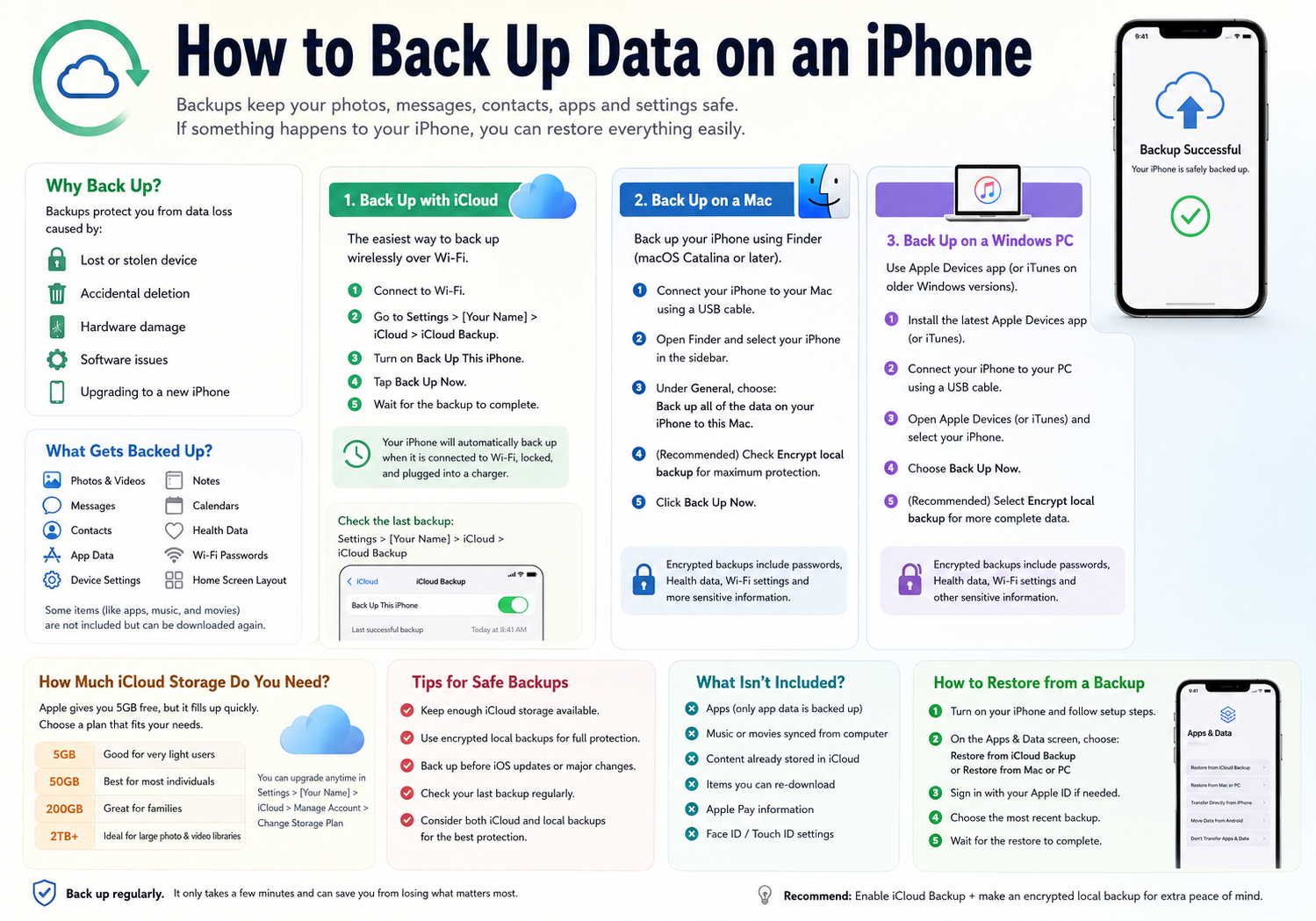
    Your iPhone stores valuable information such as:

    • Photos and videos
    • Contacts
    • Messages (iMessage and SMS)
    • App data
    • Device settings
    • Notes
    • Calendars
    • Health and Fitness data
    • Wi-Fi passwords
    • Home screen layout

    If your iPhone is lost, stolen, damaged, or reset, a backup allows you to recover most or all of this information.

    Method 1: Back Up Your iPhone Using iCloud

    iCloud Backup is the easiest and most convenient option because it works automatically over Wi-Fi.

    Step 1: Connect to Wi-Fi

    Make sure your iPhone is connected to a stable Wi-Fi network.

    Step 2: Open Settings

    Tap:

    Settings → [Your Name] → iCloud → iCloud Backup

    Step 3: Turn on iCloud Backup

    Enable:

    Back Up This iPhone

    Once enabled, your iPhone will automatically back up when:

    • Connected to Wi-Fi
    • Plugged into a charger
    • Locked
    • Sufficient iCloud storage is available

    Step 4: Create a Backup Immediately

    Tap:

    Back Up Now

    Wait until the backup completes.


    What iCloud Backup Includes

    An iCloud backup typically contains:

    • Device settings
    • App data
    • Home screen organization
    • Photos (if iCloud Photos is disabled)
    • Messages
    • Ringtones
    • Visual Voicemail
    • Apple Watch backups
    • Health data (encrypted)

    Check Your Last Backup

    Go to:

    Settings → [Your Name] → iCloud → iCloud Backup

    You’ll see the date and time of your most recent successful backup.


    Method 2: Back Up Your iPhone on a Mac

    If you have a Mac running macOS Catalina or later, Finder replaces iTunes for device backups.

    Step 1

    Connect your iPhone using a USB or USB-C cable.

    Step 2

    Open Finder.

    Step 3

    Select your iPhone from the sidebar.

    Step 4

    Under General, choose:

    Back up all of the data on your iPhone to this Mac

    Step 5 (Recommended)

    Enable:

    Encrypt local backup

    Encrypted backups also save:

    • Passwords
    • Health data
    • Wi-Fi settings
    • HomeKit information

    Create a password you’ll remember.

    Step 6

    Click:

    Back Up Now


    Method 3: Back Up Using a Windows PC

    Windows users can still create local backups.

    Step 1

    Install the latest version of Apple Devices (or iTunes on older systems).

    Step 2

    Connect your iPhone.

    Step 3

    Open Apple Devices (or iTunes).

    Step 4

    Select your iPhone.

    Step 5

    Choose:

    Back Up Now

    For maximum protection, select:

    Encrypt Local Backup


    How Much iCloud Storage Do You Need?

    Apple provides 5GB of free iCloud storage, but this fills up quickly.

    Here are common storage options:

    Storage Best For
    5GB Very light users
    50GB Most individuals
    200GB Families or heavy photo users
    2TB+ Large photo/video libraries

    If your backup fails, insufficient iCloud storage is often the cause.


    How to Back Up Photos Separately

    Many people assume iCloud Backup always includes photos.

    Actually:

    • If iCloud Photos is ON, photos sync separately and are not included in your iCloud Backup.
    • If iCloud Photos is OFF, photos are stored inside the backup.

    You can also copy photos manually to:

    • Mac
    • Windows PC
    • External SSD
    • NAS storage
    • Third-party cloud services

    How Often Should You Back Up?

    A good rule is:

    • Automatic iCloud Backup: Daily
    • Local computer backup: Before iOS updates
    • Local backup: Before upgrading to a new iPhone
    • Backup before repairs or battery replacement

    What Isn’t Included in an iPhone Backup?

    Some items are not stored because they can be downloaded again.

    Examples include:

    • Apps from the App Store (only app data is backed up)
    • Music synced from a computer
    • Movies purchased again from Apple
    • Data already stored in iCloud
    • Apple Pay information
    • Face ID and Touch ID settings

    How to Restore an iPhone from Backup

    When setting up a new or erased iPhone:

    1. Turn on the device.
    2. Follow the setup process.
    3. On the Apps & Data screen, choose one of the following:
      • Restore from iCloud Backup
      • Restore from Mac or PC
    4. Sign in with your Apple ID if necessary.
    5. Select the most recent backup.
    6. Wait for the restoration to complete.

    Depending on the size of the backup and your internet speed, the process may take anywhere from several minutes to a few hours.


    Tips for Keeping Your Backups Safe

    • Enable automatic iCloud backups.
    • Use encrypted local backups to preserve sensitive data.
    • Check your last backup regularly to ensure it completed successfully.
    • Keep enough free iCloud storage available.
    • Back up before installing beta software or major iOS updates.
    • Maintain at least one local backup in addition to your cloud backup for extra protection.

    Final Thoughts

    Backing up your iPhone is one of the easiest ways to prevent permanent data loss. Whether you prefer the convenience of iCloud or the added control of local backups on a Mac or Windows PC, creating regular backups ensures your important photos, messages, contacts, and apps remain safe.

    For the best protection, consider using both methods: enable automatic iCloud Backup for everyday security and create an encrypted local backup before major software updates, repairs, or upgrading to a new iPhone. This combination provides the most reliable safety net, ensuring your data is always ready to restore whenever you need it.

    Share. Facebook Twitter Pinterest LinkedIn Tumblr Email

    Related Posts

    Safe Memory Card Formatting Guide for 2026

    The reason to Choose Biamp Systems for the Best AV Solutions?

    How to post without revealing one’s identity?

    Leave A Reply Cancel Reply

    You must be logged in to post a comment.

    voopoopintch
    oxva nexlim 2
    sp2s sen x disposable vape
    • Popular
    • 3D Printer REVIEW
    • XIAOMI
    July 13, 2026

    OXVA Nexlim 2 Mini Pod Vape Hands on Review

    July 13, 2026

    OXVA Nexlim 2 Pod Vape Hands on Review

    June 21, 2026

    iPlay LUMO 8K Review – A Compact Prefilled Pod Kit with Big Flavor and Everyday Convenience

    June 21, 2026

    iPlay HOOLA 150K Review – A Cloud-Chasing Giant with Music, Modes & Massive Longevity

    December 26, 2025

    ACMER ASCARVA 4S: Precision CNC Power for Makers, DIYers & Small Workshops

    June 23, 2024

    ACMER P2 20W Laser Engraver Fixed Focus Engraving: Hands on Review

    May 30, 2024

    xTool F1 Ultra Review: World’s First 20W Fiber & 20W Diode Laser Engraver

    May 30, 2024

    Anycubic Kobra 3 Combo Review: The Multicolor Masterpiece?

    July 22, 2026

    Xiaomi 18 Reportedly Set for Early 2027 Debut with 2nm Snapdragon 8 Elite 6 Chip and Dual 200MP Leica Cameras

    July 21, 2026

    Xiaomi Pad 9 Receives 3C Certification, Tipped to Feature Snapdragon 8-Series Chip and 9,720mAh Battery

    July 19, 2026

    Xiaomi 17 Max Becomes One of the First Smartphones to Receive China’s Highest AI L3 Certification

    July 18, 2026

    The new Xiaomi 18 series phones are suspected to have been put on the market, and they support UWB (Ultra-Wideband) technology.

    fc 26 coins
    New Arrivals
    • Maskking Ucee Max 60K Refillable Disposable Vape Maskking Ucee Max 60K Refillable Disposable Vape
    • Vivo IQOO Pad 5e Vivo IQOO Pad 5e
    • Google Pixel 12 Pro Fold Google Pixel 12 Pro Fold
    • Breeze Prime Edition Disposable Vape Breeze Prime Edition Disposable Vape
    • Geek Bar Hagimi Pro Max Disposable Vape Kit Geek Bar Hagimi Pro Max Disposable Vape Kit
    • Oppo Find X10 Pro Oppo Find X10 Pro
    • Oppo Find X10 Oppo Find X10
    • Xiaomi Pad Mini 2 Xiaomi Pad Mini 2
    • Breeze Pro Disposable Vape Breeze Pro Disposable Vape
    About
  • Igeekphone.com provides the first global tech news and reviews about smartphone, vapes, e-cigar, smart home, 3D printers, e-bike,tablets, RC drones, VR headset, and other accessories. It's the best platform to improve your brand and product.
  • Contact us: info@igeekphone.com
  • Check Our Privacy Policy Here.
  • Note: *Right now we have US editor and EU editors for review, especially for Amazon US and EU.
  • *Shop and Compare Price Here*
  • Facebook
  • Youtube
  • *Yahoo Finance is a platform that provides financial news, press releases, market data, and useful tools to help users make informed investment decisions.*

    For inquiries, please contact:
    financeyahoocompany@gmail.com

    OUR BEST VAPE PARTNERS
  • VAPE ONLINE STORE
  • HAYATI PRO MAX PLUS
  • VAPORESSO
  • VOOPOO
  • OXVA
  • NEXA
  • MASKKING
  • SP2S
  • IPLAY
  • TODOO
  • OTHER BEST PARTNERS
  • SVBONY
  • Chuwi
  • Blackview
  • Fossibot
  • Unihertz
  • Flsun
  • Anycubic
  • Xtool
  • Oukitel
  • Mukkpet Ebike
  • Ugreen
  • Copyright © 2026 igeekphone

    Type above and press Enter to search. Press Esc to cancel.