










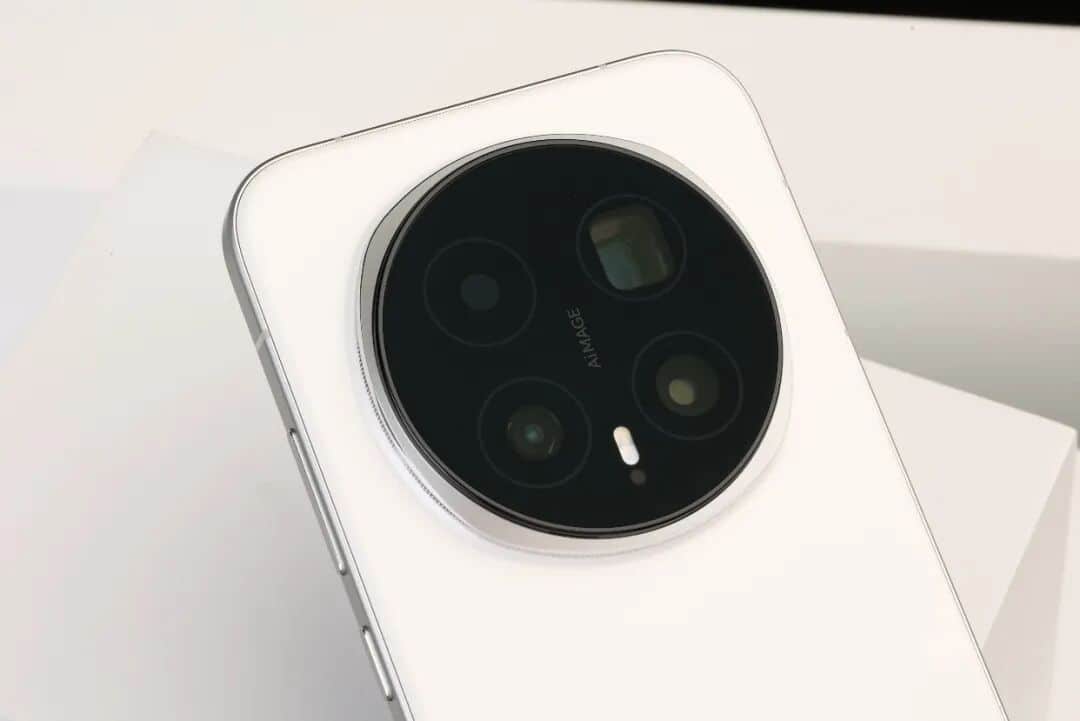
With the widespread adoption of smart wearable devices, fitness bands, due to their lightweight design and health monitoring capabilities, have become essential items for users’ daily use. Honor Magic 8 Pro, as a flagship model, has a deep integration with fitness bands, enabling functions such as synchronized sports data, message alerts, and remote photo taking. This article will systematically outline the connection steps and precautions to help users efficiently complete the pairing process.
I. Basic Preparation: Equipment and System Compatibility
Before connection, it is necessary to ensure that the equipment meets the following conditions:
1. Mobile system version: The Honor Magic 8 Pro needs to be upgraded to Magic UI 8.0 or above. The upgrade can be completed through “Settings – System Update” to ensure system compatibility and stability.
2. Handband status: The handband’s battery level should be above 30%. Avoid connection interruption due to insufficient battery. If the handband has been paired with another phone before, it is necessary to remove the binding on the old device, or enter the handband settings menu and select “Restore Factory Settings” to return it to its initial pairing state.
3. Bluetooth and Location Permission: Open the “Settings” on your phone, then go to “Bluetooth” and turn it on; at the same time, enter “Settings – Privacy – Location Services” and enable the location permission to support advanced functions such as motion trajectory recording.
II. Core Tool: Installation and Configuration of the Honor Sports Health App
The Honor Sports & Health App is the core management tool for connecting the wristbands. It needs to be configured through the following steps:
Download and Installation: Open the mobile application market, search for “Honor Sports Health”, and download and install it. If it has already been installed, open the application and click “My – Check for Updates” to upgrade the version to the latest one.
2. Account Login: When opening the application for the first time, you need to log in with your Honor account. Unregistered users can quickly complete the registration process by using their mobile phone number.
3. Permission Granting: Go to “Settings – Application Management” on your phone, find the “Honor Sports Health” App, and enable the “Bluetooth”, “Location Information”, “Storage” and other permissions. Among them, the Bluetooth permission is the foundation for communication between devices, the location information permission supports the recording of movement trajectories, and the storage permission facilitates the saving of health data and dialer resources.
III. Pairing Process: Step-by-step Operating Guide
After completing the preliminary preparations, the following steps can be followed for pairing:
The bracelet enters pairing mode: Press and hold the power button on the side of the bracelet for 3 seconds. When the screen shows “Pairing in progress” or a 6-digit pairing code appears, it indicates that the device has entered a connectable state. For some models, you need to slide the bracelet screen downward to enter the settings menu and select “Connect New Phone”.
2. Adding Devices to the App: Open the Honor Sports Health App, click on the “Devices” option on the home page, and select “Add Device – Smart Watch”. If the list does not display the device, you can click “Manual Addition” and pair it by filtering by model or scanning the QR code on the smart watch screen.
3. Confirm pairing code: The phone screen will display the same 6-digit pairing code as that of the bracelet. After confirming it is correct, click “Confirm”. On the bracelet end, a prompt “Allow pairing?” will appear, and click “√” to complete the connection. Once the pairing is successful, the App’s home page will display data such as the bracelet’s battery level and steps taken.
IV. Problem Troubleshooting: Common Solutions for Connection Failures
During the connection process, the following issues may occur and can be resolved by following the corresponding methods:
Pairing code no response: If there is a pairing request on the wristband screen but no response is received upon clicking, you can long press the lower button of the wristband to wake it up, then select “Settings – System Menu – Factory Reset” to re-pair and reconnect.
2. Pairing Failure Alert: If the application indicates a pairing failure, you can try turning off and then turning on the Bluetooth on your phone, or restart the wearable device and your phone, and then reconnect. If the bracelet has been paired with another phone before, you need to first remove the binding in the old device, or turn off the Bluetooth on the old phone, and then use the new phone to connect.
3. Device not detected: If the list of connectable devices returned by the automatic scan does not include the target fitness tracker, you can click “Manual Addition” and select the target model, or scan the QR code on the fitness tracker screen using the “Scan” function.
4. Data synchronization failure: If the bracelet data is not displayed in the App, you can refresh the page on the device or restart the watch to manually trigger the synchronization. Also, check if the “automatic data synchronization” permission is enabled and try again in a Wi-Fi environment.
V. Function Expansion: Personalized Settings after Connection
After the connection is successful, you can customize the functions of the bracelet through the Honor Sports Health App:
Notification Management: In the “Notification Management” section of the app, enable “Message Notifications” and select the applications you wish to synchronize (such as WeChat, SMS, Calendar) to prevent information overload.
2. Dial Replacement: Download over 200 official dials from the App dial market, or upload your own photos to customize the dial to meet your personal needs.
3. Health Monitoring: Set heart rate warning thresholds, implement sleep monitoring mode, and enable the “Automatic Data Synchronization” function to update health data in real time.
4. Exercise Mode: Add tracking for specific sports such as running and swimming, record the movement paths and calorie consumption, and provide data support for a healthy lifestyle.
5. Remote Control Interaction: Slide on the handband display to enter the quick menu. Select “Remote Photo Taking” to activate the mobile phone camera. It supports gesture recognition for capturing photos, enhancing the ease of use.
By following these steps, users of Honor Magic 8 Pro can easily connect with the smart bracelet and enjoy the convenient experience brought by the smart wearable device. If the problem still persists, you can contact the Honor customer service or visit a physical store for inspection.