







Facebook Twitter Instagram
    Trending
    • The Largest Battery Phone in Xiaomi’s History has Arrived! Xiaomi 17 Max has been Approved for Sale
    • GoPro releases its first mirrorless camera: Only the size of a sports camera, with interchangeable lenses.
    • The Spokesperson for Huawei Pura 90 series has been officially Announced: The old friend of Nova, Yi Yangqianxi.
    • The Screen of Xiaomi 18 Pro has Undergone an Epic Upgrade: Ultra-thin Quadrilateral Bezels + Custom Substrate
    • Huawei WATCH Buds 2 officially Announced: See you on April 20th
    • The Specifications of Huawei WATCH FIT 5 Series Smartwatch have been Revealed
    • Blackview Tab 20 Tablet PC at $93.99: A Powerful Tablet for Work and Play – Unbeatable Deal!
    • Ulefone RugKing AI Speaker at $172.99: Unleashing Powerful Sound in a Rugged Design
    Facebook YouTube
    IGeeKphone China Phone, Tablet PC, VR, RC Drone News, Reviews
    • HOME
      • NEWS
        • DeepSeek
        • ChatGPT
        • Minecraft
    • Amazon
    • PHONE
      • Top Phones For Your First Choice
      • Phone Comparison
      • Xiaomi
      • Blackview
      • Doogee
      • Black Shark
      • Geekbuying
      • Banggood
      • TEMU
      • TikTok
      • Aliexpress
      • Walmart
      • MercadoLibre
      • Lazada
    • TOP VAPE Awards for 2026
    • VAPES
      • E-CIGAR Upcoming
      • Vape News
      • Vape Deals
      • Vape Comparison
      • Vape Guide
      • Giveaway
    • BEST VAPE
      • Best Vape Stores
      • Best Starter Vape Kits
      • Best Vapes for Beginners
      • Best Disposable Vapes
      • Best Pod Systems
      • Best Pod Mod Vapes
      • Best Mods
      • Best Nicotine Pouches
      • Best Clearomizers/Tanks
      • Best E-Liquid
      • Best EGO/Pens
      • Best Vapes for Nic Salt E-Juice
      • Best Vapes to Quit Smoking
      • RDA vs. RDTA vs. RTA
    • Best Vape Brand 2026
      • VAPORESSO
      • VOOPOO
      • OXVA
      • NEXA BAR
      • ORIONBARTECH
      • MASKKING VAPE
      • MEMERS
      • SP2S
      • TODOO
      • MRFOG
      • VEIIK
    • REVIEW
      • E-cigar Review
      • Phones
      • Tablet PC
      • TV Box
      • RC Drone
      • Wearables
      • Camera
      • Accessories
      • VR Headset
    • MORE
      • TABLET
        • Chuwi
        • INNOCN
        • Teclast
        • Top Tablet for Your First Choice
        • Tablet/Laptop Comparison
      • RC DRONE
      • CAMERA
      • WEARABLES
        • OneOdio
        • BlitzWolf
        • Top Smartwatch for First Choice
      • 3D PRINTER
        • 3D Printer Review
        • Anycubic
        • FLSUN
        • Xtool
        • LONGER
        • Top 3D printer to Choose First
      • POWER STATION
        • Oukitel
        • FOSSIBOT
      • GAMING
        • Top Gaming Products
      • E-BIKE
        • Samebike
        • Happyrun
        • ENGWE
      • SMART HOME
      • TV BOX
      • ACCESSORIES
      • VR HEADSET
      • CLOTHES
      • AUTO CAR
    • DEAL
    • VAPE LAWS
    • Shop
    IGeeKphone China Phone, Tablet PC, VR, RC Drone News, Reviews
    You are at:Home»Guide»How to Remove the CPU Fan in 2026: A Safe Step-by-Step Tutorial
    Guide

    How to Remove the CPU Fan in 2026: A Safe Step-by-Step Tutorial

    Brady CottonBy Brady CottonMarch 25, 2026
    Facebook Twitter Pinterest LinkedIn Tumblr Email

    Removing the CPU fan in your desktop PC is an essential task if you’re planning on upgrading your cooling system, replacing a faulty fan, or cleaning your PC to improve performance. Whether you’re a beginner or an experienced PC builder, it’s crucial to follow the right steps to avoid damage to your components. This step-by-step guide will walk you through the safe process of removing a CPU fan in 2026.

    Why Remove the CPU Fan?

    Before diving into the tutorial, it’s essential to understand why you might need to remove your CPU fan:

    • Replacing the fan: If your current CPU fan is noisy, malfunctioning, or outdated, you may need to replace it with a more efficient cooling solution.
    • Cleaning the fan: Over time, dust can accumulate on the fan blades and heatsink, reducing cooling efficiency. Cleaning the fan is a simple way to improve your system’s performance.
    • Upgrading the CPU cooler: If you’re upgrading to a better cooling solution (e.g., switching from air cooling to liquid cooling), you will need to remove the old fan first.

    Now, let’s get into the steps!

    Tools You’ll Need

    Before you start, make sure you have the following tools:

    • Screwdriver: A small Phillips head screwdriver is usually required.
    • Anti-static wristband: Prevent static electricity from damaging your components.
    • Compressed air (optional): If you want to clean the fan and surrounding area while you’re at it.
    • Thermal paste (if reapplying): You’ll need this if you’re removing the heatsink and plan to reinstall it.

    Step-by-Step Guide: How to Safely Remove the CPU Fan in 2026

    Step 1: Power Off and Unplug Your PC

    Start by shutting down your computer completely. Once it’s powered off, unplug the power cable from the power supply. This ensures there’s no electricity running through your system while you work.

    Step 2: Ground Yourself

    To avoid damaging any components with static electricity, it’s essential to ground yourself. The easiest way is to wear an anti-static wristband, which you can attach to any unpainted metal part of the PC case. If you don’t have one, make sure to touch a metal part of the case before touching any internal components.
    Step 3: Open Your PC Case

    Depending on your case type, you may need to remove one or two side panels. Most modern cases have screws on the back to secure the side panels. Remove these screws and gently slide or pull off the panel to access the internal components.

    Step 4: Locate the CPU Fan

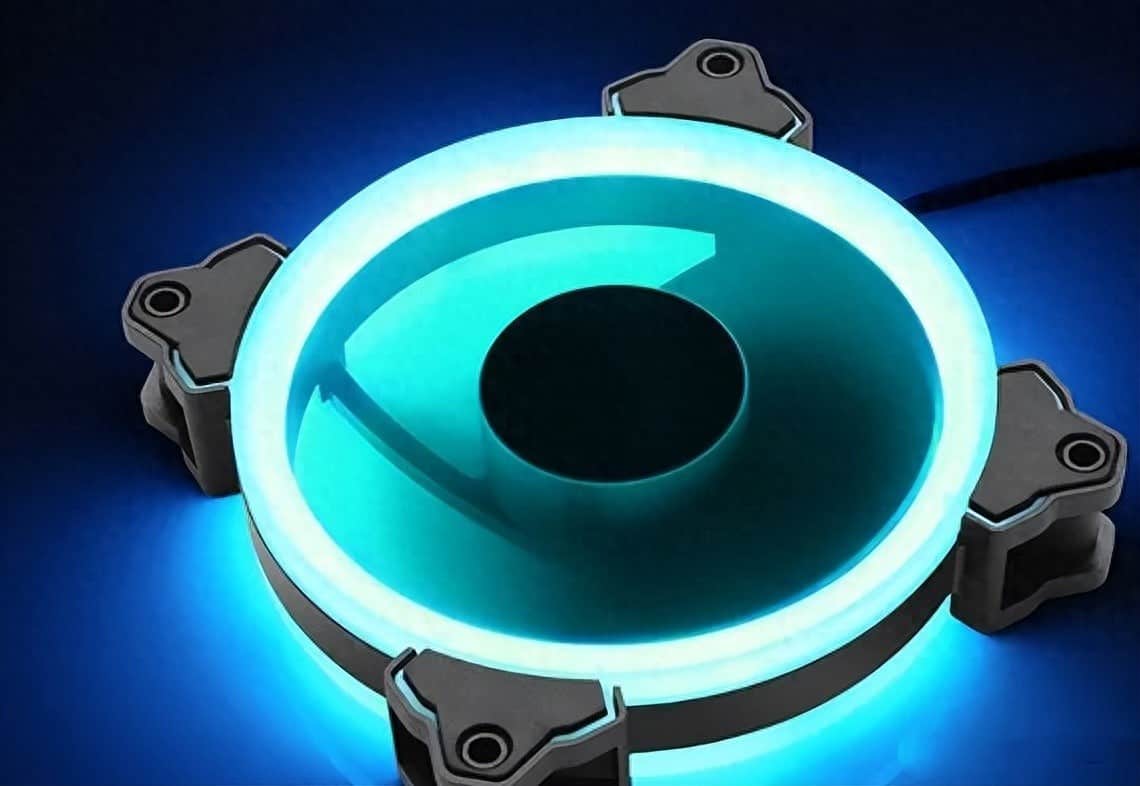
    The CPU fan is typically located directly above the CPU socket, which is usually on the motherboard. It’s attached to a heatsink and sits over the processor, ensuring that it stays cool during operation. The fan is connected to the motherboard via a 4-pin or 3-pin connector.

    Step 5: Disconnect the Fan Cable

    Before removing the fan, you need to disconnect the fan cable from the motherboard. This is a simple process:

    • Find the fan header (a small 3- or 4-pin connector on the motherboard).
    • Gently pull the connector out of the header—do not yank or pull on the wires themselves, as this can cause damage.

    Step 6: Unscrew the Fan (If Applicable)

    Some CPU fans are secured with screws, while others may use clips or mounting mechanisms. If your fan is attached with screws, use your screwdriver to carefully remove them. Keep track of the screws, as you’ll need them if you plan to reinstall the fan or install a new one.

    • Screw-driven fans: Remove all screws and set them aside.
    • Clip-on fans: If your fan uses clips, gently pull or unlock them to release the fan from the heatsink.

    Step 7: Remove the Fan from the Heatsink

    Once all screws or clips are removed, gently lift the CPU fan away from the heatsink. Be cautious, as there might still be some resistance if thermal paste has bonded the fan to the heatsink over time.

    Step 8: Clean the Fan (Optional but Recommended)

    While the fan is removed, this is a great time to clean it. Use compressed air to blow away any dust from the fan blades and heatsink. Be careful not to spin the fan too fast while cleaning it, as this can damage the motor. If necessary, you can use a soft brush to remove any remaining dust or debris.

    Step 9: Reapply Thermal Paste (If Removing the Heatsink)

    If you plan to remove the heatsink as well, you’ll need to reapply fresh thermal paste to the CPU before reinstalling the new fan or cooler. To do this:

    • Clean off the old thermal paste from the CPU and heatsink using a lint-free cloth or alcohol wipe.
    • Apply a small, pea-sized amount of fresh thermal paste to the center of the CPU.
    • When you reinstall the heatsink, the paste will spread evenly across the surface.

    Step 10: Reinstall or Replace the Fan

    Now that the fan is removed, you can choose to reinstall the same fan or replace it with a new one. If you are installing a new fan:

    • Place it back on the heatsink and secure it using screws or clips, depending on the fan type.
    • Reconnect the fan’s cable to the motherboard header.

    Step 11: Close the PC Case

    Once the fan is reattached and everything is connected, replace the side panels of the case and screw them back into place.

    Step 12: Power On Your PC

    Finally, plug your computer back into the power source, power it on, and check to ensure that the new or reinstalled fan is working correctly. You can monitor fan speeds and temperatures using software like HWMonitor or SpeedFan to verify that your CPU is cooling properly.

    Tips and Warnings:

    • Do not force any components: If something feels stuck, don’t force it. Gently wiggle and check for screws or clips that you may have missed.
    • Handle components carefully: Motherboards, CPU fans, and heatsinks are delicate. Be gentle to avoid damaging the components.
    • Keep track of screws: Losing screws can prevent the fan from being secured properly, so store them in a small container while working.

    Conclusion: Safe and Easy CPU Fan Removal in 2026

    Removing and replacing a CPU fan is a straightforward task if done carefully and with the right tools. Whether you’re upgrading your cooling system, cleaning your PC, or performing routine maintenance, following these steps will help ensure that your components stay safe and functional. With the right preparation and attention to detail, you can easily keep your system cool and running at its best.

    Share. Facebook Twitter Pinterest LinkedIn Tumblr Email

    Related Posts

    7 Ways Technology Can Improve Your Business Efficiency

    Got a Burnt Taste from Your Vape? Here’s Why and How to Fix It

    Crypto is not an Asset, it’s a Technology

    Leave A Reply Cancel Reply

    You must be logged in to post a comment.

    voopoo drag 6
    oxva xlim 3 ultra
    sp2s sen x disposable vape
    • Popular
    • 3D Printer REVIEW
    • XIAOMI
    April 8, 2026

    OXVA NeXLIM vs XLIM Pro 2 Pod Hands-On Review (2026)

    March 16, 2026

    OXVA Slimstick VS OXVA Slimstick X Vape Hands-on Review

    March 5, 2026

    OXVA XLIM PRO 3 vs XLIM Pro 2 DNA: Hands-On Review

    March 5, 2026

    OXVA XLIM PRO 3 vs XLIM GO 2: Hands-On Review

    December 26, 2025

    ACMER ASCARVA 4S: Precision CNC Power for Makers, DIYers & Small Workshops

    June 23, 2024

    ACMER P2 20W Laser Engraver Fixed Focus Engraving: Hands on Review

    May 30, 2024

    xTool F1 Ultra Review: World’s First 20W Fiber & 20W Diode Laser Engraver

    May 30, 2024

    Anycubic Kobra 3 Combo Review: The Multicolor Masterpiece?

    April 16, 2026

    The Largest Battery Phone in Xiaomi’s History has Arrived! Xiaomi 17 Max has been Approved for Sale

    April 16, 2026

    The Screen of Xiaomi 18 Pro has Undergone an Epic Upgrade: Ultra-thin Quadrilateral Bezels + Custom Substrate

    April 14, 2026

    Xiaomi 18 Pro is the first to feature the Qualcomm Snapdragon 8E6 series: The battery capacity exceeds 7000mAh.

    April 14, 2026

    Xiaomi Redmi K90 Max phone is equipped with a 8550mAh battery and supports 100W wired fast charging + 100W PPS

    fc 26 coins
    New Arrivals
    • OXVA Xlim Go Lite Pod System Kit OXVA Xlim Go Lite Pod System Kit
    • Samsung Galaxy F80e Smartphone Samsung Galaxy F80e Smartphone
    • Huawei nova 16 Ultra 5G Huawei nova 16 Ultra 5G
    • Huawei nova 16 Pro 5G Huawei nova 16 Pro 5G
    • Flum UT Bar Clear Tank 50K Disposable Vape Flum UT Bar Clear Tank 50K Disposable Vape
    • Honor 700 Lite 5G Honor 700 Lite 5G
    • Honor MagicPad 5 Honor MagicPad 5
    • Realme Note 90 Realme Note 90
    • Air Bar Gem 50K Disposable Air Bar Gem 50K Disposable
    About
  • Igeekphone.com provides the first global tech news and reviews about smartphone, vapes, e-cigar, smart home, 3D printers, e-bike,tablets, RC drones, VR headset, and other accessories. It's the best platform to improve your brand and product.
  • Contact us: info@igeekphone.com
  • Check Our Privacy Policy Here.
  • Note: *Right now we have US editor and EU editors for review, especially for Amazon US and EU.
  • *Shop and Compare Price Here*
  • Facebook
  • Youtube
  • OUR BEST VAPE PARTNERS
  • VAPE ONLINE STORE
  • HAYATI PRO MAX PLUS
  • VAPORESSO
  • VOOPOO
  • OXVA
  • NEXA
  • MASKKING
  • TODOO
  • SP2S
  • VEIIK
  • OTHER BEST PARTNERS
  • SVBONY
  • Chuwi
  • Blackview
  • Fossibot
  • Unihertz
  • Flsun
  • Anycubic
  • Xtool
  • Oukitel
  • Mukkpet Ebike
  • Ugreen
  • Copyright © 2026 igeekphone

    Type above and press Enter to search. Press Esc to cancel.