









In 2026, laptops continue to be essential tools for both work and personal use. One key aspect of maintaining and troubleshooting your laptop is knowing how to access and select the BIOS (Basic Input/Output System) or UEFI (Unified Extensible Firmware Interface) options. These firmware systems control the startup process and can be crucial when installing a new operating system, changing hardware settings, or troubleshooting booting issues.
If you’re new to BIOS or just need a refresher on how to select BIOS options for starting up your laptop in 2026, this step-by-step guide will walk you through the process.
What is BIOS and UEFI?
Before diving into how to select BIOS options, let’s understand what BIOS and UEFI are:
- BIOS: BIOS is the older firmware system responsible for initializing hardware and starting the boot process on your laptop. BIOS is typically found on older devices, and its interface is often text-based.
- UEFI: UEFI is the modern version of BIOS and offers a more advanced, user-friendly interface. It supports larger storage devices, faster boot times, and better security features. UEFI is now the standard for most laptops in 2026.
Why Do You Need to Select BIOS/UEFI Options?
Selecting BIOS or UEFI options during startup is essential in several situations:
- Changing Boot Order: If you want to boot from a USB device, DVD drive, or external hard drive (for OS installation, recovery, or diagnostics), you need to change the boot order.
- Troubleshooting Booting Problems: If your laptop isn’t starting properly, accessing BIOS/UEFI allows you to check hardware configurations or reset settings to default.
- Overclocking and Hardware Configurations: Advanced users may use BIOS/UEFI to fine-tune system settings, like adjusting CPU performance, memory timings, or enabling/disabling specific hardware components.
- System Recovery: Some recovery tools or system updates require access to BIOS/UEFI to initiate or recover your system.
How to Select BIOS Options on Your Laptop in 2026: A Step-by-Step Guide
Here’s how you can access and select BIOS or UEFI options for starting up your laptop in 2026:
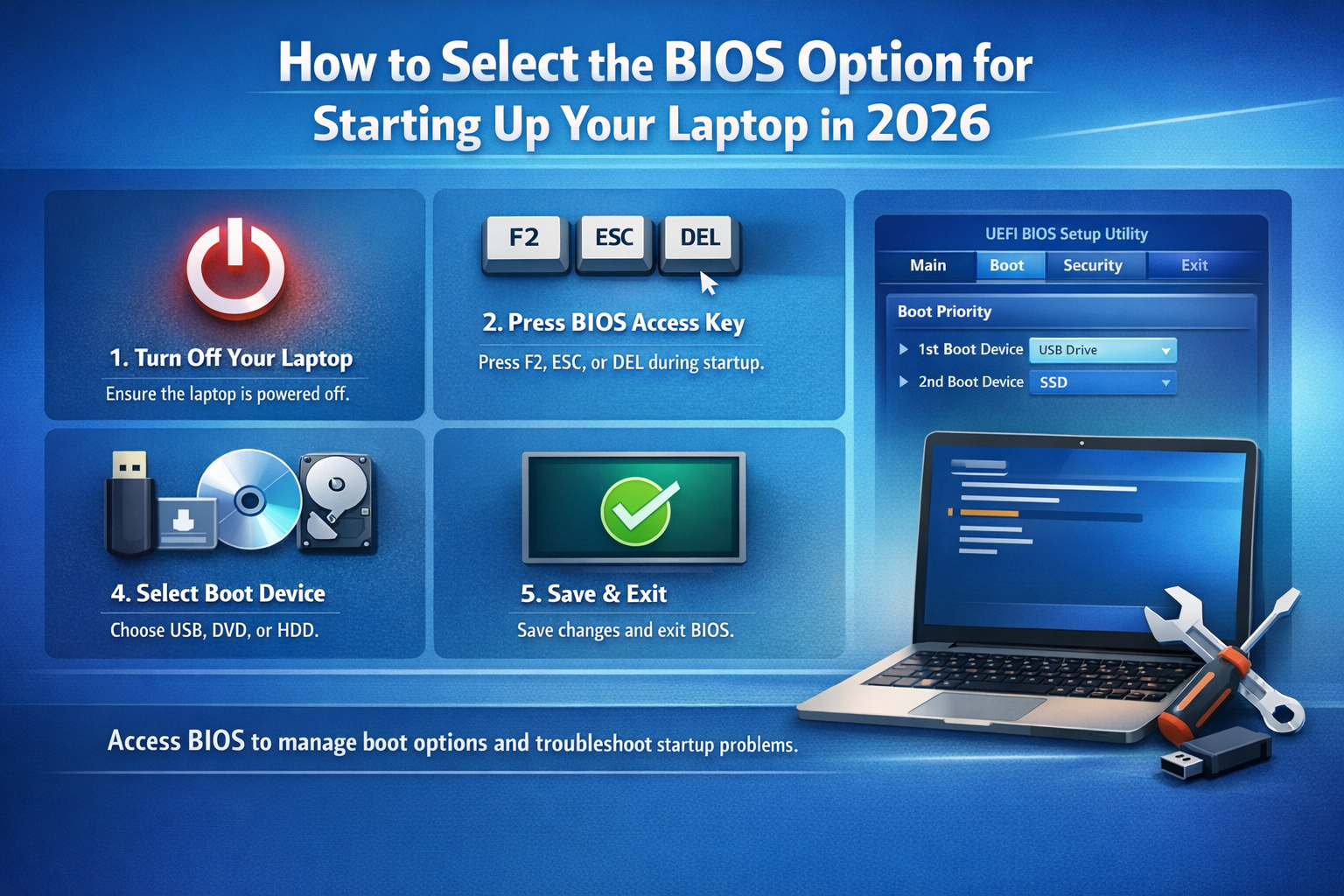
1. Turn Off Your Laptop
Before you begin, ensure your laptop is completely powered off. If your laptop is running, shut it down properly.
2. Turn On the Laptop and Press the BIOS Access Key
When you power on your laptop, you need to press a specific key to access the BIOS/UEFI settings. This key is usually displayed briefly during the boot process and may vary based on your laptop’s manufacturer. Common keys for entering BIOS are:
- F2: Common for many laptops (e.g., Dell, Acer, Lenovo)
- Esc: Common for HP laptops
- F10: Often used by HP and other manufacturers
- Del (Delete): Found on desktops and some laptops (especially gaming laptops)
As soon as you power on your laptop, start pressing the appropriate key (or hold it down) repeatedly to access the BIOS/UEFI menu. If you miss the window, simply restart and try again.
3. Navigating BIOS/UEFI Settings
Once inside the BIOS/UEFI settings, you’ll see a menu of options. Here are a few key sections you’ll typically encounter:
- Boot Menu: This option allows you to select the boot device (USB, CD/DVD, hard drive, etc.). You can change the boot priority order to boot from a specific device.
- Security Settings: In this section, you can enable/disable features like Secure Boot, which helps protect your system from unauthorized software.
- System Configuration: This section allows you to configure hardware-related options, like fan speed, RAM frequency, CPU settings, etc.
- Exit Options: After making changes, you’ll need to save and exit. Make sure to choose the “Save and Exit” option to apply your changes.
4. Select the Boot Device
To select the boot device for starting up your laptop, follow these steps:
- Navigate to the Boot Menu: Once in the BIOS/UEFI settings, use the arrow keys (or mouse if in UEFI mode) to select the Boot or Boot Order menu.
- Select Boot Device: Here, you can select from a list of available devices like your hard drive, USB, CD/DVD, or external drives. Move the selected boot device to the top of the list if you want it to take priority.
- Save and Exit: After selecting the boot device, follow the on-screen instructions to save your changes. Typically, pressing F10 will save and exit, but this may vary by manufacturer.
5. Advanced Boot Options (Optional)
In some cases, you may need to access advanced boot options, such as safe mode or the recovery environment:
- Windows: If you have Windows installed, you can usually access these options by holding the Shift key while selecting Restart from the Windows Start menu.
- Linux: For Linux-based systems, pressing specific keys (like Esc or Shift) during boot may show you boot options.
6. Troubleshooting Boot Issues
If your laptop is not booting correctly, here’s what you can try:
- Check Boot Order: Ensure that the primary boot device is set correctly. If you’re booting from a USB drive or external media, ensure it’s selected at the top of the boot order.
- Enable Secure Boot: If you’re trying to boot from a new OS or third-party software, try disabling Secure Boot in the BIOS/UEFI settings.
- Reset BIOS to Default: In cases of misconfigurations, resetting BIOS settings to their default values can often resolve booting issues.
What’s New in BIOS/UEFI in 2026?
In 2026, BIOS/UEFI has evolved to offer better security features and a more user-friendly interface. Some of the improvements you may encounter include:
- Graphical UEFI Interfaces: Many modern laptops now come with a graphical interface in the UEFI system, making navigation easier.
- Advanced Security Options: Features like TPM 2.0 (Trusted Platform Module) for enhanced security and Secure Boot are now commonly available to protect against malware and unauthorized access.
- Faster Boot Times: UEFI allows for quicker boot times compared to the traditional BIOS, ensuring a faster startup experience.
- Support for Newer Hardware: UEFI supports larger storage devices and the latest hardware innovations, making it more adaptable to modern computing needs.
Conclusion
Selecting the BIOS or UEFI options to start up your laptop in 2026 is a straightforward process that can be done with just a few steps. Whether you’re changing the boot order, troubleshooting, or configuring hardware settings, understanding how to navigate BIOS/UEFI is essential for maintaining and customizing your system.
Remember that BIOS access keys may vary by manufacturer, so be sure to check your laptop’s manual for specific instructions. By following these steps, you’ll be well-equipped to manage your laptop’s startup settings, fix issues, and make the most of your device’s capabilities in 2026.