







Facebook Twitter Instagram
    Trending
    • The Ultimate Beginner’s Guide to Pod Vapes
    • Philip Morris International launched the IQOS Iluma i One device in the UK, which is compatible with the TERA cigarette cartridge series.
    • Turning Digital Dreams Into Reality: A Guide to Bitcoin Exchange for Cash
    • Best Free VPN for Netflix – iTop VPN
    • Norway is advancing in adapting 5G network for higher technology
    • Exploring Risk Management through Futures: Delving into Hedging and Speculation
    • How to Use a Newsletter to Promote Your Website better
    • Discover the most competitive interest rates on loans in the UK
    Facebook YouTube
    Login Register
    IGeeKphone China Phone, Tablet PC, VR, RC Drone News, Reviews
    • HOME
      • NEWS
        • DeepSeek
        • ChatGPT
        • Minecraft
    • Amazon
    • NEW YEAR
    • PHONE
      • Top Phones For Your First Choice
      • Phone Comparison
      • Xiaomi
      • Blackview
      • Doogee
      • Black Shark
      • Geekbuying
      • Banggood
      • TEMU
      • TikTok
      • Aliexpress
      • Walmart
      • MercadoLibre
      • Lazada
    • TOP VAPE Awards for 2026
    • VAPES
      • E-CIGAR Upcoming
      • Vape News
      • Vape Deals
      • Vape Comparison
      • Vape Guide
      • Giveaway
    • BEST VAPE
      • Best Vape Stores
      • Best Starter Vape Kits
      • Best Vapes for Beginners
      • Best Disposable Vapes
      • Best Pod Systems
      • Best Pod Mod Vapes
      • Best Mods
      • Best Nicotine Pouches
      • Best Clearomizers/Tanks
      • Best E-Liquid
      • Best EGO/Pens
      • Best Vapes for Nic Salt E-Juice
      • Best Vapes to Quit Smoking
      • RDA vs. RDTA vs. RTA
    • Best Vape Brand 2026
      • VAPORESSO
      • VOOPOO
      • OXVA
      • NEXA BAR
      • ORIONBARTECH
      • MASKKING VAPE
      • MEMERS
      • SP2S
      • JNR
      • TODOO
      • MRFOG
      • VEIIK
    • REVIEW
      • E-cigar Review
      • Phones
      • Tablet PC
      • TV Box
      • RC Drone
      • Wearables
      • Camera
      • Accessories
      • VR Headset
    • MORE
      • TABLET
        • Chuwi
        • INNOCN
        • Teclast
        • Top Tablet for Your First Choice
        • Tablet/Laptop Comparison
      • RC DRONE
      • CAMERA
      • WEARABLES
        • OneOdio
        • BlitzWolf
        • Top Smartwatch for First Choice
      • 3D PRINTER
        • 3D Printer Review
        • Anycubic
        • FLSUN
        • Xtool
        • LONGER
        • Top 3D printer to Choose First
      • POWER STATION
        • Oukitel
        • FOSSIBOT
      • GAMING
        • Top Gaming Products
      • E-BIKE
        • Samebike
        • Happyrun
        • ENGWE
      • SMART HOME
      • TV BOX
      • ACCESSORIES
      • VR HEADSET
      • CLOTHES
      • AUTO CAR
    • DEAL
    • Shop
    IGeeKphone China Phone, Tablet PC, VR, RC Drone News, Reviews
    You are at:Home»Guide»How to set the network mode on iPhone 17 Pro?
    Guide

    How to set the network mode on iPhone 17 Pro?

    Brady CottonBy Brady CottonFebruary 3, 2026
    Facebook Twitter Pinterest LinkedIn Tumblr Email

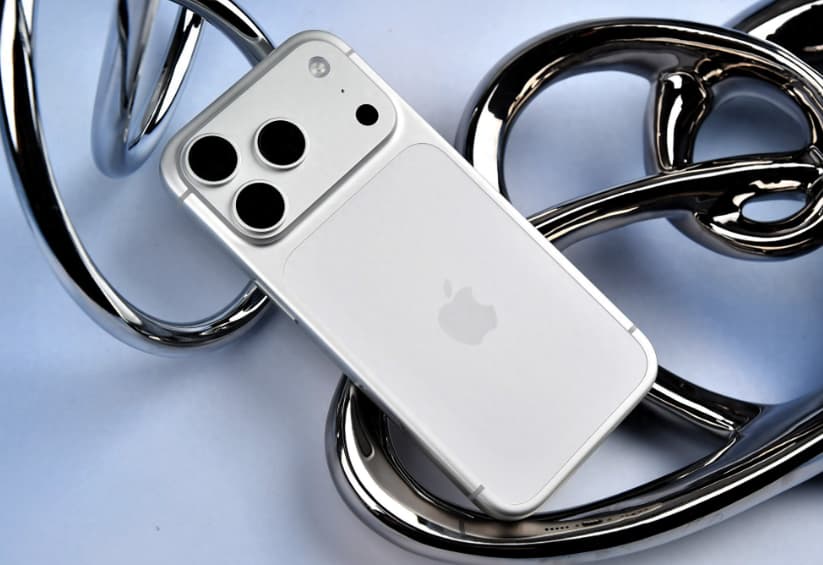
    iPhone 17 Pro, as an advanced flagship model of Apple, not only excels in performance but also has a powerful network setup feature, supporting various network modes such as Wi-Fi, 4G, and 5G. Users can switch between these modes flexibly according to their actual needs. The following will provide a detailed introduction to the method of setting up the network modes on the iPhone 17 Pro.

    I. Wi-Fi Network Settings

    Wi-Fi is the most commonly used network connection method in daily life, with fast speed and low cost. The steps to turn on Wi-Fi are as follows: Open the “Settings” app, click on the “Wi-Fi” option, and set the switch to “On”. At this time, the phone will automatically scan the nearby Wi-Fi networks. In the list of scanned networks, select the network you want to connect to. If the network is protected by a password, you need to enter the correct password, then click “Join”. After the connection is successful, click the “i” icon next to the connected network name to view the network details and set the “Auto Join” option. If you want to forget a certain network, simply select “Forget this network”.

    II. Setup of Cellular Data Network

    Cellular data networks provide internet access when Wi-Fi is unavailable. iPhone 17 Pro supports 4G and 5G networks. To turn on cellular data, click “Cellular Network” in “Settings”, and set the “Cellular Data” switch to “On”. In the “Cellular Data Options”, you can choose modes such as “Auto 5G”, “Enable 5G”, or “LTE”. The “Auto 5G” mode will intelligently switch based on network conditions to extend battery life; the “Enable 5G” mode always uses 5G network but may increase power consumption; the “LTE” mode locks onto 4G network, suitable for scenarios with unstable signals or requiring extended battery life.

    III. Quickly Switch Network Modes

    For users who frequently switch networks, they can perform quick operations through the control center. From the upper right corner of the screen (for full-screen devices) or by sliding up from the bottom (for devices with a Home button), open the control center. Long press the green cellular data icon, and a menu will pop up showing the current network status. If temporary network switching is supported, click on the “4G” or “5G” option. This method takes effect temporarily. The default settings may be restored after restarting the device or turning on the flight mode.
    IV. Advanced Network Configuration Techniques

    1. Intelligent Network Switching: The iPhone 17 Pro supports the intelligent network switching function. When the Wi-Fi signal is weak, the phone will automatically switch to the cellular data network to ensure the stability of the network connection. This function can be enabled in the “Cellular Network” settings under the “Wi-Fi Assistant” option.
    2. Utilize data permission management: On the “Cellular Network” page, you can view the cellular data usage of each application and disable the permissions of unnecessary applications to save data.
    3. Create shortcut commands: For gamers or business professionals, custom operations can be created through the “Shortcut Commands” application to enable one-click switching of network modes. Open the “Shortcut Commands” application, click the “+” button at the top right to create a new command, add the “Set” operation, select the “Voice and Data” option under “Cellular Data”, in the configuration interface choose “Ask each time it runs”, save the command and add it to the home screen. Subsequently, simply clicking the icon will allow for quick switching.

    V. Network Problem Troubleshooting
    If you encounter network connection issues, you can try the following methods: regularly restart the device, clear cache, and release system resources; update the system software, fix known network problems and optimize performance; use a high-quality router, and regularly check for firmware updates of the router to enhance network performance.

    Share. Facebook Twitter Pinterest LinkedIn Tumblr Email

    Related Posts

    Turning Digital Dreams Into Reality: A Guide to Bitcoin Exchange for Cash

    Best Free VPN for Netflix – iTop VPN

    Exploring Risk Management through Futures: Delving into Hedging and Speculation

    Leave A Reply Cancel Reply

    You must be logged in to post a comment.

    voopoo Cyph NAVI kit
    oxva xlim 3 ultra
    sp2s sen x disposable vape
    jnr 100k
    • Popular
    • 3D Printer REVIEW
    • XIAOMI
    February 8, 2026

    VOOPOO VMATE i2 vs i3: Hands-On Comparison Review

    February 2, 2026

    Voopoo Drag X3 vs Drag X2: Hands-On Comparison Review

    January 21, 2026

    VOOPOO ARGUS P3 VS ARGUS P2: Which Square Pod Suits You?

    January 21, 2026

    VOOPOO Drag X3 vs VOOPOO Drag X2: Hands-On Comparison

    December 26, 2025

    ACMER ASCARVA 4S: Precision CNC Power for Makers, DIYers & Small Workshops

    June 23, 2024

    ACMER P2 20W Laser Engraver Fixed Focus Engraving: Hands on Review

    May 30, 2024

    xTool F1 Ultra Review: World’s First 20W Fiber & 20W Diode Laser Engraver

    May 30, 2024

    Anycubic Kobra 3 Combo Review: The Multicolor Masterpiece?

    February 9, 2026

    Xiaomi 18 is the world’s first! The cost of Qualcomm Snapdragon 8 Elite Gen 6 Pro is outrageously high

    February 6, 2026

    Xiaomi 17 Ultra will make its debut at MWC: The battery capacity of the international version has been reduced to 6000mAh.

    February 4, 2026

    Xiaomi Hyper OS 4 undergoes a major upgrade: Completely eliminates old code and boosts smoothness.

    February 2, 2026

    The new 6.59-inch mid-to-high-end model of a Certain factory is tentatively scheduled to be released in the first half of this year. It is expected to be under the brand of Xiaomi.

    fc 26 coins
    New Arrivals
    • Redmi Turbo 5 Max Redmi Turbo 5 Max
    • OnePlus Turbo 7 OnePlus Turbo 7
    • Doogee S300 Ultra Doogee S300 Ultra
    • iQOO 15R iQOO 15R
    • VOOPOO NAVI X Cyph 80K Disposable Vape Kit VOOPOO NAVI X Cyph 80K Disposable Vape Kit
    • OXVA Slim Stick X Vape OXVA Slim Stick X Vape
    • Geek Bar Somax 80K Disposable Vape Geek Bar Somax 80K Disposable Vape
    • Geek Bar Clio Platinum 50K Disposable Vape Kit Geek Bar Clio Platinum 50K Disposable Vape Kit
    • Motorola Edge 70 Fusion Motorola Edge 70 Fusion
    About
  • Igeekphone.com provides the first global tech news and reviews about smartphone, vapes, e-cigar, smart home, 3D printers, e-bike,tablets, RC drones, VR headset, and other accessories. It's the best platform to improve your brand and product.
  • Contact us: info@igeekphone.com
  • Check Our Privacy Policy Here.
  • Note: *Right now we have US editor and EU editors for review, especially for Amazon US and EU.
  • *Shop and Compare Price Here*
  • Facebook
  • Youtube
  • OUR BEST VAPE PARTNERS
  • VAPE ONLINE STORE
  • HAYATI PRO MAX PLUS
  • VAPORESSO
  • VOOPOO
  • OXVA
  • NEXA
  • MASKKING
  • LOSTVAPE ORIONBAR
  • MEMERS
  • TODOO
  • SP2S
  • JNR
  • VEIIK
  • OTHER BEST PARTNERS
  • SVBONY
  • Chuwi
  • Blackview
  • Fossibot
  • Unihertz
  • Flsun
  • Anycubic
  • Xtool
  • Oukitel
  • Mukkpet Ebike
  • Ugreen
  • Copyright © 2026 igeekphone

    Type above and press Enter to search. Press Esc to cancel.