










Screenshots are one of the most useful features on any smartphone, allowing users to quickly save conversations, webpages, recipes, directions, or important information. But sometimes a regular screenshot is not enough — especially when the content extends beyond a single screen.
That is where long screenshots, also known as scrolling screenshots, become incredibly useful. On an iPhone, long screenshots allow users to capture an entire webpage, document, email, or long conversation in a single image or PDF file instead of taking multiple screenshots manually.
If you have ever wondered how to take a long screenshot on an iPhone, this guide explains everything you need to know, including built-in iPhone methods, third-party apps, troubleshooting tips, and best practices.
What Is a Long Screenshot?
A long screenshot captures content that extends beyond the visible portion of your screen. Instead of saving only what is currently displayed, the iPhone can scroll automatically and capture the entire page.
Long screenshots are commonly used for:
- Full webpages
- Long emails
- PDF documents
- Recipes
- Chat conversations
- Social media threads
- Online articles
- Shopping receipts
- Instructions or tutorials
Rather than storing multiple separate screenshots, users can keep everything organized in one continuous file.
Can iPhones Take Long Screenshots?
Yes — iPhones can take long screenshots using Apple’s built-in screenshot tools. However, there is an important limitation:
The native long screenshot feature only works in supported apps such as:
- Safari
- Files
- Notes
- Some PDF viewers
It does not work directly in most social media apps or messaging apps like Instagram, WhatsApp, or Facebook.
For unsupported apps, users typically rely on third-party apps or screen recording methods.
How to Take a Long Screenshot in Safari on iPhone
The easiest and most reliable method for taking a long screenshot on an iPhone is through Safari.
Step 1: Open the Webpage
Launch Safari and open the webpage you want to capture.
Make sure the page has fully loaded before taking the screenshot.
Step 2: Take a Screenshot
Depending on your iPhone model:
- iPhones with Face ID:
Press the Side Button + Volume Up button simultaneously. - iPhones with a Home Button:
Press the Home Button + Power Button simultaneously.
You will see a thumbnail preview appear in the bottom-left corner.
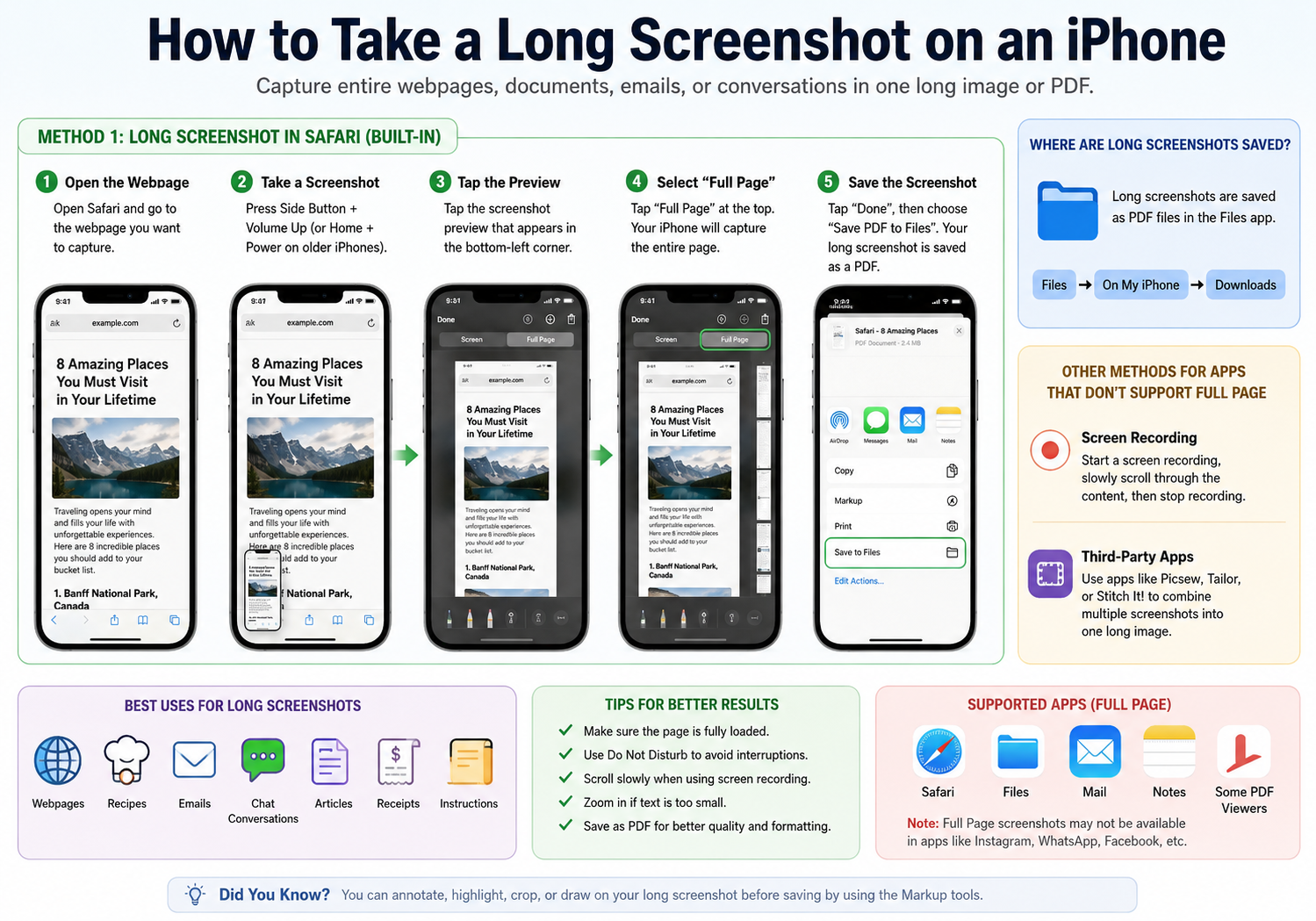
Step 3: Tap the Screenshot Preview
Quickly tap the preview thumbnail before it disappears.
This opens Apple’s screenshot editor.
Step 4: Select “Full Page”
At the top of the screen, you will see two tabs:
- Screen
- Full Page
Tap “Full Page.”
Your iPhone will automatically capture the entire webpage from top to bottom.
Step 5: Save the Long Screenshot
You can now:
- Crop the screenshot
- Annotate it
- Highlight information
- Draw on the image
When finished, tap “Done.”
The long screenshot is usually saved as a PDF file inside the Files app rather than the Photos app.
Where Are Long Screenshots Saved?
Unlike regular screenshots, full-page screenshots are typically saved to the Files app as PDFs.
You can usually find them in:
- Files
- On My iPhone
- Downloads
You may also choose another folder during the saving process.
This behavior helps keep large documents organized and prevents clutter in the Photos gallery.
How to Take a Long Screenshot in Other Apps
Apple’s built-in long screenshot feature is limited in many apps. Fortunately, there are alternative methods.
Method 1: Use Screen Recording
One simple workaround is using iPhone screen recording.
Steps:
- Open the content you want to capture.
- Start Screen Recording from Control Center.
- Slowly scroll through the page.
- Stop recording.
- Use video editing or screenshot tools later if needed.
This method works for:
- Chat conversations
- Social media feeds
- TikTok comments
- Instagram posts
- Messaging apps
Method 2: Use Third-Party Apps
Several apps on the App Store allow users to create scrolling screenshots.
Popular options include:
- Picsew
- Tailor
- Stitch It!
- Long Screenshot App
These apps usually work by combining multiple screenshots into one long image automatically.
How These Apps Work
Typically, users:
- Take several normal screenshots while scrolling.
- Open the app.
- The app stitches the images together automatically.
This method works well for apps that do not support Apple’s native scrolling screenshot feature.
How to Take a Long Screenshot of a Conversation
Many people want to save entire chats or text conversations.
Since Apple does not currently support direct long screenshots for Messages or WhatsApp, the best solution is usually:
- Take overlapping screenshots while scrolling
- Use a stitching app like Picsew or Tailor
This creates one continuous image of the conversation.
How to Edit a Long Screenshot
After capturing a long screenshot, iPhones allow users to edit the file before saving.
You can:
- Crop unwanted sections
- Highlight important text
- Add arrows or shapes
- Draw annotations
- Sign documents
- Blur personal information
Apple’s built-in Markup tools are especially useful for work documents, receipts, or instructional screenshots.
Tips for Better Long Screenshots
To improve screenshot quality and readability, consider these tips:
Scroll Slowly
If you are using stitching apps or screen recording, smooth scrolling helps create cleaner captures.
Use Landscape Mode
Some webpages and documents appear more readable horizontally.
Remove Notifications
Enable Do Not Disturb mode to avoid interruptions during capture.
Zoom In if Needed
For small text, zoom slightly before capturing to improve readability later.
Save Important Files as PDFs
PDF long screenshots preserve formatting better than image files.
Common Problems and Fixes
“Full Page” Option Not Appearing
If you do not see the “Full Page” tab:
- Ensure you are using Safari or a supported app
- Update your iPhone to the latest iOS version
- Make sure the page is scrollable
Screenshot Is Blurry
Blurry screenshots may happen when:
- The page has not fully loaded
- Screen recording quality is low
- Images are compressed by third-party apps
Try recapturing the content after everything finishes loading.
Long Screenshot Not Saving
Check available storage space in:
- Settings
- General
- iPhone Storage
Also verify that Files app permissions are enabled.
Best Uses for Long Screenshots
Long screenshots are incredibly useful for both personal and professional situations.
Popular uses include:
- Saving online receipts
- Capturing recipes
- Keeping travel confirmations
- Sharing full articles
- Storing tutorials
- Archiving conversations
- Creating study notes
- Saving social media threads
For students, office workers, and content creators, scrolling screenshots can significantly improve organization and productivity.
Are Long Screenshots Available on All iPhones?
Most modern iPhones running recent versions of iOS support full-page screenshots.
This includes:
- iPhone 11 series
- iPhone 12 series
- iPhone 13 series
- iPhone 14 series
- iPhone 15 series
- Newer SE models
Older devices may require software updates for compatibility.
Final Thoughts
Taking a long screenshot on an iPhone is easier than many users realize. Apple’s built-in Full Page screenshot feature works extremely well for webpages, PDFs, and documents, while third-party apps help fill the gap for unsupported apps like messaging and social media platforms.
Whether you are saving a recipe, archiving a conversation, capturing an online article, or organizing important information, long screenshots are one of the most practical productivity tools available on modern iPhones.
With the right method and a few simple techniques, you can quickly capture entire pages without the hassle of taking multiple separate screenshots.