







Facebook Twitter Instagram
    Trending
    • DOGO iMate X 40K vs NEXA ULTRA II: Which Disposable Vape Is Better in 2026?
    • Vaporesso LUXE Q3 vs LUXE Q2: Which Pod System Is Better in 2026?
    • BlitzWolf BW-P23 100W Power Bank Review at $46.99: The Ultimate Portable Charging Solution for Your Devices
    • JJRC C8831 1/14 2.4G 4WD Brushed High-Speed RC Car Review: A High-Performance Off-Road Adventure
    • ENOZE E201 E202 RTR 1/20 2.4G 4WD RC Car Review at $30.99: The Ultimate Off-Road Rock Crawler Experience
    • Removing Obstacles to Vaping: A Guide for People with Disabilities
    • Air Bar Gem 50K Disposable Vape Review: A Gem in the World of Vaping
    • TYN Pro 50K Disposable Vape Review: The Next Evolution in Vaping
    Facebook YouTube
    IGeeKphone China Phone, Tablet PC, VR, RC Drone News, Reviews
    • HOME
      • NEWS
        • DeepSeek
        • ChatGPT
        • Minecraft
    • Amazon
    • PHONE
      • Top Phones For Your First Choice
      • Phone Comparison
      • Xiaomi
      • Blackview
      • Doogee
      • Black Shark
      • Geekbuying
      • Banggood
      • TEMU
      • TikTok
      • Aliexpress
      • Walmart
      • MercadoLibre
      • Lazada
    • TOP VAPE Awards for 2026
    • VAPES
      • E-CIGAR Upcoming
      • Vape News
      • Vape Deals
      • Vape Comparison
      • Vape Guide
      • Giveaway
    • BEST VAPE
      • Best Vape Stores
      • Best Starter Vape Kits
      • Best Vapes for Beginners
      • Best Disposable Vapes
      • Best Pod Systems
      • Best Pod Mod Vapes
      • Best Mods
      • Best Nicotine Pouches
      • Best Clearomizers/Tanks
      • Best E-Liquid
      • Best EGO/Pens
      • Best Vapes for Nic Salt E-Juice
      • Best Vapes to Quit Smoking
      • RDA vs. RDTA vs. RTA
    • Best Vape Brand 2026
      • VAPORESSO
      • VOOPOO
      • OXVA
      • NEXA BAR
      • ORIONBARTECH
      • MASKKING VAPE
      • MEMERS
      • SP2S
      • TODOO
      • MRFOG
      • VEIIK
    • REVIEW
      • E-cigar Review
      • Phones
      • Tablet PC
      • TV Box
      • RC Drone
      • Wearables
      • Camera
      • Accessories
      • VR Headset
    • MORE
      • TABLET
        • Chuwi
        • INNOCN
        • Teclast
        • Top Tablet for Your First Choice
        • Tablet/Laptop Comparison
      • RC DRONE
      • CAMERA
      • WEARABLES
        • OneOdio
        • BlitzWolf
        • Top Smartwatch for First Choice
      • 3D PRINTER
        • 3D Printer Review
        • Anycubic
        • FLSUN
        • Xtool
        • LONGER
        • Top 3D printer to Choose First
      • POWER STATION
        • Oukitel
        • FOSSIBOT
      • GAMING
        • Top Gaming Products
      • E-BIKE
        • Samebike
        • Happyrun
        • ENGWE
      • SMART HOME
      • TV BOX
      • ACCESSORIES
      • VR HEADSET
      • CLOTHES
      • AUTO CAR
    • DEAL
    • VAPE LAWS
    • Shop
    IGeeKphone China Phone, Tablet PC, VR, RC Drone News, Reviews
    You are at:Home»Guide»What Should I Do If My Computer Has No Sound in 2026? A Step-by-Step Troubleshooting Guide
    Guide

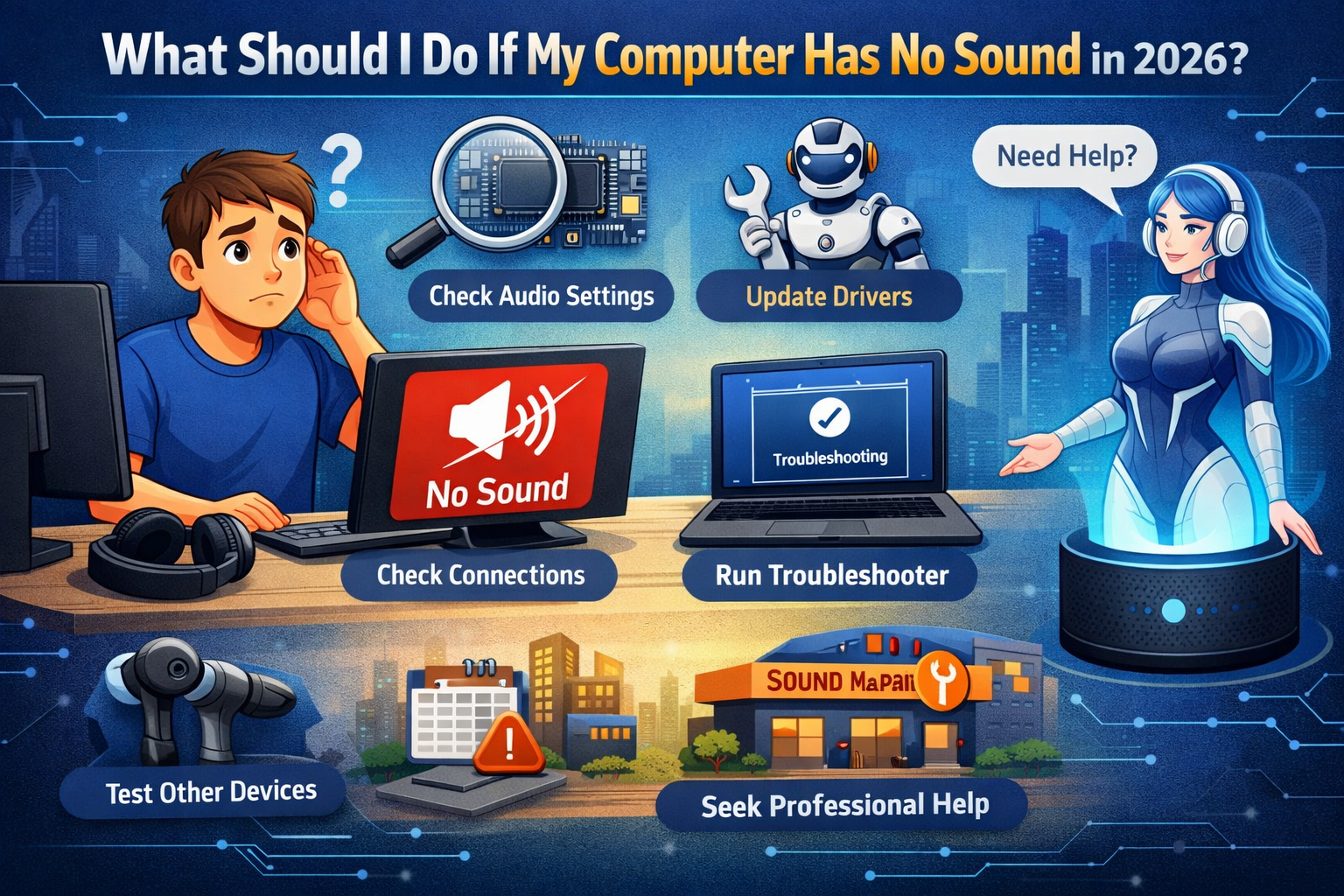
    What Should I Do If My Computer Has No Sound in 2026? A Step-by-Step Troubleshooting Guide

    Brady CottonBy Brady CottonMarch 27, 2026
    Facebook Twitter Pinterest LinkedIn Tumblr Email

    In today’s digital world, sound is essential for a wide range of tasks, from video conferencing and online learning to entertainment and gaming. But what happens when your computer suddenly has no sound? Whether it’s a glitch, a hardware issue, or a software conflict, there are several ways you can troubleshoot and resolve the issue.

    If you’re experiencing no sound on your computer in 2026, don’t panic. Follow these steps to diagnose and fix the problem, and you’ll be back to enjoying audio in no time.

    1. Check the Basics: Is the Sound Muted or Low?

    Before diving into more technical troubleshooting, make sure the sound isn’t accidentally muted or turned down too low. It might seem simple, but it’s easy to overlook:

    • Check the volume icon: Click on the speaker icon in your taskbar (or system tray) and make sure the volume is turned up.
    • Mute button: Ensure that the audio isn’t muted either in your system settings or in the app you’re using.
    • External speakers/headphones: If you’re using external speakers or headphones, check the volume on the speakers themselves, as well as on the computer.

    2. Restart Your Computer

    A simple restart can often resolve many issues, including sound problems. Restart your computer to see if it resolves the problem. This can clear temporary glitches or conflicts that may be preventing the audio from working.

    3. Check Your Output Device Settings

    If you’re using external speakers or headphones, your computer might be routing the sound to the wrong output device. To check and adjust the output device:

    • Windows: Right-click the sound icon in the taskbar, select Open Sound Settings, and under the Output section, make sure the correct device (speakers or headphones) is selected.
    • macOS: Go to System Preferences > Sound, then under the Output tab, choose the correct device.

    4. Inspect Your Audio Drivers

    Outdated or corrupt audio drivers can cause sound issues. In 2026, most systems update drivers automatically, but occasionally, something might go wrong. Here’s how to check:

    • Windows:
      • Press Windows + X and select Device Manager.
      • Expand the Sound, video, and game controllers section.
      • Right-click your audio device and select Update Driver.
      • You can also choose Uninstall device and restart your computer to let Windows reinstall the driver.
    • macOS:
      • macOS generally updates audio drivers automatically. If issues persist, check for system updates by going to System Preferences > Software Update.

    If updating the drivers doesn’t help, you can visit the manufacturer’s website (e.g., Realtek, Intel, or your computer’s brand site) to download the latest drivers manually.

    5. Troubleshoot with the Audio Troubleshooter (Windows)

    Windows includes a built-in troubleshooter to help identify and fix sound problems. Here’s how to use it:

    • Right-click the sound icon in the taskbar.
    • Select Troubleshoot sound problems.
    • Follow the on-screen instructions, and Windows will attempt to diagnose and fix the issue.

    6. Check for Software Conflicts

    Sometimes, software conflicts can interfere with sound. If you notice the sound stopped working after installing a specific application, try uninstalling or updating that app. Also, try disabling any software that might be conflicting with your audio drivers (e.g., third-party sound management apps).

    Additionally, if you’re using Bluetooth audio devices, ensure they are connected properly, and check if they require additional drivers or software updates.

    7. Inspect Audio Settings for Specific Apps

    If the sound is only missing in certain apps (like video players or web browsers), check the audio settings within those specific apps. Some apps have their own sound control options independent of system settings. For example, in streaming services, the sound could be muted or turned down within the app itself.

    8. Test Your Hardware (Speakers, Headphones, or Audio Jack)

    It’s possible that your speakers, headphones, or the audio port on your computer might be faulty. To rule out hardware issues:

    • Test with different headphones/speakers: Plug in another set of headphones or speakers and see if they work.
    • Test your headphones or speakers on another device: If the headphones or speakers don’t work on a different device, the issue could be with your audio hardware.

    For desktops, check the audio jack or USB connection for loose connections or debris.
    9. Adjust Advanced Sound Settings (Windows)

    In Windows 11 and 10, there are advanced audio settings that could be influencing your sound output. Here’s how to check them:

    • Right-click the sound icon and select Open Sound Settings.
    • Under the Advanced sound options, click on App volume and device preferences. Ensure that apps are set to the correct output device and the volume isn’t too low.
    • You can also try adjusting the Spatial Sound settings (turning it off or adjusting it) to see if that resolves any issues.

    10. Check for System Updates

    Sometimes, a system update may include critical patches for audio-related issues. Ensure your system is fully updated:

    • Windows: Go to Settings > Update & Security > Windows Update and check for any available updates.
    • macOS: Go to System Preferences > Software Update to check for updates.

    11. Reset or Reinstall the Audio Drivers

    If none of the above steps solve the problem, try resetting your audio settings. In some cases, it’s worth uninstalling the audio drivers and reinstalling them:

    • Windows: In Device Manager, right-click your audio driver and select Uninstall device. After a restart, Windows should automatically reinstall the driver.
    • macOS: If you suspect a driver issue on macOS, reinstalling the operating system might be necessary to fix the issue.

    12. Contact Support

    If you’ve followed all these steps and still have no sound, there could be a deeper hardware or software issue at play. Contact your device manufacturer’s support team or visit a technician for further assistance.

    Conclusion

    If your computer has no sound in 2026, don’t fret — there are plenty of troubleshooting steps you can take to fix the issue. From simple checks like ensuring the volume isn’t muted to more advanced solutions like updating drivers or reinstalling the audio hardware, you can often find a solution on your own. If all else fails, professional support is just a call away. With the right approach, you’ll have your computer’s sound back up and running in no time!

    Share. Facebook Twitter Pinterest LinkedIn Tumblr Email

    Related Posts

    Why Agentic Orchestration Is the Missing Layer in Modern Software Quality

    Tech Innovations Shaping the Future of Personal Injury Prevention and Recovery

    Beyond The Ordinary Grill: The Magic of Kamado Cookers

    Leave A Reply Cancel Reply

    You must be logged in to post a comment.

    voopoo drag 6
    oxva xlim 3 ultra
    sp2s sen x disposable vape
    • Popular
    • 3D Printer REVIEW
    • XIAOMI
    April 8, 2026

    OXVA NeXLIM vs XLIM Pro 2 Pod Hands-On Review (2026)

    March 16, 2026

    OXVA Slimstick VS OXVA Slimstick X Vape Hands-on Review

    March 5, 2026

    OXVA XLIM PRO 3 vs XLIM Pro 2 DNA: Hands-On Review

    March 5, 2026

    OXVA XLIM PRO 3 vs XLIM GO 2: Hands-On Review

    December 26, 2025

    ACMER ASCARVA 4S: Precision CNC Power for Makers, DIYers & Small Workshops

    June 23, 2024

    ACMER P2 20W Laser Engraver Fixed Focus Engraving: Hands on Review

    May 30, 2024

    xTool F1 Ultra Review: World’s First 20W Fiber & 20W Diode Laser Engraver

    May 30, 2024

    Anycubic Kobra 3 Combo Review: The Multicolor Masterpiece?

    April 13, 2026

    Xiaomi 18 Ultra continues to feature continuous optical zoom: the industry’s exclusive multi-focal range optical zoom without loss of image quality.

    April 10, 2026

    Redmi Book Pro 2026 officially announced to be Released this month: Core Ultra X7 358H + 99Wh super-large battery

    April 10, 2026

    Xiaomi REDMI Pad 2 SE tablet will be released this month: 9.7-inch 2K display, flagship metal all-in-one body

    April 8, 2026

    Xiaomi Smart Camera 4 Max AI Zoom Edition Launches Crowdfunding: 799 Yuan

    fc 26 coins
    New Arrivals
    • Air Bar Gem 50K Disposable Air Bar Gem 50K Disposable
    • Tyn Pro 50K Disposable Vape Tyn Pro 50K Disposable Vape
    • KEEP IT 100 40K Disposable Vape KEEP IT 100 40K Disposable Vape
    • iJoy XP50000 0% Zero Nicotine Disposable iJoy XP50000 0% Zero Nicotine Disposable
    • Rock Me VC BAR 50K Disposable Vape Rock Me VC BAR 50K Disposable Vape
    • Myle Pod Box 35K Disposable Vape Kit Myle Pod Box 35K Disposable Vape Kit
    • Kumi 6 Oro 40K Disposable Kumi 6 Oro 40K Disposable
    • KangerTech SUBOX MIX 50K Disposable KangerTech SUBOX MIX 50K Disposable
    • YLL Induction Heater 3.0 YLL Induction Heater 3.0
    About
  • Igeekphone.com provides the first global tech news and reviews about smartphone, vapes, e-cigar, smart home, 3D printers, e-bike,tablets, RC drones, VR headset, and other accessories. It's the best platform to improve your brand and product.
  • Contact us: info@igeekphone.com
  • Check Our Privacy Policy Here.
  • Note: *Right now we have US editor and EU editors for review, especially for Amazon US and EU.
  • *Shop and Compare Price Here*
  • Facebook
  • Youtube
  • OUR BEST VAPE PARTNERS
  • VAPE ONLINE STORE
  • HAYATI PRO MAX PLUS
  • VAPORESSO
  • VOOPOO
  • OXVA
  • NEXA
  • MASKKING
  • TODOO
  • SP2S
  • VEIIK
  • OTHER BEST PARTNERS
  • SVBONY
  • Chuwi
  • Blackview
  • Fossibot
  • Unihertz
  • Flsun
  • Anycubic
  • Xtool
  • Oukitel
  • Mukkpet Ebike
  • Ugreen
  • Copyright © 2026 igeekphone

    Type above and press Enter to search. Press Esc to cancel.