







Facebook Twitter Instagram
    Trending
    • ILIFE Cordless Stick Vacuum Cleaner Now on Amazon at Just $179.99
    • Huawei Mate XT2 Reportedly Adopts New U-Shaped Tri-Fold Design with Fully Protected Inner Display
    • Honor WIN2 Tipped for October Launch with 2nm Snapdragon Chip, 10,000mAh Battery, and Active Cooling
    • New Samsung Galaxy Z Flip8 and Galaxy Z Fold8 Renders Surface Ahead of July 22 Galaxy Unpacked Event
    • Xiaomi Redmi Note 17 Series Specifications Leak Ahead of July 14 Launch: Snapdragon 4 Gen 4, Up to 9,000mAh Battery
    • Tell You How My Dog Become a Service Dog?
    • DT NO.1 E08 Smart Cycling Glasses Review: AI-Powered Vision for Outdoor Adventures
    • Yocan Black Pocket Concentrate Vaporizer Review: Precision Dabbing in a Pocket-Sized Device
    Facebook YouTube
    IGeeKphone China Phone, Tablet PC, VR, RC Drone News, Reviews
    • HOME
    • BREAKING NEWS
      • AI NEWS
    • Amazon
    • PHONE
      • Top Phones For Your First Choice
      • Phone Comparison
      • Xiaomi
      • Blackview
      • Doogee
      • Black Shark
      • Geekbuying
      • Banggood
      • TEMU
      • TikTok
      • Aliexpress
      • Walmart
      • MercadoLibre
      • Lazada
    • TOP VAPE Awards for 2026
    • VAPES
      • E-CIGAR Upcoming
      • Vape News
      • Vape Deals
      • Vape Comparison
      • Vape Guide
      • VAPE LAWS
      • Giveaway
    • BEST VAPE
      • Best Vape Stores
      • Best Starter Vape Kits
      • Best Vapes for Beginners
      • Best Disposable Vapes
      • Best Pod Systems
      • Best Pod Mod Vapes
      • Best Mods
      • Best Nicotine Pouches
      • Best Clearomizers/Tanks
      • Best E-Liquid
      • Best EGO/Pens
      • Best Vapes for Nic Salt E-Juice
      • Best Vapes to Quit Smoking
      • RDA vs. RDTA vs. RTA
    • Best Vape Brand 2026
      • VAPORESSO
      • VOOPOO
      • OXVA
      • NEXA BAR
      • MASKKING VAPE
      • SP2S
      • IPLAY
      • TODOO
      • MRFOG
      • LOSTVAPE
      • VEIIK
    • REVIEW
      • E-cigar Review
      • Phones
      • Tablet PC
      • TV Box
      • RC Drone
      • Wearables
      • Camera
      • Accessories
      • VR Headset
    • MORE
      • TABLET
        • Chuwi
        • INNOCN
        • Teclast
        • Top Tablet for Your First Choice
        • Tablet/Laptop Comparison
      • RC DRONE
      • CAMERA
      • WEARABLES
        • OneOdio
        • BlitzWolf
        • Top Smartwatch for First Choice
      • 3D PRINTER
        • 3D Printer Review
        • Anycubic
        • FLSUN
        • Xtool
        • LONGER
        • Top 3D printer to Choose First
      • POWER STATION
        • Oukitel
        • FOSSIBOT
      • GAMING
        • Top Gaming Products
      • E-BIKE
        • Samebike
        • Happyrun
        • ENGWE
      • SMART HOME
      • TV BOX
      • ACCESSORIES
      • VR HEADSET
      • CLOTHES
      • AUTO CAR
    • DEAL
    • Shop
    IGeeKphone China Phone, Tablet PC, VR, RC Drone News, Reviews
    You are at:Home»Guide»What to Do If the Hotspot Function of Your iPhone Automatically Disconnects?
    Guide

    What to Do If the Hotspot Function of Your iPhone Automatically Disconnects?

    Brady CottonBy Brady CottonJune 8, 2026
    Facebook Twitter Pinterest LinkedIn Tumblr Email

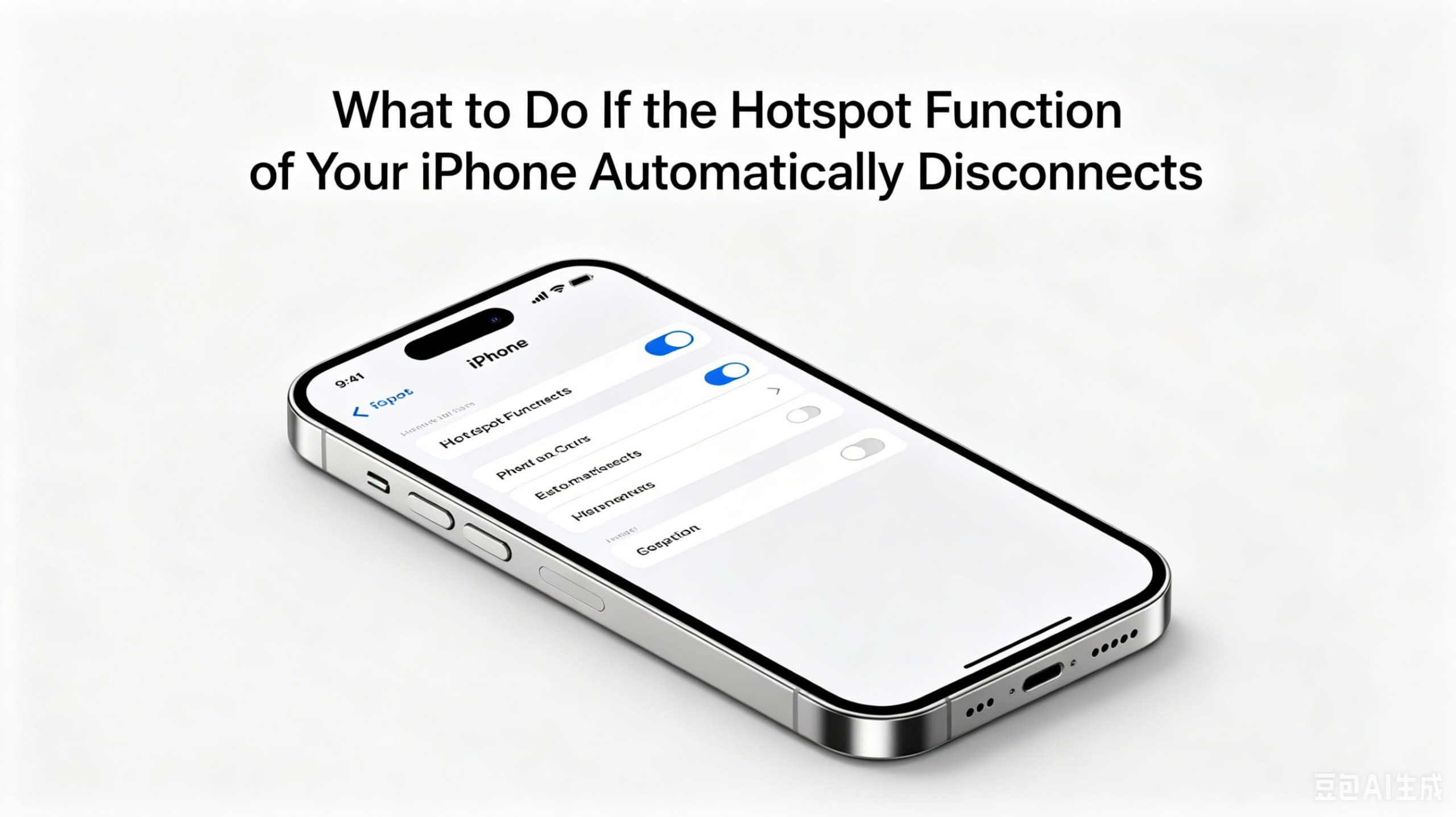
    The Personal Hotspot feature on an iPhone is a convenient way to share your mobile data connection with laptops, tablets, gaming devices, and other smartphones. However, some users experience a frustrating issue where the hotspot disconnects automatically after a period of inactivity or unexpectedly drops connected devices.

    If your iPhone hotspot keeps disconnecting, don’t worry. In most cases, the problem can be resolved with a few simple adjustments. This guide explains the most common causes and provides practical solutions to keep your hotspot connection stable.

    Why Does the iPhone Hotspot Disconnect?

    Several factors can cause an iPhone hotspot to disconnect automatically, including:

    • Power-saving features
    • Weak cellular signal
    • Wi-Fi interference
    • Software bugs
    • Outdated iOS versions
    • Network configuration issues
    • Carrier restrictions
    • Inactive connected devices

    Understanding the underlying cause is the first step toward finding the right solution.

    1. Keep the Hotspot Screen Open

    One common reason for hotspot disconnections is that iOS may reduce hotspot activity when no devices are actively using the connection.

    To help maintain the connection:

    1. Open Settings.
    2. Tap Personal Hotspot.
    3. Keep the Personal Hotspot screen visible while connecting devices.

    Although newer iOS versions manage hotspot connections more efficiently, keeping the hotspot menu open can sometimes improve connection reliability during setup.
    2. Disable Low Power Mode

    Low Power Mode is designed to conserve battery life by reducing background activity and network performance. In some cases, it may affect hotspot stability.

    To disable Low Power Mode:

    1. Open Settings.
    2. Select Battery.
    3. Turn off Low Power Mode.

    After disabling the feature, test your hotspot connection again.

    3. Check Your Cellular Signal Strength

    A hotspot relies entirely on your mobile network connection. If the cellular signal is weak or unstable, connected devices may lose internet access or disconnect altogether.

    Try the following:

    • Move to an area with better network coverage.
    • Avoid underground locations or buildings with thick walls.
    • Check whether your carrier is experiencing service issues.
    • Test mobile data directly on the iPhone.

    If mobile data is unreliable, the hotspot connection will likely be affected as well.

    4. Turn Wi-Fi and Bluetooth Off and On Again

    Temporary wireless communication issues can sometimes cause hotspot instability.

    Restart wireless services by:

    1. Opening Control Center.
    2. Turning off Wi-Fi.
    3. Turning off Bluetooth.
    4. Waiting 10 seconds.
    5. Re-enabling both features.

    Then reconnect your devices to the hotspot.

    5. Restart Your iPhone

    A simple restart can resolve many software-related problems.

    To restart your iPhone:

    1. Press and hold the power button and volume button.
    2. Slide to power off.
    3. Wait approximately 30 seconds.
    4. Turn the device back on.

    Once restarted, enable Personal Hotspot and test the connection again.

    6. Update iOS to the Latest Version

    Software bugs can sometimes interfere with hotspot functionality. Apple regularly releases updates that improve network performance and fix known issues.

    To check for updates:

    1. Open Settings.
    2. Tap General.
    3. Select Software Update.
    4. Install any available updates.

    Keeping your iPhone updated ensures you have the latest bug fixes and security improvements.

    7. Reset Network Settings

    Corrupted network settings may cause recurring hotspot problems.

    To reset network settings:

    1. Open Settings.
    2. Tap General.
    3. Select Transfer or Reset iPhone.
    4. Choose Reset.
    5. Tap Reset Network Settings.

    Note that this will remove saved Wi-Fi passwords and network configurations, so you’ll need to reconnect to wireless networks afterward.

    8. Verify Carrier Hotspot Support

    Some mobile carriers restrict hotspot functionality depending on your data plan.

    Check whether:

    • Personal Hotspot is included in your plan.
    • You have exceeded hotspot data limits.
    • Your carrier has temporary network restrictions.

    Contact your carrier’s customer support if hotspot functionality is unavailable or behaving unexpectedly.

    9. Disable Auto-Lock Temporarily

    In some situations, connected devices may disconnect when the iPhone enters sleep mode.

    To test this possibility:

    1. Open Settings.
    2. Tap Display & Brightness.
    3. Select Auto-Lock.
    4. Choose Never temporarily.

    After testing, remember to restore your preferred Auto-Lock setting to preserve battery life.

    10. Forget and Reconnect the Hotspot

    If only one device is experiencing disconnects, the issue may be related to that device rather than the iPhone.

    On the connected device:

    1. Open Wi-Fi settings.
    2. Select the iPhone hotspot network.
    3. Choose Forget Network.
    4. Reconnect using the hotspot password.

    This often resolves authentication or saved-profile issues.

    11. Try USB Tethering Instead

    If Wi-Fi hotspot connections remain unstable, USB tethering can provide a more reliable connection.

    Connect your iPhone directly to a computer using a Lightning or USB-C cable and enable Personal Hotspot. Wired tethering typically offers:

    • Greater stability
    • Faster speeds
    • Reduced battery consumption
    • Less wireless interference

    This is particularly useful for remote work or extended internet sessions.

    12. Contact Apple Support

    If none of the previous solutions work, there may be a deeper software or hardware issue affecting your device.

    Consider contacting Apple Support if:

    • The hotspot disconnects immediately after activation.
    • Multiple devices experience the same problem.
    • Cellular data also behaves abnormally.
    • The issue began after hardware damage or repair.

    Apple technicians can run diagnostic tests and identify potential hardware faults.

    Tips for Maintaining a Stable iPhone Hotspot

    To maximize hotspot reliability:

    • Keep your iPhone charged above 20%.
    • Use a strong cellular signal area.
    • Keep iOS updated.
    • Avoid connecting too many devices simultaneously.
    • Disable battery-saving features during hotspot use.
    • Restart your phone periodically.
    • Use USB tethering for critical tasks.

    Final Thoughts

    An iPhone hotspot that disconnects automatically can be frustrating, especially when you’re relying on it for work, travel, or entertainment. Fortunately, most hotspot issues are caused by power management settings, weak cellular coverage, outdated software, or network configuration problems.

    By following the troubleshooting steps outlined above, most users can restore a stable hotspot connection and enjoy uninterrupted internet sharing. If problems persist after trying all recommended solutions, contacting your carrier or Apple Support is the best next step to identify any underlying technical issues.

    Share. Facebook Twitter Pinterest LinkedIn Tumblr Email

    Related Posts

    Top 5 Reasons GaN Chargers Are Revolutionizing Device Charging

    How to switch from dual graphics cards to independent graphics card? Methods for adjusting computer graphics cards.

    Using VIX in Analysis: Oil Trading and the Role of Volatility Indexes

    Leave A Reply Cancel Reply

    You must be logged in to post a comment.

    voopoopintch
    oxva nexlim 2
    sp2s sen x disposable vape
    • Popular
    • 3D Printer REVIEW
    • XIAOMI
    June 21, 2026

    iPlay LUMO 8K Review – A Compact Prefilled Pod Kit with Big Flavor and Everyday Convenience

    June 21, 2026

    iPlay HOOLA 150K Review – A Cloud-Chasing Giant with Music, Modes & Massive Longevity

    June 21, 2026

    Vaporesso VIBE SE 2 Review – Simple on the Outside, Surprisingly Smart on the Inside

    June 21, 2026

    VOOPOO DRAG H40 Pro Review – The Return of the Pocket Powerhouse

    December 26, 2025

    ACMER ASCARVA 4S: Precision CNC Power for Makers, DIYers & Small Workshops

    June 23, 2024

    ACMER P2 20W Laser Engraver Fixed Focus Engraving: Hands on Review

    May 30, 2024

    xTool F1 Ultra Review: World’s First 20W Fiber & 20W Diode Laser Engraver

    May 30, 2024

    Anycubic Kobra 3 Combo Review: The Multicolor Masterpiece?

    July 11, 2026

    Xiaomi Redmi Note 17 Series Specifications Leak Ahead of July 14 Launch: Snapdragon 4 Gen 4, Up to 9,000mAh Battery

    July 10, 2026

    Xiaomi Band 11 Series Certified Ahead of Launch, Retains 233mAh Battery Capacity

    July 9, 2026

    Xiaomi 18 Pro Specifications Leak: 2nm Snapdragon 8 Elite Gen 6, Dual 200MP Cameras, and 7,000mAh Battery

    July 9, 2026

    Redmi Note 17 Pro is equipped with a 9000mAh Xiaomi Jinshajiang battery: it supports 67W fast charging.

    fc 26 coins
    New Arrivals
    • Veev One Plus Pod System Kit Veev One Plus Pod System Kit
    • Xiaomi 18T Xiaomi 18T
    • Xiaomi 18T Pro Xiaomi 18T Pro
    • Huawei Mate 80 Air Huawei Mate 80 Air
    • Xiaomi Poco F9 Ultra Xiaomi Poco F9 Ultra
    • JNR Falcon Mini 20K Puffs Refillable Vape Kit JNR Falcon Mini 20K Puffs Refillable Vape Kit
    • Hyrise Hybrid Vaporizer Kit Hyrise Hybrid Vaporizer Kit
    • Hyrise Hydden 510 Thread Battery 1000mAh Hyrise Hydden 510 Thread Battery 1000mAh
    • Smoant Flex Neo Pod System Kit Smoant Flex Neo Pod System Kit
    About
  • Igeekphone.com provides the first global tech news and reviews about smartphone, vapes, e-cigar, smart home, 3D printers, e-bike,tablets, RC drones, VR headset, and other accessories. It's the best platform to improve your brand and product.
  • Contact us: info@igeekphone.com
  • Check Our Privacy Policy Here.
  • Note: *Right now we have US editor and EU editors for review, especially for Amazon US and EU.
  • *Shop and Compare Price Here*
  • Facebook
  • Youtube
  • OUR BEST VAPE PARTNERS
  • VAPE ONLINE STORE
  • HAYATI PRO MAX PLUS
  • VAPORESSO
  • VOOPOO
  • OXVA
  • NEXA
  • MASKKING
  • SP2S
  • IPLAY
  • TODOO
  • OTHER BEST PARTNERS
  • SVBONY
  • Chuwi
  • Blackview
  • Fossibot
  • Unihertz
  • Flsun
  • Anycubic
  • Xtool
  • Oukitel
  • Mukkpet Ebike
  • Ugreen
  • Copyright © 2026 igeekphone

    Type above and press Enter to search. Press Esc to cancel.