










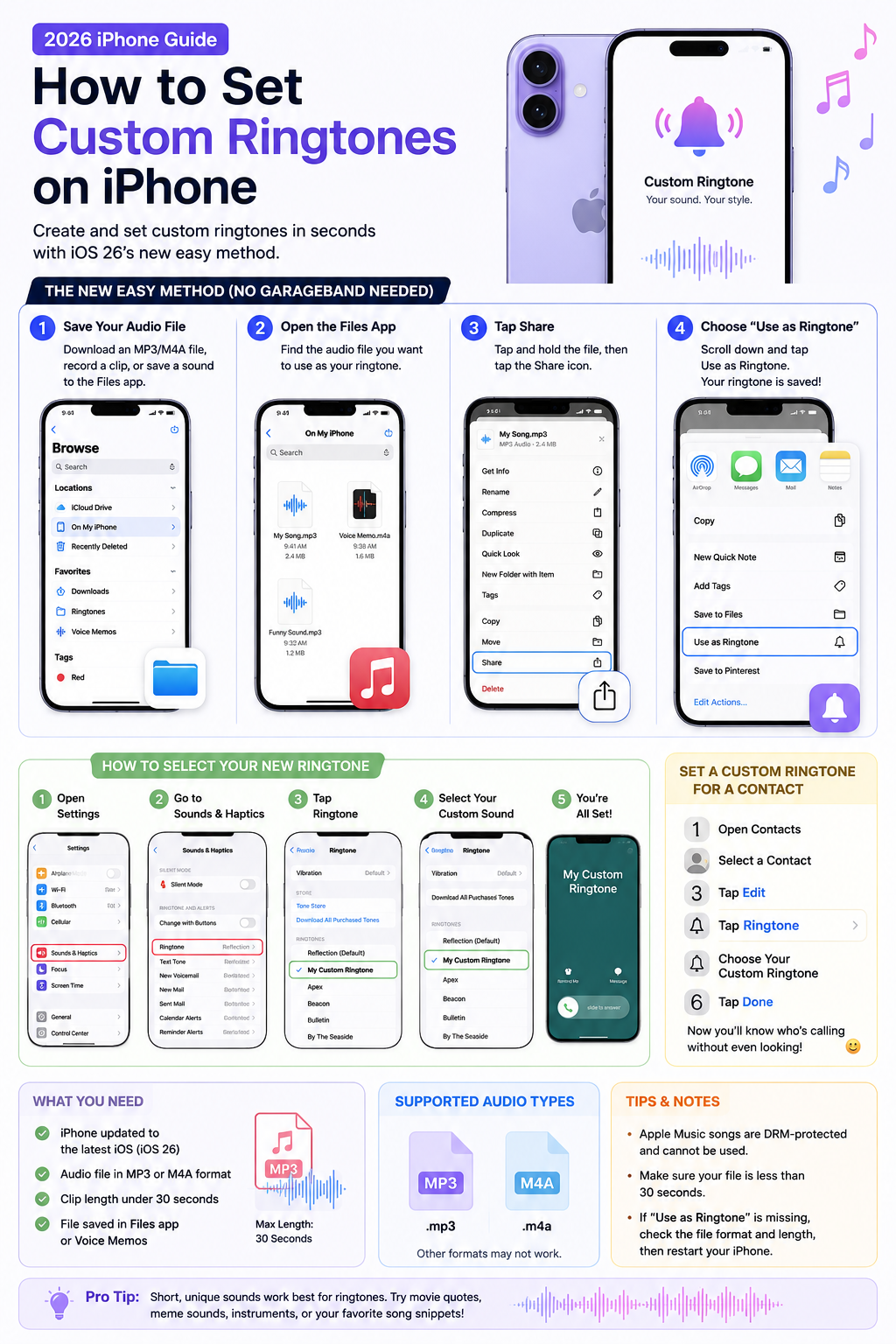
Custom ringtones are finally easy to use on modern iPhones. With the latest version of iOS, Apple removed many of the complicated steps that previously required GarageBand, iTunes, or a computer. Now you can turn almost any short audio clip into a ringtone directly from your iPhone in seconds.
Whether you want to use your favorite song, a meme sound, a movie quote, or a custom notification tone, this guide explains everything you need to know.
What You Need Before Starting
Before creating a custom ringtone, make sure:
- Your iPhone is updated to the latest iOS version
- The audio file is in MP3 or M4A format
- The clip is under 30 seconds long
- The file is saved in the Files app or Voice Memos
Apple currently limits custom ringtone length to 30 seconds.
The New Easy Method (No GarageBand Needed)
Apple introduced a much simpler ringtone process in iOS 26. Instead of exporting files through GarageBand, you can now create ringtones directly from the Files app.
Step 1: Download or Save Your Audio File
First, save the sound you want to use:
- Download an MP3 file
- Save an audio clip from the internet
- Record your own sound using Voice Memos
The file should appear inside the Files app.
Step 2: Open the Files App
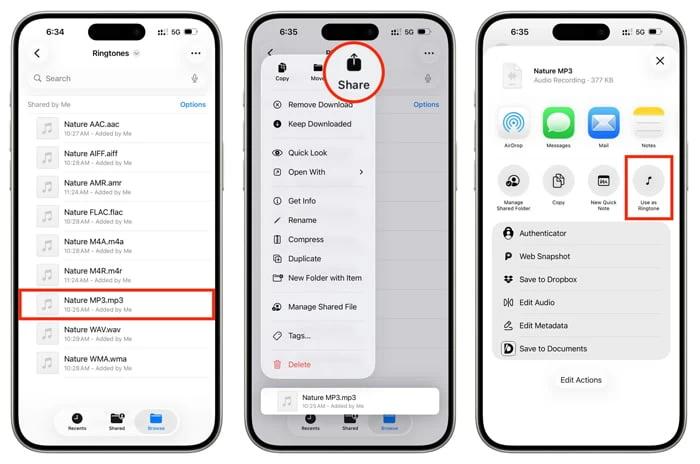
Launch the Files app on your iPhone and locate the audio file.
Tap and hold the file until the quick actions menu appears.
Step 3: Tap “Share”
From the popup menu:
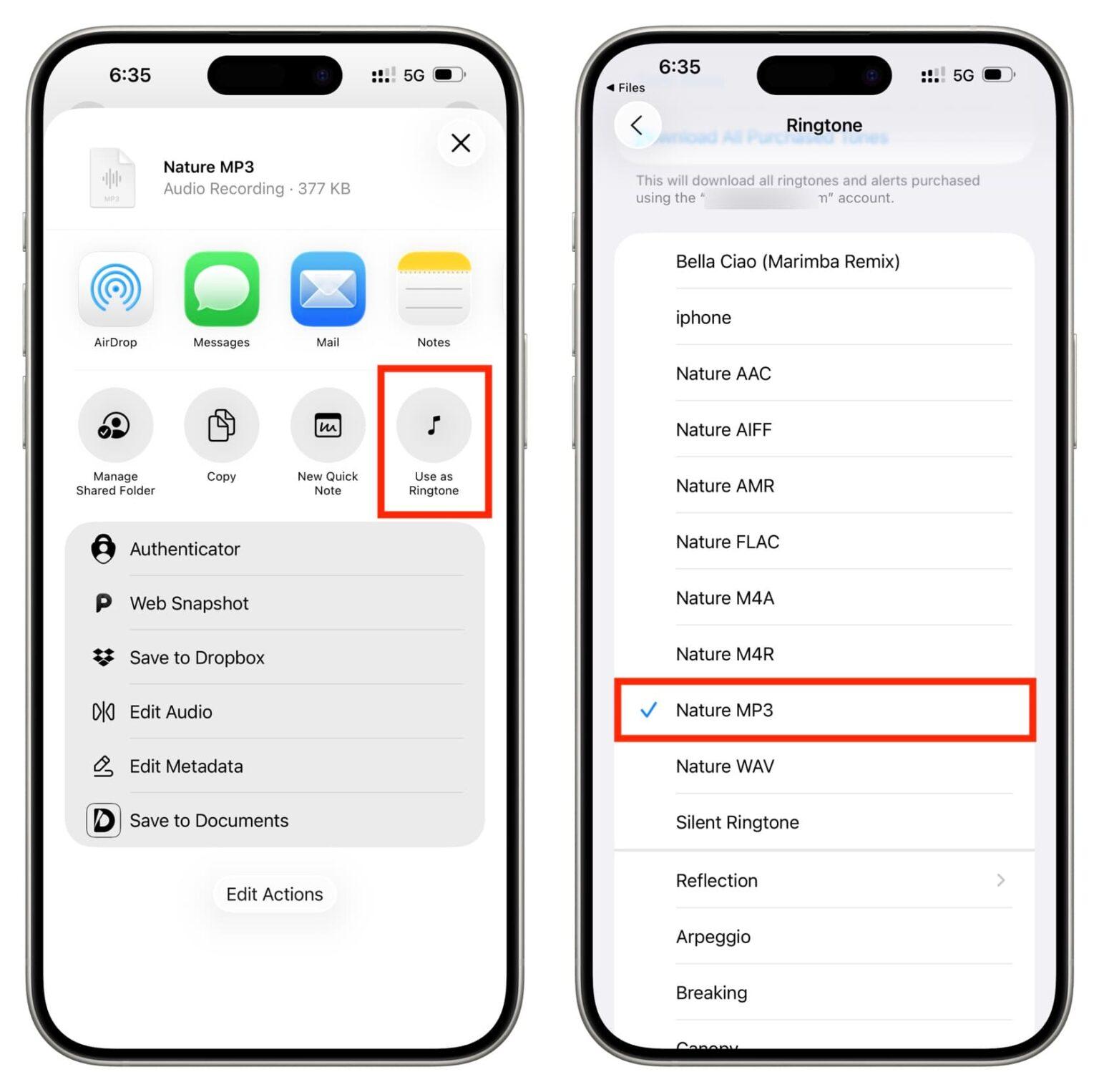
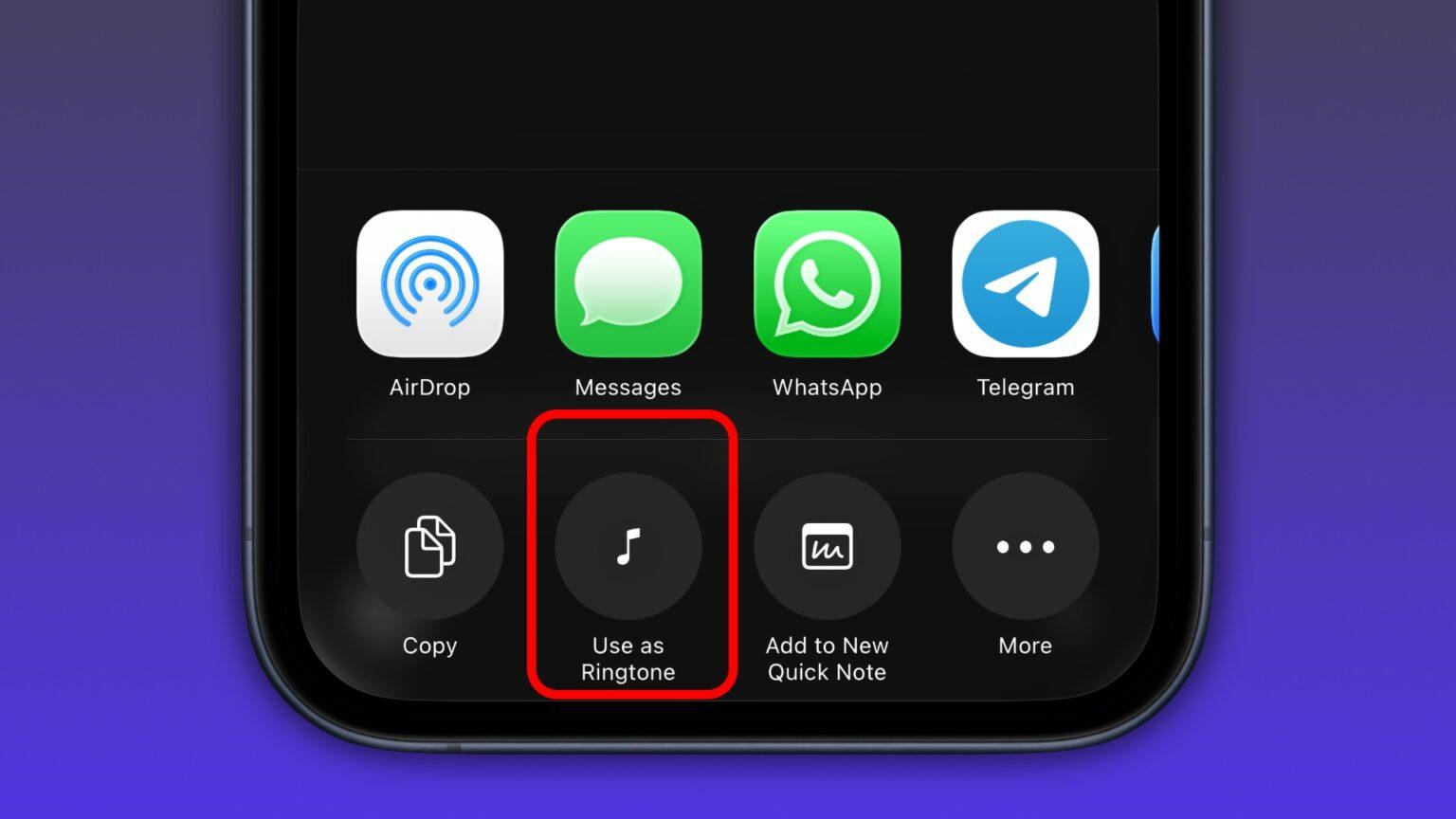
- Tap Share
- Scroll down
- Select Use as Ringtone
That’s it. Your ringtone will automatically be added to your iPhone.
How to Select Your New Ringtone
After creating the ringtone:
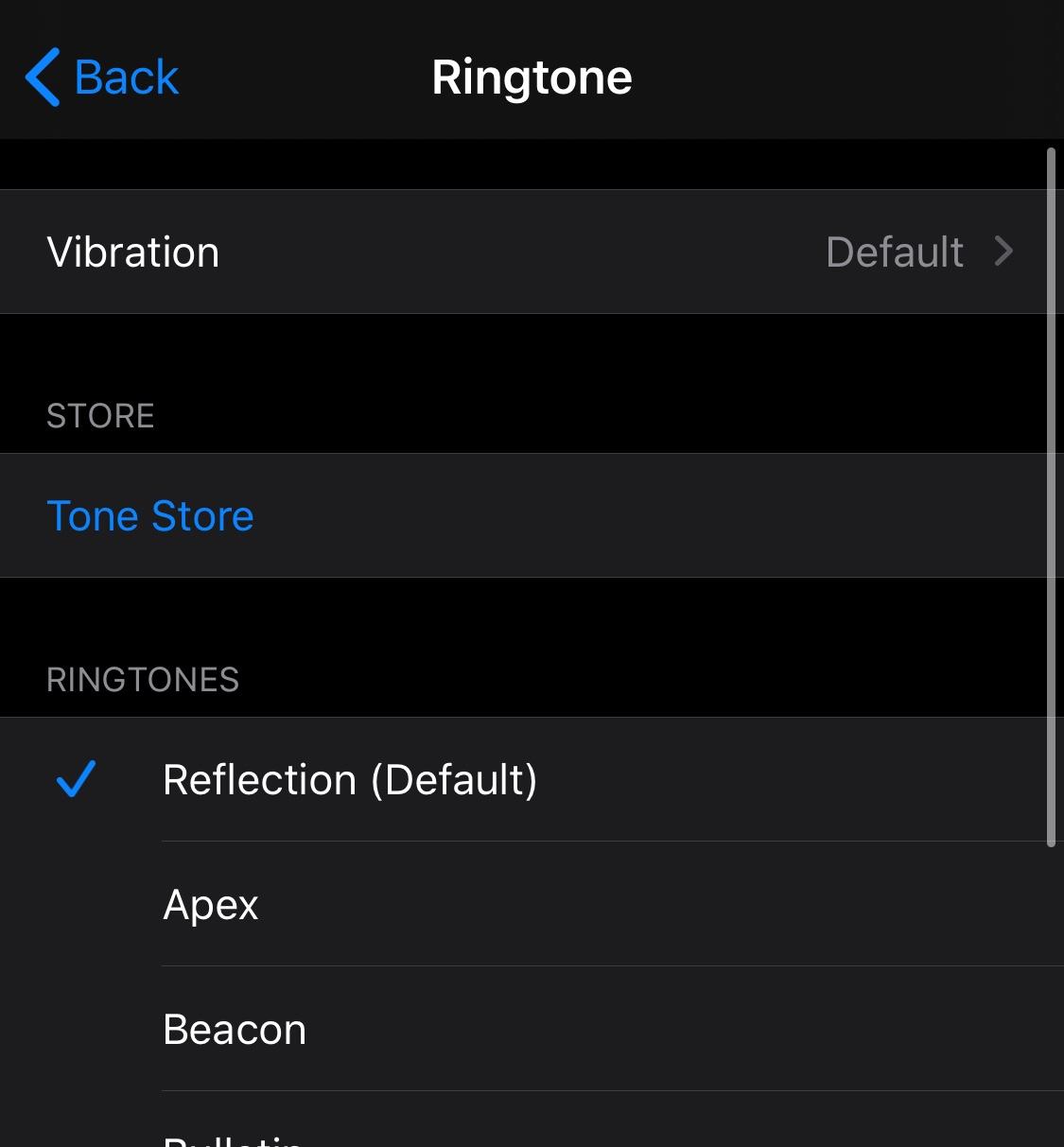
- Open Settings
- Go to Sounds & Haptics
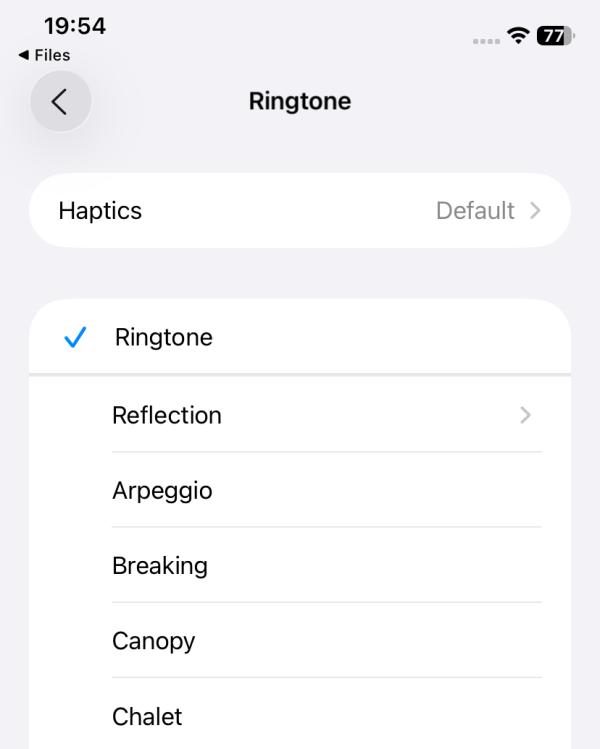
- Tap Ringtone
- Select your custom sound
You can also assign different ringtones to specific contacts.
How to Set a Custom Ringtone for One Contact
Want a unique ringtone for family, friends, or coworkers?
Follow these steps:
- Open the Contacts app
- Select a contact
- Tap Edit
- Choose Ringtone
- Select your custom ringtone
- Tap Done
This makes it easy to know who is calling without looking at your screen.
Using GarageBand (Older Method)
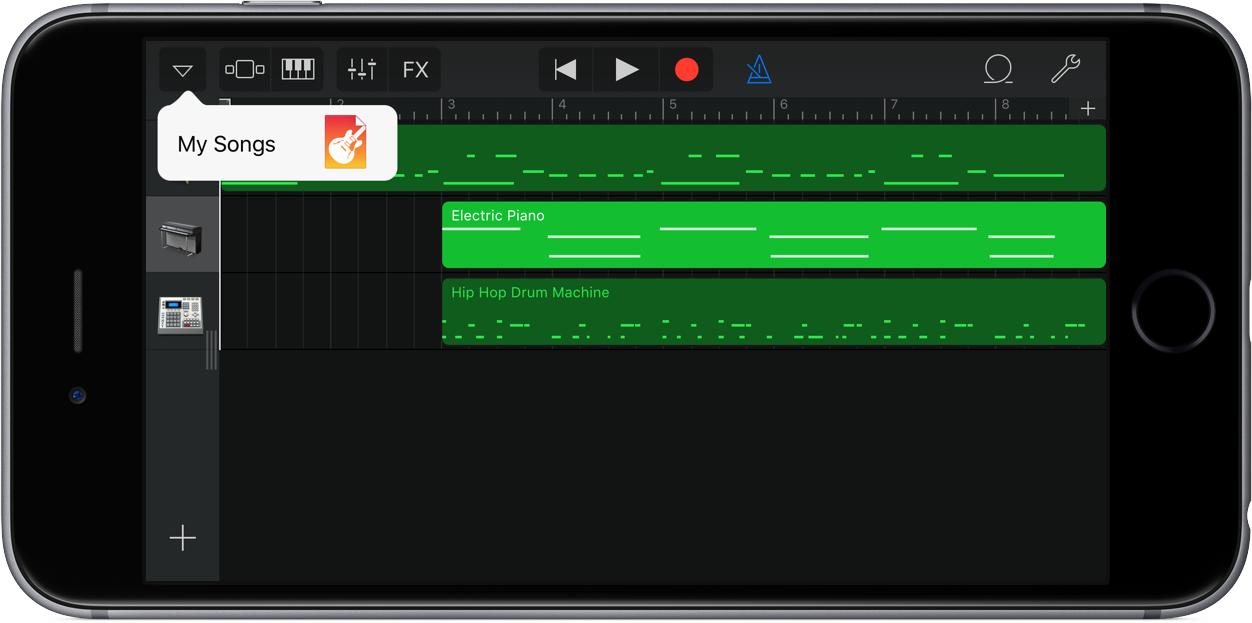
If your iPhone does not support the latest iOS version, you may still need ### GarageBand to create ringtones manually.
Apple still supports this method:
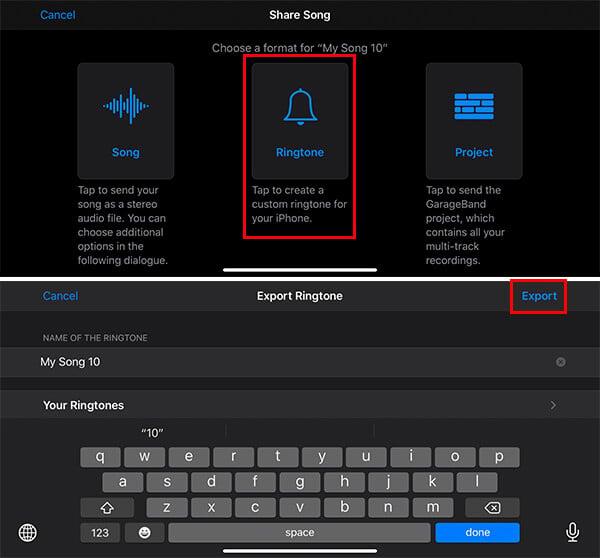
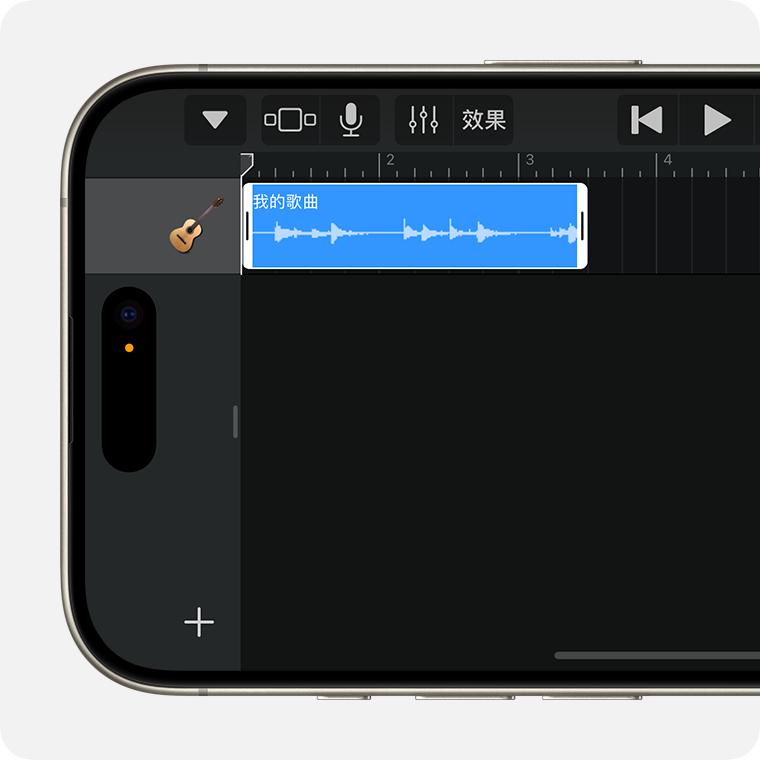
- Import audio into GarageBand
- Trim the clip to 30 seconds
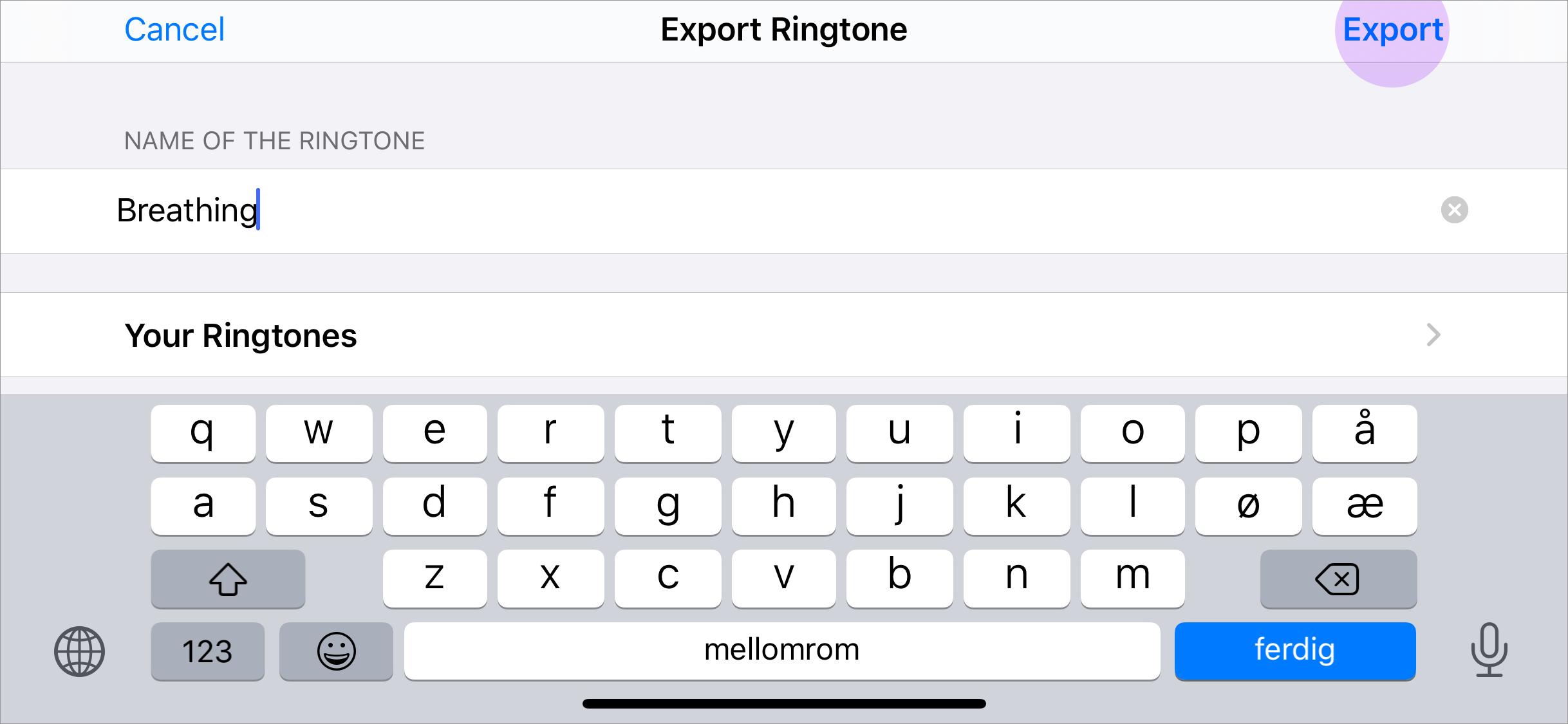
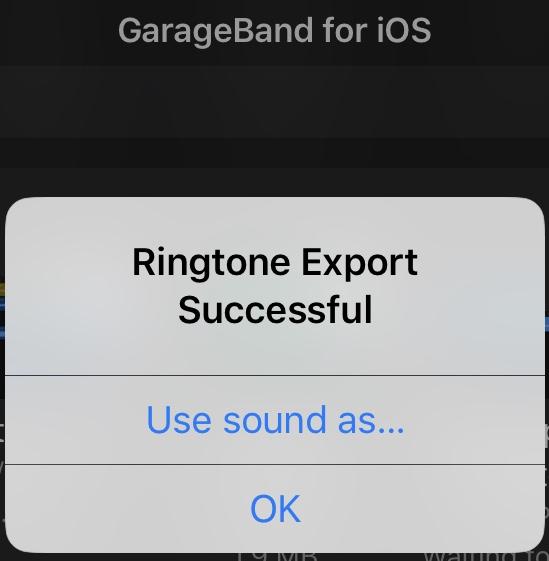
- Export as a ringtone
- Save it to your iPhone settings
Common Problems and Fixes
“Use as Ringtone” Option Missing
If the option does not appear:
- Make sure the file is under 30 seconds
- Use MP3 or M4A formats
- Save the file locally on your iPhone
- Restart your iPhone
Some users reported issues when using unsupported file formats or older iOS versions.
Apple Music Songs Don’t Work
Songs streamed through ### Apple Music cannot usually be used directly as free ringtones because of DRM protection.
You’ll need:
- DRM-free audio files
- Purchased audio
- Your own recordings
- Downloaded MP3 clips
Why Users Love the New iPhone Ringtone System
Many iPhone users online have praised Apple’s updated ringtone process because it removes years of unnecessary complexity. Reddit discussions describe the new system as “finally simple” compared to the old GarageBand workflow.
The new approach is:
- Faster
- Easier for beginners
- Completely computer-free
- More Android-like in simplicity
Final Thoughts
Setting a custom ringtone on a 2026 iPhone is now much easier than it used to be. With the new iOS ringtone tools, you can personalize your iPhone in just a few taps without needing extra apps or a Mac.
If you want a truly personal device experience, custom ringtones remain one of the simplest and most fun ways to make your iPhone feel unique.