










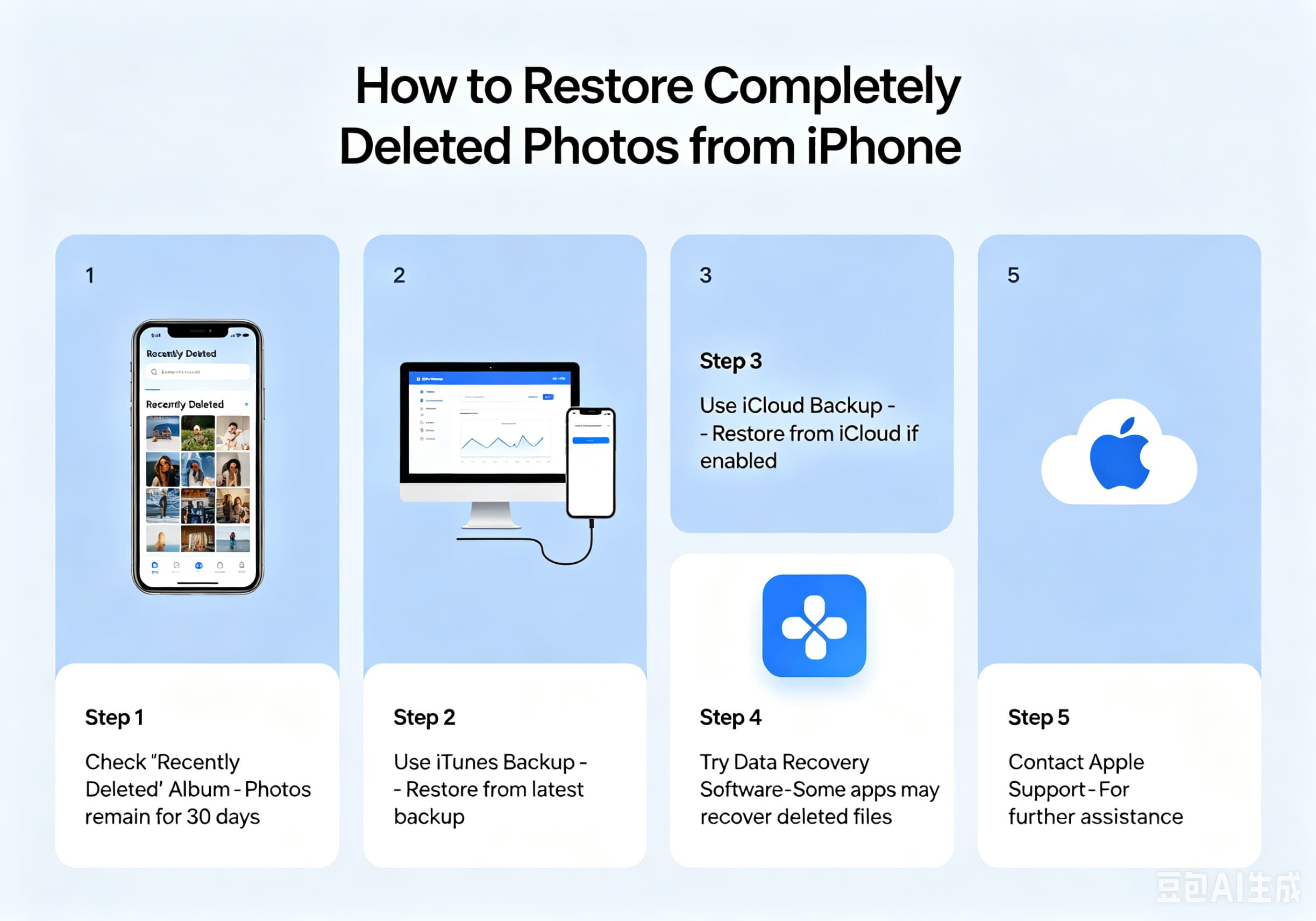
Accidentally deleting precious photos from your iPhone can be a frustrating experience. Whether you’ve removed vacation pictures, family memories, work-related images, or important screenshots, losing them may seem permanent at first. Fortunately, depending on how and when the photos were deleted, there are several methods you can use to recover them.
In this guide, we’ll explore the most effective ways to restore deleted photos on an iPhone, including recovery from the Recently Deleted album, iCloud backups, and other available options.
Understanding How iPhone Photo Deletion Works
When you delete a photo from the Photos app, it doesn’t disappear immediately. Instead, Apple moves it to the Recently Deleted album, where it remains for 30 days before being permanently removed.
This safety feature allows users to recover photos they may have deleted accidentally. However, if the photo has already been removed from the Recently Deleted folder, recovery becomes more challenging—but not necessarily impossible.
Method 1: Check the Recently Deleted Album
This should always be your first step.
How to Restore Photos from Recently Deleted
- Open the Photos app.
- Scroll down and tap Recently Deleted.
- Authenticate using Face ID, Touch ID, or your passcode if required.
- Select the photos you want to recover.
- Tap Recover.
The photos will immediately return to their original albums and photo library.
When This Method Works
- Photos were deleted less than 30 days ago.
- The Recently Deleted album has not been manually emptied.
Method 2: Recover Photos from iCloud Photos
If you use iCloud Photos, your images may still be available across your Apple devices.
Check iCloud Photos
- Open Settings.
- Tap your Apple ID.
- Select iCloud.
- Tap Photos.
- Ensure Sync This iPhone is enabled.
You can also visit iCloud.com from a browser and sign in with your Apple ID to check whether the missing photos are still stored in your cloud library.
Possible Causes of Missing Photos
- iCloud sync was disabled.
- Photos were deleted on another synced device.
- Network synchronization issues occurred.
Sometimes simply reconnecting to Wi-Fi and allowing iCloud to sync can restore photos that appear to be missing.
Method 3: Restore from an iCloud Backup
If the photos were permanently deleted but existed when your last iCloud backup was created, you may be able to recover them by restoring your iPhone.
Before You Begin
Be aware that restoring an iCloud backup replaces your current data with the backup version.
Steps to Restore
- Open Settings > General > Transfer or Reset iPhone.
- Tap Erase All Content and Settings.
- Follow the setup process.
- Choose Restore from iCloud Backup.
- Select a backup created before the photos were deleted.
After restoration completes, the deleted photos may reappear in your library.
Method 4: Recover from a Computer Backup
If you regularly back up your iPhone to a Mac or Windows PC, your photos may still exist in those backups.
Restore Using Finder (Mac)
- Connect your iPhone to your Mac.
- Open Finder.
- Select your device.
- Click Restore Backup.
- Choose a backup created before the photos were deleted.
Restore Using iTunes (Windows or Older macOS)
- Connect the iPhone.
- Open iTunes.
- Select your device.
- Click Restore Backup.
- Choose the appropriate backup.
As with iCloud backups, this process replaces current data with the selected backup version.
Method 5: Check Shared Albums
Sometimes photos are not truly lost because they were previously shared.
Check Shared Albums
- Open the Photos app.
- Select Albums.
- Scroll to Shared Albums.
You may find copies of photos that were removed from your main library.
Method 6: Search Your Photo Library
Many users accidentally think photos are deleted when they have simply become difficult to locate.
Use the search function in the Photos app and search by:
- Date
- Location
- Person
- Object
- Event
Apple’s AI-powered photo recognition can often locate images quickly.
Method 7: Use Third-Party Recovery Software
If the photos are no longer available in Recently Deleted and no backup exists, some third-party recovery tools may help recover data from an iPhone or backup file.
Popular options include:
- Dr.Fone
- iMobie PhoneRescue
- Tenorshare UltData
- EaseUS MobiSaver
Keep in mind that success rates vary significantly depending on how much time has passed since deletion and whether the storage space has been overwritten by new data.
What to Do Immediately After Losing Photos
To maximize your chances of recovery:
Stop Taking New Photos
New data may overwrite storage sectors where deleted photos once existed.
Avoid Installing Apps
Additional data writes can reduce recovery success rates.
Back Up Current Data
Before attempting advanced recovery methods, create a backup of your current iPhone state.
Act Quickly
The sooner you attempt recovery, the higher the chance of success.
How to Prevent Future Photo Loss
Protecting your memories is easier than recovering them.
Consider these best practices:
- Enable iCloud Photos.
- Turn on automatic iCloud backups.
- Regularly back up your iPhone to a computer.
- Use Google Photos or another cloud storage service as a secondary backup.
- Avoid permanently deleting photos unless absolutely necessary.
Multiple backups provide the best protection against accidental loss.
Final Thoughts
Losing photos from your iPhone can be stressful, but recovery is often possible if you act quickly. Start by checking the Recently Deleted album, then look for copies in iCloud Photos, shared albums, or existing backups. Even if the photos were permanently deleted, backup restoration or specialized recovery software may still help retrieve them.
The best defense against future photo loss is maintaining regular backups through iCloud, a computer, or an additional cloud storage service. With proper backup habits, you’ll always have a safety net for your most important memories.