









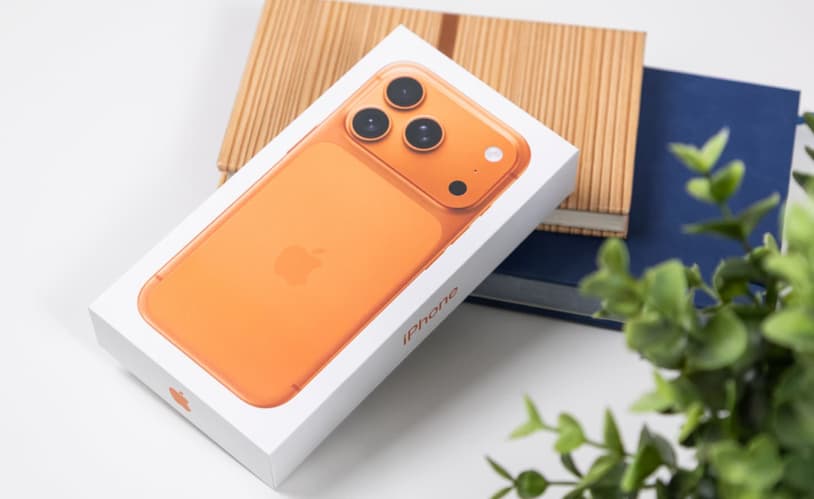
With the widespread adoption of mobile payment, fingerprint payment, due to its convenience and security, has become a frequently used payment method by users. The iPhone 17 Pro, as an Apple flagship model, offers users flexible payment verification options through the integrated Touch ID and Face ID dual biometric modules on the side. The following provides a detailed analysis of the setup process of fingerprint payment from three dimensions: hardware preparation, system settings, and application configuration.
1. Hardware and System Basic Configuration
Check the integrity of the equipment
Fingerprint recognition relies on the Touch ID module integrated into the side power button. Ensure that this area is free from any physical damage. If the device has had its non-official screen or power button replaced, the function may fail due to sensor incompatibility. In such cases, contact an Apple authorized service center for inspection.
2. Upgrade the system version
Go to “Settings” – “General” – “Software Update”, and upgrade your system to iOS 19 or a higher version. The system update will optimize the biometric algorithms. For example, the iOS 18.5 version has optimized the sensor sensitivity for wet hand scenarios, reducing the error touch rate.
3. Enter fingerprint information
In the “Settings” – “Touch ID and Passcode” section, enter the lock screen password and then click “Add Fingerprint”. Follow the instructions to gently touch the side power button with your finger multiple times, slowly adjusting the angle to cover the entire fingerprint area. It is recommended to input one fingerprint each for your thumb and index finger to cover scenarios of single-handed operation. After the input is completed, enable the “iPhone Unlock”, “Apple Pay”, and “WeChat Payment” permissions.
II. Special Configuration for WeChat Fingerprint Payment
Update the WeChat version
Open the App Store and check if WeChat is version 8.0.45 or higher. The new version has optimized the fingerprint payment interface, avoiding the situation where the function is unavailable due to an outdated version.
2. Enter the payment management interface
Open WeChat, click on the bottom menu bar “Me” – “Services” – “Wallet”, then enter the wallet page and click the “…” icon on the top right corner, and select “Payment Settings”.
3. Enable fingerprint payment function
On the payment settings page, locate the “Fingerprint Payment” option and click “Enable”. Then, enter the WeChat payment password for identity verification. The system will automatically retrieve the fingerprint information already registered on the device and complete the binding. If it prompts “Fingerprint verification failed”, you need to return to the system settings to re-enter the fingerprint or check if your finger is dry and clean.
III. Payment Scenario Testing and Optimization
Offline payment verification
When shopping at a merchant that supports Apple Pay, place your iPhone 17 Pro close to the sensor area of the POS machine, gently touch the side power button with your registered finger, and confirm the payment amount to complete the transaction.
2. Online payment process
After selecting the product in the e-commerce APP or WeChat, when it comes to the payment stage, choose “Apple Pay” or “WeChat Pay”, and the system will automatically trigger the fingerprint verification interface. Just touch the power button with your finger and it will be verified within 0.3 seconds. The payment process is 80% faster than entering a password.
3. Multi-scenario Adaptive Optimization
Environmental testing: Test the fingerprint payment function in various environments such as dry, humid, and low-temperature conditions to ensure stability. If there are frequent failures, try adjusting the finger pressing force or replacing the registered fingerprint.
Multi-fingerprint input: In the system settings, input 2-3 different fingerprints of different fingers to avoid the inability to make payments due to injury or moisture on a single finger.
Security enhancement: In the “Payment Settings” of WeChat, disable the “Low-value Free Payment” function. Require fingerprint verification for all payment scenarios, thereby implementing “password + fingerprint” dual protection.
IV. Fault Diagnosis and Precautions
Sensor cleaning and maintenance
If the fingerprint recognition is not sensitive, you can remove the thick screen protector and wipe the area around the side power button with a clean soft cloth to remove oil stains or dust.
2. Resolution of Authorization Conflicts
If the “Fingerprint Payment” option suddenly disappears, it might be due to a version rollback of the WeChat app or the system permissions being disabled. You need to update the application and enable the “Fingerprint Payment” permission in the “Settings” – “WeChat” section.
3. Regular security updates
Apple releases system security updates monthly. You can install them promptly through “Settings” – “General” – “Software Update”. This helps fix potential vulnerabilities in the fingerprint recognition module and prevents malicious access to fingerprint information.
By following these steps, iPhone 17 Pro users can quickly complete the fingerprint payment configuration and enjoy the efficiency and security brought by biometric technology. In actual use, it is recommended to combine multiple verification methods such as payment passwords and face recognition to build a more comprehensive account protection system.