










Experiencing issues with your notebook’s wireless network connection can be frustrating, especially when you’re in the middle of an important task. If your notebook fails to connect to Wi-Fi or loses its connection frequently, it’s important to understand the common causes and know how to troubleshoot the problem.
In this guide, we’ll walk you through a series of troubleshooting steps to help you fix your wireless network connection issues and get your notebook back online.
1. Check the Wireless Network and Router
The first step in troubleshooting any wireless connection issue is to ensure the problem is not related to your Wi-Fi network itself. Here are a few things to check:
-
Verify Wi-Fi availability: Confirm that your wireless router is powered on and functioning properly. Check the lights on the router to ensure it’s connected to the internet.
-
Check other devices: Test the Wi-Fi connection with other devices (smartphones, tablets, or other computers) to see if they are able to connect. If other devices can connect, the issue is likely with your notebook.
-
Restart the router: Sometimes, simply restarting your router can fix network connectivity problems. Turn it off for about 10 seconds and then power it back on.
If other devices are not connecting to the Wi-Fi, the problem might be with the router or your internet service provider.
2. Restart Your Notebook
It may sound simple, but restarting your notebook can often resolve temporary software or network issues. Restarting will refresh the network settings and can clear minor glitches that may be affecting the wireless connection.
-
Click on the “Start” menu (Windows) or Apple logo (macOS) and select Restart.
-
After your notebook restarts, check if you’re able to reconnect to your wireless network.
3. Turn the Wireless Adapter Off and On
Sometimes, toggling the wireless adapter can help fix connectivity issues. Here’s how to do it:
For Windows:
-
Go to “Device Manager” by typing it into the search bar.
-
Find and expand “Network adapters”.
-
Right-click on your wireless network adapter and select “Disable”.
-
Wait for a few seconds, then right-click again and select “Enable”.
For macOS:
-
Click on the Wi-Fi icon in the menu bar.
-
Select “Turn Wi-Fi Off” and wait for a few seconds.
-
Click “Turn Wi-Fi On” to re-enable the connection.
4. Forget and Reconnect to the Wi-Fi Network
Your notebook might be having trouble connecting due to a corrupt or outdated connection profile. Forgetting and reconnecting to the Wi-Fi network can help resolve the issue:
For Windows:
-
Open Settings > Network & Internet > Wi-Fi.
-
Click on “Manage Known Networks”.
-
Select your network and click “Forget”.
-
Go back to Wi-Fi settings, select your network, and enter the password to reconnect.
For macOS:
-
Click the Apple menu > System Preferences > Network.
-
Select Wi-Fi in the left sidebar and click Advanced.
-
From the list of networks, select your network and click the minus (-) button to remove it.
-
Reconnect to your Wi-Fi network by selecting it from the list and entering the password.
5. Update Your Wireless Network Drivers (Windows)
Outdated or incompatible drivers can cause connection issues. Make sure your wireless network drivers are up-to-date:
-
Open Device Manager.
-
Expand “Network adapters” and right-click on your wireless adapter.
-
Select “Update Driver”.
-
Choose “Search automatically for updated driver software”. Windows will search for and install any available updates.
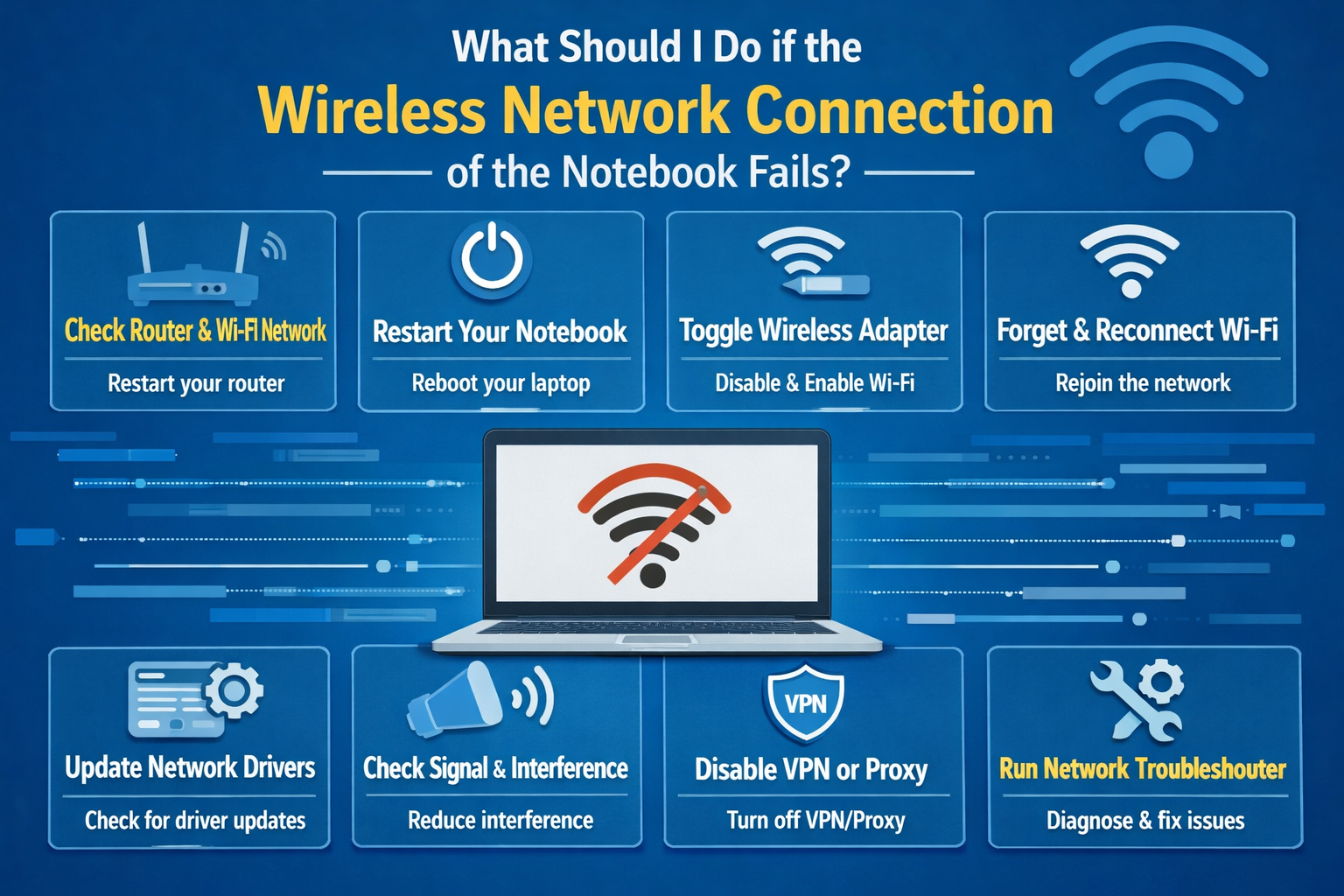
6. Check for Interference or Signal Issues
Wireless interference from other electronic devices or physical obstructions can cause your Wi-Fi signal to drop or become unstable. Consider these factors:
-
Distance from the router: If your notebook is far from the router, try moving closer to see if the connection improves.
-
Interference: Devices like microwaves, cordless phones, and other electronics can interfere with Wi-Fi signals. Try moving your notebook or router away from these devices.
-
Network congestion: If too many devices are connected to the same Wi-Fi network, this could result in a slow or unstable connection. Try disconnecting other devices temporarily to see if it improves the connection.
7. Disable VPN or Proxy Settings
If you’re using a VPN or proxy, it might be causing issues with your wireless connection. Try disabling the VPN or proxy to see if that resolves the problem:
For Windows:
-
Open Settings > Network & Internet > VPN.
-
Click on the VPN connection and choose Disconnect.
For macOS:
-
Click the Apple menu > System Preferences > Network.
-
Select VPN and click Disconnect.
8. Run the Windows Network Troubleshooter
If you’re using a Windows laptop, the built-in Network Troubleshooter can automatically detect and fix common network problems:
-
Right-click the Wi-Fi icon in the taskbar and select “Troubleshoot problems”.
-
Follow the prompts and let Windows diagnose and fix any network-related issues.
9. Reset Network Settings (Last Resort)
If none of the above steps resolve your wireless connection issues, you may need to reset your network settings. This will remove all saved networks and restore default network settings:
For Windows:
-
Go to Settings > Network & Internet > Status.
-
Scroll down and click Network Reset.
-
Follow the prompts to reset your network settings.
For macOS:
-
Open System Preferences > Network.
-
Select Wi-Fi and click the minus (-) sign to remove it.
-
Add Wi-Fi back by clicking the plus (+) sign, selecting Wi-Fi, and clicking Create.
10. Check Hardware Issues
If the above steps don’t fix the problem, your wireless network card or router could be malfunctioning. Here are some things to consider:
-
Test with another device: Try connecting other devices to the same Wi-Fi network to see if the issue is isolated to your notebook.
-
Hardware failure: If your notebook cannot detect any Wi-Fi networks or frequently loses connection, it could indicate a hardware failure. In this case, you may need to contact your laptop’s manufacturer for further assistance or get it checked by a technician.
Conclusion
Dealing with a failed wireless network connection on your notebook can be frustrating, but with these troubleshooting steps, you should be able to quickly identify and fix the issue. Whether it’s a simple software glitch, network interference, or a more complex hardware issue, the steps outlined above will help you restore your Wi-Fi connection and get back online in no time.
Remember, keeping your drivers up to date, ensuring your router is functioning correctly, and performing regular network resets can prevent many common wireless connectivity issues. If all else fails, don’t hesitate to seek professional help.