






Facebook Twitter Instagram
    Trending
    • What’s the Fastest Way to Clear Up When iCloud Storage Is Full?
    • The Color options for Honor X80 Pro Max phone have been announced Released on June 22nd
    • Vivo X Fold 6 is getting pre-release hype: It will feature the first-ever Zeiss APO super telephoto lens for folding devices and the Samsung M14 internal screen.
    • BlitzWolf BW-V9 Ultra Smart Projector Review: Netflix-Certified Home Cinema with 1000 ANSI Lumens
    • KFPLAN KF35 RC Car Review: Compact RWD Drift Fun in a Unique Three-Wheel Design
    • SJY-9020 RTR 1/12 2.4G RC Car Review: Exciting Drift Performance and Realistic Racing Style
    • DT NO.1 E08 Smart Cycling Glasses Review: AI-Powered Vision for Outdoor Adventures
    • Smoant Flex Neo Vape Review: Compact Design Meets Smart Performance
    Facebook YouTube
    IGeeKphone China Phone, Tablet PC, VR, RC Drone News, Reviews
    • HOME
      • NEWS
        • DeepSeek
        • ChatGPT
        • Minecraft
    • Amazon
    • PHONE
      • Top Phones For Your First Choice
      • Phone Comparison
      • Xiaomi
      • Blackview
      • Doogee
      • Black Shark
      • Geekbuying
      • Banggood
      • TEMU
      • TikTok
      • Aliexpress
      • Walmart
      • MercadoLibre
      • Lazada
    • TOP VAPE Awards for 2026
    • VAPES
      • E-CIGAR Upcoming
      • Vape News
      • Vape Deals
      • Vape Comparison
      • Vape Guide
      • Giveaway
    • BEST VAPE
      • Best Vape Stores
      • Best Starter Vape Kits
      • Best Vapes for Beginners
      • Best Disposable Vapes
      • Best Pod Systems
      • Best Pod Mod Vapes
      • Best Mods
      • Best Nicotine Pouches
      • Best Clearomizers/Tanks
      • Best E-Liquid
      • Best EGO/Pens
      • Best Vapes for Nic Salt E-Juice
      • Best Vapes to Quit Smoking
      • RDA vs. RDTA vs. RTA
    • Best Vape Brand 2026
      • VAPORESSO
      • VOOPOO
      • OXVA
      • NEXA BAR
      • MASKKING VAPE
      • SP2S
      • IPLAY
      • TODOO
      • MRFOG
      • LOSTVAPE
      • VEIIK
    • REVIEW
      • E-cigar Review
      • Phones
      • Tablet PC
      • TV Box
      • RC Drone
      • Wearables
      • Camera
      • Accessories
      • VR Headset
    • MORE
      • TABLET
        • Chuwi
        • INNOCN
        • Teclast
        • Top Tablet for Your First Choice
        • Tablet/Laptop Comparison
      • RC DRONE
      • CAMERA
      • WEARABLES
        • OneOdio
        • BlitzWolf
        • Top Smartwatch for First Choice
      • 3D PRINTER
        • 3D Printer Review
        • Anycubic
        • FLSUN
        • Xtool
        • LONGER
        • Top 3D printer to Choose First
      • POWER STATION
        • Oukitel
        • FOSSIBOT
      • GAMING
        • Top Gaming Products
      • E-BIKE
        • Samebike
        • Happyrun
        • ENGWE
      • SMART HOME
      • TV BOX
      • ACCESSORIES
      • VR HEADSET
      • CLOTHES
      • AUTO CAR
    • DEAL
    • VAPE LAWS
    • Shop
    IGeeKphone China Phone, Tablet PC, VR, RC Drone News, Reviews
    You are at:Home»Guide»What’s the Fastest Way to Clear Up When iCloud Storage Is Full?
    Guide

    What’s the Fastest Way to Clear Up When iCloud Storage Is Full?

    Brady CottonBy Brady CottonJune 15, 2026
    Facebook Twitter Pinterest LinkedIn Tumblr Email

    If you’ve ever seen the message “iCloud Storage Full” on your iPhone, iPad, or Mac, you’re not alone. Apple’s free 5GB of iCloud storage can fill up surprisingly quickly, especially when you’re backing up photos, videos, messages, and app data. Once your storage is full, iCloud backups may stop, photos may no longer sync, and important files might fail to upload.

    Fortunately, there are several quick and effective ways to free up iCloud space without losing valuable data. Here’s how to reclaim storage and get your iCloud account working smoothly again.

    Why Does iCloud Storage Fill Up So Quickly?

    Many users assume photos are the only culprit, but several types of data can consume significant iCloud storage:

    • Photos and videos
    • Device backups
    • Messages and attachments
    • iCloud Drive files
    • Email attachments
    • App data
    • Voice memos
    • Shared albums

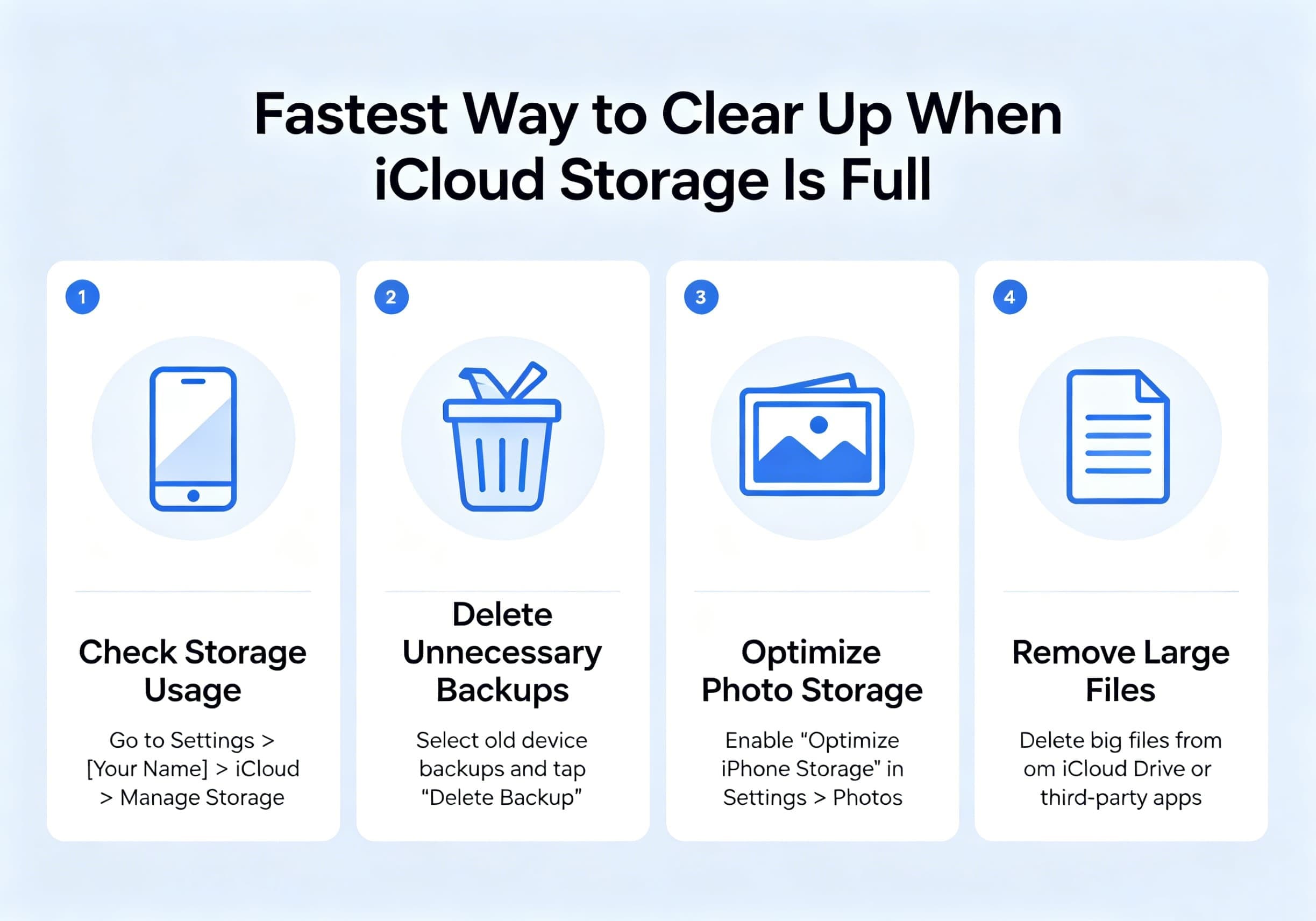
    To see exactly what’s using your storage:

    1. Open Settings
    2. Tap your Apple ID
    3. Select iCloud
    4. Tap Manage Storage or Storage

    You’ll see a detailed breakdown of what’s occupying your iCloud space.

    Fastest Method #1: Delete Large iPhone Backups

    Old device backups often consume several gigabytes of storage.

    To remove unnecessary backups:

    1. Open Settings
    2. Tap Apple ID
    3. Select iCloud
    4. Tap Manage Storage
    5. Choose Backups
    6. Select an old or unused device
    7. Tap Delete Backup

    If you’ve upgraded to a newer iPhone, deleting backups from old devices can instantly free up a significant amount of storage.
    Fastest Method #2: Remove Large Photos and Videos

    Photos and videos are usually the largest storage consumers.

    To quickly identify and remove large files:

    1. Open the Photos app
    2. Go to Albums
    3. Open Videos, Screenshots, or Screen Recordings
    4. Delete unwanted content

    Don’t forget to empty the Recently Deleted album afterward, as deleted media continues to occupy storage for up to 30 days.

    To permanently remove deleted items:

    1. Open Photos
    2. Go to Albums
    3. Select Recently Deleted
    4. Tap Delete All

    This often frees up several gigabytes immediately.

    Fastest Method #3: Delete Large Message Attachments

    Messages containing photos, videos, GIFs, and documents can quietly consume large amounts of storage.

    To remove them:

    1. Open Settings
    2. Tap General
    3. Select iPhone Storage
    4. Choose Messages
    5. Review large attachments
    6. Delete unnecessary files

    You can also configure automatic message deletion:

    1. Go to Settings
    2. Select Messages
    3. Tap Keep Messages
    4. Choose 30 Days or 1 Year

    This prevents old conversations from accumulating indefinitely.

    Fastest Method #4: Clean Up iCloud Drive

    Files stored in iCloud Drive can consume storage even if you no longer use them.

    To manage iCloud Drive:

    1. Open the Files app
    2. Tap Browse
    3. Select iCloud Drive
    4. Review folders and documents
    5. Delete unnecessary files

    Large downloads, PDFs, ZIP archives, and old project files are common storage hogs.

    Remember to empty the Recently Deleted folder afterward.

    Fastest Method #5: Remove App Data You No Longer Need

    Many apps store information in iCloud, including games, productivity tools, and note-taking apps.

    To review app storage:

    1. Open Settings
    2. Tap Apple ID
    3. Select iCloud
    4. Tap Manage Storage
    5. Review individual apps

    If an app is using excessive space, you can delete its stored data directly from iCloud.

    Be sure you no longer need the information before removing it.

    Fastest Method #6: Disable Unnecessary iCloud Syncing

    Not every app needs to sync with iCloud.

    To disable syncing:

    1. Open Settings
    2. Tap Apple ID
    3. Select iCloud
    4. Under Apps Using iCloud, turn off services you don’t need

    Common examples include:

    • Notes
    • Voice Memos
    • Third-party apps
    • Certain games
    • Unused productivity apps

    This prevents future storage buildup.

    Fastest Method #7: Optimize Your Photo Library

    If you want to keep all your photos while reducing storage usage, enable Optimize iPhone Storage.

    To enable:

    1. Open Settings
    2. Tap Photos
    3. Select Optimize iPhone Storage

    Your full-resolution photos remain in iCloud while smaller versions stay on your device, helping manage local storage more efficiently.

    Should You Upgrade Your iCloud Storage Plan?

    Sometimes cleaning up storage isn’t enough, especially if you regularly capture photos and videos.

    Apple currently offers several paid iCloud+ plans that provide substantially more storage than the free 5GB option.

    Upgrading may be worthwhile if you:

    • Back up multiple Apple devices
    • Use iCloud Photos extensively
    • Store large files in iCloud Drive
    • Share storage with family members

    For many users, the monthly cost is lower than the time spent constantly managing storage.

    Tips to Prevent iCloud Storage from Filling Up Again

    Once you’ve reclaimed space, these habits can help keep iCloud organized:

    • Delete unwanted photos regularly
    • Empty the Recently Deleted folder
    • Remove old device backups
    • Review message attachments monthly
    • Clean up iCloud Drive periodically
    • Disable syncing for unused apps
    • Back up large media files elsewhere

    A few minutes of maintenance each month can prevent storage issues from returning.

    Final Thoughts

    When iCloud storage becomes full, the quickest solutions are usually deleting old backups, removing large photos and videos, clearing message attachments, and cleaning up iCloud Drive. These methods can often recover several gigabytes within minutes.

    By understanding what’s consuming your storage and adopting a few simple cleanup habits, you can keep your iCloud account running smoothly, ensure backups continue working, and avoid the frustration of constant storage warnings.

    Share. Facebook Twitter Pinterest LinkedIn Tumblr Email

    Related Posts

    How about Ultrabook-battery net Data Center

    How to Solve the Problem of a Black Screen After Turning On the Computer in 2026

    Dubai’s Luxury Property Market: A Haven for High-Net-Worth Individuals

    Leave A Reply Cancel Reply

    You must be logged in to post a comment.

    voopoo G4 Mini
    oxva xlim go lite
    sp2s sen x disposable vape
    • Popular
    • 3D Printer REVIEW
    • XIAOMI
    June 13, 2026

    Vaporesso LUXE X3 & LUXE Q3 Review. Two Paths to Exceptional Flavor

    June 6, 2026

    VOOPOO ARGUS G4 & ARGUS G4 Mini Review – Smart Flavor Meets Everyday Simplicity

    June 6, 2026

    VOOPOO NAVI x CYPH Kit 80K Review. Is This The Future of Disposable Vaping?

    May 17, 2026

    iPlay Nova 45K Review – High Puff Performance with a Futuristic Twist

    December 26, 2025

    ACMER ASCARVA 4S: Precision CNC Power for Makers, DIYers & Small Workshops

    June 23, 2024

    ACMER P2 20W Laser Engraver Fixed Focus Engraving: Hands on Review

    May 30, 2024

    xTool F1 Ultra Review: World’s First 20W Fiber & 20W Diode Laser Engraver

    May 30, 2024

    Anycubic Kobra 3 Combo Review: The Multicolor Masterpiece?

    June 12, 2026

    When will Redmi K40 be Released?

    June 10, 2026

    Xiaomi Hyper OS 3 Second Batch Beta Version Begins Recruitment: Covering Five Models Including Redmi K80 and Xiaomi MIX Flip2

    June 9, 2026

    Xiaomi has released MiMo-V2.5-Pro-UltraSpeed: The generation speed has been increased by 10 times! It can process over 1,000 tokens per second.

    June 8, 2026

    Xiaomi MIX Fold 5 will be the first to feature the Xuanji O3

    fc 26 coins
    New Arrivals
    • Vivo X400 Pro Mini Vivo X400 Pro Mini
    • Vivo X400T Vivo X400T
    • ZTE Pad 2 ZTE Pad 2
    • Smoant Flex Neo Vape Smoant Flex Neo Vape
    • VapSolo Sixer 6-in-1 180K Disposable Vape VapSolo Sixer 6-in-1 180K Disposable Vape
    • Apple iPhone Fold 2 Apple iPhone Fold 2
    • Realme Narzo 100x Realme Narzo 100x
    • ZTE Nubia Flip 4 ZTE Nubia Flip 4
    • OnePlus 17R OnePlus 17R
    About
  • Igeekphone.com provides the first global tech news and reviews about smartphone, vapes, e-cigar, smart home, 3D printers, e-bike,tablets, RC drones, VR headset, and other accessories. It's the best platform to improve your brand and product.
  • Contact us: info@igeekphone.com
  • Check Our Privacy Policy Here.
  • Note: *Right now we have US editor and EU editors for review, especially for Amazon US and EU.
  • *Shop and Compare Price Here*
  • Facebook
  • Youtube
  • OUR BEST VAPE PARTNERS
  • VAPE ONLINE STORE
  • HAYATI PRO MAX PLUS
  • VAPORESSO
  • VOOPOO
  • OXVA
  • NEXA
  • MASKKING
  • SP2S
  • IPLAY
  • TODOO
  • OTHER BEST PARTNERS
  • SVBONY
  • Chuwi
  • Blackview
  • Fossibot
  • Unihertz
  • Flsun
  • Anycubic
  • Xtool
  • Oukitel
  • Mukkpet Ebike
  • Ugreen
  • Copyright © 2026 igeekphone

    Type above and press Enter to search. Press Esc to cancel.