









When you connect your phone to a Windows PC to copy photos and videos, you may expect to see a DCIM folder in File Explorer. However, sometimes the phone appears on the computer without showing DCIM, or the computer cannot display the phone’s internal storage at all.
This problem does not necessarily mean your photos have been deleted. It can happen because the phone is locked, the USB connection is set to charging only, the cable does not support data transfer, or the computer has not properly detected the device.
In this guide, we explain how to fix the missing DCIM folder on Android phones and iPhones, with practical steps you can try before using more advanced troubleshooting methods.
Why Is the DCIM Folder Missing on a Computer?
DCIM stands for Digital Camera Images. It is a common folder name used to organize photos and videos captured by a camera. On Android phones, the main camera folder is usually found under internal storage in DCIM/Camera. iPhones may also expose camera photos through a DCIM folder when connected using supported transfer methods.
If you cannot find the folder, one of these issues may be responsible:
- The phone is locked: The computer may not be allowed to access its files.
- USB mode is set to charging only: The connection charges the phone but does not enable file browsing.
- The USB cable only supports charging: Some cables do not carry data.
- The phone has not been recognized correctly: A USB port, driver or connection issue may prevent access.
- You are looking in the wrong location: The photos may be stored on an SD card, in another folder or in a cloud service.
- The phone uses a different transfer method: iPhones and some Android devices may require an import app or an authorization prompt.
Try the following solutions in order, starting with the simplest ones.
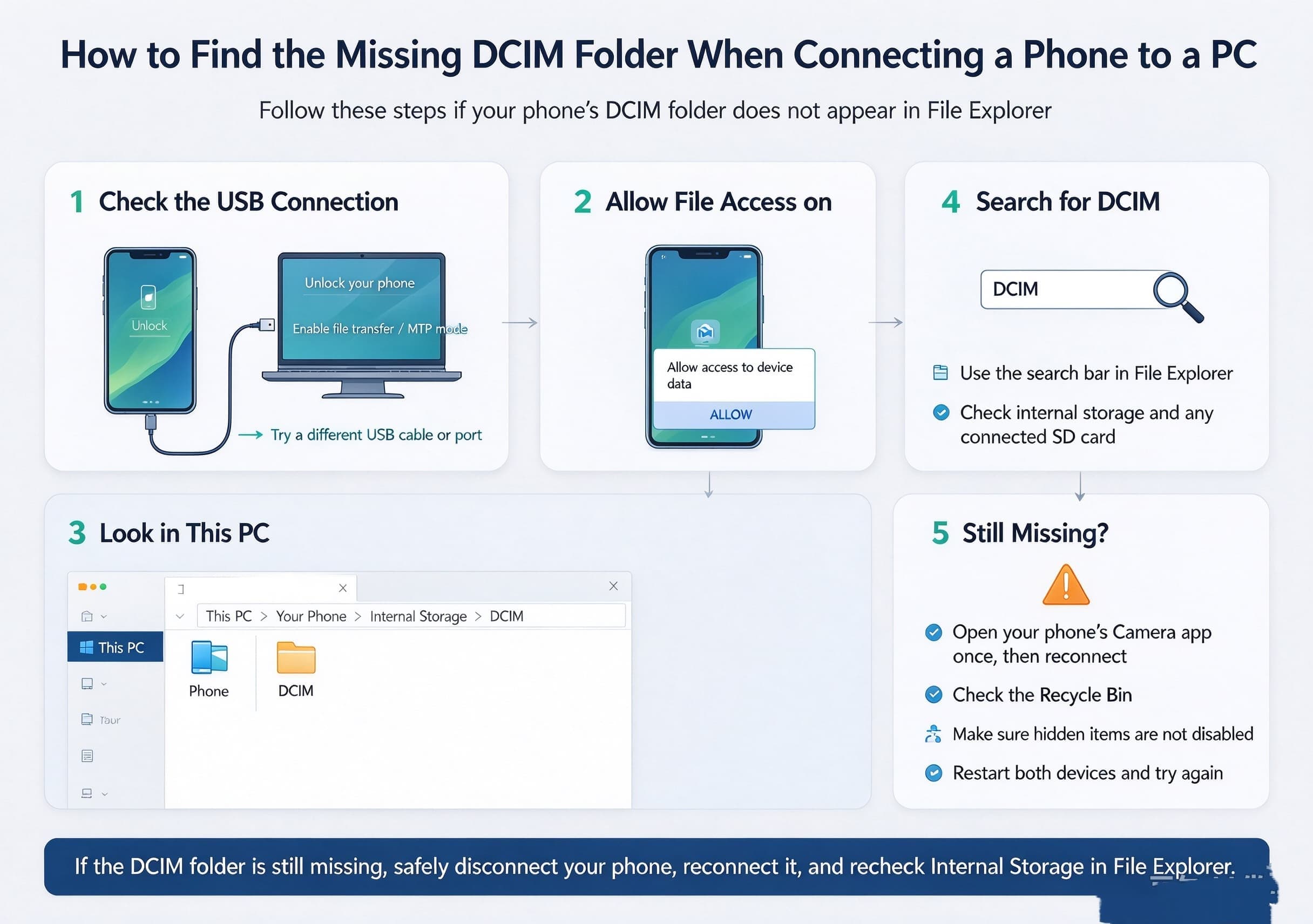
1. Unlock Your Phone Before Connecting It
The first step is to unlock your phone and keep its screen on while checking the connection.
- Disconnect the USB cable from your phone.
- Unlock the phone using your PIN, password or biometric authentication.
- Reconnect it to the computer.
- Look for a prompt asking you to allow access or trust the computer.
- Approve the prompt if it appears and you recognize the connected computer.
On some phones, files remain inaccessible until the device is unlocked. If the phone is locked when you connect it, Windows may show the device without displaying its photos or folders.
After unlocking it, open File Explorer again and check whether the phone’s storage is available.
2. Change the USB Connection to File Transfer Mode
For many Android phones, this is the most important fix.
By default, a phone may use a USB connection mode that only charges its battery. To browse files on Windows, you generally need to select the file-transfer option.
Follow these steps:
- Connect your Android phone to the PC with a USB cable.
- Unlock the phone.
- Swipe down from the top of the screen to open the notification panel.
- Tap the USB notification, often labelled Charging this device via USB.
- Under “Use USB for,” select File transfer or Transferring files.
- Open File Explorer on your computer.
- Select your phone under “This PC” and open its internal shared storage.
- Look for the
DCIMfolder.
The exact wording varies by phone brand and Android version. Samsung, Xiaomi, Google Pixel and other Android phones may display slightly different menu names.
Google’s official Android file-transfer guide explains how to enable USB file transfer and troubleshoot connection problems.
3. Try a Different USB Cable
A phone can charge normally even when its cable cannot transfer files. This is why changing the cable is a useful troubleshooting step when the DCIM folder is missing.
Choose a cable that supports data transfer, preferably the original cable supplied with the phone or a compatible data cable from a reputable manufacturer.
Then:
- Disconnect the existing cable.
- Connect the phone using the replacement cable.
- Unlock the phone and select file-transfer mode if required.
- Wait a few seconds for Windows to recognize the device.
- Check File Explorer again.
Avoid assuming that every USB-C or Lightning cable supports the same functions. The connector’s shape alone does not guarantee data-transfer capability.
4. Check the Phone’s Internal Storage and SD Card
Sometimes the computer recognizes the phone correctly, but you are looking in the wrong location.
On Android, open File Explorer and navigate to:
This PC > Your Phone > Internal Storage > DCIM > Camera
Your phone’s name and the exact folder labels may differ.
If your phone uses a microSD card, check whether the camera saves photos to the card instead of internal storage. If Windows displays the SD card as a separate storage location, open it and look for its DCIM folder.
Also check the Pictures, Download and other relevant folders if you are searching for images saved by messaging apps, browsers or editing applications. Not every image on a phone is stored in DCIM.
If the DCIM folder is visible but empty, check whether your camera photos are stored elsewhere or whether the files are available only through a cloud service.
5. Reconnect the Phone and Restart Both Devices
Temporary connection problems can stop Windows from displaying a phone’s storage correctly.
Try this sequence:
- Safely disconnect the phone from the PC.
- Restart the phone.
- Restart Windows if necessary.
- Unlock the phone after it starts.
- Connect it again using a data-capable cable.
- Select file-transfer mode on Android if prompted.
- Open File Explorer and check the phone’s storage.
You can also try another USB port on the computer. If you are using a USB hub, connect the phone directly to the PC to rule out a hub-related issue.
If possible, connect the phone to another computer. This helps you determine whether the problem is associated with the phone, cable or original PC.
6. Check Whether Windows Recognizes the Phone
If the phone does not appear correctly in File Explorer, check whether Windows detects it as a connected device.
- Right-click the Windows Start button.
- Open Device Manager.
- Expand relevant sections, such as Portable Devices or Universal Serial Bus controllers.
- Look for your phone or a device marked with a warning symbol.
- If an error appears, check Windows Update and the phone manufacturer’s support instructions for an appropriate driver or software update.
The available device names depend on your phone and Windows version. Do not uninstall random USB devices or download drivers from unfamiliar websites.
After applying a legitimate update, disconnect and reconnect the phone, then check whether the storage is accessible.
7. Fix the Missing DCIM Folder on an iPhone
The steps for an iPhone differ from those for Android because iOS uses its own computer-trust and photo-import processes.
If you connect an iPhone to a Windows PC and cannot access your photos, try the following:
- Unlock the iPhone before connecting it.
- Connect it with a compatible USB cable.
- Tap Trust or Allow if the iPhone asks whether to trust the computer.
- Enter your passcode if requested.
- Install or open Apple’s supported device software if Windows requires it.
- Use the Windows Photos app to import pictures if direct folder browsing is unavailable.
If you use iCloud Photos, some original images may be stored in iCloud rather than downloaded in full resolution to the phone. Download the originals to the iPhone before attempting a USB import if needed.
For detailed instructions, consult Apple’s official guide to transferring photos and videos from an iPhone to a Mac or PC.
8. Check Whether the Photos Are Actually Stored on the Phone
If the DCIM folder appears but some photos are missing, confirm that the images still exist on the device.
Open the phone’s Photos or Gallery app and locate a photo you expect to transfer. If it is visible only as a cloud thumbnail, it may need to be downloaded before it can be copied through USB.
For Android, also check the camera’s storage settings and any SD card in use. For iPhone, check iCloud Photos and whether the original files are stored locally.
Do not format the SD card, factory-reset the phone or delete files as a first troubleshooting step. If the photos are important and appear to be missing from both the phone and its backups, avoid actions that could overwrite recoverable data.
9. Use an Alternative Photo-Transfer Method
If USB access continues to fail, you can transfer photos using another supported method.
For Android, options include Google Photos, Google Drive or Google’s Quick Share for Windows. Check that the images have finished uploading before relying on a cloud copy.
For iPhone, you can use iCloud Photos or the Windows Photos import process. Cloud transfers require an internet connection and may use storage space or mobile data, depending on your settings.
Alternative transfer methods do not repair the USB connection, but they can help you retrieve photos while you investigate the original problem.
Frequently Asked Questions
Why can I see my phone on my PC but not the DCIM folder?
The phone may be connected in charging-only mode, still locked or waiting for permission to share files. Unlock the device and enable file transfer on Android. On an iPhone, approve the trust prompt and use a supported photo-import method.
Why is the DCIM folder empty?
Your camera may be saving photos to a different storage location, an SD card or a cloud service. Open the phone’s Gallery or Photos app to confirm that the images are available locally.
Does a missing DCIM folder mean my photos are deleted?
No. A missing folder does not prove that your photos have been deleted. It may simply mean the computer cannot access the phone’s storage. Check the phone itself before taking any action that could erase data.
Can a charging-only USB cable cause this problem?
Yes. A cable that provides power but does not support data transfer can charge the phone without allowing the PC to browse its files. Try a known data-capable cable.
Is it safe to reset my phone to fix the missing DCIM folder?
A factory reset is not a recommended first step. It can erase personal data and usually is unnecessary for a USB file-transfer problem. Try changing the USB mode, unlocking the phone, replacing the cable and checking Windows recognition first.
Final Thoughts
If the DCIM folder is missing when you connect your phone to a PC, start by unlocking the phone and checking the USB connection mode. On most Android devices, selecting File transfer and using a data-capable cable resolves many common access problems.
If the folder still does not appear, check internal storage and SD card locations, restart both devices, inspect Windows device recognition, and follow the appropriate photo-import steps for your phone. Most importantly, avoid formatting or resetting the device until you have confirmed that your photos are backed up.