










If your iPhone 16 refuses to download apps from the App Store, you’re not alone. Whether downloads are stuck on “Waiting,” endlessly spinning, or failing with an error message, the problem can usually be resolved with a few simple troubleshooting steps.
This guide explains the most common reasons why apps won’t download on an iPhone 16 and provides effective solutions to get the App Store working again.
Why Won’t Apps Download on iPhone 16?
Several factors can prevent apps from downloading, including:
- Poor internet connection
- Insufficient storage space
- Apple ID issues
- App Store glitches
- Payment method problems
- Screen Time restrictions
- Software bugs
- Temporary Apple server outages
Fortunately, most of these issues can be fixed within a few minutes.
1. Check Your Internet Connection
A stable internet connection is essential for downloading apps.
Try the following:
- Connect to a reliable Wi-Fi network.
- If using cellular data, make sure it is enabled for App Store downloads.
- Toggle Airplane Mode on and off.
- Restart your Wi-Fi router if necessary.
To test your connection, open Safari and load a webpage. If websites don’t load, resolve your network issue before trying the App Store again.
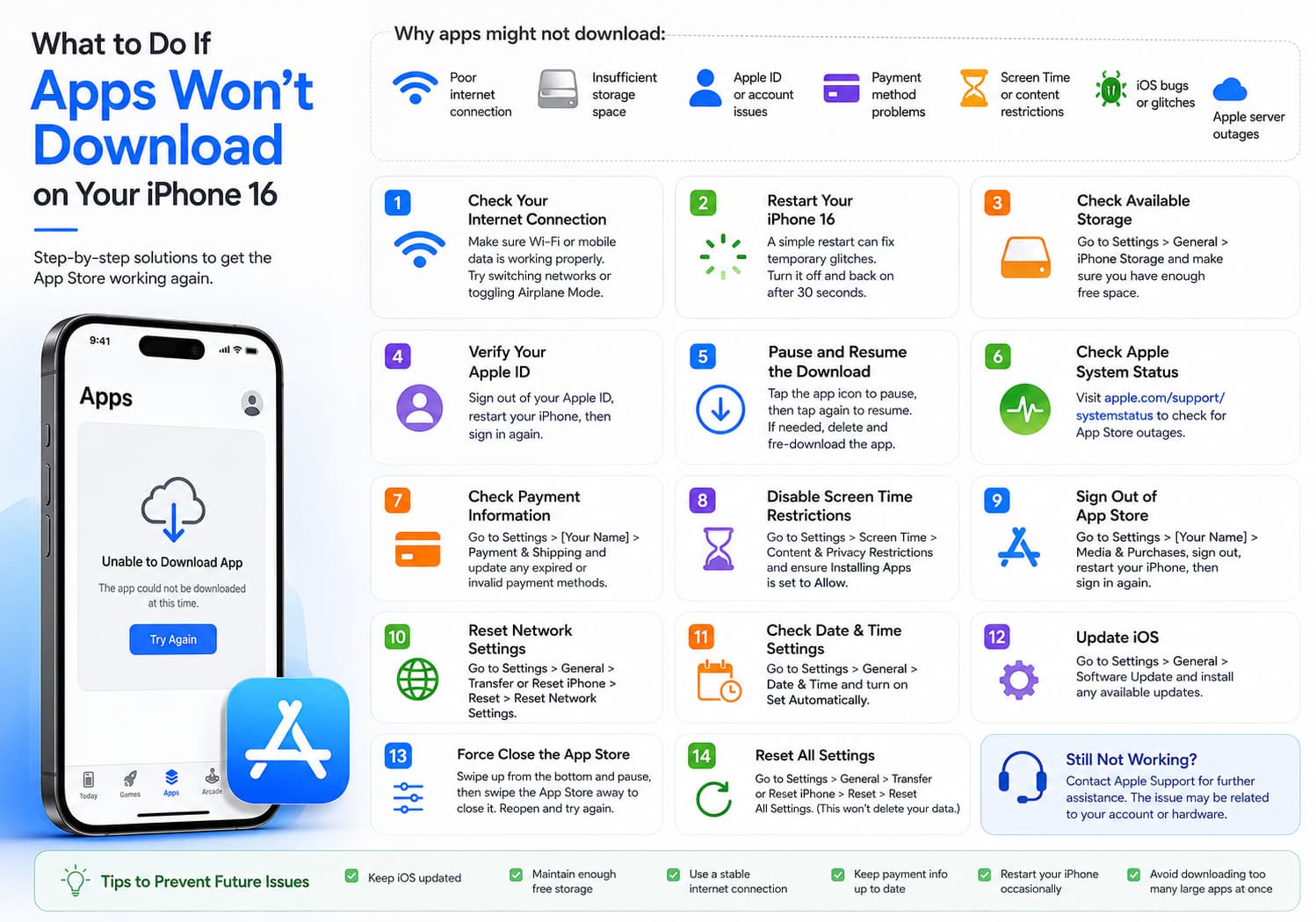
2. Restart Your iPhone 16
Many temporary software glitches disappear after a restart.
To restart your iPhone 16:
- Press and hold the Side button and either Volume button.
- Slide to power off.
- Wait about 30 seconds.
- Turn the phone back on.
Once restarted, try downloading the app again.
3. Check Available Storage
Apps cannot install if your iPhone doesn’t have enough free storage.
Go to:
Settings → General → iPhone Storage
If storage is nearly full:
- Delete unused apps.
- Remove large videos and photos.
- Clear downloaded files.
- Offload unused apps.
Leaving several gigabytes of free space helps iOS operate more smoothly.
4. Verify Your Apple ID
Sometimes the App Store has trouble authenticating your account.
Go to:
Settings → [Your Name]
Make sure you’re signed in with the correct Apple ID.
If necessary:
- Sign out.
- Restart the iPhone.
- Sign back in.
- Open the App Store again.
5. Pause and Resume the Download
If an app is stuck on “Waiting” or “Loading”:
- Tap the app icon once to pause.
- Tap it again to resume.
If that doesn’t help:
- Delete the app icon.
- Search for the app again in the App Store.
- Download it again.
6. Check Apple System Status
Sometimes the problem isn’t your iPhone.
Apple occasionally experiences temporary App Store outages.
Visit Apple’s System Status page to check whether App Store services are operating normally.
If there’s an outage, you’ll simply need to wait until Apple resolves it.
7. Update iOS
Software updates often fix App Store bugs.
To update:
- Open Settings.
- Tap General.
- Select Software Update.
- Install any available updates.
Keeping your iPhone updated ensures maximum compatibility with newer apps.
8. Check Payment Information
Although many apps are free, Apple may require valid payment information on your account.
Go to:
Settings → [Your Name] → Payment & Shipping
Check for:
- Expired credit cards
- Billing issues
- Unverified payment methods
Update your payment information if needed.
9. Disable Screen Time Restrictions
Screen Time can block app installations.
Navigate to:
Settings → Screen Time → Content & Privacy Restrictions
Then:
- Tap iTunes & App Store Purchases.
- Make sure Installing Apps is set to Allow.
If you use Family Sharing, ask the family organizer whether restrictions have been enabled.
10. Sign Out of the App Store
Refreshing your App Store login can solve authentication issues.
Go to:
Settings → [Your Name] → Media & Purchases
Then:
- Sign Out.
- Restart your iPhone.
- Sign back in.
Try downloading the app again afterward.
11. Reset Network Settings
If network problems persist:
Go to:
Settings → General → Transfer or Reset iPhone → Reset → Reset Network Settings
This resets:
- Wi-Fi passwords
- VPN settings
- Cellular settings
You’ll need to reconnect to your Wi-Fi network afterward.
12. Check Date and Time Settings
Incorrect system time can interfere with App Store services.
Go to:
Settings → General → Date & Time
Enable:
Set Automatically
13. Force Close the App Store
Sometimes the App Store itself becomes unresponsive.
Swipe up from the bottom of the screen and pause, then:
- Swipe the App Store away to close it.
- Reopen the App Store.
- Try downloading again.
14. Reset All Settings
If nothing else works, reset your settings without erasing your data.
Go to:
Settings → General → Transfer or Reset iPhone → Reset → Reset All Settings
This resets:
- Wi-Fi settings
- Notifications
- Wallpaper
- Keyboard preferences
Your photos, apps, and personal files remain intact.
15. Contact Apple Support
If apps still won’t download after trying every solution, the issue may involve your Apple ID, App Store account, or hardware.
Contact Apple Support for further assistance. They can check for account-specific restrictions or diagnose potential hardware issues.
Common Error Messages
Here are a few common App Store errors and what they usually mean:
| Error | Possible Cause | Solution |
|---|---|---|
| Waiting | Poor network or App Store issue | Restart download, check Wi-Fi |
| Unable to Download App | Apple ID or billing issue | Verify account information |
| Verification Required | Payment problem | Update payment method |
| Cannot Connect to App Store | Network or Apple server issue | Check internet and Apple System Status |
| Purchase Could Not Be Completed | Apple account issue | Sign out and back in |
Tips to Prevent Future Download Problems
To keep the App Store running smoothly:
- Keep iOS updated.
- Maintain sufficient free storage.
- Use a stable internet connection.
- Keep your payment information current.
- Restart your iPhone occasionally.
- Avoid downloading many large apps simultaneously.
Final Thoughts
Most app download issues on the iPhone 16 are caused by connectivity problems, storage limitations, account authentication issues, or temporary App Store glitches. In many cases, a quick restart, checking your internet connection, or freeing up storage is enough to resolve the problem.
If the issue persists after following all the steps above, checking Apple’s system status and contacting Apple Support are the next best options. With regular software updates and proper device maintenance, your iPhone 16 should continue downloading apps smoothly and reliably.