









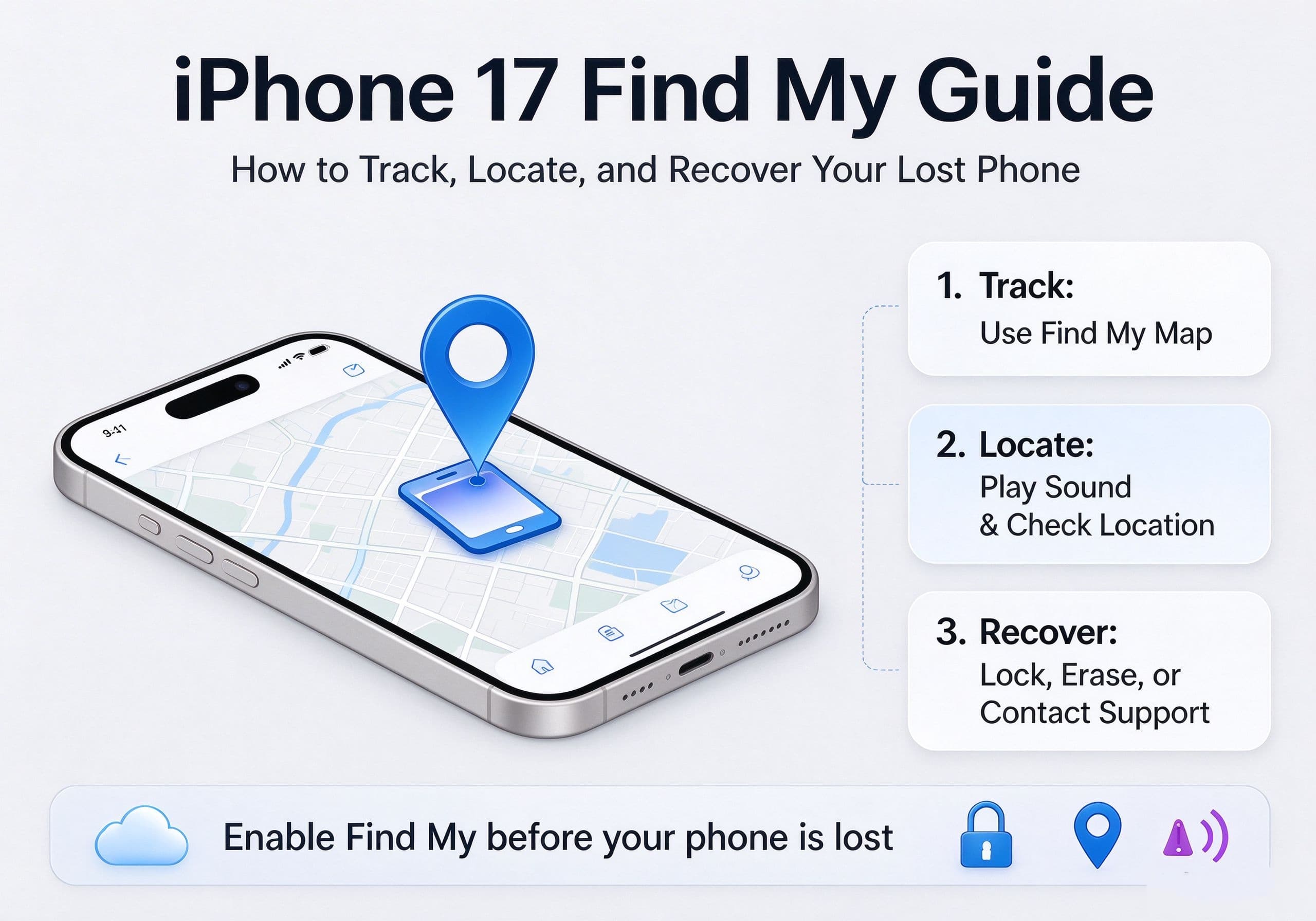
Losing an iPhone 17 can be stressful, especially when it contains personal photos, banking apps, work messages, and other sensitive information. Fortunately, Apple’s Find My service gives you several ways to locate a missing device, make it play a sound, lock it remotely, and protect your data.
The important thing is to prepare your iPhone before it disappears. Find My cannot be activated remotely if the necessary settings were never enabled. Once everything is configured, you can use another Apple device or a web browser to check your iPhone’s location and take action.
This guide explains how to set up Find My on an iPhone 17, track its location, activate Lost Mode, and respond if the phone is offline or may have been stolen.
1. Set Up Find My on Your iPhone 17 Before You Lose It
The first step is making sure your iPhone 17 is connected to your Apple Account and that Find My is enabled. This allows Apple to associate the device with your account and provide location and security features.
Follow these steps:
- Open Settings on your iPhone 17.
- Tap your name at the top of the screen.
- Select Find My.
- Tap Find My iPhone.
- Switch on Find My iPhone.
You should also enable two additional options:
- Find My network: Allows your iPhone to be located through Apple’s Find My network when it is not connected to Wi-Fi or cellular data.
- Send Last Location: Automatically sends the device’s last known location to Apple when its battery reaches a critically low level.
These settings are particularly useful if your iPhone runs out of power or loses its internet connection shortly after going missing.
On supported iPhone models, the Find My network can help locate a device for up to 24 hours after it has been turned off, or up to five hours while it is in power reserve mode. Availability depends on the device and its settings.
2. How to Locate a Lost iPhone 17 Using Another iPhone
If your iPhone 17 is missing but you have access to another Apple device, the Find My app is usually the quickest way to check its location.
Here’s what to do:
- Open the Find My app on another iPhone or iPad.
- Tap the Devices tab.
- Find your iPhone 17 in the device list.
- Select it to view its location on the map.
- If a location is available, check the map and use Directions to navigate toward it.
The map may show the phone’s current location or its last known location. Pay attention to the status displayed beneath the device name so you know whether the location is recent.
If the phone appears to be nearby, you can use the Play Sound feature to make it easier to find.
3. Make Your iPhone 17 Play a Sound
Sometimes an iPhone is not actually lost but has slipped between sofa cushions, been left in a bag, or ended up somewhere in the house. In these situations, playing a sound can save time.
To use this feature:
- Open Find My on another Apple device.
- Select Devices.
- Tap your missing iPhone 17.
- Choose Play Sound.
If the iPhone is online, it will play an alert sound even if it is set to silent mode. This is useful when the device is close enough to hear but difficult to see.
If the iPhone is offline, Find My may display Sound Pending. The sound will play when the device reconnects to a Wi-Fi or cellular network.
4. Find Your iPhone 17 Without Another Apple Device
You do not need to own a second iPhone to use Apple’s location service. A computer, tablet, or another person’s phone with a web browser can also help.
Follow these steps:
- Open a browser and visit https://www.icloud.com/find.
- Sign in using the Apple Account associated with your missing iPhone 17.
- Open the device list.
- Select your iPhone 17.
- Check its location on the map.
- Use the available options to play a sound, mark it as lost, or take other security actions.
If you are using someone else’s device, avoid saving your login details or leaving your account signed in. Sign out when you have finished.
This browser-based method is especially useful if your own iPhone is the only Apple device you normally carry.
5. Activate Lost Mode to Protect Your iPhone 17
If you cannot immediately recover your iPhone, activating Lost Mode should be one of your first priorities.
Lost Mode remotely locks the device and allows you to display a message on its Lock Screen. You can include a phone number or another contact method so that someone who finds the device can reach you.
To activate it:
- Open Find My on another Apple device or visit iCloud.com/find.
- Select your missing iPhone 17.
- Find the Mark As Lost or Lost Mode option.
- Follow the instructions on the screen.
- Enter a contact number and a short message if requested.
- Confirm the action.
When Lost Mode is activated, Apple Pay cards and applicable payment services are suspended on the missing device. The phone remains associated with your Apple Account, helping prevent another person from activating it as their own.
A useful Lock Screen message might be:
” This iPhone has been lost. Please call [your contact number]if you find it.”
Avoid displaying sensitive personal information in the message. A phone number or alternative contact method is usually enough.
6. What If Find My Shows Your iPhone 17 as Offline?
Seeing an Offline status does not necessarily mean that your iPhone has been permanently lost. The device may have run out of battery, been switched off, lost its network connection, or entered an area with poor coverage.
Try these steps:
- Check the last known location shown in Find My.
- Enable Notify When Found if the option is available.
- Keep Lost Mode active while waiting for the device to reconnect.
- Check the map again later for an updated location.
- Avoid assuming that an old location represents the phone’s current position.
The Find My network can help locate supported devices even when they are offline, provided the required settings were enabled beforehand and the device can be detected by nearby Apple devices.
If the phone cannot provide a location, Find My may show No Location Found. This is different from a confirmed location showing that the phone is still at a particular address.
7. What Should You Do If Your iPhone 17 Is Stolen?
If you believe someone has stolen your iPhone 17, focus on protecting your accounts and personal information rather than trying to recover the device yourself.
Here are the most important actions:
Keep Lost Mode enabled. Do not turn off the security protection simply because someone claims to have found your phone.
Contact your mobile carrier. Ask the carrier to suspend your SIM or eSIM service if necessary. This can reduce the risk of unauthorized calls, messages, or account verification attempts.
Report the theft. Contact local law enforcement and provide the device’s serial number or IMEI if available. A location shown in Find My may help with a report, but do not confront a suspected thief or enter a private property to retrieve the phone.
Protect your important accounts. If you suspect someone knows your passcode or has accessed your accounts, review your Apple Account security and other important services. Change compromised passwords and contact your bank if payment information may be at risk.
Watch out for phishing messages. Scammers sometimes send messages claiming that a stolen iPhone has been found and ask the owner to open a fake tracking page or enter their Apple Account password. Only use Apple’s official websites and apps.
Most importantly, never share your Apple Account password or device passcode with someone who contacts you about the missing phone.
If you lose access to your trusted device or have trouble signing in, our guide to Apple ID verification problems explains how to regain access to your Apple Account.”
8. Should You Erase Your Lost iPhone 17 Remotely?
If recovery seems unlikely and you are concerned about personal data, you can remotely erase your iPhone 17 through Find My.
To do this:
- Open Find My or visit iCloud.com/find.
- Select your missing iPhone 17.
- Choose Erase This Device.
- Read the warning carefully.
- Confirm the erase request.
Remote erasure removes personal information and settings from the device. However, it should generally be considered a last resort after you have evaluated the possibility of recovering the phone.
Important: Do not remove the iPhone from your Apple Account or Find My device list after erasing it. Keeping it associated with your account helps preserve Activation Lock, which makes it harder for someone else to activate and use the device.
For supported iPhones running iOS 15 or later, Find My can still help locate the device after it has been erased. However, you should not assume that every location feature will remain available in every situation.
To understand how this anti-theft protection works, read our guide to iPhone Activation Lock and how it helps prevent unauthorized device activation.
9. Extra Settings That Can Help Prevent Losing Your iPhone 17
Find My is more useful when combined with a few simple security habits. Consider checking these settings while your iPhone is still in your possession.
Use a strong passcode: A longer alphanumeric passcode is generally harder to guess than a simple numeric combination.
Enable Face ID: Face ID adds another layer of protection for unlocking the device and authorizing supported actions.
Turn on Stolen Device Protection: This feature adds extra security requirements for certain sensitive actions, particularly when your iPhone is away from familiar locations.
Enable two-factor authentication: This helps protect your Apple Account against unauthorized sign-ins.
Set up separation alerts: Find My can notify you when you leave a supported device behind at an unfamiliar location. This is useful if you frequently forget your phone at cafés, offices, or other public places.
These measures cannot guarantee that a lost iPhone will be recovered, but they can make it harder for someone else to access your information.
10. Common Questions About Finding a Lost iPhone 17
Can I track my iPhone 17 if it is turned off?
In supported configurations, the Find My network can help locate an iPhone for a limited period after it has been turned off. Apple states that supported iPhones can remain locatable for up to 24 hours after shutdown. The feature must be enabled before the phone goes missing.
Can I locate my iPhone 17 if the SIM card has been removed?
Removing the SIM card does not automatically disable Find My. The device may still be detectable through the Find My network if the relevant settings and conditions are met. However, removing the SIM or losing cellular service can affect its ability to connect to the internet.
Can I find my iPhone 17 using an Android phone?
Yes. Open a browser on the Android phone and visit iCloud.com/find. Sign in with the Apple Account linked to the missing iPhone and select the device from the list.
Can I track my iPhone 17 using only its phone number?
No. A phone number alone does not provide ordinary users with access to Apple’s Find My location service. You need to use the Apple Account associated with the device or an authorized Family Sharing setup.
What if I never enabled Find My before losing my iPhone?
Unfortunately, you generally cannot turn on Find My remotely after the phone has already gone missing. Contact your carrier if necessary, secure your important accounts, and report the loss or theft to the appropriate authorities.
Final Thoughts
The best way to recover a lost iPhone 17 is to prepare before anything happens. Enable Find My iPhone, Find My network, and Send Last Location while the device is still with you. If it disappears, use another Apple device or iCloud.com/find to check its location, play a sound, or activate Lost Mode.
If you suspect theft, prioritize account security and personal safety. Remote tracking can provide useful information, but it is not a guarantee of recovery. A few minutes spent configuring these settings today can make a significant difference if your iPhone 17 goes missing tomorrow.