







Facebook Twitter Instagram
    Trending
    • What to Do If Apps Won’t Download on Your iPhone 16: A Complete Troubleshooting Guide
    • Samsung Galaxy S26 FE smartphone unveiled: 45W charging, Exynos 2500 chip
    • Redmi Turbo 6 Max Design Leaks Reveal 7-Inch 2K Display, Massive Battery, and New Horizontal Camera Layout
    • Xiaomi REDMI K100 Pro Appears on Geekbench with Snapdragon 8 Elite Gen 5 and 16GB RAM
    • Huawei Mate XT2 Rumored to Introduce U-Shaped Triple-Fold Design with Improved Durability and Reduced Creases
    • Huawei Nova 16 SE Design Leaks Ahead of August 5 Debut, Showcasing New Gradient Finish and Kirin 8020 Chip
    • Vivo X500 Series Receives Certification Ahead of Launch, Expected to Debut with MediaTek’s 2nm Dimensity 9600 Pro
    • Google Pixel 11 Series Leak Suggests 256GB Base Storage Across the Lineup, Pixel 11 Pro XL Battery Slightly Reduced
    Facebook YouTube
    IGeeKphone China Phone, Tablet PC, VR, RC Drone News, Reviews
    • HOME
    • BREAKING NEWS
      • AI NEWS
    • Amazon
    • PHONE
      • Top Phones For Your First Choice
      • Phone Comparison
      • Xiaomi
      • Blackview
      • Doogee
      • Black Shark
      • Geekbuying
      • Banggood
      • TEMU
      • TikTok
      • Aliexpress
      • Walmart
      • MercadoLibre
      • Lazada
    • TOP VAPE Awards for 2026
    • VAPES
      • E-CIGAR Upcoming
      • Vape News
      • Vape Deals
      • Vape Comparison
      • Vape Guide
      • VAPE LAWS
      • Giveaway
    • BEST VAPE
      • Best Vape Stores
      • Best Starter Vape Kits
      • Best Vapes for Beginners
      • Best Disposable Vapes
      • Best Pod Systems
      • Best Pod Mod Vapes
      • Best Mods
      • Best Nicotine Pouches
      • Best Clearomizers/Tanks
      • Best E-Liquid
      • Best EGO/Pens
      • Best Vapes for Nic Salt E-Juice
      • Best Vapes to Quit Smoking
      • RDA vs. RDTA vs. RTA
    • Best Vape Brand 2026
      • VAPORESSO
      • VOOPOO
      • OXVA
      • NEXA BAR
      • MASKKING VAPE
      • SP2S
      • IPLAY
      • TODOO
      • MRFOG
      • LOSTVAPE
      • VEIIK
    • REVIEW
      • E-cigar Review
      • Phones
      • Tablet PC
      • TV Box
      • RC Drone
      • Wearables
      • Camera
      • Accessories
      • VR Headset
    • MORE
      • TABLET
        • Chuwi
        • INNOCN
        • Teclast
        • Top Tablet for Your First Choice
        • Tablet/Laptop Comparison
      • RC DRONE
      • CAMERA
      • WEARABLES
        • OneOdio
        • BlitzWolf
        • Top Smartwatch for First Choice
      • 3D PRINTER
        • 3D Printer Review
        • Anycubic
        • FLSUN
        • Xtool
        • LONGER
        • Top 3D printer to Choose First
      • POWER STATION
        • Oukitel
        • FOSSIBOT
      • GAMING
        • Top Gaming Products
      • E-BIKE
        • Samebike
        • Happyrun
        • ENGWE
      • SMART HOME
      • TV BOX
      • ACCESSORIES
      • VR HEADSET
      • CLOTHES
      • AUTO CAR
    • DEAL
    • Shop
    IGeeKphone China Phone, Tablet PC, VR, RC Drone News, Reviews
    You are at:Home»Apple»What to Do If Apps Won’t Download on Your iPhone 16: A Complete Troubleshooting Guide
    Apple

    What to Do If Apps Won’t Download on Your iPhone 16: A Complete Troubleshooting Guide

    Brady CottonBy Brady CottonJuly 29, 2026
    Facebook Twitter Pinterest LinkedIn Tumblr Email

    If your iPhone 16 refuses to download apps from the App Store, you’re not alone. Whether downloads are stuck on “Waiting,” endlessly spinning, or failing with an error message, the problem can usually be resolved with a few simple troubleshooting steps.

    This guide explains the most common reasons why apps won’t download on an iPhone 16 and provides effective solutions to get the App Store working again.

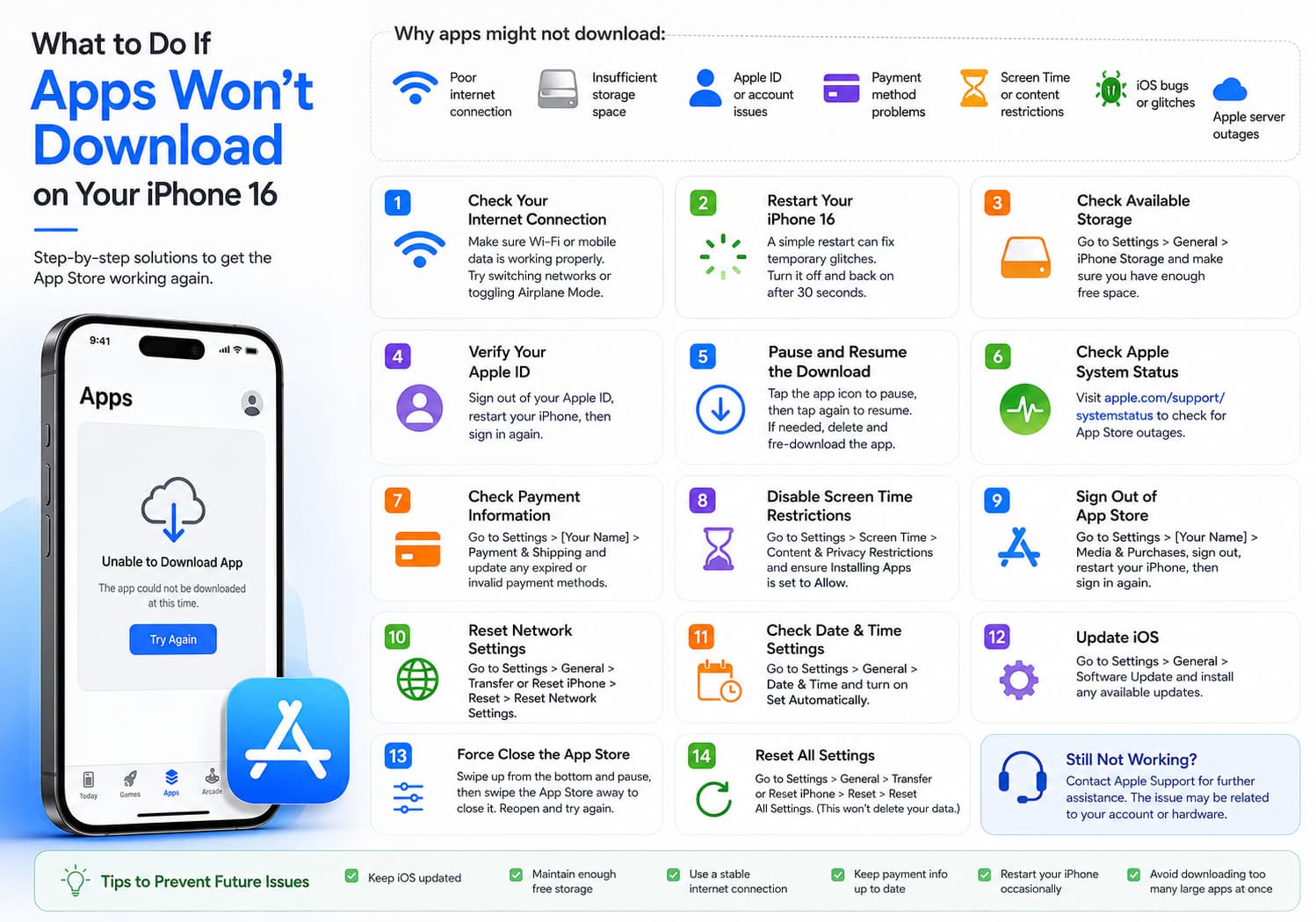
    Why Won’t Apps Download on iPhone 16?

    Several factors can prevent apps from downloading, including:

    • Poor internet connection
    • Insufficient storage space
    • Apple ID issues
    • App Store glitches
    • Payment method problems
    • Screen Time restrictions
    • Software bugs
    • Temporary Apple server outages

    Fortunately, most of these issues can be fixed within a few minutes.

    1. Check Your Internet Connection

    A stable internet connection is essential for downloading apps.

    Try the following:

    • Connect to a reliable Wi-Fi network.
    • If using cellular data, make sure it is enabled for App Store downloads.
    • Toggle Airplane Mode on and off.
    • Restart your Wi-Fi router if necessary.

    To test your connection, open Safari and load a webpage. If websites don’t load, resolve your network issue before trying the App Store again.
    2. Restart Your iPhone 16

    Many temporary software glitches disappear after a restart.

    To restart your iPhone 16:

    1. Press and hold the Side button and either Volume button.
    2. Slide to power off.
    3. Wait about 30 seconds.
    4. Turn the phone back on.

    Once restarted, try downloading the app again.

    3. Check Available Storage

    Apps cannot install if your iPhone doesn’t have enough free storage.

    Go to:

    Settings → General → iPhone Storage

    If storage is nearly full:

    • Delete unused apps.
    • Remove large videos and photos.
    • Clear downloaded files.
    • Offload unused apps.

    Leaving several gigabytes of free space helps iOS operate more smoothly.

    4. Verify Your Apple ID

    Sometimes the App Store has trouble authenticating your account.

    Go to:

    Settings → [Your Name]

    Make sure you’re signed in with the correct Apple ID.

    If necessary:

    1. Sign out.
    2. Restart the iPhone.
    3. Sign back in.
    4. Open the App Store again.

    5. Pause and Resume the Download

    If an app is stuck on “Waiting” or “Loading”:

    • Tap the app icon once to pause.
    • Tap it again to resume.

    If that doesn’t help:

    • Delete the app icon.
    • Search for the app again in the App Store.
    • Download it again.

    6. Check Apple System Status

    Sometimes the problem isn’t your iPhone.

    Apple occasionally experiences temporary App Store outages.

    Visit Apple’s System Status page to check whether App Store services are operating normally.

    If there’s an outage, you’ll simply need to wait until Apple resolves it.

    7. Update iOS

    Software updates often fix App Store bugs.

    To update:

    1. Open Settings.
    2. Tap General.
    3. Select Software Update.
    4. Install any available updates.

    Keeping your iPhone updated ensures maximum compatibility with newer apps.

    8. Check Payment Information

    Although many apps are free, Apple may require valid payment information on your account.

    Go to:

    Settings → [Your Name] → Payment & Shipping

    Check for:

    • Expired credit cards
    • Billing issues
    • Unverified payment methods

    Update your payment information if needed.

    9. Disable Screen Time Restrictions

    Screen Time can block app installations.

    Navigate to:

    Settings → Screen Time → Content & Privacy Restrictions

    Then:

    • Tap iTunes & App Store Purchases.
    • Make sure Installing Apps is set to Allow.

    If you use Family Sharing, ask the family organizer whether restrictions have been enabled.

    10. Sign Out of the App Store

    Refreshing your App Store login can solve authentication issues.

    Go to:

    Settings → [Your Name] → Media & Purchases

    Then:

    1. Sign Out.
    2. Restart your iPhone.
    3. Sign back in.

    Try downloading the app again afterward.

    11. Reset Network Settings

    If network problems persist:

    Go to:

    Settings → General → Transfer or Reset iPhone → Reset → Reset Network Settings

    This resets:

    • Wi-Fi passwords
    • VPN settings
    • Cellular settings

    You’ll need to reconnect to your Wi-Fi network afterward.

    12. Check Date and Time Settings

    Incorrect system time can interfere with App Store services.

    Go to:

    Settings → General → Date & Time

    Enable:

    Set Automatically

    13. Force Close the App Store

    Sometimes the App Store itself becomes unresponsive.

    Swipe up from the bottom of the screen and pause, then:

    • Swipe the App Store away to close it.
    • Reopen the App Store.
    • Try downloading again.

    14. Reset All Settings

    If nothing else works, reset your settings without erasing your data.

    Go to:

    Settings → General → Transfer or Reset iPhone → Reset → Reset All Settings

    This resets:

    • Wi-Fi settings
    • Notifications
    • Wallpaper
    • Keyboard preferences

    Your photos, apps, and personal files remain intact.

    15. Contact Apple Support

    If apps still won’t download after trying every solution, the issue may involve your Apple ID, App Store account, or hardware.

    Contact Apple Support for further assistance. They can check for account-specific restrictions or diagnose potential hardware issues.

    Common Error Messages

    Here are a few common App Store errors and what they usually mean:

    Error Possible Cause Solution
    Waiting Poor network or App Store issue Restart download, check Wi-Fi
    Unable to Download App Apple ID or billing issue Verify account information
    Verification Required Payment problem Update payment method
    Cannot Connect to App Store Network or Apple server issue Check internet and Apple System Status
    Purchase Could Not Be Completed Apple account issue Sign out and back in

    Tips to Prevent Future Download Problems

    To keep the App Store running smoothly:

    • Keep iOS updated.
    • Maintain sufficient free storage.
    • Use a stable internet connection.
    • Keep your payment information current.
    • Restart your iPhone occasionally.
    • Avoid downloading many large apps simultaneously.

    Final Thoughts

    Most app download issues on the iPhone 16 are caused by connectivity problems, storage limitations, account authentication issues, or temporary App Store glitches. In many cases, a quick restart, checking your internet connection, or freeing up storage is enough to resolve the problem.

    If the issue persists after following all the steps above, checking Apple’s system status and contacting Apple Support are the next best options. With regular software updates and proper device maintenance, your iPhone 16 should continue downloading apps smoothly and reliably.

    Share. Facebook Twitter Pinterest LinkedIn Tumblr Email

    Related Posts

    Importance of Sound Masking Devices in Commercial Environments

    Optimizing Customer Advocacy: The Role of Software in Modern Business

    Building Stronger Teams: Management Training Topics for Optimal Performance

    Leave A Reply Cancel Reply

    You must be logged in to post a comment.

    voopoopintch
    oxva nexlim 2
    sp2s sen x disposable vape
    • Popular
    • 3D Printer REVIEW
    • XIAOMI
    July 13, 2026

    OXVA Nexlim 2 Mini Pod Vape Hands on Review

    July 13, 2026

    OXVA Nexlim 2 Pod Vape Hands on Review

    June 21, 2026

    iPlay LUMO 8K Review – A Compact Prefilled Pod Kit with Big Flavor and Everyday Convenience

    June 21, 2026

    iPlay HOOLA 150K Review – A Cloud-Chasing Giant with Music, Modes & Massive Longevity

    December 26, 2025

    ACMER ASCARVA 4S: Precision CNC Power for Makers, DIYers & Small Workshops

    June 23, 2024

    ACMER P2 20W Laser Engraver Fixed Focus Engraving: Hands on Review

    May 30, 2024

    xTool F1 Ultra Review: World’s First 20W Fiber & 20W Diode Laser Engraver

    May 30, 2024

    Anycubic Kobra 3 Combo Review: The Multicolor Masterpiece?

    July 29, 2026

    Redmi Turbo 6 Max Design Leaks Reveal 7-Inch 2K Display, Massive Battery, and New Horizontal Camera Layout

    July 29, 2026

    Xiaomi REDMI K100 Pro Appears on Geekbench with Snapdragon 8 Elite Gen 5 and 16GB RAM

    July 28, 2026

    Redmi Confirms ChinaJoy 2026 Appearance, Annual Flagship Expected to Debut on July 31

    July 28, 2026

    Xiaomi Redmi 17 4G Leaks with Helio G91-Ultra, 7,500mAh Battery and 120Hz Display

    fc 26 coins
    New Arrivals
    • Pod Juice X RAZ RX Lemon Batch TFN E-juice Pod Juice X RAZ RX Lemon Batch TFN E-juice
    • ATVS 100K 2-in-1 Disposable Vape ATVS 100K 2-in-1 Disposable Vape
    • Xiaomi 18 Xiaomi 18
    • Xiaomi 18 Pro Xiaomi 18 Pro
    • Xiaomi 18 Pro Max Xiaomi 18 Pro Max
    • Mrfog Elite Vape Mrfog Elite Vape
    • ALP Drifters Nicotine Pouches ALP Drifters Nicotine Pouches
    • IPLAY HOOLA 150K Hookah Disposable Vape IPLAY HOOLA 150K Hookah Disposable Vape
    • LVE Orion II Pro Plus Vape Mod Kit LVE Orion II Pro Plus Vape Mod Kit
    About
  • Igeekphone.com provides the first global tech news and reviews about smartphone, vapes, e-cigar, smart home, 3D printers, e-bike,tablets, RC drones, VR headset, and other accessories. It's the best platform to improve your brand and product.
  • Contact us: info@igeekphone.com
  • Check Our Privacy Policy Here.
  • Note: *Right now we have US editor and EU editors for review, especially for Amazon US and EU.
  • *Shop and Compare Price Here*
  • Facebook
  • Youtube
  • OUR BEST VAPE PARTNERS
  • VAPE ONLINE STORE
  • HAYATI PRO MAX PLUS
  • VAPORESSO
  • VOOPOO
  • OXVA
  • NEXA
  • MASKKING
  • SP2S
  • IPLAY
  • TODOO
  • OTHER BEST PARTNERS
  • SVBONY
  • Chuwi
  • Blackview
  • Fossibot
  • Unihertz
  • Flsun
  • Anycubic
  • Xtool
  • Oukitel
  • Mukkpet Ebike
  • Ugreen
  • Copyright © 2026 igeekphone

    Type above and press Enter to search. Press Esc to cancel.