




Facebook Twitter Instagram
    Trending
    • Geek Bar Ice Prince 50K Disposable Vape Review: A Majestic Cloud of Flavor and Endurance
    • Which type of Vape is Harmless to the Human Body?
    • EA FC 26: 4 Best Goalkeepers to Build Your Ultimate Squad
    • Swedish food product manufacturer WiJo is set to establish a manufacturing base in the United States
    • The Impact of Pusoy Dos on Improving Strategic Mindset
    • The manual of Samsung’s most expensive mobile phone: Galaxy Z TriFold has been exposed
    • Online Casinos Adapting New Tech Trends
    • Xiaomi’s new phone has made an appearance at GSMA: The MIX TriFold triple foldable screen phone is expected to be released in Q3 next year
    Facebook YouTube
    Login Register
    IGeeKphone China Phone, Tablet PC, VR, RC Drone News, Reviews
    • HOME
      • NEWS
        • DeepSeek
        • ChatGPT
        • Minecraft
    • Amazon
    • CHRISTMAS
    • PHONE
      • Top Phones For Your First Choice
      • Phone Comparison
      • Xiaomi
      • Blackview
      • Unihertz
      • Doogee
      • Black Shark
      • Geekbuying
      • Banggood
      • TEMU
      • TikTok
      • Aliexpress
      • Walmart
      • Newegg
      • MercadoLibre
      • Lazada
    • TOP VAPE Awards for 2025
    • VAPES
      • E-CIGAR Upcoming
      • Vape News
      • Vape Market Trend
      • Vape Deals
      • Expo News
      • Vape Comparison
      • Vape Guide
        • Guide For Beginners
        • Guide for Best Users
      • Giveaway
    • BEST VAPE
      • Best Vape Stores
      • Best Starter Vape Kits
      • Best Vapes for Beginners
      • Best Disposable Vapes
      • Best Pod Systems
      • Best Pod Mod Vapes
      • Best Mods
      • Best Nicotine Pouches
      • Best Clearomizers/Tanks
      • Best E-Liquid
      • Best EGO/Pens
      • Best Vapes for Nic Salt E-Juice
      • Best Vapes to Quit Smoking
      • RDA vs. RDTA vs. RTA
    • Best Vape Brand 2025
      • VAPORESSO
      • VOOPOO
      • OXVA
      • NEXA BAR
      • ORIONBARTECH
      • MASKKING VAPE
      • VEIIK
      • MEMERS
      • SP2S
      • JNR
      • TODOO
      • MRFOG
    • REVIEW
      • E-cigar Review
      • Phones
      • Tablet PC
      • TV Box
      • RC Drone
      • Wearables
      • Camera
      • Accessories
      • VR Headset
    • MORE
      • 3D PRINTER
        • 3D Printer Review
        • Anycubic
        • FLSUN
        • Xtool
        • LONGER
        • Top 3D printer to Choose First
      • TREND
      • CLOTHES
      • AUTO CAR
      • POWER STATION
        • Oukitel
        • FOSSIBOT
      • GAMING
        • Top Gaming Products
      • E-BIKE
        • Samebike
        • Happyrun
        • ENGWE
      • TABLET
        • Chuwi
        • INNOCN
        • Teclast
        • Top Tablet for Your First Choice
        • Tablet/Laptop Comparison
      • WEARABLES
        • OneOdio
        • BlitzWolf
        • Top Smartwatch for First Choice
      • SMART HOME
      • TV BOX
        • Chuwi mini pc
        • Beelink
        • GMKTEC
        • MOREFINE
      • RC DRONE
        • DJI
        • MJX
        • JJRC
        • Hubsan
        • Top RC Drone
      • CAMERA
        • Gopro
        • Insta360
        • Andoer
      • ACCESSORIES
      • VR HEADSET
      • ROM
        • SAMSUNG
        • XIAOMI
        • ASUS
        • MEIZU
        • LENOVO
        • HUAWEI
        • ONEPLUS
        • ZTE
        • UMIDIGI
        • DOOGEE
        • HOMTOM
        • ELEPHONE
        • ULEFONE
        • BLACKVIEW
        • VERNEE
        • LEAGOO
        • CHUWI
        • TECLAST
        • PIPO
        • TV BOX ROM
    • DEAL
    • Shop
    IGeeKphone China Phone, Tablet PC, VR, RC Drone News, Reviews
    You are at:Home»Guide»CHKDSK Cannot Run Because the Volume is in Use
    Guide

    CHKDSK Cannot Run Because the Volume is in Use

    Brady CottonBy Brady CottonJune 18, 2024
    Facebook Twitter Pinterest LinkedIn Tumblr Email

    CHKDSK Cannot Run Because the Volume is in Use? Fixed It in Seconds!

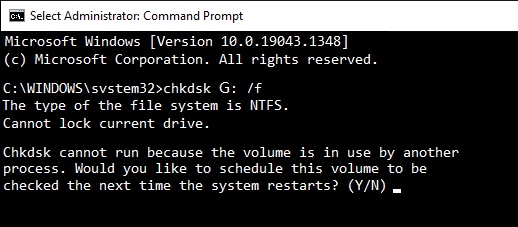
    Although CHKDSK is a free and powerful disk repair tool, it is not without its problems. You may encounter a general error message when running CHKDSK to fix corrupted files.

    This is the message format of the error: Cannot lock current drive. CHKDSK cannot run because the volume is in use by another process.

    If you are searching for an effective solution to this issue, don’t worry as we have got you covered. In this article, we’ll explain why this problem occurs and what to do in such a situation. So, let’s dive in now!

    Part 1: Reasons behind CHKDSK Cannot Run Because the Volume is in Use Error

    Wondering why does the ‘CHKDSK cannot run because the volume is in use’ error occur? To effectively fix disk errors, CHKDSK requires exclusive access to the disk. In other words, CHKDSK needs to lock the drive and prevent any other files or processes from accessing it.

    In this way, CHKDSK can perform its checks and repairs without interference, which can lead to more accurate results and better disk health. If files or processes are actively using the disk, CHKDSK won’t be able to lock the drive and won’t be able to proceed with its operation until the disk is available.

    Part 2: Recover Data Before Fixing CHKDSK Cannot Run Because the Volume is in Use Error

    Sometimes, running a disk check may damage files or directory structures, resulting in permanent data loss. Therefore, we highly recommend performing data recovery before attempting to fixing the ‘CHKDSK cannot run because the volume’ issue.

    Tenorshare 4DDiG is a user-friendly and powerful tool designed to recover lost/deleted files from over 2000 storage devices. It provides an all-in-one solution for various data loss scenarios, such as virus attacks, accidental deletions, hardware failures, and more. The best part about 4DDiG is its impressive success rate and simplicity. Regardless of your skill level, all lost data can recovered in just a few clicks.

    Given below is a step-by-step guide on how to get back your lost files with the help of 4DDiG:

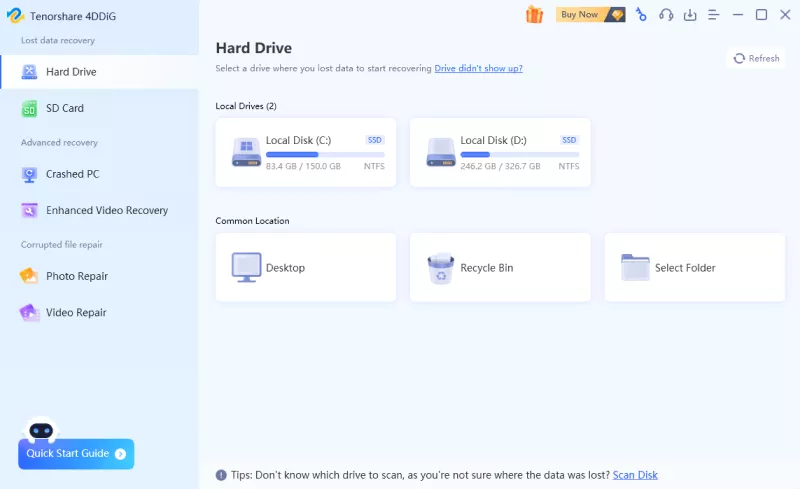
    Step 1: Launch the 4DDiG Data Recovery once you’ve installed it. Then, select the drive where you lost data and click on the “Scan” button. To save time, you can specify the file types you want to recover before scanning.
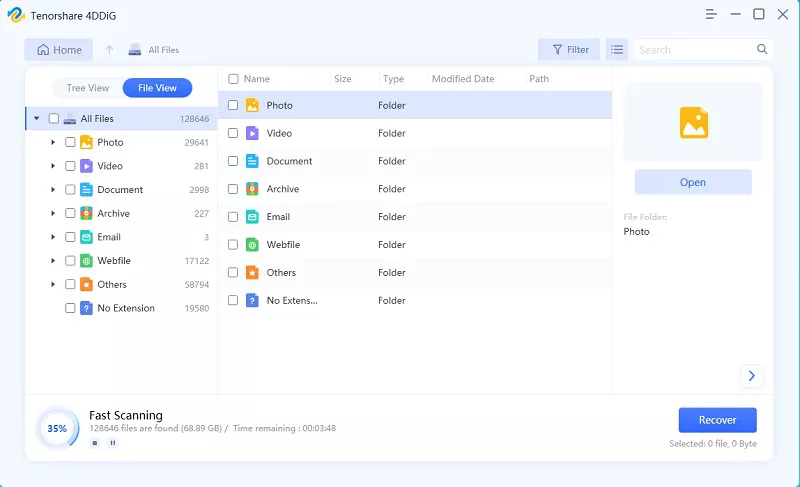
    Step 2: 4DDiG offers two scanning modes: Quick Scan and Deep Scan. After the Quick Scan is completed, it will automatically initiate a Deep Scan on the selected disk. In the left panel, you are able to locate target files through either the tree view or the file view.
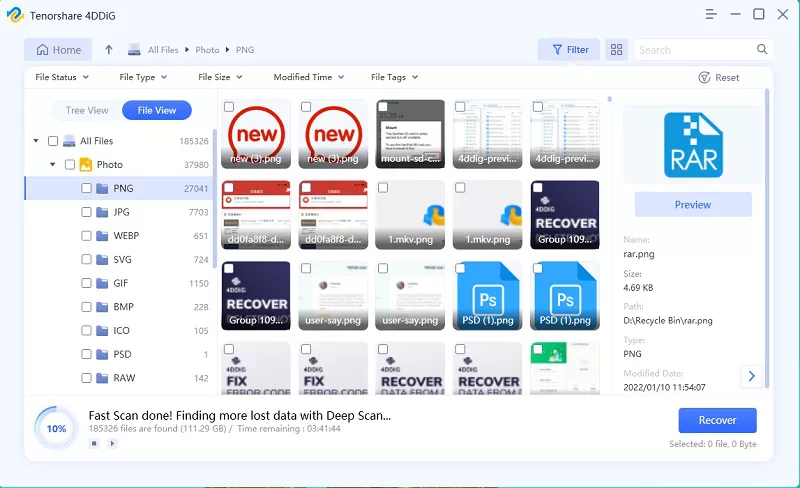
    Step 3: Once the scan is complete, select the desired files and click on the “Recover” button. Then, simply select a secure location to save the recovered files.
    Part 3: How to Fix CHKDSK Cannot Run Because the Volume is in Use Error?

    Option A: Close all programs or restart your computer

    There are many scenarios where you may encounter the ‘CHKDSK cannot run because the volume’ issue. For example, you might try to run CHKDSK on a drive while having it open in File Explorer, or you might have a file open within that drive but forget to close it. In such cases, press Ctrl + Alt + Delete and select ‘Task Manager’ from the menu. Then, all you need to do is to terminate all programs or files that may be accessing the disk you want to check.
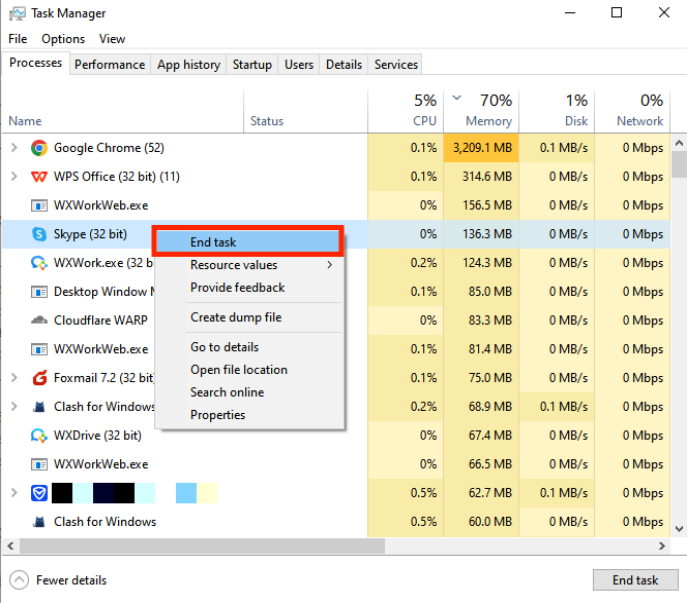
    Even if you haven’t launched any programs, Windows itself runs multiple processes and services in the background. That’s why you see the error message ‘Windows can’t check the disk while it’s in use.’ So, it’s better to reboot you computer.

    Option B: Run CHKDSK in Pre-boot environment

    Another method to fix the ‘CHKDSK cannot run because the volume’ error is to boot into the Windows Recovery Environment. This is because it only loads essential drivers and services, minimizing the number of processes accessing your disk. To do so:

    Step 1: Reboot your computer. During the start up, press F8 or the appropriate key to access WinRE.

    Step 2: Navigate to “Troubleshoot” > “Advanced options” > “Command Prompt.”
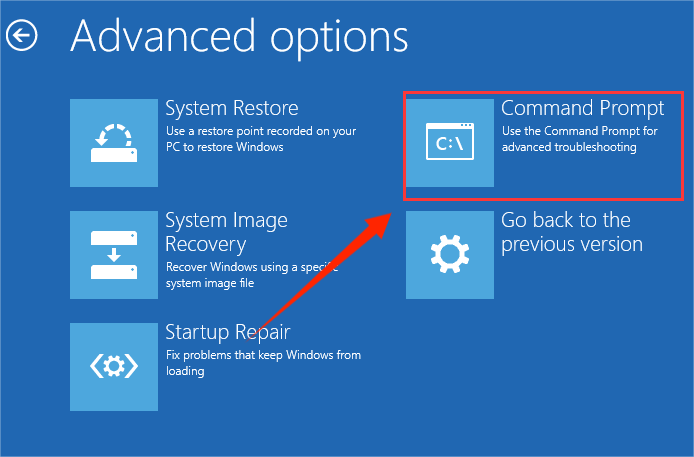
    Step 3: Run the CHKDSK command again. Check if the ‘Windows can’t check the disk while it’s in use’ problem persists.

    Option C: Run CHKDSK Command After Reboot

    In fact, the answer lies in the error message you see, especially when you want to check the system drive. Windows will prompt you whether you would like to schedule this volume for a check the next time the system restarts. It’s a simple but effective solution for resolving the ‘CHKDSK cannot run because the volume is in use’ error.

    So, type ‘Y’ for yes in Command Prompt and press Enter to execute it. During the next boot, CHKDSK will automatically run and repair any errors on the disk.
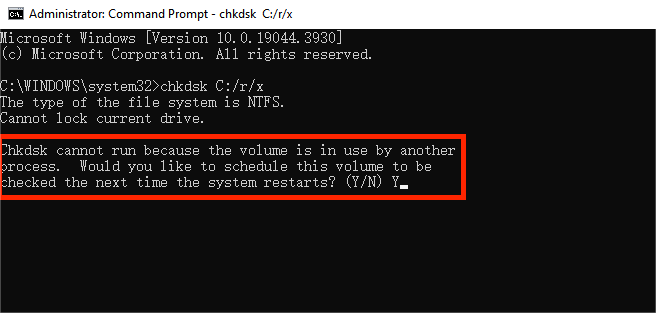
    Wondering how to find the results of a CHKDSK that ran on boot? Follow these steps below:

    Step 1: Type “Event Viewer” into the search box. Then, click on the app from the search results.
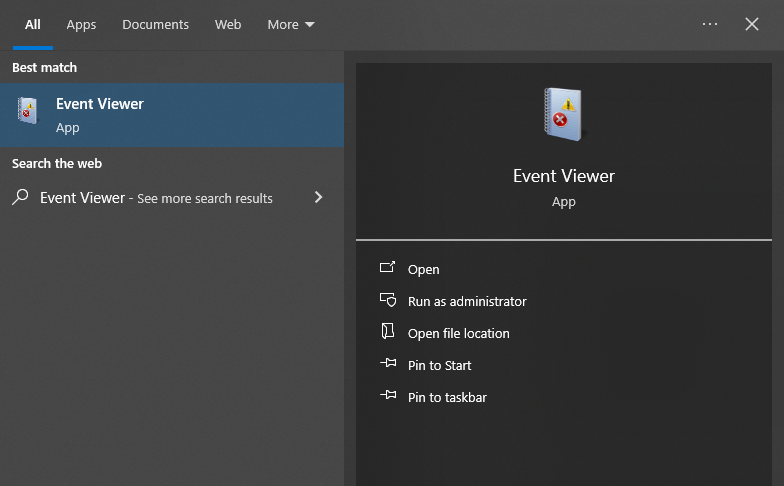
    Step 2: Go to “Windows Logs” > “Application.” Now, you need to look for an event with the source “Wininit” and the event ID “1001.”
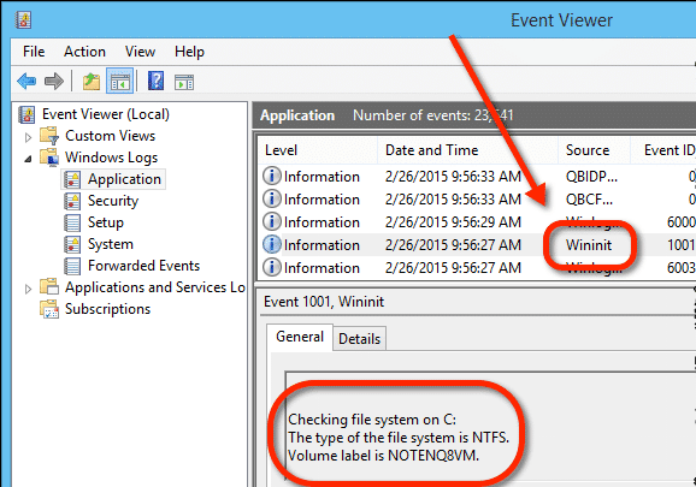
    Step 3: Click anywhere within the text box under the “General” tab to select the entire CHKDSK result. Next, press Ctrl + A to select all text, followed by Ctrl + C.

    Step 4: Open Notepad and press Ctrl + V to view the result.

    Option D: Use CHKDSK alternatives

    If all else fails to fix the ‘Windows can’t check the disk while it’s in use’ error, don’t panic. For Windows users, CHKDSK is not the only disk error-checking tool available. There are several CHKDSK alternatives that can do the same job. Some reliable options include:

    • DiskGenius
    • EaseUS Partition Master
    • MiniTool Partition Wizard
    • AOMEI Partition Assistant
    • 4DDiG Partition Manager

    Wrap Things Up

    Now, you should be good to go. It’s quite common to encounter the ‘CHKDSK cannot run because the volume is in use’ error. However, we’ve shared four easy yet effective solutions to try, from restarting your computer to employing a CHKDSK alternative. Additionally, to avoid data loss issue caused by disk check, you can utilize 4DDiG Data Recovery to retrieve your important files in advance.

    Share. Facebook Twitter Pinterest LinkedIn Tumblr Email

    Related Posts

    EA FC 26: 4 Best Goalkeepers to Build Your Ultimate Squad

    The manual of Samsung’s most expensive mobile phone: Galaxy Z TriFold has been exposed

    Xiaomi’s new phone has made an appearance at GSMA: The MIX TriFold triple foldable screen phone is expected to be released in Q3 next year

    Leave A Reply Cancel Reply

    You must be logged in to post a comment.

    voopoo drag s3
    oxva xlim go 2
    sp2s sen x disposable vape
    jnr 100k
    • Popular
    • 3D Printer REVIEW
    • XIAOMI
    November 23, 2025

    VOOPOO DRAG X3 – Big Battery, Smart Tech, Pod-Mod Powerhouse (Review)

    November 23, 2025

    VOOPOO VINCI S: Pocket-Power Pod with a 2,000 mAh Heart — Big Battery, Simple Use (Review)

    November 19, 2025

    OXVA XLIM PRO 3 Pod Vape Quick Hands-on Review (Video Test Included)

    November 19, 2025

    OXVA XLIM 3 Ultra Pod Vape: Hands-on Review (Video Test Included)

    June 23, 2024

    ACMER P2 20W Laser Engraver Fixed Focus Engraving: Hands on Review

    May 30, 2024

    xTool F1 Ultra Review: World’s First 20W Fiber & 20W Diode Laser Engraver

    May 30, 2024

    Anycubic Kobra 3 Combo Review: The Multicolor Masterpiece?

    May 15, 2024

    SCULPFUN SF-A9 40W Laser Engraver Cutting Machine: Hands On Review

    December 5, 2025

    Xiaomi’s new phone has made an appearance at GSMA: The MIX TriFold triple foldable screen phone is expected to be released in Q3 next year

    December 5, 2025

    The Prototype photos of Xiaomi 17 Ultra phone have been exposed, featuring a triple-camera layout on the back

    December 2, 2025

    Xiaomi REDMI Turbo5 Pro phone will be launched before the Spring Festival, equipped with the only flagship chip in its class

    December 2, 2025

    Xiaomi has Released REDMI TV X55/65/75 2026: Mini LED starts at only 2,499 yuan

    fc 26 coins
    New Arrivals
    • Redmi Note 15 5G Redmi Note 15 5G
    • Geek Bar Ice Prince 50K Disposable Vape Geek Bar Ice Prince 50K Disposable Vape
    • IPLAY OOKA150k Disposable vape IPLAY OOKA150k Disposable vape
    • IPLAY LUMO 8K Puffs 2+10ml Prefilled Pod Kit IPLAY LUMO 8K Puffs 2+10ml Prefilled Pod Kit
    • Uwell Caliburn G5 Lite SE Pod System Kit Uwell Caliburn G5 Lite SE Pod System Kit
    • Uwell Caliburn G5 Lite KOKO Pod System Kit Uwell Caliburn G5 Lite KOKO Pod System Kit
    • Uwell Caliburn G5 Lite Pod System Kit Uwell Caliburn G5 Lite Pod System Kit
    • Freeton Trimax 60k Disposable Vape Freeton Trimax 60k Disposable Vape
    • Smoant Pasito 3 Vape Smoant Pasito 3 Vape
    About
  • Igeekphone.com provides the first global tech news and reviews about smartphone, vapes, e-cigar, smart home, 3D printers, e-bike,tablets, RC drones, VR headset, and other accessories. It's the best platform to improve your brand and product.
  • Contact us: info@igeekphone.com
  • Check Our Privacy Policy Here.
  • Note: *Right now we have US editor and EU editors for review, especially for Amazon US and EU.
  • *Shop and Compare Price Here*
  • Facebook
  • Youtube
  • OUR BEST VAPE PARTNERS
  • VAPE ONLINE STORE
  • HAYATI PRO MAX PLUS
  • VAPORESSO
  • VOOPOO
  • OXVA
  • NEXA
  • MASKKING
  • LOSTVAPE ORIONBAR
  • VEIIK
  • MEMERS
  • TODOO
  • SP2S
  • JNR
  • OTHER BEST PARTNERS
  • SVBONY
  • Chuwi
  • Blackview
  • Fossibot
  • Unihertz
  • Flsun
  • Anycubic
  • Xtool
  • Oukitel
  • Mukkpet Ebike
  • Ugreen
  • Copyright © 2025 igeekphone

    Type above and press Enter to search. Press Esc to cancel.