









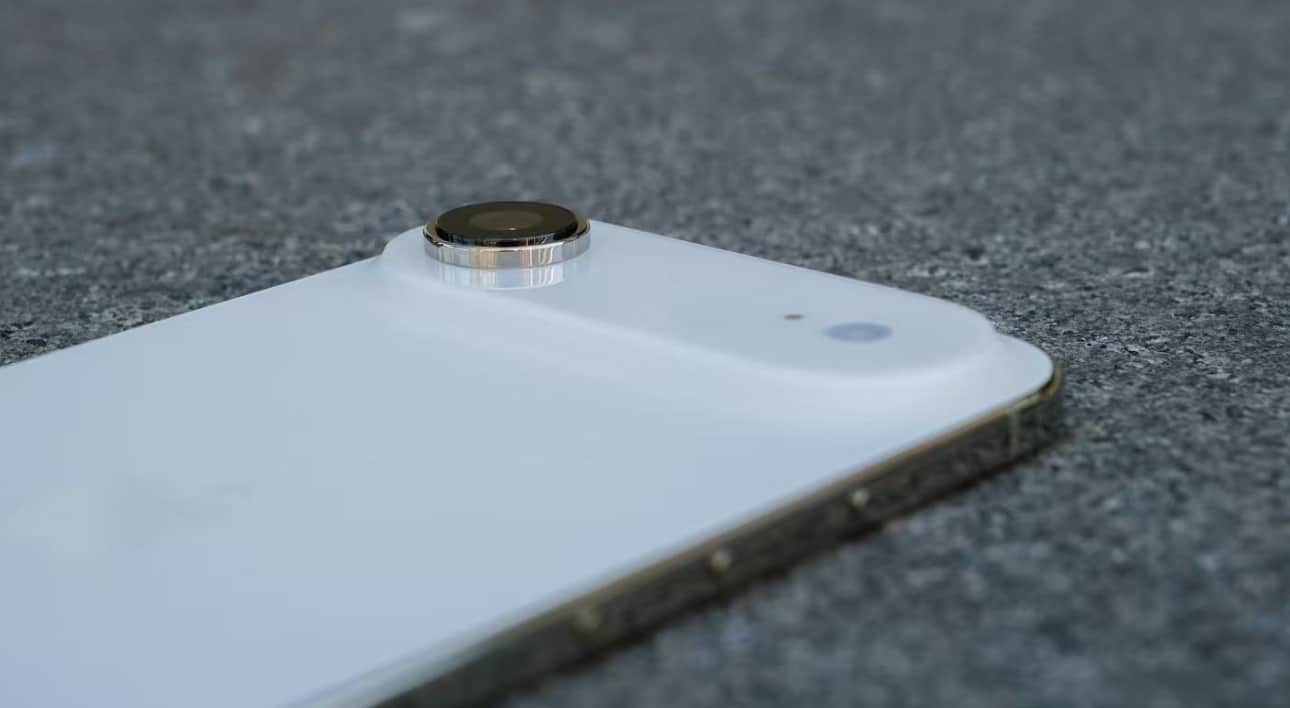
In the era of information explosion, the amount of content displayed on mobile phone screens is increasing day by day. Whether it is browsing social media, reading news, or viewing long documents, quickly returning to the top of the page has become a frequent requirement. The iPhone Air, as a representative model in the Apple ecosystem, provides multiple efficient operation methods through system-level interaction design, helping users avoid the cumbersome process of manual scrolling. The following will detail how to achieve “one-click return to the top” from three dimensions: gesture operation, assistive functions, and application adaptation.
I. Full-screen gesture: The default interaction logic of the Apple ecosystem
The full-screen gestures of iPhone Air are designed based on ergonomics and can be used directly without any additional settings. They cover the majority of application scenarios.
Status bar tap: In any application, simply tap the time, battery or signal area at the top of the screen. The page will instantly scroll to the top. This operation is applicable to scenarios with long content such as WeChat chat records, web pages, and emails. For example, when browsing the Moments, clicking on the top time can quickly return to the latest updates.
2. Edge Sliding Optimization: For the full-screen design, on the iPhone Air, a gentle upward swipe at the bottom of the screen can return to the home screen. A gentle upward swipe followed by a pause will enter the multitasking management interface. When browsing a long page, a gentle upward swipe from the bottom of the screen and a pause will trigger the “Quick Scrolling” function, allowing for quick positioning of the content through the progress bar.
II. Auxiliary Touch Control: Providing Solutions for Personalized Needs
For users who are accustomed to physical buttons or require one-handed operation, the auxiliary touch control function simulates the return operation through virtual buttons:
Enable Assistive Touch: Go to “Settings” – “Accessibility” – “Touch”, and turn on the “Assistive Touch” option. A translucent circular floating button (commonly known as a “little white dot”) will appear on the screen.
2. Customizing the top-level menu: After clicking the small dot, select “Customize Top-Level Menu”. Use the “+” symbol to add “Home Screen” or “Back” functions. For example, set single-click operation as “Home Screen”, double-click as “Multi-task Management”, and long press as “Lock Screen”.
3. Enable the Back Button Function: In the “Auxiliary Touch Control” settings, turn on “Tap the Back Button”. Users can choose between “Tap twice” or “Tap three times”, and assign them to functions such as “Return to Home Screen” and “Return to Previous Level”. For example, setting a tap of two times to return to the home screen. When browsing applications, there is no need to touch the screen; simply tap the back of the phone to quickly exit.
III. Application Adaptation: Collaborative Optimization of the Third-Party Ecosystem
Some third-party applications have undergone in-depth adaptation to the interaction features of iPhone Air:
1. Safari Browser: When browsing web pages, by clicking the “Top” button (a small box with an upward arrow) on the left side of the address bar, you can quickly return to the top of the page.
2. Interaction of the Dynamic Island feature: For iPhone Air models equipped with the Dynamic Island, if the Dynamic Island area covers the status bar, users can trigger the “Go to Top” function by clicking the “Clock” icon in the upper left corner of the screen or the “Battery” icon in the upper right corner, to avoid accidentally touching the Dynamic Island application.
3. Game Scene Optimization: For landscape-mode games, iPhone Air supports sliding inward from the left or right sides of the screen to return. Some games also provide a semi-transparent return prompt bar at the edge of the screen to prevent conflicts between gestures and game operations.
IV. Advanced Techniques: Enhancing Operational Efficiency
Custom Control Center: By going to “Settings” – “Control Center”, you can add quick functions such as “Screen Recording”. Integrate the “One-Click Jump Back” operation into the control center to enable quick access with one hand.
2. Anti-slip Design: The system uses algorithms to distinguish between light taps and normal holding actions, preventing accidental operations caused by placing in pockets or holding. For example, the “tap the back” function will only trigger when the user performs a clear tap action, reducing the probability of accidental touches.
3. System-level conflict resolution: If the gesture operation fails, check whether the “Guided Access” or “Zoom” function has been enabled. Go to “Settings” – “Accessibility” and disable the relevant options, then restart the device to restore functionality.
The interaction design of iPhone Air fully demonstrates Apple’s pursuit of efficiency and ease of use. Whether it’s the extreme simplicity of gesture operations or the need for personalized customization of auxiliary functions, users can choose the most suitable way to return to the top based on their own habits. After mastering these techniques, when browsing long content, there is no need to worry about manually swiping anymore, truly achieving a smooth and seamless “one-touch access” experience.