




Facebook Twitter Instagram
    Trending
    • SG901 PRO & MAX GPS Drone Soars with Power & Intelligence Review
    • Best Methods to Select A Quality Smartwatch
    • How to Install Soundcore app on PC
    • Exploring Effective Sewer Drain Cleaning Techniques
    • How Red is Changing the Game for Creators in 2025
    • JJRC C8827 PRO-YW 1/43 Scale 4WD RC Car Review-The Ultimate Miniature Drift Machine
    • Revolutionizing Digital Access: Learning More About Fiber Internet
    • How to Have the Best Free Slot Machines with No Sign-up or Need for Verification
    Facebook YouTube
    Login Register
    IGeeKphone China Phone, Tablet PC, VR, RC Drone News, Reviews
    • HOME
      • NEWS
        • DeepSeek
        • ChatGPT
        • Minecraft
    • Amazon
    • CHRISTMAS
    • PHONE
      • Top Phones For Your First Choice
      • Phone Comparison
      • Xiaomi
      • Blackview
      • Unihertz
      • Doogee
      • Black Shark
      • Geekbuying
      • Banggood
      • TEMU
      • TikTok
      • Aliexpress
      • Walmart
      • Newegg
      • MercadoLibre
      • Lazada
    • TOP VAPE Awards for 2025
    • VAPES
      • E-CIGAR Upcoming
      • Vape News
      • Vape Market Trend
      • Vape Deals
      • Expo News
      • Vape Comparison
      • Vape Guide
        • Guide For Beginners
        • Guide for Best Users
      • Giveaway
    • BEST VAPE
      • Best Vape Stores
      • Best Starter Vape Kits
      • Best Vapes for Beginners
      • Best Disposable Vapes
      • Best Pod Systems
      • Best Pod Mod Vapes
      • Best Mods
      • Best Nicotine Pouches
      • Best Clearomizers/Tanks
      • Best E-Liquid
      • Best EGO/Pens
      • Best Vapes for Nic Salt E-Juice
      • Best Vapes to Quit Smoking
      • RDA vs. RDTA vs. RTA
    • Best Vape Brand 2025
      • VAPORESSO
      • VOOPOO
      • OXVA
      • NEXA BAR
      • ORIONBARTECH
      • MASKKING VAPE
      • VEIIK
      • MEMERS
      • SP2S
      • JNR
      • TODOO
      • MRFOG
    • REVIEW
      • E-cigar Review
      • Phones
      • Tablet PC
      • TV Box
      • RC Drone
      • Wearables
      • Camera
      • Accessories
      • VR Headset
    • MORE
      • 3D PRINTER
        • 3D Printer Review
        • Anycubic
        • FLSUN
        • Xtool
        • LONGER
        • Top 3D printer to Choose First
      • TREND
      • CLOTHES
      • AUTO CAR
      • POWER STATION
        • Oukitel
        • FOSSIBOT
      • GAMING
        • Top Gaming Products
      • E-BIKE
        • Samebike
        • Happyrun
        • ENGWE
      • TABLET
        • Chuwi
        • INNOCN
        • Teclast
        • Top Tablet for Your First Choice
        • Tablet/Laptop Comparison
      • WEARABLES
        • OneOdio
        • BlitzWolf
        • Top Smartwatch for First Choice
      • SMART HOME
      • TV BOX
        • Chuwi mini pc
        • Beelink
        • GMKTEC
        • MOREFINE
      • RC DRONE
        • DJI
        • MJX
        • JJRC
        • Hubsan
        • Top RC Drone
      • CAMERA
        • Gopro
        • Insta360
        • Andoer
      • ACCESSORIES
      • VR HEADSET
      • ROM
        • SAMSUNG
        • XIAOMI
        • ASUS
        • MEIZU
        • LENOVO
        • HUAWEI
        • ONEPLUS
        • ZTE
        • UMIDIGI
        • DOOGEE
        • HOMTOM
        • ELEPHONE
        • ULEFONE
        • BLACKVIEW
        • VERNEE
        • LEAGOO
        • CHUWI
        • TECLAST
        • PIPO
        • TV BOX ROM
    • DEAL
    • Shop
    IGeeKphone China Phone, Tablet PC, VR, RC Drone News, Reviews
    You are at:Home»Guide»How to Change D to C Hard Disk Partition?
    Guide

    How to Change D to C Hard Disk Partition?

    Brady CottonBy Brady CottonMay 17, 2024
    Facebook Twitter Pinterest LinkedIn Tumblr Email

    Changing a D partition to a C partition on a hard disk usually involves operating system installation and partition table adjustment, which is a relatively complex and risky operation. Before performing any partitioning operations, it is highly recommended that you back up all important data to prevent data loss. The following are detailed step-by-step instructions, but please note that these steps may vary depending on your specific operating system and hardware configuration.
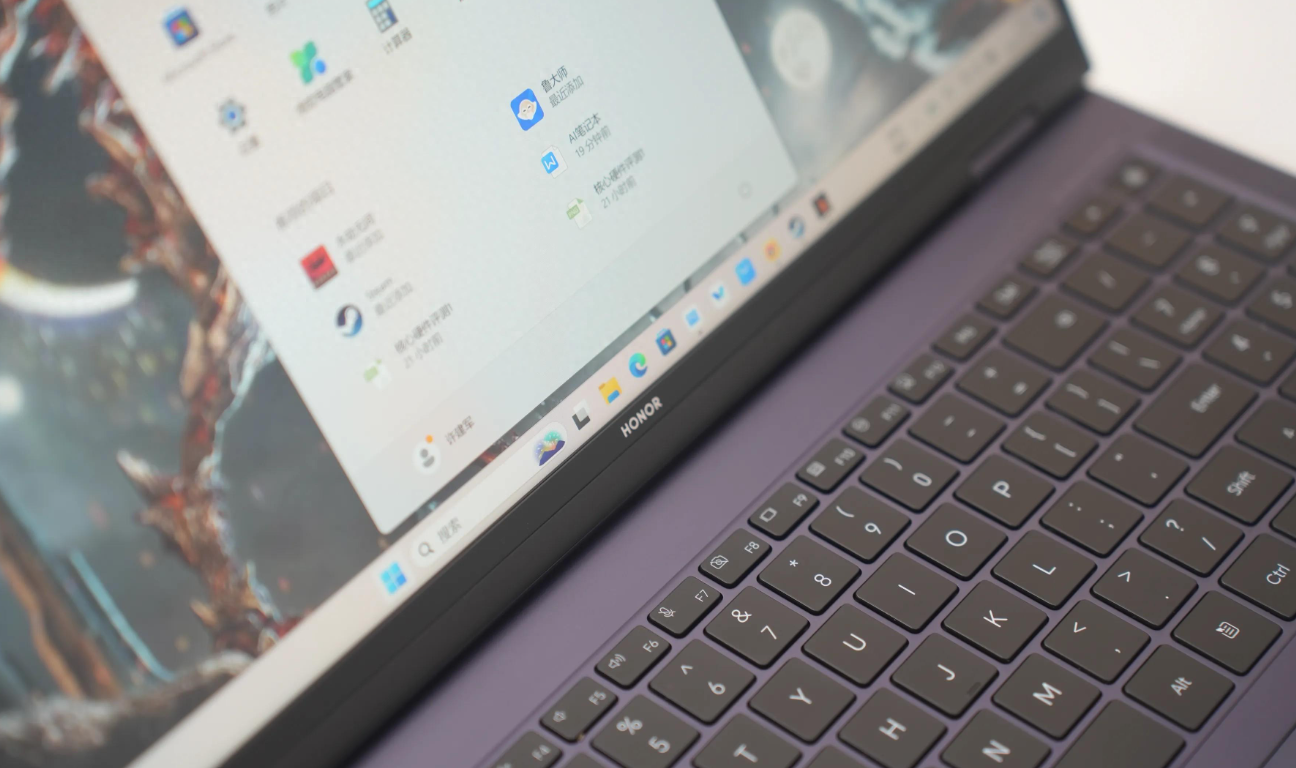
    First, you need to get a boot disk, such as a Windows installation USB stick or a Linux boot USB. Make sure the boot disk matches the version of the operating system you want to install.

    1. Insert the boot disk and restart the computer. During boot, press the appropriate key (usually F2, F10, Delete, or Esc) to enter the BIOS setup.

    2. In the BIOS Settings, find the boot option and set the boot sequence to boot from your boot disk first.

    3. Save the BIOS Settings and exit. The computer will restart and boot from the boot disk.

    4. Once on the Boot disk screen, select “Repair Computer” or a similar option, which will launch the repair environment of the Windows Installer.

    5. In the repair environment, select Command Prompt or Command Prompt in Advanced Options.

    6. On the command prompt, use a disk management tool, such as diskpart, to view and modify partitions. Be careful to make sure you know the purpose of each partition.

    7. Run the diskpart command to delete partition D (Ensure that all data on the partition is backed up).

    8. Next, create a new partition and mark it as active (this will make it the new C partition).

    9. If you are using the Windows operating system, you may need to use the bcdedit command to repair the boot configuration data (BCD) to ensure that the system boots correctly to the new C partition.

    10. Finally, exit the command prompt and restart your computer. During the restart process, the system should be able to recognize the new C partition and boot normally.

    Please note that these steps are for informational purposes only and may not apply in all cases. Before making partition changes, it is highly recommended that you consult the relevant documentation or seek professional help to ensure that the operation is correct and safe. In addition, due to the risky nature of partitioning operations, it is highly recommended to back up important data before performing any changes.

    Share. Facebook Twitter Pinterest LinkedIn Tumblr Email

    Related Posts

    How to Install Soundcore app on PC

    Exploring Effective Sewer Drain Cleaning Techniques

    How Red is Changing the Game for Creators in 2025

    Leave A Reply Cancel Reply

    You must be logged in to post a comment.

    voopoo drag s3
    oxva xlim go 2
    sp2s sen x disposable vape
    jnr 100k
    • Popular
    • 3D Printer REVIEW
    • XIAOMI
    December 9, 2025

    OXVA Xlim Go vs. OXVA Xlim Go 2: Hands-On Review

    December 9, 2025

    OXVA XLIM PRO 3 VS XLIM PRO 2 Review: Hands-on Comparison

    December 9, 2025

    OXVA XLIM 3 Ultra vs. XLIM Pro 2 DNA Review: Hands-on Comparison

    December 8, 2025

    OXVA XLIM SQ PRO 2 vs XLIM SQ PRO Hands on Comparison Review

    June 23, 2024

    ACMER P2 20W Laser Engraver Fixed Focus Engraving: Hands on Review

    May 30, 2024

    xTool F1 Ultra Review: World’s First 20W Fiber & 20W Diode Laser Engraver

    May 30, 2024

    Anycubic Kobra 3 Combo Review: The Multicolor Masterpiece?

    May 15, 2024

    SCULPFUN SF-A9 40W Laser Engraver Cutting Machine: Hands On Review

    December 11, 2025

    Xiaomi 17 Ultra will officially announce next week: it will be the first to feature a brand-new Leica 1-inch main camera

    December 10, 2025

    The official version of Xiaomi Hyper OS 3 covers more models. MIX Fold 3 and others will start to be rolled out in gray scale and gradually from today

    December 9, 2025

    The Appearance Renderings of Xiaomi 17 Ultra are here: The classic large round lens returns without a back screen

    December 8, 2025

    Comeback: Xiaomi triple foldable screen was once aborted due to the overheating of the Snapdragon 8 Gen1

    fc 26 coins
    New Arrivals
    • Arc Hypertine 35K Zero Nicotine Disposable Vape Arc Hypertine 35K Zero Nicotine Disposable Vape
    • Oppo Reno 15c Oppo Reno 15c
    • lost vape le bar 40k lost vape le bar 40k
    • RAZ RX 50K DISPOSABLE RAZ RX 50K DISPOSABLE
    • Xiaomi Poco C85 Xiaomi Poco C85
    • Innokin Foretex Pod System Kit Innokin Foretex Pod System Kit
    • Geekvape Aegis Mini 5 Vape Mod Kit Geekvape Aegis Mini 5 Vape Mod Kit
    • Freemax Albar MX 20K Disposable Vape Freemax Albar MX 20K Disposable Vape
    • Innokin EZ Leva Pod System Kit with PCC 2400mAh Innokin EZ Leva Pod System Kit with PCC 2400mAh
    About
  • Igeekphone.com provides the first global tech news and reviews about smartphone, vapes, e-cigar, smart home, 3D printers, e-bike,tablets, RC drones, VR headset, and other accessories. It's the best platform to improve your brand and product.
  • Contact us: info@igeekphone.com
  • Check Our Privacy Policy Here.
  • Note: *Right now we have US editor and EU editors for review, especially for Amazon US and EU.
  • *Shop and Compare Price Here*
  • Facebook
  • Youtube
  • OUR BEST VAPE PARTNERS
  • VAPE ONLINE STORE
  • HAYATI PRO MAX PLUS
  • VAPORESSO
  • VOOPOO
  • OXVA
  • NEXA
  • MASKKING
  • LOSTVAPE ORIONBAR
  • VEIIK
  • MEMERS
  • TODOO
  • SP2S
  • JNR
  • OTHER BEST PARTNERS
  • SVBONY
  • Chuwi
  • Blackview
  • Fossibot
  • Unihertz
  • Flsun
  • Anycubic
  • Xtool
  • Oukitel
  • Mukkpet Ebike
  • Ugreen
  • Copyright © 2025 igeekphone

    Type above and press Enter to search. Press Esc to cancel.