






Facebook Twitter Instagram
    Trending
    • Xiaomi’s New Smartphones Pass SRRC Certification Ahead of Early 2027 Launch
    • OPPO Reno17 Series Specs Leaked Ahead of November 9 Reveal
    • Enough Phone Launches on Kickstarter with a Replaceable Battery and Five Years of Android Updates
    • Seedance 2.5 Review: ByteDance’s 30-Second 4K Video Generator Puts a Production Studio in Your Browser
    • DOJO Brings INSTA-JUICED™ Tech to Freaky Deaky 2026 in Austin
    • G50 Smartwatch Review: 1.57-Inch Display, Bluetooth Calling, Health Tracking and Built-In Flashlight
    • ANBERNIC RG DS Plus Review: A Dual-Screen Retro Handheld With RK3568 and 4,000+ Games
    • ATTACK SHARK F1 AIR Gaming Mouse Review: 39g Design, PAW3955MAX Sensor and Dual 8K Polling
    Facebook YouTube
    IGeeKphone China Phone, Tablet PC, VR, RC Drone News, Reviews
    • HOME
    • NEWS
      • AI NEWS
    • Black Friday
    • PHONE
      • Top Phones For Your First Choice
      • Phone Comparison
      • Xiaomi
      • Blackview
      • Doogee
      • Black Shark
      • Geekbuying
      • Banggood
      • TEMU
      • TikTok
      • Aliexpress
      • Walmart
      • Lazada
    • TOP VAPE Awards for 2026
    • VAPES
      • E-CIGAR Upcoming
      • Vape News
      • Vape Deals
      • Vape Comparison
      • Vape Guide
      • VAPE LAWS
      • Giveaway
    • BEST VAPE
      • Best Vape Stores
      • Best Starter Vape Kits
      • Best Vapes for Beginners
      • Best Disposable Vapes
      • Best Pod Systems
      • Best Pod Mod Vapes
      • Best Mods
      • Best Nicotine Pouches
      • Best Clearomizers/Tanks
      • Best E-Liquid
      • Best EGO/Pens
      • Best Vapes for Nic Salt E-Juice
      • Best Vapes to Quit Smoking
      • RDA vs. RDTA vs. RTA
    • Best Vape Brand 2026
      • VAPORESSO
      • VOOPOO
      • OXVA
      • NEXA BAR
      • MASKKING VAPE
      • SP2S
      • IPLAY
      • TODOO
      • MRFOG
      • LOSTVAPE
      • VEIIK
    • REVIEW
      • E-cigar Review
      • Phones
      • Tablet PC
      • TV Box
      • RC Drone
      • Wearables
      • Camera
      • Accessories
      • VR Headset
    • MORE
      • TABLET
        • Chuwi
        • INNOCN
        • Teclast
        • Top Tablet for Your First Choice
        • Tablet/Laptop Comparison
      • RC DRONE
      • CAMERA
      • WEARABLES
        • OneOdio
        • BlitzWolf
        • Top Smartwatch for First Choice
      • 3D PRINTER
        • 3D Printer Review
        • Anycubic
        • FLSUN
        • Xtool
        • LONGER
        • Top 3D printer to Choose First
      • POWER STATION
        • Oukitel
        • FOSSIBOT
      • GAMING
        • Top Gaming Products
      • E-BIKE
        • Samebike
        • Happyrun
        • ENGWE
      • SMART HOME
      • TV BOX
      • ACCESSORIES
      • VR HEADSET
      • CLOTHES
      • AUTO CAR
    • DEAL
    • Shop
    IGeeKphone China Phone, Tablet PC, VR, RC Drone News, Reviews
    You are at:Home»Guide»How to Enable Automatic Wallpaper Change for the Lock Screen on OnePlus Phones?
    Guide

    How to Enable Automatic Wallpaper Change for the Lock Screen on OnePlus Phones?

    Brady CottonBy Brady CottonAugust 6, 2026
    Facebook Twitter Pinterest LinkedIn Tumblr Email

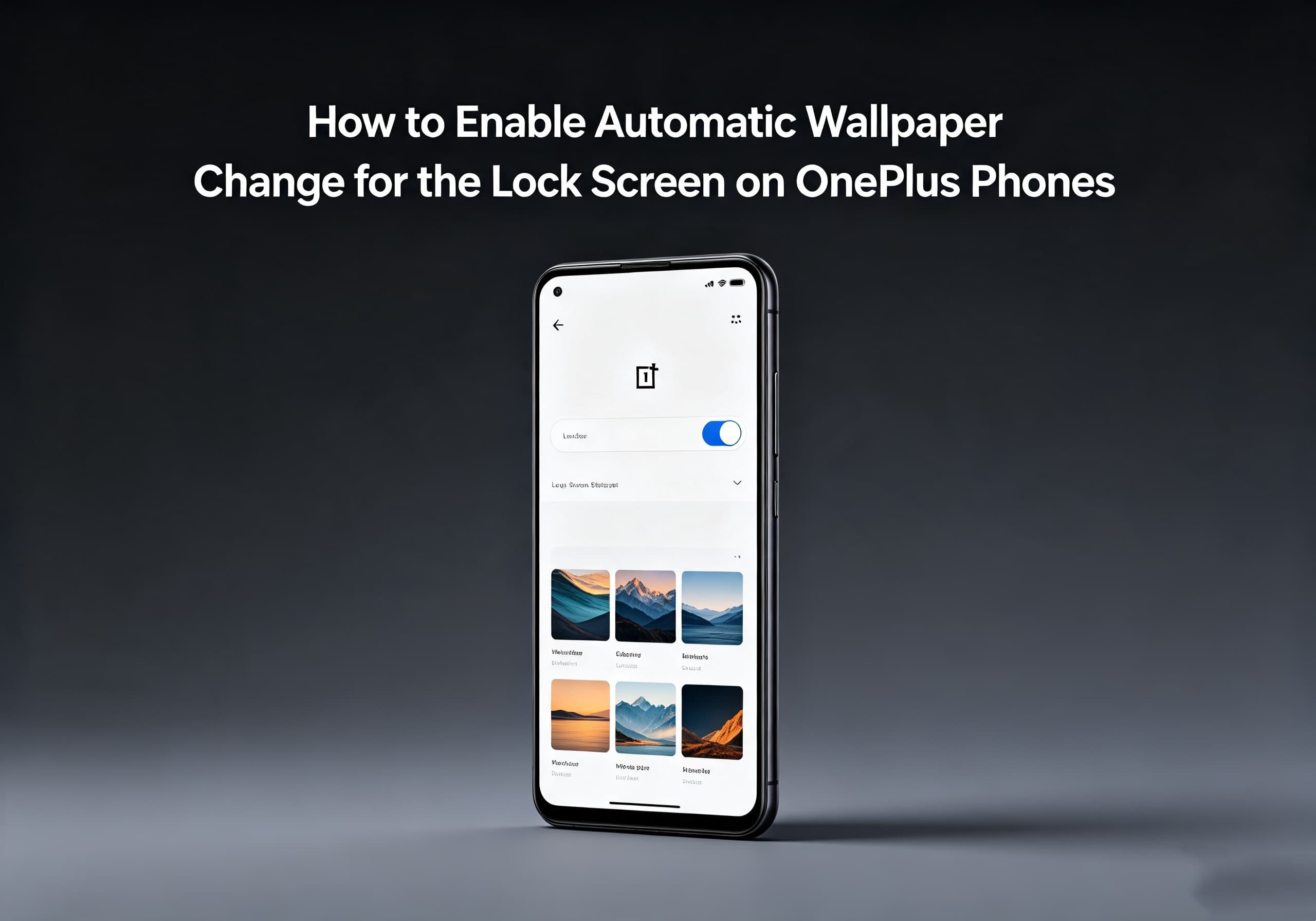
    OnePlus phones offer a variety of customization options that allow users to personalize their devices, including the ability to automatically change lock screen wallpapers. This feature helps keep your phone’s appearance fresh by rotating through different images, wallpapers, or curated collections without requiring manual updates.

    Depending on your OnePlus model and OxygenOS version, the feature may appear under different names, such as Lock Screen Magazine, Wallpaper Carousel, or Dynamic Wallpaper.

    In this guide, we’ll explain how to enable automatic lock screen wallpaper changes on OnePlus smartphones.

    Method 1: Enable Lock Screen Magazine on OnePlus Phones

    The easiest way to automatically rotate lock screen wallpapers is by enabling the built-in Lock Screen Magazine feature.

    Step 1: Open Settings

    1. Unlock your OnePlus phone.
    2. Open the Settings app.
    3. Scroll down and tap Wallpaper & Style.

    Step 2: Access Lock Screen Wallpaper Settings

    1. Tap Wallpaper or Lock Screen Wallpaper.
    2. Look for Lock Screen Magazine, Wallpaper Carousel, or a similar option.
    3. Tap to open the feature settings.

    Step 3: Turn On Automatic Wallpaper Updates

    1. Enable Lock Screen Magazine.
    2. Select your preferred wallpaper categories.
    3. Choose whether you want wallpapers to update:
      • Automatically
      • Over Wi-Fi only
      • Using mobile data

    Once enabled, your OnePlus phone will automatically download and rotate new lock screen wallpapers.

    Method 2: Enable Automatic Wallpaper Rotation Through Personalizations

    On newer OxygenOS versions, wallpaper controls may be located under the personalization menu.

    Follow these steps:

    1. Open Settings.
    2. Tap Personalizations.
    3. Select Wallpapers.
    4. Choose Dynamic Wallpapers or Wallpaper Services.
    5. Enable the automatic wallpaper change option.

    Some OnePlus devices allow users to select categories such as:

    • Nature
    • Architecture
    • Animals
    • Landscapes
    • Art
    • Photography

    Your lock screen will then automatically update based on your selected preferences.

    Method 3: Use OnePlus Dynamic Wallpapers

    Some OnePlus models support dynamic wallpapers that change automatically based on time, weather, or system conditions.

    To enable dynamic wallpapers:

    1. Long-press an empty area on your home screen.
    2. Select Wallpapers.
    3. Choose Dynamic Wallpapers.
    4. Select a dynamic wallpaper style.
    5. Tap Apply.
    6. Choose Lock Screen or Home Screen and Lock Screen.

    Dynamic wallpapers can provide a more interactive appearance compared with traditional static images.

    How to Manually Change Lock Screen Wallpaper

    If you prefer choosing your own wallpapers but still want quick customization:

    1. Open Settings.
    2. Go to Wallpaper & Style.
    3. Tap More Wallpapers.
    4. Select an image from:
      • Gallery
      • OnePlus wallpapers
      • Online wallpaper collections
    5. Tap Apply.
    6. Choose Lock Screen.

    How to Use Your Own Photos for Automatic Wallpaper Changes

    Some OnePlus devices allow users to create a rotating wallpaper collection from personal photos.

    Steps:

    1. Open Settings.
    2. Select Wallpaper & Style.
    3. Tap Wallpaper.
    4. Choose Gallery.
    5. Select multiple images.
    6. Enable slideshow or rotation mode if available.
    7. Apply the collection to the lock screen.

    This allows your lock screen to display different memories, travel photos, or personal images automatically.

    Troubleshooting: Lock Screen Wallpaper Is Not Changing

    If automatic wallpaper updates are not working, try the following solutions.

    1. Check Internet Connection

    Wallpaper services usually require internet access to download new images.

    Make sure:

    • Wi-Fi or mobile data is enabled
    • Background data usage is allowed
    • Battery-saving mode is not restricting updates

    2. Update OxygenOS

    Older OxygenOS versions may have different wallpaper features.

    Check for updates:

    1. Open Settings.
    2. Tap About Device.
    3. Select OxygenOS Update.
    4. Install the latest available update.

    3. Clear Wallpaper Service Cache

    If the wallpaper service is stuck:

    1. Open Settings.
    2. Go to Apps.
    3. Select App Management.
    4. Find Wallpaper Services or related apps.
    5. Clear cache.
    6. Restart your phone.

    4. Disable Battery Restrictions

    Battery optimization may prevent automatic wallpaper downloads.

    Go to:

    Settings → Battery → More Settings → Optimize Battery Use

    Then allow wallpaper-related services to run in the background.

    Best Wallpaper Apps for OnePlus Phones

    If your OnePlus phone does not support automatic wallpaper rotation, third-party wallpaper apps can provide similar functionality.

    Popular options include:

    • Google Wallpapers
    • Bing Wallpapers
    • Backdrops
    • Zedge

    These apps can automatically update wallpapers based on your preferred categories.

    Final Thoughts

    Enabling automatic lock screen wallpaper changes on OnePlus phones is an easy way to personalize your device and keep the interface looking fresh. Depending on your OxygenOS version, you can use features such as Lock Screen Magazine, Wallpaper Carousel, or Dynamic Wallpapers to automatically update images.

    For the best experience, keep your OnePlus phone updated, allow wallpaper services to access the internet, and choose wallpaper categories that match your style. With automatic wallpaper rotation enabled, your lock screen can offer a new visual experience every day without any manual effort.

    Share. Facebook Twitter Pinterest LinkedIn Tumblr Email

    Related Posts

    How to Recover a Lost iPhone That Was Deleted

    The Future of Safe Driving: How Emerging Technologies are Revolutionizing Road Safety

    Gadgets in the Courtroom: The Role of Technology in Personal Injury Evidence

    Leave A Reply Cancel Reply

    You must be logged in to post a comment.

    voopoopintch
    oxva vprime 2
    • Popular
    • 3D Printer REVIEW
    • XIAOMI
    October 24, 2026

    OXVA Vprime 2 Unboxing Review: Performance, Test, Battery

    October 13, 2026

    OXVA XLIM 4 Vape Hands on Review: Pocket Luxury, Serious Stamina

    October 11, 2026

    MAXRAY RUSH 80K Review – More Than Just a Puff Count: Meet the Disposable That Controls Its Own E-Liquid

    October 1, 2026

    VOOPOO ARGUS Z3 Review – Flip the Pod, Change the Vape! Keep It Simple!

    December 26, 2025

    ACMER ASCARVA 4S: Precision CNC Power for Makers, DIYers & Small Workshops

    June 23, 2024

    ACMER P2 20W Laser Engraver Fixed Focus Engraving: Hands on Review

    May 30, 2024

    xTool F1 Ultra Review: World’s First 20W Fiber & 20W Diode Laser Engraver

    May 30, 2024

    Anycubic Kobra 3 Combo Review: The Multicolor Masterpiece?

    November 5, 2026

    Xiaomi’s New Smartphones Pass SRRC Certification Ahead of Early 2027 Launch

    November 4, 2026

    Xiaomi Smart Door Lock 5 Launches with Quieter Automatic Lock Body and Emergency Unlock Button

    November 3, 2026

    REDMI M100 Pro Debuts at 2,499 Yuan With Dimensity 7300-Ultra and Long Battery Life

    November 2, 2026

    Xiaomi 18 Pro Series Set for Global Launch in November, Lu Weibing Confirms

    fc 26 coins
    New Arrivals
    • JNR Alien Mega VAPE JNR Alien Mega VAPE
    • VOOPOO Drag 6 External Edition Kit VOOPOO Drag 6 External Edition Kit
    • Keystone Keyplay Lite 12K Disposable Vape Keystone Keyplay Lite 12K Disposable Vape
    • Mosmo Sultan 80K Shisha Disposable Vape Mosmo Sultan 80K Shisha Disposable Vape
    • Bang King Ice Cool 60K Disposable Vape Bang King Ice Cool 60K Disposable Vape
    • Timi Shisha 150K Disposable Hookah Vape Timi Shisha 150K Disposable Hookah Vape
    • SMOK Sinch Mini Pod System Kit SMOK Sinch Mini Pod System Kit
    • Joyetech eGo AIO C Pod System Kit Joyetech eGo AIO C Pod System Kit
    • Crossbar 20K Disposable Vape Crossbar 20K Disposable Vape
    About
  • Igeekphone.com provides the first global tech news and reviews about smartphone, vapes, e-cigar, smart home, 3D printers, e-bike,tablets, RC drones, VR headset, and other accessories. It's the best platform to improve your brand and product.
  • Contact us: info@igeekphone.com
  • Check Our Privacy Policy Here.
  • Note: *Right now we have US editor and EU editors for review, especially for Amazon US and EU.
  • *Shop and Compare Price Here*
  • Facebook
  • Youtube
  • OUR BEST VAPE PARTNERS
  • VAPE ONLINE STORE
  • VAPORESSO
  • VOOPOO
  • OXVA
  • NEXA
  • MASKKING
  • SP2S
  • IPLAY
  • TODOO
  • OTHER BEST PARTNERS
  • SVBONY
  • Chuwi
  • Blackview
  • Fossibot
  • Unihertz
  • Flsun
  • Anycubic
  • Xtool
  • Oukitel
  • Mukkpet Ebike
  • Ugreen
  • Copyright © 2026 igeekphone

    Type above and press Enter to search. Press Esc to cancel.