







Facebook Twitter Instagram
    Trending
    • How to Change Your Router Password in 2026: A Step-by-Step Guide
    • The new Sky Blue Color for Redmi K90 Max has been Unveiled: a Low-saturation blue tone that is highly durable and Eye-catching
    • Huawei Pura 90 series real phone is unveiled: Gradient color returns! Unique rear camera design
    • It is Reported that the New Snapdragon 8 Elite Gen6 Pro Model of a Certain Factory has a 6.9-inch Straight Screen
    • OnePlus Ace6 Supreme Edition Phone has been Officially Announced to be Released on April 28th
    • MONSTER C01 Gen2 TWS Earbuds Review at $17.99: The Future of Wireless Audio and Translation
    • YCRC A189 GPS 5G WiFi FPV RC Drone Review at $59.99: The Ultimate Foldable Drone for Aerial Adventures
    • JXC SP4301 Official Licensed Supra RTR 1/43 4WD Drift RC Car Review: A Mini Racing Beast for Hobbyists and Collectors
    Facebook YouTube
    IGeeKphone China Phone, Tablet PC, VR, RC Drone News, Reviews
    • HOME
      • NEWS
        • DeepSeek
        • ChatGPT
        • Minecraft
    • Amazon
    • PHONE
      • Top Phones For Your First Choice
      • Phone Comparison
      • Xiaomi
      • Blackview
      • Doogee
      • Black Shark
      • Geekbuying
      • Banggood
      • TEMU
      • TikTok
      • Aliexpress
      • Walmart
      • MercadoLibre
      • Lazada
    • TOP VAPE Awards for 2026
    • VAPES
      • E-CIGAR Upcoming
      • Vape News
      • Vape Deals
      • Vape Comparison
      • Vape Guide
      • Giveaway
    • BEST VAPE
      • Best Vape Stores
      • Best Starter Vape Kits
      • Best Vapes for Beginners
      • Best Disposable Vapes
      • Best Pod Systems
      • Best Pod Mod Vapes
      • Best Mods
      • Best Nicotine Pouches
      • Best Clearomizers/Tanks
      • Best E-Liquid
      • Best EGO/Pens
      • Best Vapes for Nic Salt E-Juice
      • Best Vapes to Quit Smoking
      • RDA vs. RDTA vs. RTA
    • Best Vape Brand 2026
      • VAPORESSO
      • VOOPOO
      • OXVA
      • NEXA BAR
      • ORIONBARTECH
      • MASKKING VAPE
      • MEMERS
      • SP2S
      • TODOO
      • MRFOG
      • VEIIK
    • REVIEW
      • E-cigar Review
      • Phones
      • Tablet PC
      • TV Box
      • RC Drone
      • Wearables
      • Camera
      • Accessories
      • VR Headset
    • MORE
      • TABLET
        • Chuwi
        • INNOCN
        • Teclast
        • Top Tablet for Your First Choice
        • Tablet/Laptop Comparison
      • RC DRONE
      • CAMERA
      • WEARABLES
        • OneOdio
        • BlitzWolf
        • Top Smartwatch for First Choice
      • 3D PRINTER
        • 3D Printer Review
        • Anycubic
        • FLSUN
        • Xtool
        • LONGER
        • Top 3D printer to Choose First
      • POWER STATION
        • Oukitel
        • FOSSIBOT
      • GAMING
        • Top Gaming Products
      • E-BIKE
        • Samebike
        • Happyrun
        • ENGWE
      • SMART HOME
      • TV BOX
      • ACCESSORIES
      • VR HEADSET
      • CLOTHES
      • AUTO CAR
    • DEAL
    • VAPE LAWS
    • Shop
    IGeeKphone China Phone, Tablet PC, VR, RC Drone News, Reviews
    You are at:Home»Guide»How to Enter BIOS on a Computer (2026 Universal Key Operation Guide)?
    Guide

    How to Enter BIOS on a Computer (2026 Universal Key Operation Guide)?

    Brady CottonBy Brady CottonMarch 31, 2026
    Facebook Twitter Pinterest LinkedIn Tumblr Email

    Entering the BIOS (Basic Input/Output System) is an essential part of configuring your computer’s hardware, managing boot settings, and troubleshooting. In 2026, with newer systems and technologies in place, the process of accessing BIOS remains fairly consistent, but it’s essential to understand the universal key operation for modern PCs.

    This guide will walk you through how to enter the BIOS on any computer in 2026, ensuring you have full access to system settings, hardware diagnostics, and troubleshooting options.

    What is BIOS?

    The BIOS (or its modern replacement, UEFI—Unified Extensible Firmware Interface) is a low-level software that runs when your computer starts up. It acts as an intermediary between your operating system and the hardware, allowing you to configure settings like boot order, system time, and hardware configurations (like memory, CPU, and storage devices).

    Though modern computers often use UEFI (which provides more advanced features), the core functionality and access method remain the same. When you need to change settings such as boot options, password settings, overclocking, or security configurations, the BIOS/UEFI is the place to do it.

    Why Do You Need to Access BIOS?

    • Boot Order: If you want to boot from a USB drive, CD/DVD, or external hard drive.
    • Overclocking: Tuning your CPU, RAM, or GPU to run at higher speeds (if supported).
    • Hardware Configuration: Change settings for integrated graphics, CPU, RAM, storage devices, and more.
    • Troubleshooting: Diagnose hardware issues or reset configurations to their defaults.
    • Security: Set up passwords for system access or enable/disable Secure Boot.

    Step-by-Step Guide to Entering BIOS in 2026

    While modern systems are fast and boot up quickly, the BIOS key must be pressed at the right moment. If you miss it, your operating system may start booting before you can access the BIOS.
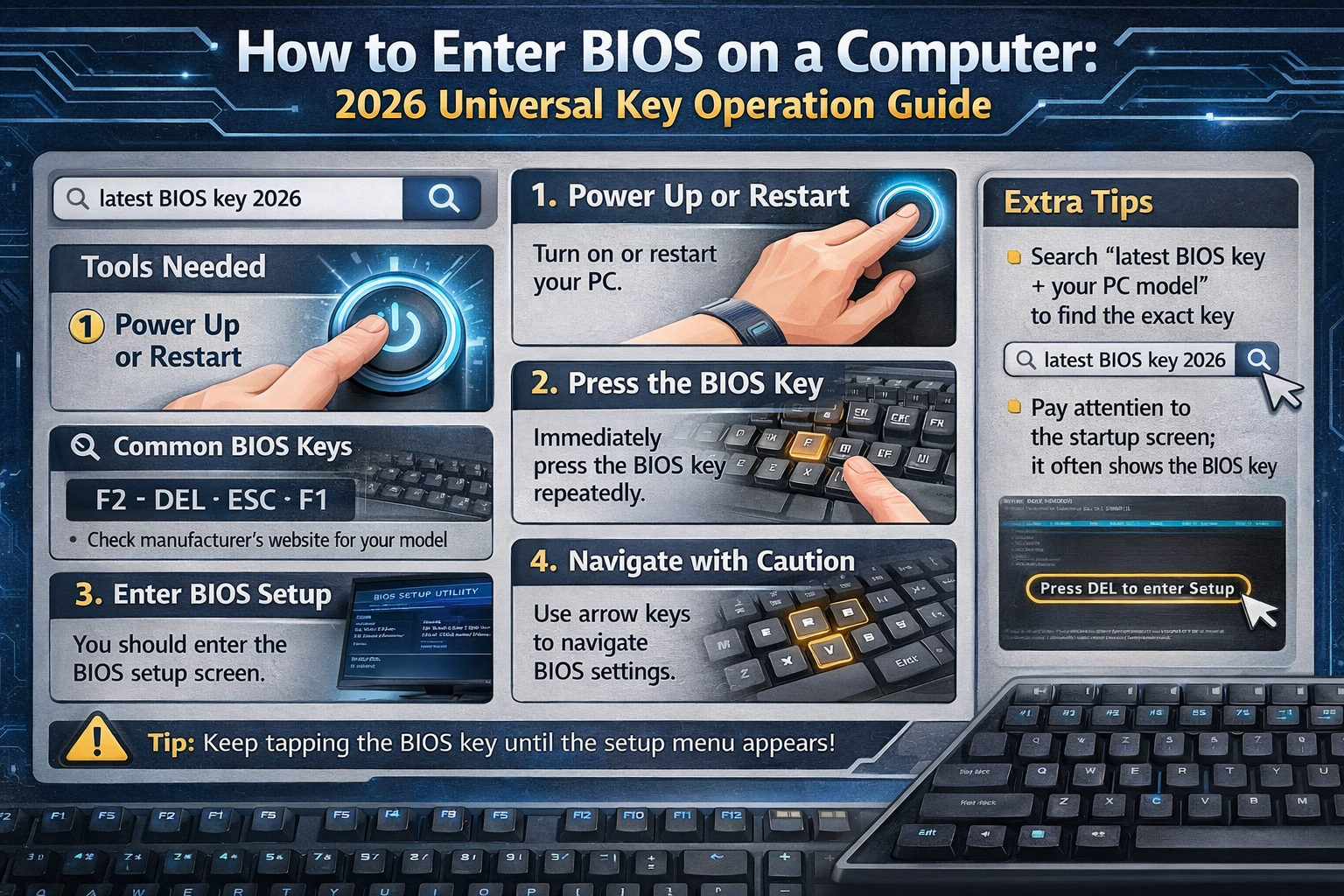
    Follow these steps to enter BIOS:

    Step 1: Power Off and Restart Your Computer

    • If your system is currently running, shut it down completely.
    • Once powered off, press the power button to turn the computer back on.

    Step 2: Watch for the BIOS Access Prompt

    As soon as the computer begins to power up, immediately press the appropriate BIOS key. On most computers, a logo or splash screen will appear briefly as the system initializes. This screen often includes a text prompt telling you which key to press, such as “Press F2 to enter Setup,” “Press ESC for BIOS,” or “Press DEL to enter BIOS.”

    In 2026, the most common BIOS entry keys remain F2, DEL, or ESC, but the key may vary depending on the manufacturer of your motherboard or laptop.

    Step 3: Press the BIOS Key

    The timing is crucial here! As the computer boots up, press the BIOS key repeatedly (once every second) until you see the BIOS/UEFI interface. Do not press it just once, as you might miss the window.

    Here’s a list of the most common BIOS keys in 2026:
    • F2 – Most common for many laptop and desktop PCs (especially from manufacturers like Dell, Acer, and ASUS).
    • DEL (Delete) – Often used on desktop computers, particularly those with custom-built systems.
    • ESC – Common for systems from HP and some custom desktop PCs.
    • F10 – Common on HP computers.
    • F12 – Often used for boot menu access, but in some systems, it may take you to BIOS/UEFI.
    Note:
    • UEFI Firmware Settings: If your system uses UEFI rather than BIOS, the process is the same, but you may see a more advanced menu with options like Secure Boot, TPM, and more.
    • If You Miss the BIOS Window: If your computer boots into Windows or another operating system without entering the BIOS, just restart and try pressing the key again when you power on the computer. You can also try holding down the Shift key while restarting (on Windows 10/11 and beyond) to access advanced startup options.

    Step 4: Navigate BIOS/UEFI Settings

    Once you successfully enter the BIOS or UEFI, you will be greeted with a menu that can vary by manufacturer. You will typically find options to configure:

    • Boot Order (change the priority of boot devices like SSDs, USBs, and DVDs)
    • CPU Configuration (enable/disable CPU features like hyper-threading or virtualization)
    • Memory Configuration (adjust RAM settings or enable XMP profiles)
    • Security Settings (enable or disable TPM, Secure Boot, etc.)
    • Power Management (manage CPU power states, sleep mode settings, etc.)
    • Fan Settings (adjust CPU and system fan speeds for cooling optimization)

    The interface will likely be navigated using your keyboard (arrows, Enter, and Escape). In UEFI systems, you may also be able to use a mouse for easy navigation.

    Step 5: Save and Exit BIOS/UEFI

    After making your changes, be sure to save them. Typically, you will find an option to Save and Exit or Exit with Changes under the “Exit” or “Save & Exit” menu. Follow the on-screen instructions and confirm your action.

    If you made any changes you don’t want to save, you can exit without saving or load default settings by selecting the “Restore Defaults” option.

    What to Do If BIOS Doesn’t Open?

    If you find that pressing the designated key doesn’t take you to the BIOS setup, consider the following:

    1. Check the Manufacturer’s Documentation: Some systems may have a unique or less common BIOS entry key. Check your computer’s manual or the manufacturer’s website.
    2. Use Windows Recovery: For Windows users, you can also access BIOS through Windows Advanced Startup:
      • Go to Settings → Update & Security → Recovery → Advanced Startup → Restart Now.
      • Once the system restarts, choose Troubleshoot → Advanced Options → UEFI Firmware Settings.

    Conclusion

    Entering the BIOS is a fundamental step in customizing your computer’s settings or troubleshooting hardware issues. By following the steps outlined above, you can easily access the BIOS on most computers in 2026. Remember, the key to success is timing—pressing the BIOS entry key at the right moment during boot-up is key!

    Whether you’re managing boot options, overclocking, or adjusting security settings, BIOS/UEFI is your gateway to controlling your system at a deeper level.

    Share. Facebook Twitter Pinterest LinkedIn Tumblr Email

    Related Posts

    How to Change Your Router Password in 2026: A Step-by-Step Guide

    Mureka: An Innovative Song Maker Empowering Music Creators Everywhere

    Forex Trading Apps for iOS – Top Picks to Consider

    Leave A Reply Cancel Reply

    You must be logged in to post a comment.

    voopoo drag 6
    oxva xlim 3 ultra
    sp2s sen x disposable vape
    • Popular
    • 3D Printer REVIEW
    • XIAOMI
    April 18, 2026

    VOOPOO DRAG 6 Hands on Review: Vape Beast with Smart Power & Premium Control

    April 8, 2026

    OXVA NeXLIM vs XLIM Pro 2 Pod Hands-On Review (2026)

    March 16, 2026

    OXVA Slimstick VS OXVA Slimstick X Vape Hands-on Review

    March 5, 2026

    OXVA XLIM PRO 3 vs XLIM Pro 2 DNA: Hands-On Review

    December 26, 2025

    ACMER ASCARVA 4S: Precision CNC Power for Makers, DIYers & Small Workshops

    June 23, 2024

    ACMER P2 20W Laser Engraver Fixed Focus Engraving: Hands on Review

    May 30, 2024

    xTool F1 Ultra Review: World’s First 20W Fiber & 20W Diode Laser Engraver

    May 30, 2024

    Anycubic Kobra 3 Combo Review: The Multicolor Masterpiece?

    April 20, 2026

    The new Sky Blue Color for Redmi K90 Max has been Unveiled: a Low-saturation blue tone that is highly durable and Eye-catching

    April 20, 2026

    It is Reported that the New Snapdragon 8 Elite Gen6 Pro Model of a Certain Factory has a 6.9-inch Straight Screen

    April 16, 2026

    Rendering images of Xiaomi 18 Pro smartphone have been Released: A new AI button has been added, which can control cars / smart home devices.

    April 16, 2026

    The Largest Battery Phone in Xiaomi’s History has Arrived! Xiaomi 17 Max has been Approved for Sale

    fc 26 coins
    New Arrivals
    • Oppo Watch X3 Oppo Watch X3
    • Uwell Caliburn G5 Pod System Kit Uwell Caliburn G5 Pod System Kit
    • Justfog Glent Pro Pod Mod Kit 1500mAh Justfog Glent Pro Pod Mod Kit 1500mAh
    • IPLAY NEXUS 45k Disposable Pod IPLAY NEXUS 45k Disposable Pod
    • Cloud King CK50000 Disposable Cloud King CK50000 Disposable
    • Air Factory 50K Disposable Air Factory 50K Disposable
    • Alibarbar Swirl 50K Disposable Vape Alibarbar Swirl 50K Disposable Vape
    • Dotmod DotAIO V3 AIO Kit Dotmod DotAIO V3 AIO Kit
    • Honor Magic9 Pro Air Honor Magic9 Pro Air
    About
  • Igeekphone.com provides the first global tech news and reviews about smartphone, vapes, e-cigar, smart home, 3D printers, e-bike,tablets, RC drones, VR headset, and other accessories. It's the best platform to improve your brand and product.
  • Contact us: info@igeekphone.com
  • Check Our Privacy Policy Here.
  • Note: *Right now we have US editor and EU editors for review, especially for Amazon US and EU.
  • *Shop and Compare Price Here*
  • Facebook
  • Youtube
  • OUR BEST VAPE PARTNERS
  • VAPE ONLINE STORE
  • HAYATI PRO MAX PLUS
  • VAPORESSO
  • VOOPOO
  • OXVA
  • NEXA
  • MASKKING
  • TODOO
  • SP2S
  • VEIIK
  • OTHER BEST PARTNERS
  • SVBONY
  • Chuwi
  • Blackview
  • Fossibot
  • Unihertz
  • Flsun
  • Anycubic
  • Xtool
  • Oukitel
  • Mukkpet Ebike
  • Ugreen
  • Copyright © 2026 igeekphone

    Type above and press Enter to search. Press Esc to cancel.