









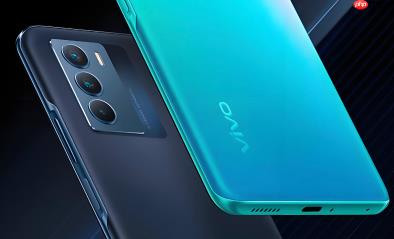
Capturing a star-filled sky with a smartphone can be challenging. In low light, stars may appear faint, the sky can look grainy, and even a slight hand movement can turn tiny points of light into blurry streaks. Fortunately, many vivo phones include night photography features and manual camera controls that can help you get better results.
You do not necessarily need a professional camera to photograph the night sky. With the right location, a steady phone, and suitable exposure settings, you can improve your chances of capturing visible stars with a vivo smartphone.
This guide explains how to prepare your phone, choose the right camera mode, adjust settings, and avoid common mistakes when taking pictures of the stars.
1. Choose a Dark Location Away from City Lights
Your surroundings have a major impact on the quality of a star photo. Streetlights, buildings, illuminated signs, and other sources of light pollution can make the sky appear bright and hide fainter stars.
If possible, travel to a dark location away from busy roads and densely populated areas. Parks, countryside viewpoints, and designated stargazing locations may offer better conditions, provided access is safe and permitted.
Check the weather forecast before leaving. Clear skies generally produce better results than cloudy or hazy conditions. A moonless night can also make more stars visible, although the best timing depends on your intended subject.
Before taking pictures, give your eyes a few minutes to adjust to the darkness. Avoid pointing bright lights toward the area you want to photograph.
2. Find the Night Photography Mode on Your vivo Phone
Open the Camera app and look through the available shooting modes. Depending on your vivo model and software version, you may find options such as Night, Pro, Astro, or a dedicated starry-sky feature.
The exact names and functions vary between devices. Some models offer specialised night-sky processing, while others rely on a general night mode or manual controls.
Try the following approach:
- Open the Camera app.
- Check the available modes by swiping through the mode selector or opening the additional modes menu.
- Select a dedicated astronomy or starry-sky mode if your phone provides one.
- If no such mode exists, try Night mode or Pro mode.
- Take a test photo and review the result before changing settings.
A dedicated astronomy mode is a good starting point because it may automatically adjust exposure and image processing for a dark sky. If the result looks too bright or artificial, experiment with a different mode.
3. Use a Tripod to Keep Your Phone Steady
Stability is one of the most important factors in night photography. When the camera captures light over a longer period, even a small movement can soften the stars and reduce detail.
A smartphone tripod is usually the easiest solution. Attach your vivo phone securely, compose the scene, and use a timer or remote shutter if available. This reduces the movement caused by tapping the screen.
If you do not have a tripod, place the phone on a stable surface and make sure it cannot slide or fall. Avoid holding it in your hand for long exposures.
Some phones combine several frames to create a brighter night image. Keeping the phone still helps the camera align those frames more effectively.
4. Adjust Camera Settings in Pro Mode
If your vivo phone offers Pro mode, manual controls can help you balance star visibility, sky brightness, and image noise. The available settings depend on the model, so treat the values below as starting points rather than universal rules.
| Setting | Suggested starting point | Why it matters |
|---|---|---|
| Focus | Manual focus near infinity, if available | Helps keep distant stars sharp |
| ISO | Start around 800–1600 | Increases sensitivity in low light, but higher values add noise |
| Shutter speed | Try 5–15 seconds | Allows more light to reach the sensor |
| White balance | Start around 3500–4500K if adjustable | Can help control the colour of the night sky |
| File format | RAW, if supported and you plan to edit | Preserves more flexibility for later adjustments |
These settings are not guaranteed to work on every vivo phone. A smaller sensor, bright surroundings, lens limitations, or a different camera app can require different values.
ISO: Balance Brightness and Noise
ISO controls how strongly the camera responds to light. Increasing it can make stars easier to see, but it can also introduce visible grain and reduce fine detail.
Begin with a moderate ISO setting and take a test shot. If the stars are too faint, increase ISO gradually. If the sky becomes excessively noisy or bright, reduce it.
Shutter Speed: Capture More Light Without Losing Detail
A longer shutter speed can reveal more stars, but it also increases the risk of star trails caused by Earth’s rotation. The effect becomes more noticeable with longer exposures and longer focal lengths.
For a natural-looking star field, start with a relatively short exposure and increase it in small steps. If your phone offers a dedicated astrophotography mode, test it as an alternative to setting shutter speed manually.
Focus: Make the Stars Sharp
Autofocus can struggle in very dark conditions because stars provide little contrast for the camera to detect. If manual focus is available, adjust it carefully toward infinity and inspect the stars by zooming into the preview or test image.
Do not assume that turning the focus control all the way to its maximum always produces the sharpest result. On some lenses, the ideal position may be slightly before or after the infinity mark.
5. Try a Dedicated Starry-Sky or Astro Mode
Some vivo phones provide specialised software for night-sky photography. Such modes may combine multiple frames, adjust exposure automatically, or apply image processing intended to reveal stars.
If your device includes an Astro or starry-sky option, use it as your first test. Mount the phone on a tripod, keep the composition simple, and allow the camera to complete its capture process without moving the device.
Do not assume that every vivo phone supports the same feature. If you cannot find it, check your phone’s camera documentation or the available modes for your specific model and software version.
A phone without a dedicated astronomy mode can still capture attractive night scenes, especially under dark skies and with stable support.
For an example of how vivo’s dedicated starry-sky photography features work, read our Vivo X50 Pro+ camera review, which discusses its starry-sky mode and long-exposure image processing.
6. Use the Main Camera Lens First
It may be tempting to switch immediately to a telephoto or digital zoom setting to make individual stars appear larger. In practice, the main camera is often the best place to start because it may offer a brighter lens and better low-light performance than secondary cameras.
Avoid heavy digital zoom when photographing stars. Cropping a noisy image generally does not reveal extra detail that the sensor failed to capture.
A wide-angle composition can also include a landscape, mountain outline, tree line, or building silhouette. These foreground elements give the image a sense of scale and make the night sky more visually interesting.
7. Compose the Shot for a More Natural Result
A good star photograph is not only about brightness. Composition helps turn a collection of small points of light into a compelling image.
Try including a recognisable foreground subject, such as a ridge, a distant tree, or a quiet landscape. Keep bright artificial lights out of the frame when possible, as they can distract from the stars and cause unwanted glare.
If you are photographing the Milky Way, choose a location and time when it is visible from your region. Its visibility changes with the season, latitude, and time of night.
Take several versions of the same scene with slightly different exposures. Comparing them later can help you identify the best balance between visible stars, a dark sky, and natural colours.
8. Edit the Photo Without Overprocessing It
A little editing can make a starry-sky photo clearer. Use the built-in gallery editor or a trusted photo-editing app to make gradual adjustments.
Useful edits may include:
- Exposure: Brighten the image slightly if the stars are too faint.
- Highlights: Reduce overly bright areas near the horizon or artificial lights.
- Shadows: Reveal a small amount of detail in the foreground.
- Noise reduction: Smooth unwanted grain without removing the stars.
- White balance: Correct a colour cast so the sky looks natural.
- Contrast: Add definition carefully without turning the sky into an unnatural black background.
Avoid pushing sharpness, clarity, or saturation too far. Excessive editing can create bright halos around stars and make noise look like additional stars.
If you capture RAW files, you may have more flexibility to adjust exposure and white balance. RAW support is not available in every camera mode or on every vivo model.
Common Problems When Photographing Stars with a vivo Phone
The photo looks completely black. Try a darker but clear location, check that the lens is clean, and increase exposure gradually. Make sure you are using a mode suitable for low-light photography.
The stars look like blurry lines. The phone may have moved, or the exposure may be too long. Use a tripod and shorten the shutter speed.
The sky looks too bright or orange. Light pollution may be affecting the scene. Move farther from artificial lighting and adjust exposure or white balance.
The photo is full of grain. Reduce ISO, avoid extreme digital zoom, and use a stable phone so you can test longer exposures at a lower ISO.
The stars are still out of focus. Try manual focus if available, inspect a test shot closely, and make small adjustments rather than relying entirely on autofocus.
There is no Astro mode in the Camera app. Feature availability varies by model. Try Pro or Night mode, and check the official instructions for your particular device.
Final Tips for Better Star Photos on a vivo Phone
The best way to photograph stars with a vivo phone is to combine a dark location, a steady setup, and camera settings that match your device. Start with Night or Astro mode if available. If you have Pro mode, experiment with ISO, shutter speed, and focus one setting at a time.
Remember that results depend on more than the phone itself. Light pollution, cloud cover, moonlight, the camera sensor, and the lens all affect how many stars you can capture.
With a little practice, you can improve your night-sky photos without buying a dedicated camera. The key is to take several test shots, compare the results, and make small adjustments until the stars look clear while the sky retains a natural appearance.