




Facebook Twitter Instagram
    Trending
    • VOOPOO DRAG X2 vs DRAG X3: A Head-to-Head Comparison
    • Vaporesso ECO NANO PLUS vs Vaporesso iMate OS: Comparison Review
    • Potensic ATOM 2 RC Drone Review: A 10KM FPV Powerhouse That Fits in Your Palm
    • SKE BAR 15K Disposable Vape-More Puffs, Same Iconic SKE Flavour
    • AIRITON AI-T3 Thin Walkie Talkie: Redefining Portability with an Ultra-Thin, Feature-Packed Walkie-Talkie
    • Diatone SNT PK118 PokeGT RC Car Review at 26.99usd: Your Pocket-Sized Portal to RC Drifting Fun
    • JNR Sellarc 100K Review: The Ultra-Endurance Refillable Experience
    • DWi H10 RC Helicopter Review at $22.99: Elevating the Beginner Experience with Smart Tech
    Facebook YouTube
    Login Register
    IGeeKphone China Phone, Tablet PC, VR, RC Drone News, Reviews
    • HOME
      • NEWS
        • DeepSeek
        • ChatGPT
        • Minecraft
    • Amazon
    • CHRISTMAS
    • PHONE
      • Top Phones For Your First Choice
      • Phone Comparison
      • Xiaomi
      • Blackview
      • Unihertz
      • Doogee
      • Black Shark
      • Geekbuying
      • Banggood
      • TEMU
      • TikTok
      • Aliexpress
      • Walmart
      • Newegg
      • MercadoLibre
      • Lazada
    • TOP VAPE Awards for 2025
    • VAPES
      • E-CIGAR Upcoming
      • Vape News
      • Vape Market Trend
      • Vape Deals
      • Expo News
      • Vape Comparison
      • Vape Guide
        • Guide For Beginners
        • Guide for Best Users
      • Giveaway
    • BEST VAPE
      • Best Vape Stores
      • Best Starter Vape Kits
      • Best Vapes for Beginners
      • Best Disposable Vapes
      • Best Pod Systems
      • Best Pod Mod Vapes
      • Best Mods
      • Best Nicotine Pouches
      • Best Clearomizers/Tanks
      • Best E-Liquid
      • Best EGO/Pens
      • Best Vapes for Nic Salt E-Juice
      • Best Vapes to Quit Smoking
      • RDA vs. RDTA vs. RTA
    • Best Vape Brand 2025
      • VAPORESSO
      • VOOPOO
      • OXVA
      • NEXA BAR
      • ORIONBARTECH
      • MASKKING VAPE
      • VEIIK
      • MEMERS
      • SP2S
      • JNR
      • TODOO
      • MRFOG
    • REVIEW
      • E-cigar Review
      • Phones
      • Tablet PC
      • TV Box
      • RC Drone
      • Wearables
      • Camera
      • Accessories
      • VR Headset
    • MORE
      • 3D PRINTER
        • 3D Printer Review
        • Anycubic
        • FLSUN
        • Xtool
        • LONGER
        • Top 3D printer to Choose First
      • TREND
      • CLOTHES
      • AUTO CAR
      • POWER STATION
        • Oukitel
        • FOSSIBOT
      • GAMING
        • Top Gaming Products
      • E-BIKE
        • Samebike
        • Happyrun
        • ENGWE
      • TABLET
        • Chuwi
        • INNOCN
        • Teclast
        • Top Tablet for Your First Choice
        • Tablet/Laptop Comparison
      • WEARABLES
        • OneOdio
        • BlitzWolf
        • Top Smartwatch for First Choice
      • SMART HOME
      • TV BOX
        • Chuwi mini pc
        • Beelink
        • GMKTEC
        • MOREFINE
      • RC DRONE
        • DJI
        • MJX
        • JJRC
        • Hubsan
        • Top RC Drone
      • CAMERA
        • Gopro
        • Insta360
        • Andoer
      • ACCESSORIES
      • VR HEADSET
      • ROM
        • SAMSUNG
        • XIAOMI
        • ASUS
        • MEIZU
        • LENOVO
        • HUAWEI
        • ONEPLUS
        • ZTE
        • UMIDIGI
        • DOOGEE
        • HOMTOM
        • ELEPHONE
        • ULEFONE
        • BLACKVIEW
        • VERNEE
        • LEAGOO
        • CHUWI
        • TECLAST
        • PIPO
        • TV BOX ROM
    • DEAL
    • Shop
    IGeeKphone China Phone, Tablet PC, VR, RC Drone News, Reviews
    You are at:Home»Guide»How to Record Sound on My Computer?
    Guide

    How to Record Sound on My Computer?

    Brady CottonBy Brady CottonMarch 30, 2023
    Facebook Twitter Pinterest LinkedIn Tumblr Email

    Recording sound on a computer is a simple process that can be done using various methods. Whether you want to record an online meeting, a podcast, a voiceover, or a music track, there are several ways to capture sound on your computer. In this article, we will discuss some of the most common methods for recording both internal and external sound on a computer.

    Record Internal & External Sound on My Computer

    Whether you are a YouTuber, a podcaster, or simply want to record a meeting or conversation, being able to capture both internal and external sound on computer is essential. In this case, you should use a professional sound recording software to meet your specific demands.

    Among the most useful screen recorders with audio in 2023, Gemoo Recorder is worth your trying. As it supports recording screen, internal audio, external audio, microphone sound, and microphone simultaneously or individually, you can determine what you want to record.

    Here is how to use Gemoo Recorder to record both internal and external sound on your computer.

    Step 1. Free install Gemoo Recorder on your computer and sign in to the welcome page. Choose the Screen Only mode and choose Microphone & System Audio under More Settings.
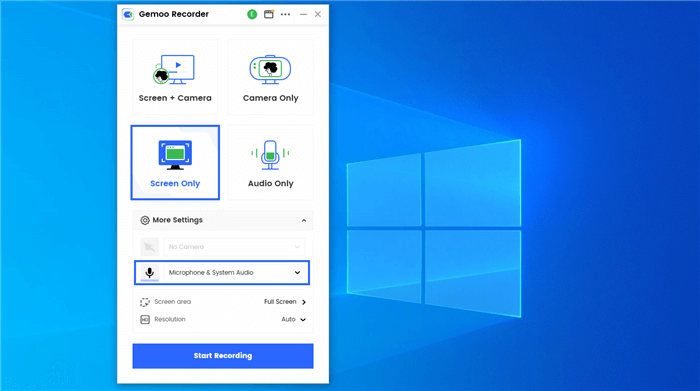
    Tap on the Screen Only Mode

    Step 2. Go to the interface you need to record and annotate your recording if you need to highlight your insights.

    Start to Record Screen with Internal and External Sound

    Step 3. When you finish recording, click on the Red Stop button to stop and save your recordings.
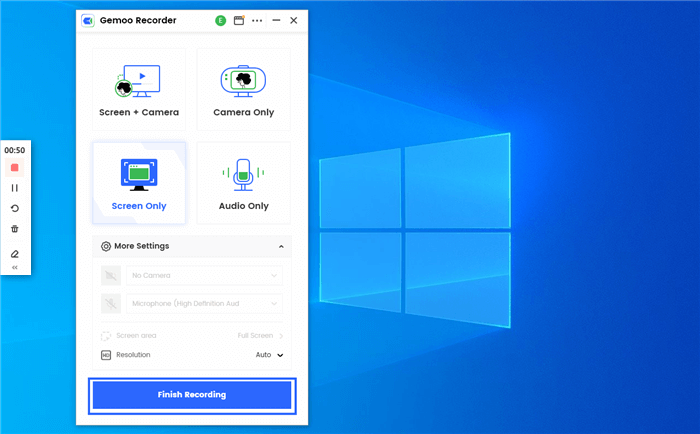
    Finish Recording

    Record Internal Sound on My Computer

    Most laptops and desktop computers come with a built-in microphone that can be used to record sound. To use these methods, you need to open the sound recorder application on your computer.

    For Windows Users

    If you’re running Windows 10, you can use the built-in Voice Recorder app to record internal sound. You can find the Voice recorder app by searching for it in the Start menu. Here’s how to use Voice Recorder to record internal sound on Windows.

    Step 1. Open the Voice Recorder app from the Start menu.

    Step 2. Click the microphone icon to start recording.
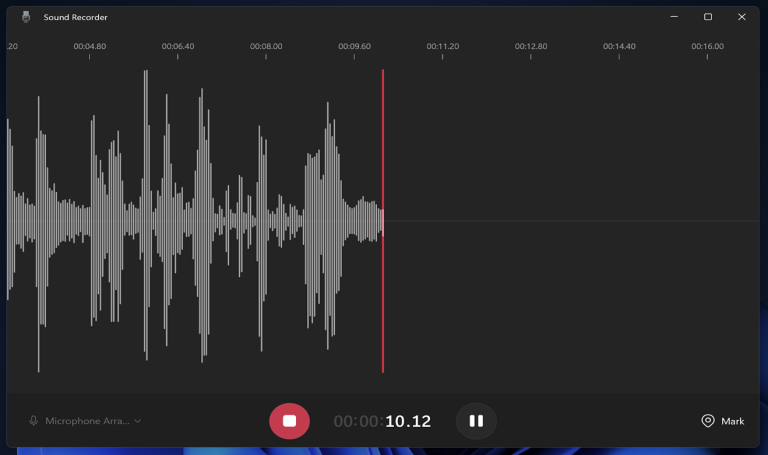
    Step 3. To stop recording, click the stop icon.

    Step 4. Your recording will be saved to the Voice Recorder app.
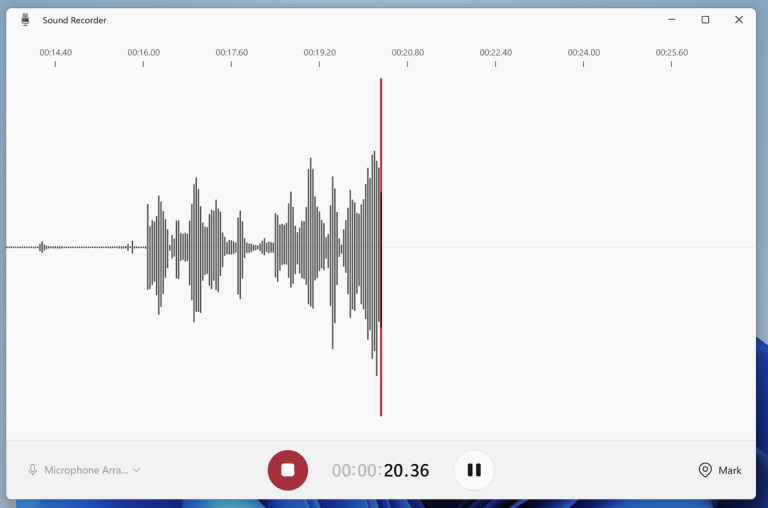
    Note: This method only works for recording sound from your microphone and internal speakers. If you want to record sound from a specific application, you’ll need to use a different method.

    For Mac Users

    Recording internal sound on Mac can be a bit tricky, but with the tool  we’ve shown you, it’s definitely possible. QuickTime Player is the easiest and most straightforward method.

    QuickTime Player is a built-in app on Mac that allows you to record your screen and internal sound. Here’s how to use it to record internal sound:

    Step 1. Open QuickTime Player from the Applications folder.

    Step 2. Click on “File” in the menu bar and select “New Screen Recording.”

    Step 3. Click on the arrow next to the record button and select “Internal Microphone.”
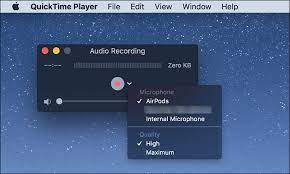
    Step 4. Click on the record button and start playing the sound you want to record.

    Step 5. When you’re done, click on the stop button in the menu bar.

    Step 6. Save the recording by clicking on “File” and selecting “Save.”

    Record External Sound on My Computer

    If you want to record high-quality external sound, you can use an external microphone. There are various types of external microphones available, such as USB microphones, XLR microphones, and wireless microphones. To use an external microphone, you need to connect it to your computer using a USB cable or an audio interface.

    Once you have connected the microphone, select it as the input device in the sound recorder app. Then, click on the record button to start recording. Speak or play the sound you want to record, and when you are done, click on the stop button. You can then save the recorded sound as an audio file on your computer.

    For Windows Users

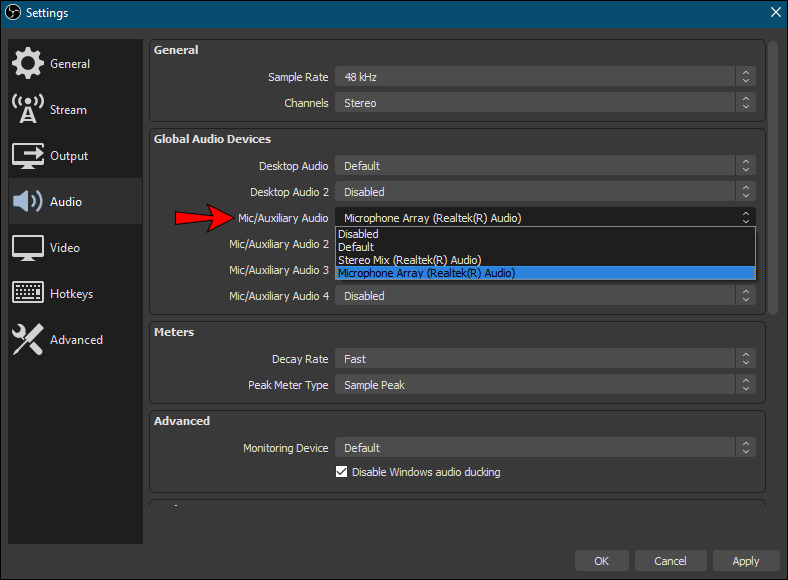
    OBS Studio is another free and open-source software that is primarily used for live streaming and video recording. At the same time, it can also be used to record external sound on Windows. To use OBS Studio, simply download and install the software, connect your external source to your computer, and start recording.
    For Mac Users

    GarageBand is another built-in app on your Mac that can be used to record audio. Here’s how to use it:

    Step 1. Open GarageBand from your Applications folder.

    Step 2. Click on File > New Project.

    Step 3. Choose “Empty Project” and click on “Choose.”

    Step 4. Click on the “+” button in the bottom left corner of the screen and choose “Audio Recorder.”
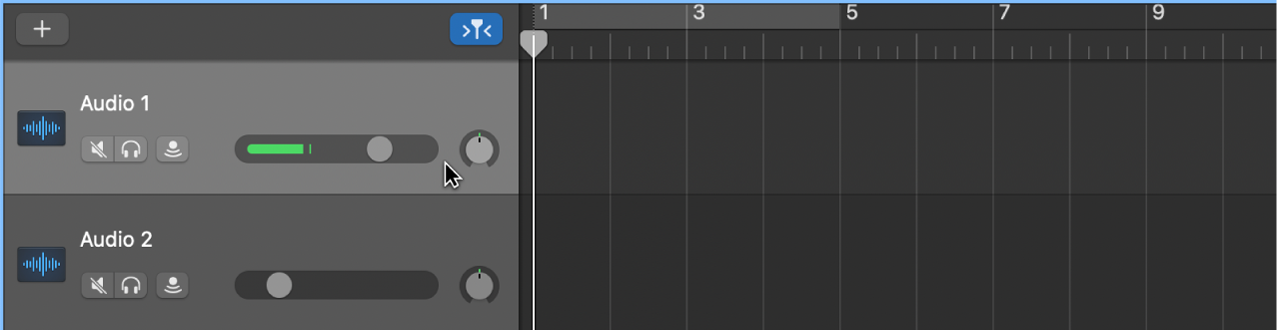
    Step 5. Click on the red record button to start recording.

    Step 6. When you’re finished recording, click on the stop button.

    Step 7. Save your recording by clicking on File > Save.

    Tips for Recording Sound on Your Computer

    By the end of the article, we will offer you some tips for recording sound on your computer.

    • Use a high-quality microphone or audio input device for the best sound quality.
    • Make sure your recording software is set to the correct input source (internal or external).
    • Test your recording settings before starting to ensure that the sound is being captured properly.
    • Use headphones to monitor the sound while recording to avoid feedback or other issues.
    • Consider using a pop filter or windscreen to reduce background noise or unwanted sounds.

    Final Thoughts

    In conclusion, recording sound on a computer is a simple process that can be done using various methods. Whether you use the built-in microphone, an external microphone, or a third-party tool, make sure to select the right input device and record in a quiet environment for the best results.

    Share. Facebook Twitter Pinterest LinkedIn Tumblr Email

    Related Posts

    Exploring the profitability of bitcoin trading ideas

    What Types of Student Loans Are Available? Exploring Your Options

    The reason that People Are Using The Text To Give Church App More Often

    Leave A Reply Cancel Reply

    You must be logged in to post a comment.

    voopoo drag s3
    oxva xlim go 2
    sp2s sen x disposable vape
    jnr 100k
    • Popular
    • 3D Printer REVIEW
    • XIAOMI
    December 9, 2025

    OXVA Xlim Go vs. OXVA Xlim Go 2: Hands-On Review

    December 9, 2025

    OXVA XLIM PRO 3 VS XLIM PRO 2 Review: Hands-on Comparison

    December 9, 2025

    OXVA XLIM 3 Ultra vs. XLIM Pro 2 DNA Review: Hands-on Comparison

    December 8, 2025

    OXVA XLIM SQ PRO 2 vs XLIM SQ PRO Hands on Comparison Review

    June 23, 2024

    ACMER P2 20W Laser Engraver Fixed Focus Engraving: Hands on Review

    May 30, 2024

    xTool F1 Ultra Review: World’s First 20W Fiber & 20W Diode Laser Engraver

    May 30, 2024

    Anycubic Kobra 3 Combo Review: The Multicolor Masterpiece?

    May 15, 2024

    SCULPFUN SF-A9 40W Laser Engraver Cutting Machine: Hands On Review

    December 11, 2025

    Xiaomi 17 Ultra will officially announce next week: it will be the first to feature a brand-new Leica 1-inch main camera

    December 10, 2025

    The official version of Xiaomi Hyper OS 3 covers more models. MIX Fold 3 and others will start to be rolled out in gray scale and gradually from today

    December 9, 2025

    The Appearance Renderings of Xiaomi 17 Ultra are here: The classic large round lens returns without a back screen

    December 8, 2025

    Comeback: Xiaomi triple foldable screen was once aborted due to the overheating of the Snapdragon 8 Gen1

    fc 26 coins
    New Arrivals
    • Arc Hypertine 35K Zero Nicotine Disposable Vape Arc Hypertine 35K Zero Nicotine Disposable Vape
    • Oppo Reno 15c Oppo Reno 15c
    • lost vape le bar 40k lost vape le bar 40k
    • RAZ RX 50K DISPOSABLE RAZ RX 50K DISPOSABLE
    • Xiaomi Poco C85 Xiaomi Poco C85
    • Innokin Foretex Pod System Kit Innokin Foretex Pod System Kit
    • Geekvape Aegis Mini 5 Vape Mod Kit Geekvape Aegis Mini 5 Vape Mod Kit
    • Freemax Albar MX 20K Disposable Vape Freemax Albar MX 20K Disposable Vape
    • Innokin EZ Leva Pod System Kit with PCC 2400mAh Innokin EZ Leva Pod System Kit with PCC 2400mAh
    About
  • Igeekphone.com provides the first global tech news and reviews about smartphone, vapes, e-cigar, smart home, 3D printers, e-bike,tablets, RC drones, VR headset, and other accessories. It's the best platform to improve your brand and product.
  • Contact us: info@igeekphone.com
  • Check Our Privacy Policy Here.
  • Note: *Right now we have US editor and EU editors for review, especially for Amazon US and EU.
  • *Shop and Compare Price Here*
  • Facebook
  • Youtube
  • OUR BEST VAPE PARTNERS
  • VAPE ONLINE STORE
  • HAYATI PRO MAX PLUS
  • VAPORESSO
  • VOOPOO
  • OXVA
  • NEXA
  • MASKKING
  • LOSTVAPE ORIONBAR
  • VEIIK
  • MEMERS
  • TODOO
  • SP2S
  • JNR
  • OTHER BEST PARTNERS
  • SVBONY
  • Chuwi
  • Blackview
  • Fossibot
  • Unihertz
  • Flsun
  • Anycubic
  • Xtool
  • Oukitel
  • Mukkpet Ebike
  • Ugreen
  • Copyright © 2025 igeekphone

    Type above and press Enter to search. Press Esc to cancel.