







Facebook Twitter Instagram
    Trending
    • Discover the Ultimate Vaping Experience with Geek Bar Pulse X
    • Finding Your Perfect Match in the World of Disposable Vapes
    • RELX Creator Pro 15K Disposable Vape Kit Review: High Puff Capacity Meets Smart Vaping Technology
    • OXVA Nexlim 2 Mini Pod System Kit Review: Compact Size, Powerful Flavor
    • Say Goodbye to Meeting Lag and Blind Spots! SVBONY SVN A1 360° Conference Camera Review – Efficient Collaboration Made Simple
    • Master the Art of Melting: A Complete Guide to Choosing the Best Wax Melter
    • You need to know most common mistakes rookies in gaming
    • What are some ways to enhance the amount of natural light in my home
    Facebook YouTube
    IGeeKphone China Phone, Tablet PC, VR, RC Drone News, Reviews
    • HOME
      • NEWS
        • DeepSeek
        • ChatGPT
        • Minecraft
    • Amazon
    • PHONE
      • Top Phones For Your First Choice
      • Phone Comparison
      • Xiaomi
      • Blackview
      • Doogee
      • Black Shark
      • Geekbuying
      • Banggood
      • TEMU
      • TikTok
      • Aliexpress
      • Walmart
      • MercadoLibre
      • Lazada
    • TOP VAPE Awards for 2026
    • VAPES
      • E-CIGAR Upcoming
      • Vape News
      • Vape Deals
      • Vape Comparison
      • Vape Guide
      • Giveaway
    • BEST VAPE
      • Best Vape Stores
      • Best Starter Vape Kits
      • Best Vapes for Beginners
      • Best Disposable Vapes
      • Best Pod Systems
      • Best Pod Mod Vapes
      • Best Mods
      • Best Nicotine Pouches
      • Best Clearomizers/Tanks
      • Best E-Liquid
      • Best EGO/Pens
      • Best Vapes for Nic Salt E-Juice
      • Best Vapes to Quit Smoking
      • RDA vs. RDTA vs. RTA
    • Best Vape Brand 2026
      • VAPORESSO
      • VOOPOO
      • OXVA
      • NEXA BAR
      • MASKKING VAPE
      • SP2S
      • IPLAY
      • TODOO
      • MRFOG
      • LOSTVAPE
      • VEIIK
    • REVIEW
      • E-cigar Review
      • Phones
      • Tablet PC
      • TV Box
      • RC Drone
      • Wearables
      • Camera
      • Accessories
      • VR Headset
    • MORE
      • TABLET
        • Chuwi
        • INNOCN
        • Teclast
        • Top Tablet for Your First Choice
        • Tablet/Laptop Comparison
      • RC DRONE
      • CAMERA
      • WEARABLES
        • OneOdio
        • BlitzWolf
        • Top Smartwatch for First Choice
      • 3D PRINTER
        • 3D Printer Review
        • Anycubic
        • FLSUN
        • Xtool
        • LONGER
        • Top 3D printer to Choose First
      • POWER STATION
        • Oukitel
        • FOSSIBOT
      • GAMING
        • Top Gaming Products
      • E-BIKE
        • Samebike
        • Happyrun
        • ENGWE
      • SMART HOME
      • TV BOX
      • ACCESSORIES
      • VR HEADSET
      • CLOTHES
      • AUTO CAR
    • DEAL
    • VAPE LAWS
    • Shop
    IGeeKphone China Phone, Tablet PC, VR, RC Drone News, Reviews
    You are at:Home»Guide»What to do if the flashlight on my vivo phone doesn’t work? Suggestions for repairing the flash malfunction.
    Guide

    What to do if the flashlight on my vivo phone doesn’t work? Suggestions for repairing the flash malfunction.

    Brady CottonBy Brady CottonMay 25, 2026
    Facebook Twitter Pinterest LinkedIn Tumblr Email

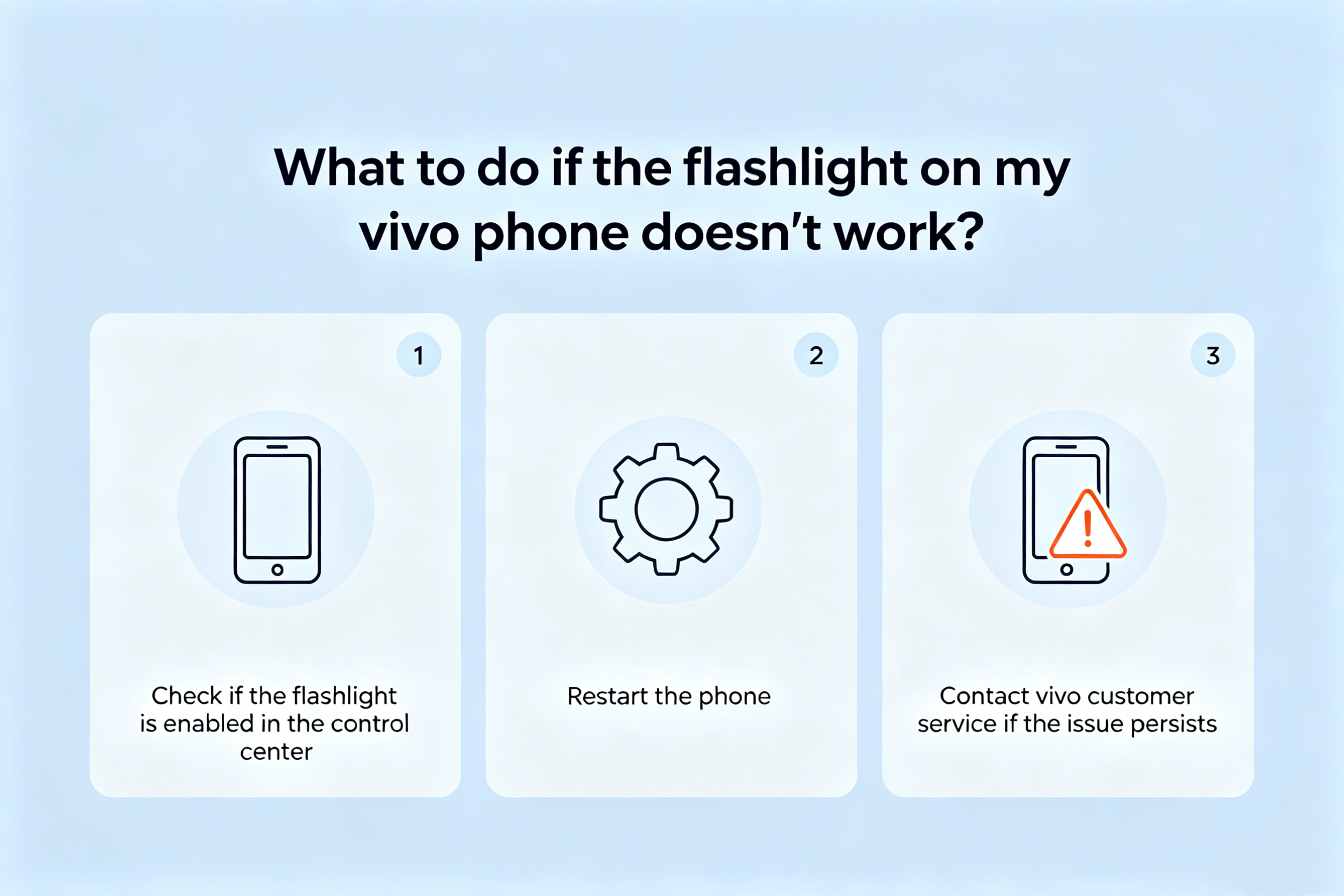
    If the flashlight on your vivo phone doesn’t work, you can troubleshoot it in five steps: 1. Close any background applications that are using the flashlight; 2. Test the flashlight hardware using the system camera to see if it’s damaged; 3. Restore all settings to fix the system configuration; 4. Check the battery level and power-saving mode restrictions; 5. If it still doesn’t work, you need to go to vivo’s service center to test the flashlight hardware.

    If you try to use the flashlight function of your vivo phone but the screen doesn’t respond after being turned on, you can’t start the flashlight by pulling down the control center, or the flashlight doesn’t light up at all, it might be due to software conflicts, abnormal system settings, low battery or hardware damage. Here are several independent solutions that can be applied:

    1. Check and close background applications that may be using the flashlight
    Some video recording, live streaming, scanning, and night photography applications will exclusively use the camera module and flashlight permissions, resulting in the flashlight function being locked and unable to be enabled.

    From the bottom of the screen, slide up to open the multitasking interface. Long press any application card and then slide up to close all background programs.

    2. Focus on closing applications that are currently running, such as camera-related, short-video-related, and scanning applications, for example, Douyin, WeChat Scan, and the system camera.
    3. Return to the desktop, pull down the notification bar, and click the flashlight icon to test if everything is back to normal.

    II. Verify the hardware status of the flash

    By directly triggering the flash through the system camera, one can quickly determine whether the problem lies in the software logic or the physical failure of the flash.

    Open the built-in “Camera” application of the system and switch to the “Take Photo” mode.
    2. Click on the flash icon in the upper right corner of the viewfinder, and then select the “Constant On” mode.

    3. Press the shutter halfway to check if the flash emits a continuous white light. If there is no response at all, and the flash is also not activated in other applications (such as scanning), then the flash hardware may be damaged.

    III. Resetting the flashlight-related system settings
    The flashlight function of vivo models relies on system-level shortcut services and permission configurations. Restoring the settings can remove erroneous parameters without the need to clear user data.

    1. Go to “Settings” → Search for “Restore All Settings” → Click to enter.
    2. Enter the lock screen password to confirm the operation. Wait for the system to automatically restart and restore to default settings.
    3. After the restart is completed, go to “Settings” → “Quick Tools” → “Flashlight”, confirm that the switch is in the on position, and check if any shortcuts such as “Start by long-pressing the volume down key when the screen is off” have been accidentally disabled.
    IV. Checking for Impact of Battery Level and Low Power Consumption Limitations
    When the battery level drops below 5% or when the system activates extreme power-saving strategies, Vivo will automatically disable high-power-consuming functions such as the flashlight to maintain basic operation.

    Check the battery icon on the status bar. If it shows red or indicates “Low Battery”, please immediately connect the original charger and charge for at least 15 minutes.

    2. During the charging process, go to “Settings” → “Battery” → “Power Saving Mode” and confirm that this mode is turned off.
    3. In the “Battery” → “Power Consumption Details” section, check if there are any unusually high power consumption records for “Flashlight” or “CameraProvider”. If such records exist, it indicates that there is an abnormality in the underlying service.

    5. Go to the official Vivo after-sales service for hardware fault detection
    If all the above steps fail to make the flash light turn on, and there is no light effect output in the camera, scanning, or third-party flashlight apps, it can be basically determined that there is a physical fault in the LED flash light component, driving circuit, or wiring.

    Prepare the purchase invoice, warranty card and the mobile phone itself. Ensure that there are no signs of unauthorized repair or modification on the body of the phone.

    2. You can check the address and business hours of the nearest authorized service center by visiting the vivo official website or using the “vivo Customer Service” app.

    3. After arriving at the store, clearly explain the phenomenon to the engineer: “The camera flash and the flashlight functions have both failed simultaneously. The software and battery level factors have been ruled out.” Request to inspect the flash module and the power supply lines of the mainboard.

    Share. Facebook Twitter Pinterest LinkedIn Tumblr Email

    Related Posts

    Master the Art of Melting: A Complete Guide to Choosing the Best Wax Melter

    You need to know most common mistakes rookies in gaming

    Mastering the Art of Video Trimming on iPhone: A Comprehensive Guide

    Leave A Reply Cancel Reply

    You must be logged in to post a comment.

    voopoo G4 Mini
    oxva xlim 3 ultra
    sp2s sen x disposable vape
    • Popular
    • 3D Printer REVIEW
    • XIAOMI
    May 17, 2026

    iPlay Nova 45K Review – High Puff Performance with a Futuristic Twist

    May 17, 2026

    Vaporesso XROS 6 & XROS 6 Mini Review – The Evolution of Portable Vaping

    May 7, 2026

    OXVA Xlim Go Lite Review: Compact, Powerful, and Beginner-Friendly

    April 18, 2026

    VOOPOO DRAG 6 Hands on Review: Vape Beast with Smart Power & Premium Control

    December 26, 2025

    ACMER ASCARVA 4S: Precision CNC Power for Makers, DIYers & Small Workshops

    June 23, 2024

    ACMER P2 20W Laser Engraver Fixed Focus Engraving: Hands on Review

    May 30, 2024

    xTool F1 Ultra Review: World’s First 20W Fiber & 20W Diode Laser Engraver

    May 30, 2024

    Anycubic Kobra 3 Combo Review: The Multicolor Masterpiece?

    June 5, 2026

    Xiaomi 17T Pro smartphone has been officially announced to be equipped with the flagship chip Dimensity 9500

    June 5, 2026

    Xiaomi 17T Series is Equipped with a 7000mAh Jinshajiang Battery

    June 4, 2026

    The Imaging Specifications of Xiaomi 18 Pro Max have been Revealed

    June 2, 2026

    Xiaomi 17T Pro Smartphone has officially Announced Support for Cross-Platform Interoperability, and it is compatible with Apple’s AirDrop Feature

    fc 26 coins
    New Arrivals
    • RELX Creator Pro 15K Disposable Vape Kit RELX Creator Pro 15K Disposable Vape Kit
    • OXVA Nexlim 2 Mini Pod System Kit OXVA Nexlim 2 Mini Pod System Kit
    • OnePlus Nord CE7 OnePlus Nord CE7
    • Vivo S70 Vivo S70
    • Lenovo Idea Tab 2 Plus Lenovo Idea Tab 2 Plus
    • PARFFLO Hookah Blast 40K Nixodine Disposable Vape PARFFLO Hookah Blast 40K Nixodine Disposable Vape
    • OnePlus 16T OnePlus 16T
    • Xiaomi Poco M9 Xiaomi Poco M9
    • Motorola Moto X80 Air Motorola Moto X80 Air
    About
  • Igeekphone.com provides the first global tech news and reviews about smartphone, vapes, e-cigar, smart home, 3D printers, e-bike,tablets, RC drones, VR headset, and other accessories. It's the best platform to improve your brand and product.
  • Contact us: info@igeekphone.com
  • Check Our Privacy Policy Here.
  • Note: *Right now we have US editor and EU editors for review, especially for Amazon US and EU.
  • *Shop and Compare Price Here*
  • Facebook
  • Youtube
  • OUR BEST VAPE PARTNERS
  • VAPE ONLINE STORE
  • HAYATI PRO MAX PLUS
  • VAPORESSO
  • VOOPOO
  • OXVA
  • NEXA
  • MASKKING
  • SP2S
  • IPLAY
  • TODOO
  • OTHER BEST PARTNERS
  • SVBONY
  • Chuwi
  • Blackview
  • Fossibot
  • Unihertz
  • Flsun
  • Anycubic
  • Xtool
  • Oukitel
  • Mukkpet Ebike
  • Ugreen
  • Copyright © 2026 igeekphone

    Type above and press Enter to search. Press Esc to cancel.