










Laptop charging issues can be incredibly frustrating, especially when you rely on your laptop for work, school, or entertainment. If your laptop is not charging properly, it could be due to several reasons, from simple connection problems to more complicated hardware failures. In this guide, we’ll walk you through the most common reasons for charging issues and how to fix them.
Common Reasons Why Your Laptop Won’t Charge
Before diving into fixes, it’s important to understand the potential causes of laptop charging issues. These include:
-
Faulty Charging Cable or Adapter: Over time, your charging cable or adapter may become worn out or damaged.
-
Battery Health: If your laptop’s battery is old or defective, it may not charge correctly or hold a charge.
-
Power Port Issues: Dirt or physical damage in the charging port could be preventing proper connection.
-
Power Source Problems: Your electrical outlet or power strip might be faulty, or it could be a problem with the voltage.
-
Software or Driver Issues: Outdated or corrupted power management drivers can interfere with charging.
How to Fix Laptop Charging Issues
1. Check the Power Cable and Adapter
The first thing to check is the power cable and adapter. Cables and adapters are often the main culprits behind charging problems. Here’s what you can do:
-
Inspect the Cable: Look for visible signs of damage, like frays, bends, or exposed wires. If the cable is damaged, you’ll need to replace it.
-
Try a Different Outlet: Plug your charger into a different wall outlet to ensure the power source isn’t the issue.
-
Test with Another Charger: If possible, try a different charger compatible with your laptop. This will help you determine if the charger is the problem.
If you don’t have a spare charger, consider ordering a replacement from the laptop manufacturer or a trusted third-party supplier.
2. Inspect the Charging Port
Sometimes, the issue lies within the charging port on the laptop. Here’s how to troubleshoot:
-
Check for Obstructions: Look inside the port for any dust, debris, or dirt that might be blocking the connection. Use a can of compressed air or a soft brush to gently clean it.
-
Examine for Damage: Inspect the port for any visible damage. If the port is loose, wobbly, or appears physically damaged, it may need professional repair.
3. Perform a Hard Reset
In some cases, a hard reset can solve charging issues caused by temporary software glitches or errors in power management. Here’s how to perform a hard reset:
-
Unplug the charger and turn off your laptop.
-
Disconnect any peripherals (USB devices, external monitors, etc.).
-
Hold the power button for 30 seconds to drain any residual power.
-
Plug in the charger and try turning on the laptop.
This simple reset can often resolve charging issues related to software or power management.
4. Check Your Laptop’s Battery Health
If your laptop is still not charging, it could be due to a faulty or aging battery. Laptop batteries have a limited lifespan, and as they get older, they lose their ability to hold a charge.
-
Check Battery Health: Many laptops have built-in diagnostic tools that allow you to check the health of your battery. For example:
-
Windows: Type “Battery Report” in the search bar and follow the instructions to generate a battery report.
-
Mac: Hold the Option key, click on the Apple logo, and select System Information. Under the Power section, you can check the battery’s health status.
-
-
Replace the Battery: If your battery health is poor (often indicated as “Replace Soon” or “Needs Replacement”), it may be time to replace the battery.
5. Update Your Power Management Drivers
Outdated or corrupted drivers can interfere with the proper charging of your laptop. To fix this, you should update your power management drivers:
-
For Windows:
-
Right-click the Start Menu and choose Device Manager.
-
Expand the Batteries section, and right-click on Microsoft ACPI-Compliant Control Method Battery.
-
Click Update driver and follow the on-screen instructions.
-
-
For Mac:
-
Go to the Apple menu and choose System Preferences.
-
Select Software Update and install any available updates, including firmware or driver updates.
-
Updating your drivers will ensure that your laptop’s power management system is functioning properly, and can often resolve charging issues caused by software conflicts.
6. Perform a Battery Calibration (Windows and Mac)
Battery calibration can help ensure that your laptop’s battery is providing accurate charge readings. Here’s how to do it:
-
For Windows:
-
Fully charge the laptop to 100%.
-
Use the laptop until the battery runs down completely, and the laptop shuts off.
-
Recharge it to 100% again.
-
-
For Mac:
-
Plug in your MacBook and charge it to 100%.
-
Disconnect the charger and let it discharge until the battery reaches around 10%.
-
Reconnect the charger and fully charge it back to 100%.
-
Calibrating your laptop’s battery can improve its performance and ensure more accurate battery readings.
7. Check for Software or Operating System Issues
Occasionally, software issues or operating system bugs can interfere with the charging process. Try the following steps to fix these problems:
-
Update Your Operating System: Make sure that your operating system is up to date with the latest updates and patches.
-
Check for Malware: Run a malware scan to ensure that malicious software is not causing power management issues.
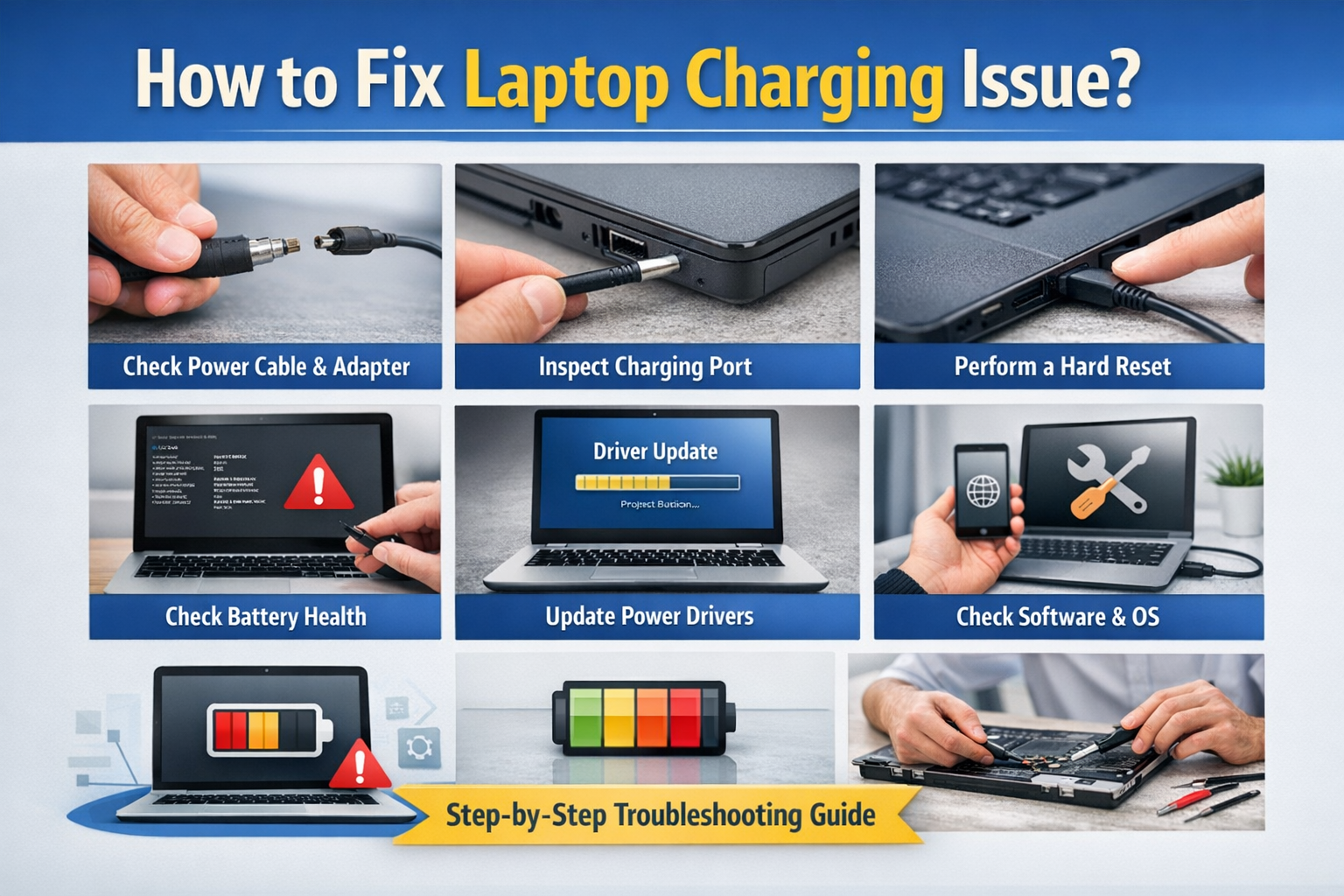
8. Consider a Professional Repair Service
If none of the above steps work, and the laptop is still under warranty, contact the manufacturer for support. If your warranty has expired, it’s advisable to take the laptop to a certified technician who can perform in-depth diagnostics and repair.
Conclusion: Troubleshooting Laptop Charging Issues
Laptop charging problems can be caused by a variety of factors, from minor cable issues to more complex hardware failures. By following the troubleshooting steps outlined in this guide, you can resolve most charging issues yourself and save time and money.
Start with the basics: check your charger, inspect the charging port, and try a hard reset. If those steps don’t solve the problem, move on to checking battery health, updating drivers, and calibrating the battery. In cases where the problem persists, professional repair might be necessary.
Remember, keeping your laptop’s battery and charging components in good condition is crucial for long-term performance. Regularly update your software, clean the charging port, and replace the battery when necessary to ensure your laptop charges properly and efficiently.