







Facebook Twitter Instagram
    Trending
    • ANGWATT C1 PRO Electric Scooter Review-Dual‑Motor Power Meets Long‑Range Urban Mobility
    • BlitzWolf® BW-BTS8 Lite Bluetooth Earbuds Review: The Ultimate Blend of Innovation and Performance
    • DJI LITO 1 15KM FPV RC Drone Review: 4K HDR Video, Omnidirectional Obstacle Sensing, and Long-Range Flight
    • Nexa Ultra 50K II Disposable Vape vs. Remit Solar 50K Disposable Vape Review-Which One Should You Pick?
    • VOOPOO ARGUS G3 Mini vs ARGUS Matrix: Which Pod Vape Is Right for You?
    • YLR/C YL87 YL89 RC Drone Review: A High-Flying Stunt Masterpiece
    • IPLAY NOVA 45k Disposable Pod Review-Long Lasting Power Meets Premium Performance
    • KuKirin G2 Pro Electric Scooter Review— A Balanced Ride with ABE Certification
    Facebook YouTube
    IGeeKphone China Phone, Tablet PC, VR, RC Drone News, Reviews
    • HOME
      • NEWS
        • DeepSeek
        • ChatGPT
        • Minecraft
    • Amazon
    • PHONE
      • Top Phones For Your First Choice
      • Phone Comparison
      • Xiaomi
      • Blackview
      • Doogee
      • Black Shark
      • Geekbuying
      • Banggood
      • TEMU
      • TikTok
      • Aliexpress
      • Walmart
      • MercadoLibre
      • Lazada
    • TOP VAPE Awards for 2026
    • VAPES
      • E-CIGAR Upcoming
      • Vape News
      • Vape Deals
      • Vape Comparison
      • Vape Guide
      • Giveaway
    • BEST VAPE
      • Best Vape Stores
      • Best Starter Vape Kits
      • Best Vapes for Beginners
      • Best Disposable Vapes
      • Best Pod Systems
      • Best Pod Mod Vapes
      • Best Mods
      • Best Nicotine Pouches
      • Best Clearomizers/Tanks
      • Best E-Liquid
      • Best EGO/Pens
      • Best Vapes for Nic Salt E-Juice
      • Best Vapes to Quit Smoking
      • RDA vs. RDTA vs. RTA
    • Best Vape Brand 2026
      • VAPORESSO
      • VOOPOO
      • OXVA
      • NEXA BAR
      • ORIONBARTECH
      • MASKKING VAPE
      • MEMERS
      • SP2S
      • TODOO
      • MRFOG
      • VEIIK
    • REVIEW
      • E-cigar Review
      • Phones
      • Tablet PC
      • TV Box
      • RC Drone
      • Wearables
      • Camera
      • Accessories
      • VR Headset
    • MORE
      • TABLET
        • Chuwi
        • INNOCN
        • Teclast
        • Top Tablet for Your First Choice
        • Tablet/Laptop Comparison
      • RC DRONE
      • CAMERA
      • WEARABLES
        • OneOdio
        • BlitzWolf
        • Top Smartwatch for First Choice
      • 3D PRINTER
        • 3D Printer Review
        • Anycubic
        • FLSUN
        • Xtool
        • LONGER
        • Top 3D printer to Choose First
      • POWER STATION
        • Oukitel
        • FOSSIBOT
      • GAMING
        • Top Gaming Products
      • E-BIKE
        • Samebike
        • Happyrun
        • ENGWE
      • SMART HOME
      • TV BOX
      • ACCESSORIES
      • VR HEADSET
      • CLOTHES
      • AUTO CAR
    • DEAL
    • VAPE LAWS
    • Shop
    IGeeKphone China Phone, Tablet PC, VR, RC Drone News, Reviews
    You are at:Home»Guide»How to Fix Laptop Charging Issue: Step-by-Step Guide
    Guide

    How to Fix Laptop Charging Issue: Step-by-Step Guide

    Brady CottonBy Brady CottonMarch 16, 2026
    Facebook Twitter Pinterest LinkedIn Tumblr Email

    Laptop charging issues can be incredibly frustrating, especially when you rely on your laptop for work, school, or entertainment. If your laptop is not charging properly, it could be due to several reasons, from simple connection problems to more complicated hardware failures. In this guide, we’ll walk you through the most common reasons for charging issues and how to fix them.

    Common Reasons Why Your Laptop Won’t Charge

    Before diving into fixes, it’s important to understand the potential causes of laptop charging issues. These include:

    1. Faulty Charging Cable or Adapter: Over time, your charging cable or adapter may become worn out or damaged.

    2. Battery Health: If your laptop’s battery is old or defective, it may not charge correctly or hold a charge.

    3. Power Port Issues: Dirt or physical damage in the charging port could be preventing proper connection.

    4. Power Source Problems: Your electrical outlet or power strip might be faulty, or it could be a problem with the voltage.

    5. Software or Driver Issues: Outdated or corrupted power management drivers can interfere with charging.

    How to Fix Laptop Charging Issues

    1. Check the Power Cable and Adapter

    The first thing to check is the power cable and adapter. Cables and adapters are often the main culprits behind charging problems. Here’s what you can do:

    • Inspect the Cable: Look for visible signs of damage, like frays, bends, or exposed wires. If the cable is damaged, you’ll need to replace it.

    • Try a Different Outlet: Plug your charger into a different wall outlet to ensure the power source isn’t the issue.

    • Test with Another Charger: If possible, try a different charger compatible with your laptop. This will help you determine if the charger is the problem.

    If you don’t have a spare charger, consider ordering a replacement from the laptop manufacturer or a trusted third-party supplier.

    2. Inspect the Charging Port

    Sometimes, the issue lies within the charging port on the laptop. Here’s how to troubleshoot:

    • Check for Obstructions: Look inside the port for any dust, debris, or dirt that might be blocking the connection. Use a can of compressed air or a soft brush to gently clean it.

    • Examine for Damage: Inspect the port for any visible damage. If the port is loose, wobbly, or appears physically damaged, it may need professional repair.

    3. Perform a Hard Reset

    In some cases, a hard reset can solve charging issues caused by temporary software glitches or errors in power management. Here’s how to perform a hard reset:

    1. Unplug the charger and turn off your laptop.

    2. Disconnect any peripherals (USB devices, external monitors, etc.).

    3. Hold the power button for 30 seconds to drain any residual power.

    4. Plug in the charger and try turning on the laptop.

    This simple reset can often resolve charging issues related to software or power management.

    4. Check Your Laptop’s Battery Health

    If your laptop is still not charging, it could be due to a faulty or aging battery. Laptop batteries have a limited lifespan, and as they get older, they lose their ability to hold a charge.

    • Check Battery Health: Many laptops have built-in diagnostic tools that allow you to check the health of your battery. For example:

      • Windows: Type “Battery Report” in the search bar and follow the instructions to generate a battery report.

      • Mac: Hold the Option key, click on the Apple logo, and select System Information. Under the Power section, you can check the battery’s health status.

    • Replace the Battery: If your battery health is poor (often indicated as “Replace Soon” or “Needs Replacement”), it may be time to replace the battery.

    5. Update Your Power Management Drivers

    Outdated or corrupted drivers can interfere with the proper charging of your laptop. To fix this, you should update your power management drivers:

    • For Windows:

      1. Right-click the Start Menu and choose Device Manager.

      2. Expand the Batteries section, and right-click on Microsoft ACPI-Compliant Control Method Battery.

      3. Click Update driver and follow the on-screen instructions.

    • For Mac:

      1. Go to the Apple menu and choose System Preferences.

      2. Select Software Update and install any available updates, including firmware or driver updates.

    Updating your drivers will ensure that your laptop’s power management system is functioning properly, and can often resolve charging issues caused by software conflicts.

    6. Perform a Battery Calibration (Windows and Mac)

    Battery calibration can help ensure that your laptop’s battery is providing accurate charge readings. Here’s how to do it:

    • For Windows:

      1. Fully charge the laptop to 100%.

      2. Use the laptop until the battery runs down completely, and the laptop shuts off.

      3. Recharge it to 100% again.

    • For Mac:

      1. Plug in your MacBook and charge it to 100%.

      2. Disconnect the charger and let it discharge until the battery reaches around 10%.

      3. Reconnect the charger and fully charge it back to 100%.

    Calibrating your laptop’s battery can improve its performance and ensure more accurate battery readings.

    7. Check for Software or Operating System Issues

    Occasionally, software issues or operating system bugs can interfere with the charging process. Try the following steps to fix these problems:

    • Update Your Operating System: Make sure that your operating system is up to date with the latest updates and patches.

    • Check for Malware: Run a malware scan to ensure that malicious software is not causing power management issues.
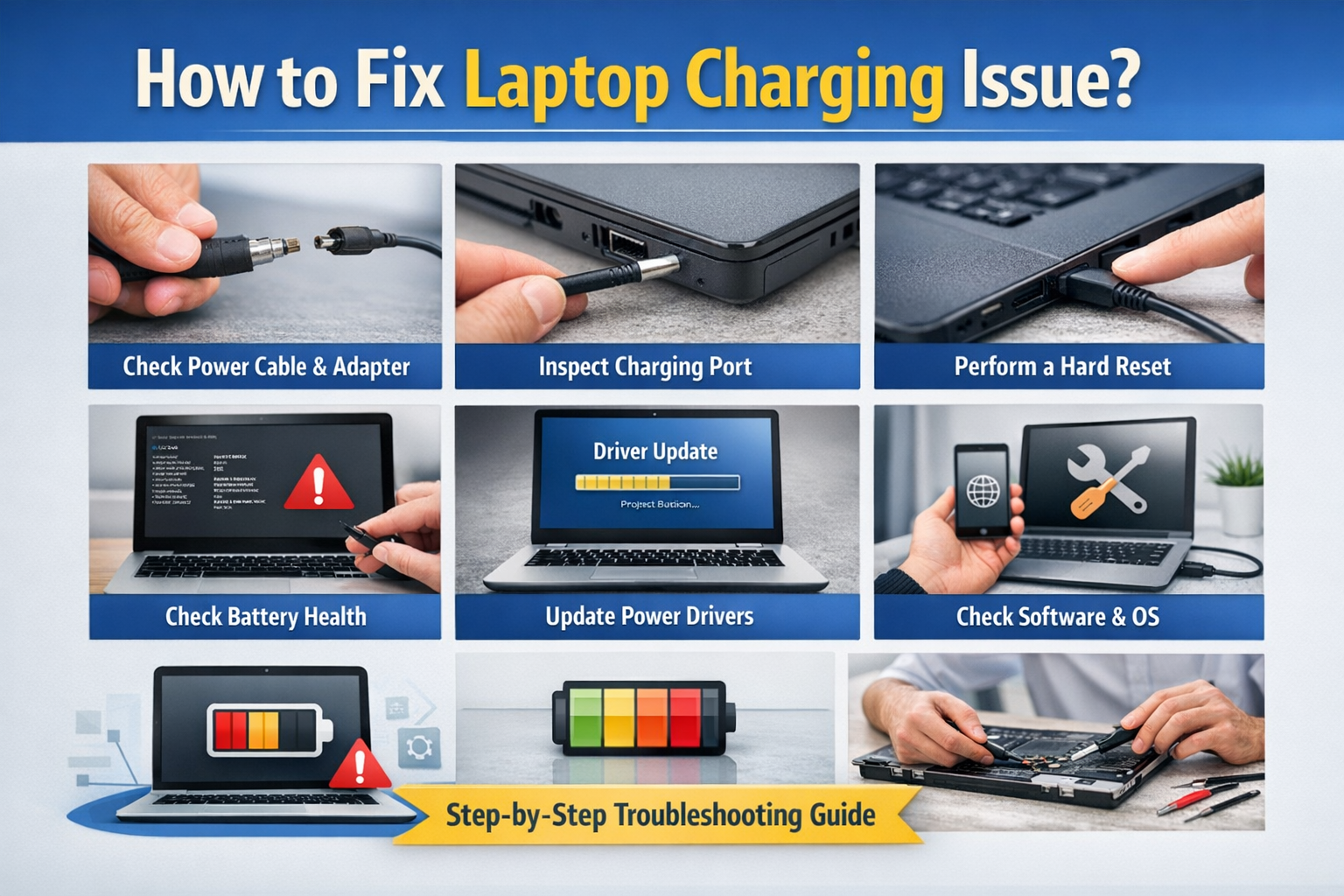
    8. Consider a Professional Repair Service

    If none of the above steps work, and the laptop is still under warranty, contact the manufacturer for support. If your warranty has expired, it’s advisable to take the laptop to a certified technician who can perform in-depth diagnostics and repair.

    Conclusion: Troubleshooting Laptop Charging Issues

    Laptop charging problems can be caused by a variety of factors, from minor cable issues to more complex hardware failures. By following the troubleshooting steps outlined in this guide, you can resolve most charging issues yourself and save time and money.

    Start with the basics: check your charger, inspect the charging port, and try a hard reset. If those steps don’t solve the problem, move on to checking battery health, updating drivers, and calibrating the battery. In cases where the problem persists, professional repair might be necessary.

    Remember, keeping your laptop’s battery and charging components in good condition is crucial for long-term performance. Regularly update your software, clean the charging port, and replace the battery when necessary to ensure your laptop charges properly and efficiently.

    Share. Facebook Twitter Pinterest LinkedIn Tumblr Email

    Related Posts

    How Switching Providers Can Improve Your Internet Connection

    A Step-By-Step Guide on Changing the Default RDP Number

    The Growing Influence of Free Music and Video Search Tools in the Digital Era

    Leave A Reply Cancel Reply

    You must be logged in to post a comment.

    voopoo drag 6
    oxva xlim 3 ultra
    sp2s sen x disposable vape
    • Popular
    • 3D Printer REVIEW
    • XIAOMI
    April 18, 2026

    VOOPOO DRAG 6 Hands on Review: Vape Beast with Smart Power & Premium Control

    April 8, 2026

    OXVA NeXLIM vs XLIM Pro 2 Pod Hands-On Review (2026)

    March 16, 2026

    OXVA Slimstick VS OXVA Slimstick X Vape Hands-on Review

    March 5, 2026

    OXVA XLIM PRO 3 vs XLIM GO 2: Hands-On Review

    December 26, 2025

    ACMER ASCARVA 4S: Precision CNC Power for Makers, DIYers & Small Workshops

    June 23, 2024

    ACMER P2 20W Laser Engraver Fixed Focus Engraving: Hands on Review

    May 30, 2024

    xTool F1 Ultra Review: World’s First 20W Fiber & 20W Diode Laser Engraver

    May 30, 2024

    Anycubic Kobra 3 Combo Review: The Multicolor Masterpiece?

    April 30, 2026

    Xiaomi Gaming Mouse 2 officially Announced, equipped with the latest Pixart flagship sensor

    April 29, 2026

    Based on Android 17 Beta 2, the developer preview version of Xiaomi Hyper OS has been Released

    April 27, 2026

    It is Reported that a Certain Factory has Launched a 7-inch 2K Ultra-high Refresh Rate Straight Screen

    April 27, 2026

    Review: Is REDMI K90 MAX the Ultimate Gaming Phone in 2026?

    fc 26 coins
    New Arrivals
    • Lost Vape Thelema Go Pro Mod Kit Lost Vape Thelema Go Pro Mod Kit
    • Voopoo Argus Rise Vape Voopoo Argus Rise Vape
    • Lost Vape Thelema Q200 Pro Box Mod 200W Lost Vape Thelema Q200 Pro Box Mod 200W
    • Motorola Razr 70 Plus Motorola Razr 70 Plus
    • Motorola Razr Ultra 2026 Motorola Razr Ultra 2026
    • Realme 16x 5G Realme 16x 5G
    • SMOK Arco Nano Pod System Kit SMOK Arco Nano Pod System Kit
    • IPLAY SPARK 50k Disposable Pod IPLAY SPARK 50k Disposable Pod
    • vivo Y500s vivo Y500s
    About
  • Igeekphone.com provides the first global tech news and reviews about smartphone, vapes, e-cigar, smart home, 3D printers, e-bike,tablets, RC drones, VR headset, and other accessories. It's the best platform to improve your brand and product.
  • Contact us: info@igeekphone.com
  • Check Our Privacy Policy Here.
  • Note: *Right now we have US editor and EU editors for review, especially for Amazon US and EU.
  • *Shop and Compare Price Here*
  • Facebook
  • Youtube
  • OUR BEST VAPE PARTNERS
  • VAPE ONLINE STORE
  • HAYATI PRO MAX PLUS
  • VAPORESSO
  • VOOPOO
  • OXVA
  • NEXA
  • MASKKING
  • TODOO
  • SP2S
  • VEIIK
  • OTHER BEST PARTNERS
  • SVBONY
  • Chuwi
  • Blackview
  • Fossibot
  • Unihertz
  • Flsun
  • Anycubic
  • Xtool
  • Oukitel
  • Mukkpet Ebike
  • Ugreen
  • Copyright © 2026 igeekphone

    Type above and press Enter to search. Press Esc to cancel.