










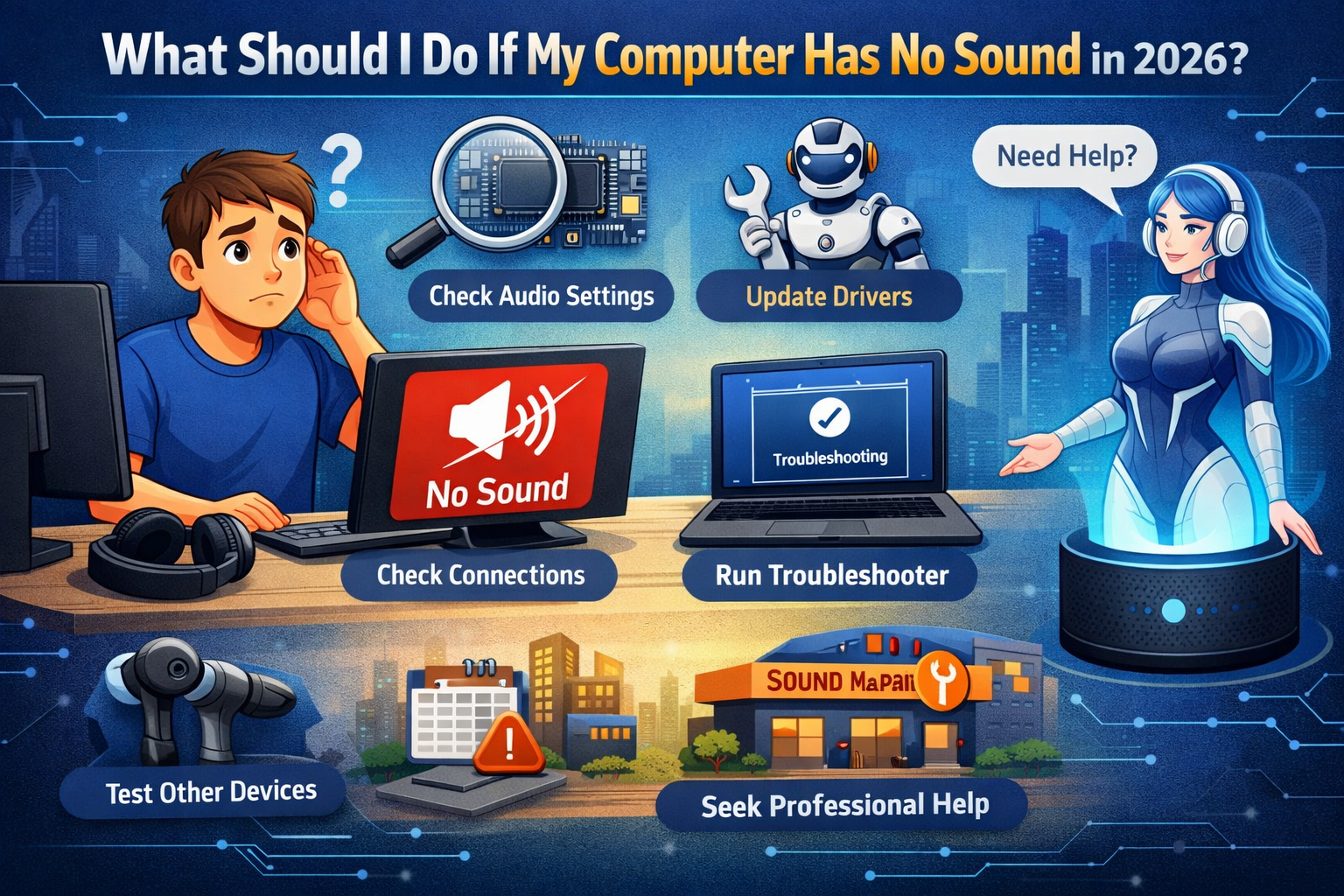
In today’s digital world, sound is essential for a wide range of tasks, from video conferencing and online learning to entertainment and gaming. But what happens when your computer suddenly has no sound? Whether it’s a glitch, a hardware issue, or a software conflict, there are several ways you can troubleshoot and resolve the issue.
If you’re experiencing no sound on your computer in 2026, don’t panic. Follow these steps to diagnose and fix the problem, and you’ll be back to enjoying audio in no time.
1. Check the Basics: Is the Sound Muted or Low?
Before diving into more technical troubleshooting, make sure the sound isn’t accidentally muted or turned down too low. It might seem simple, but it’s easy to overlook:
- Check the volume icon: Click on the speaker icon in your taskbar (or system tray) and make sure the volume is turned up.
- Mute button: Ensure that the audio isn’t muted either in your system settings or in the app you’re using.
- External speakers/headphones: If you’re using external speakers or headphones, check the volume on the speakers themselves, as well as on the computer.
2. Restart Your Computer
A simple restart can often resolve many issues, including sound problems. Restart your computer to see if it resolves the problem. This can clear temporary glitches or conflicts that may be preventing the audio from working.
3. Check Your Output Device Settings
If you’re using external speakers or headphones, your computer might be routing the sound to the wrong output device. To check and adjust the output device:
- Windows: Right-click the sound icon in the taskbar, select Open Sound Settings, and under the Output section, make sure the correct device (speakers or headphones) is selected.
- macOS: Go to System Preferences > Sound, then under the Output tab, choose the correct device.
4. Inspect Your Audio Drivers
Outdated or corrupt audio drivers can cause sound issues. In 2026, most systems update drivers automatically, but occasionally, something might go wrong. Here’s how to check:
- Windows:
- Press Windows + X and select Device Manager.
- Expand the Sound, video, and game controllers section.
- Right-click your audio device and select Update Driver.
- You can also choose Uninstall device and restart your computer to let Windows reinstall the driver.
- macOS:
- macOS generally updates audio drivers automatically. If issues persist, check for system updates by going to System Preferences > Software Update.
If updating the drivers doesn’t help, you can visit the manufacturer’s website (e.g., Realtek, Intel, or your computer’s brand site) to download the latest drivers manually.
5. Troubleshoot with the Audio Troubleshooter (Windows)
Windows includes a built-in troubleshooter to help identify and fix sound problems. Here’s how to use it:
- Right-click the sound icon in the taskbar.
- Select Troubleshoot sound problems.
- Follow the on-screen instructions, and Windows will attempt to diagnose and fix the issue.
6. Check for Software Conflicts
Sometimes, software conflicts can interfere with sound. If you notice the sound stopped working after installing a specific application, try uninstalling or updating that app. Also, try disabling any software that might be conflicting with your audio drivers (e.g., third-party sound management apps).
Additionally, if you’re using Bluetooth audio devices, ensure they are connected properly, and check if they require additional drivers or software updates.
7. Inspect Audio Settings for Specific Apps
If the sound is only missing in certain apps (like video players or web browsers), check the audio settings within those specific apps. Some apps have their own sound control options independent of system settings. For example, in streaming services, the sound could be muted or turned down within the app itself.
8. Test Your Hardware (Speakers, Headphones, or Audio Jack)
It’s possible that your speakers, headphones, or the audio port on your computer might be faulty. To rule out hardware issues:
- Test with different headphones/speakers: Plug in another set of headphones or speakers and see if they work.
- Test your headphones or speakers on another device: If the headphones or speakers don’t work on a different device, the issue could be with your audio hardware.
For desktops, check the audio jack or USB connection for loose connections or debris.
9. Adjust Advanced Sound Settings (Windows)
In Windows 11 and 10, there are advanced audio settings that could be influencing your sound output. Here’s how to check them:
- Right-click the sound icon and select Open Sound Settings.
- Under the Advanced sound options, click on App volume and device preferences. Ensure that apps are set to the correct output device and the volume isn’t too low.
- You can also try adjusting the Spatial Sound settings (turning it off or adjusting it) to see if that resolves any issues.
10. Check for System Updates
Sometimes, a system update may include critical patches for audio-related issues. Ensure your system is fully updated:
- Windows: Go to Settings > Update & Security > Windows Update and check for any available updates.
- macOS: Go to System Preferences > Software Update to check for updates.
11. Reset or Reinstall the Audio Drivers
If none of the above steps solve the problem, try resetting your audio settings. In some cases, it’s worth uninstalling the audio drivers and reinstalling them:
- Windows: In Device Manager, right-click your audio driver and select Uninstall device. After a restart, Windows should automatically reinstall the driver.
- macOS: If you suspect a driver issue on macOS, reinstalling the operating system might be necessary to fix the issue.
12. Contact Support
If you’ve followed all these steps and still have no sound, there could be a deeper hardware or software issue at play. Contact your device manufacturer’s support team or visit a technician for further assistance.
Conclusion
If your computer has no sound in 2026, don’t fret — there are plenty of troubleshooting steps you can take to fix the issue. From simple checks like ensuring the volume isn’t muted to more advanced solutions like updating drivers or reinstalling the audio hardware, you can often find a solution on your own. If all else fails, professional support is just a call away. With the right approach, you’ll have your computer’s sound back up and running in no time!