










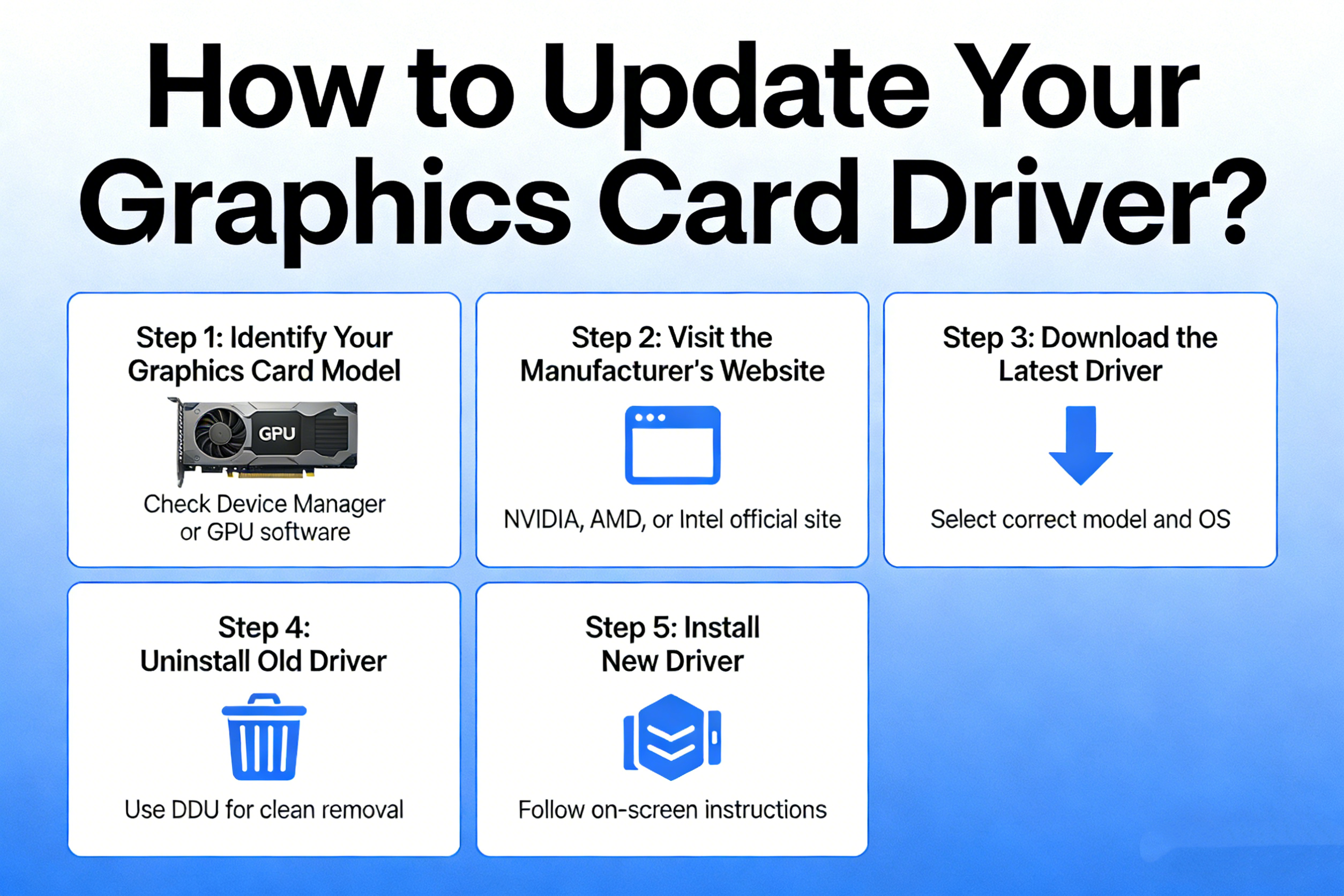
Updating your graphics card driver is a crucial step in keeping your computer running smoothly and ensuring the best performance for gaming, multimedia editing, and other graphically demanding tasks. A driver update can fix bugs, improve stability, and introduce support for the latest features. Here’s a guide on how to update your graphics card driver, whether you’re using a dedicated GPU (Graphics Processing Unit) from NVIDIA, AMD, or Intel.
Step 1: Identify Your Graphics Card
Before updating the driver, you need to know which graphics card is installed in your system. This is important because different cards require different drivers. Here’s how to identify your GPU:
Windows:
- Right-click on your desktop and select Display Settings.
- Scroll down and click on Advanced Display Settings.
- Under Display Information, you’ll see the Display Adapter section. This will tell you which GPU is installed.
Alternatively, you can use the Device Manager:
- Press Windows + X and select Device Manager.
- Expand the Display Adapters section, where you’ll see the name of your GPU.
macOS:
- Click the Apple menu in the top-left corner.
- Select About This Mac.
- Under the Overview tab, you’ll see the details of your graphics card listed next to Graphics.
Step 2: Choose Your Update Method
There are several ways to update your graphics card driver: using automatic tools from the GPU manufacturer, using Windows’ built-in update feature, or manually downloading the latest drivers.
Method 1: Use Manufacturer Software
The easiest way to keep your drivers up-to-date is to use software provided by the GPU manufacturer. These programs automatically detect your hardware and update the drivers for you.
For NVIDIA Graphics Cards:
- Download and install GeForce Experience from the official NVIDIA website.
- Once installed, launch the application.
- GeForce Experience will automatically detect your GPU and show available driver updates.
- Click Download and follow the on-screen instructions to install the latest driver.
For AMD Graphics Cards:
- Download and install Radeon Software from the official AMD website.
- Open the software and it will automatically check for driver updates.
- If an update is available, click Update to install the latest version.
For Intel Graphics Cards:
- Download the Intel Driver & Support Assistant from the Intel website.
- Run the tool, and it will automatically scan your system for the latest Intel GPU drivers.
- If an update is available, follow the prompts to install it.
Method 2: Use Windows Device Manager
If you don’t want to install additional software, you can update your graphics driver manually using Windows’ Device Manager:
- Press Windows + X and select Device Manager.
- Expand the Display Adapters section.
- Right-click on your GPU and select Update Driver.
- Choose Search automatically for updated driver software.
- Windows will search online for the latest driver. If one is found, it will automatically download and install it.
Method 3: Manually Download Drivers
You can also manually download the latest drivers from the GPU manufacturer’s website.
- Visit the official website for NVIDIA, AMD, or Intel.
- Navigate to the Drivers or Support section.
- Use the search function to locate the driver for your specific GPU model and operating system.
- Download the driver and run the installer.
For detailed instructions, you can refer to the manufacturer’s guide on their website.
Step 3: Install the Update
Once you’ve downloaded the driver update, the installation process is usually straightforward. If you’re using GeForce Experience, Radeon Software, or Intel Driver Assistant, the software will guide you through the process.
If you’re installing manually, follow these steps:
- Double-click the downloaded driver file to begin the installation.
- Follow the on-screen instructions, and in most cases, you will need to restart your computer once the installation is complete.
Step 4: Restart Your Computer
After the installation, restart your computer to ensure the new driver is applied correctly. This will finalize the update process and activate any new features or optimizations that the driver offers.
Step 5: Check the Driver Version
To make sure the driver has been updated successfully, you can check the driver version:
Windows:
- Open Device Manager and expand the Display Adapters section.
- Right-click your GPU and select Properties.
- Go to the Driver tab to see the driver version.
macOS:
- Click the Apple Menu and select About This Mac.
- Click System Report, then Graphics/Displays, where you’ll find the GPU and driver version.
Conclusion
Regularly updating your graphics card drivers ensures that your system runs efficiently and that you get the best performance from your games, applications, and multimedia tasks. Whether you use automatic tools from NVIDIA, AMD, or Intel, or manually download the latest drivers, keeping your drivers up-to-date is a simple yet effective way to optimize your PC.