







Facebook Twitter Instagram
    Trending
    • Hyper Bar LX 65K Review: Features, Battery, Flavor Options and 65,000-Puff Capacity
    • Huawei Mate 90 Pro Max May Feature a 200MP Zoom Camera and New External Lens System
    • Xiaomi Adds 8 More Devices to the HyperOS 4 Beta Testing Program
    • UK Vaping Products Duty Begins October 1 After IVG Parent Company Gets HMRC Approval
    • Maskking Super GTS+ Vape Review: Exploring Its Two-Tank Setup and 10K-Puff Capacity
    • JNR Bykux 59K Vape Review: 59K-Puff Capacity, Dual Mesh Coils and Adjustable Airflow
    • Rock Me Sheesha Max 200K Review: 200K Puffs, 1000mAh Battery and Mesh Coil
    • Fifty Bar Air 70K Review: 70,000 Puffs, ECO/BOOST Modes and 18mL E-Liquid
    Facebook YouTube
    IGeeKphone China Phone, Tablet PC, VR, RC Drone News, Reviews
    • HOME
    • BREAKING NEWS
      • AI NEWS
    • Amazon
    • PHONE
      • Top Phones For Your First Choice
      • Phone Comparison
      • Xiaomi
      • Blackview
      • Doogee
      • Black Shark
      • Geekbuying
      • Banggood
      • TEMU
      • TikTok
      • Aliexpress
      • Walmart
      • MercadoLibre
      • Lazada
    • TOP VAPE Awards for 2026
    • VAPES
      • E-CIGAR Upcoming
      • Vape News
      • Vape Deals
      • Vape Comparison
      • Vape Guide
      • VAPE LAWS
      • Giveaway
    • BEST VAPE
      • Best Vape Stores
      • Best Starter Vape Kits
      • Best Vapes for Beginners
      • Best Disposable Vapes
      • Best Pod Systems
      • Best Pod Mod Vapes
      • Best Mods
      • Best Nicotine Pouches
      • Best Clearomizers/Tanks
      • Best E-Liquid
      • Best EGO/Pens
      • Best Vapes for Nic Salt E-Juice
      • Best Vapes to Quit Smoking
      • RDA vs. RDTA vs. RTA
    • Best Vape Brand 2026
      • VAPORESSO
      • VOOPOO
      • OXVA
      • NEXA BAR
      • MASKKING VAPE
      • SP2S
      • IPLAY
      • TODOO
      • MRFOG
      • LOSTVAPE
      • VEIIK
    • REVIEW
      • E-cigar Review
      • Phones
      • Tablet PC
      • TV Box
      • RC Drone
      • Wearables
      • Camera
      • Accessories
      • VR Headset
    • MORE
      • TABLET
        • Chuwi
        • INNOCN
        • Teclast
        • Top Tablet for Your First Choice
        • Tablet/Laptop Comparison
      • RC DRONE
      • CAMERA
      • WEARABLES
        • OneOdio
        • BlitzWolf
        • Top Smartwatch for First Choice
      • 3D PRINTER
        • 3D Printer Review
        • Anycubic
        • FLSUN
        • Xtool
        • LONGER
        • Top 3D printer to Choose First
      • POWER STATION
        • Oukitel
        • FOSSIBOT
      • GAMING
        • Top Gaming Products
      • E-BIKE
        • Samebike
        • Happyrun
        • ENGWE
      • SMART HOME
      • TV BOX
      • ACCESSORIES
      • VR HEADSET
      • CLOTHES
      • AUTO CAR
    • DEAL
    • Shop
    IGeeKphone China Phone, Tablet PC, VR, RC Drone News, Reviews
    You are at:Home»Guide»How to Update Your Graphics Card Driver?
    Guide

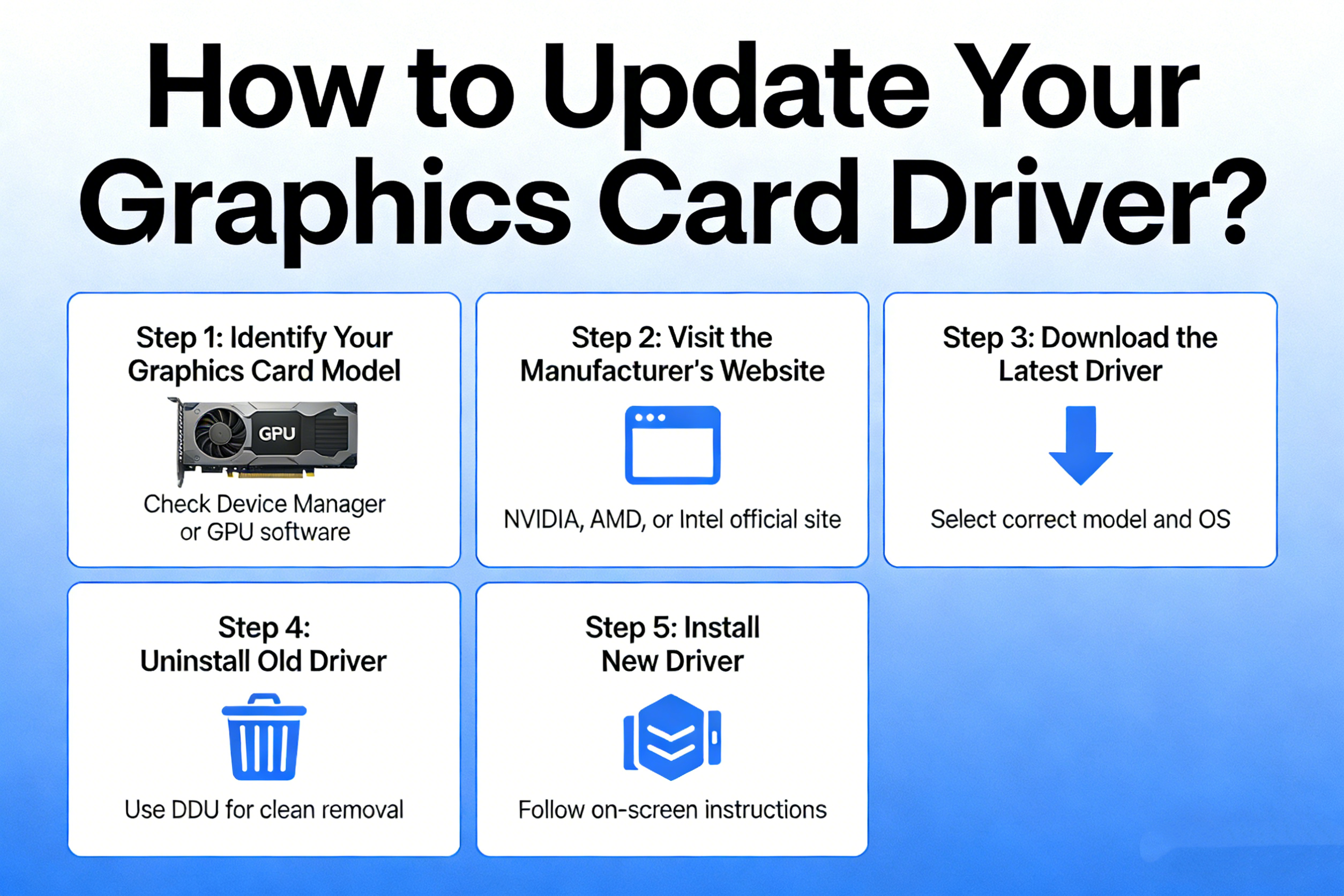
    How to Update Your Graphics Card Driver?

    Brady CottonBy Brady CottonAugust 12, 2026
    Facebook Twitter Pinterest LinkedIn Tumblr Email

    Updating your graphics card driver is a crucial step in keeping your computer running smoothly and ensuring the best performance for gaming, multimedia editing, and other graphically demanding tasks. A driver update can fix bugs, improve stability, and introduce support for the latest features. Here’s a guide on how to update your graphics card driver, whether you’re using a dedicated GPU (Graphics Processing Unit) from NVIDIA, AMD, or Intel.

    Step 1: Identify Your Graphics Card

    Before updating the driver, you need to know which graphics card is installed in your system. This is important because different cards require different drivers. Here’s how to identify your GPU:

    Windows:

    1. Right-click on your desktop and select Display Settings.
    2. Scroll down and click on Advanced Display Settings.
    3. Under Display Information, you’ll see the Display Adapter section. This will tell you which GPU is installed.

    Alternatively, you can use the Device Manager:

    1. Press Windows + X and select Device Manager.
    2. Expand the Display Adapters section, where you’ll see the name of your GPU.

    macOS:

    1. Click the Apple menu in the top-left corner.
    2. Select About This Mac.
    3. Under the Overview tab, you’ll see the details of your graphics card listed next to Graphics.

    Step 2: Choose Your Update Method

    There are several ways to update your graphics card driver: using automatic tools from the GPU manufacturer, using Windows’ built-in update feature, or manually downloading the latest drivers.

    Method 1: Use Manufacturer Software

    The easiest way to keep your drivers up-to-date is to use software provided by the GPU manufacturer. These programs automatically detect your hardware and update the drivers for you.

    For NVIDIA Graphics Cards:
    1. Download and install GeForce Experience from the official NVIDIA website.
    2. Once installed, launch the application.
    3. GeForce Experience will automatically detect your GPU and show available driver updates.
    4. Click Download and follow the on-screen instructions to install the latest driver.
    For AMD Graphics Cards:
    1. Download and install Radeon Software from the official AMD website.
    2. Open the software and it will automatically check for driver updates.
    3. If an update is available, click Update to install the latest version.
    For Intel Graphics Cards:
    1. Download the Intel Driver & Support Assistant from the Intel website.
    2. Run the tool, and it will automatically scan your system for the latest Intel GPU drivers.
    3. If an update is available, follow the prompts to install it.

    Method 2: Use Windows Device Manager

    If you don’t want to install additional software, you can update your graphics driver manually using Windows’ Device Manager:

    1. Press Windows + X and select Device Manager.
    2. Expand the Display Adapters section.
    3. Right-click on your GPU and select Update Driver.
    4. Choose Search automatically for updated driver software.
    5. Windows will search online for the latest driver. If one is found, it will automatically download and install it.

    Method 3: Manually Download Drivers

    You can also manually download the latest drivers from the GPU manufacturer’s website.

    1. Visit the official website for NVIDIA, AMD, or Intel.
    2. Navigate to the Drivers or Support section.
    3. Use the search function to locate the driver for your specific GPU model and operating system.
    4. Download the driver and run the installer.

    For detailed instructions, you can refer to the manufacturer’s guide on their website.

    Step 3: Install the Update

    Once you’ve downloaded the driver update, the installation process is usually straightforward. If you’re using GeForce Experience, Radeon Software, or Intel Driver Assistant, the software will guide you through the process.

    If you’re installing manually, follow these steps:

    1. Double-click the downloaded driver file to begin the installation.
    2. Follow the on-screen instructions, and in most cases, you will need to restart your computer once the installation is complete.

    Step 4: Restart Your Computer

    After the installation, restart your computer to ensure the new driver is applied correctly. This will finalize the update process and activate any new features or optimizations that the driver offers.

    Step 5: Check the Driver Version

    To make sure the driver has been updated successfully, you can check the driver version:

    Windows:

    1. Open Device Manager and expand the Display Adapters section.
    2. Right-click your GPU and select Properties.
    3. Go to the Driver tab to see the driver version.

    macOS:

    1. Click the Apple Menu and select About This Mac.
    2. Click System Report, then Graphics/Displays, where you’ll find the GPU and driver version.

    Conclusion

    Regularly updating your graphics card drivers ensures that your system runs efficiently and that you get the best performance from your games, applications, and multimedia tasks. Whether you use automatic tools from NVIDIA, AMD, or Intel, or manually download the latest drivers, keeping your drivers up-to-date is a simple yet effective way to optimize your PC.

    Share. Facebook Twitter Pinterest LinkedIn Tumblr Email

    Related Posts

    Silvio Fortunato & Paulo Barroso: Beurax, Sonic AI Gold, TAG Markets & The Due Diligence Test

    How to Disable Location Access for Apps on iPhone

    What a Roofing Contractor Finds That Drone Footage and Home Inspection Apps Consistently Miss

    Leave A Reply Cancel Reply

    You must be logged in to post a comment.

    voopoopintch
    oxva nexlim 2
    shopify
    • Popular
    • 3D Printer REVIEW
    • XIAOMI
    September 18, 2026

    OXVA VPRIME 2 vs VPRIME: What’s New in the Latest Version

    July 13, 2026

    OXVA Nexlim 2 Mini Pod Vape Hands on Review

    July 13, 2026

    OXVA Nexlim 2 Pod Vape Hands on Review

    June 21, 2026

    iPlay LUMO 8K Review – A Compact Prefilled Pod Kit with Big Flavor and Everyday Convenience

    December 26, 2025

    ACMER ASCARVA 4S: Precision CNC Power for Makers, DIYers & Small Workshops

    June 23, 2024

    ACMER P2 20W Laser Engraver Fixed Focus Engraving: Hands on Review

    May 30, 2024

    xTool F1 Ultra Review: World’s First 20W Fiber & 20W Diode Laser Engraver

    May 30, 2024

    Anycubic Kobra 3 Combo Review: The Multicolor Masterpiece?

    September 19, 2026

    Xiaomi Adds 8 More Devices to the HyperOS 4 Beta Testing Program

    September 18, 2026

    Xiaomi Mijia Night Light 4 Launches at 69 Yuan With 24GHz Radar and 8-Month Battery Life

    September 18, 2026

    Xiaomi Youpin Launches High-Power Flashlight With 448-Meter Beam and Adjustable Focus

    September 17, 2026

    Xiaomi Mi Air Purifier 6C Launches at 999 Yuan With 99% Formaldehyde Removal Claim

    fc 26 coins
    New Arrivals
    • Rock Me Sheesha Max 200K Disposable Vape Rock Me Sheesha Max 200K Disposable Vape
    • Hyper Bar LX 65K Disposable Vape Hyper Bar LX 65K Disposable Vape
    • Fifty Bar Air 70K Disposable Vape Fifty Bar Air 70K Disposable Vape
    • iJOY XP200K Refillable Disposable Vape Kit iJOY XP200K Refillable Disposable Vape Kit
    • DOVPO Flipside Solo Squonk Box Mod DOVPO Flipside Solo Squonk Box Mod
    • Ploox 30K Disposable Vape Ploox 30K Disposable Vape
    • Mazaya E-Hookah 80K Disposable Vape Mazaya E-Hookah 80K Disposable Vape
    • Mazaya Cloud Aura 50K Disposable Vape Mazaya Cloud Aura 50K Disposable Vape
    • Uwell Caliburn Air R Pod System Kit Uwell Caliburn Air R Pod System Kit
    About
  • Igeekphone.com provides the first global tech news and reviews about smartphone, vapes, e-cigar, smart home, 3D printers, e-bike,tablets, RC drones, VR headset, and other accessories. It's the best platform to improve your brand and product.
  • Contact us: info@igeekphone.com
  • Check Our Privacy Policy Here.
  • Note: *Right now we have US editor and EU editors for review, especially for Amazon US and EU.
  • *Shop and Compare Price Here*
  • Facebook
  • Youtube
  • OUR BEST VAPE PARTNERS
  • VAPE ONLINE STORE
  • VAPORESSO
  • VOOPOO
  • OXVA
  • NEXA
  • MASKKING
  • SP2S
  • IPLAY
  • TODOO
  • OTHER BEST PARTNERS
  • SVBONY
  • Chuwi
  • Blackview
  • Fossibot
  • Unihertz
  • Flsun
  • Anycubic
  • Xtool
  • Oukitel
  • Mukkpet Ebike
  • Ugreen
  • Copyright © 2026 igeekphone

    Type above and press Enter to search. Press Esc to cancel.