










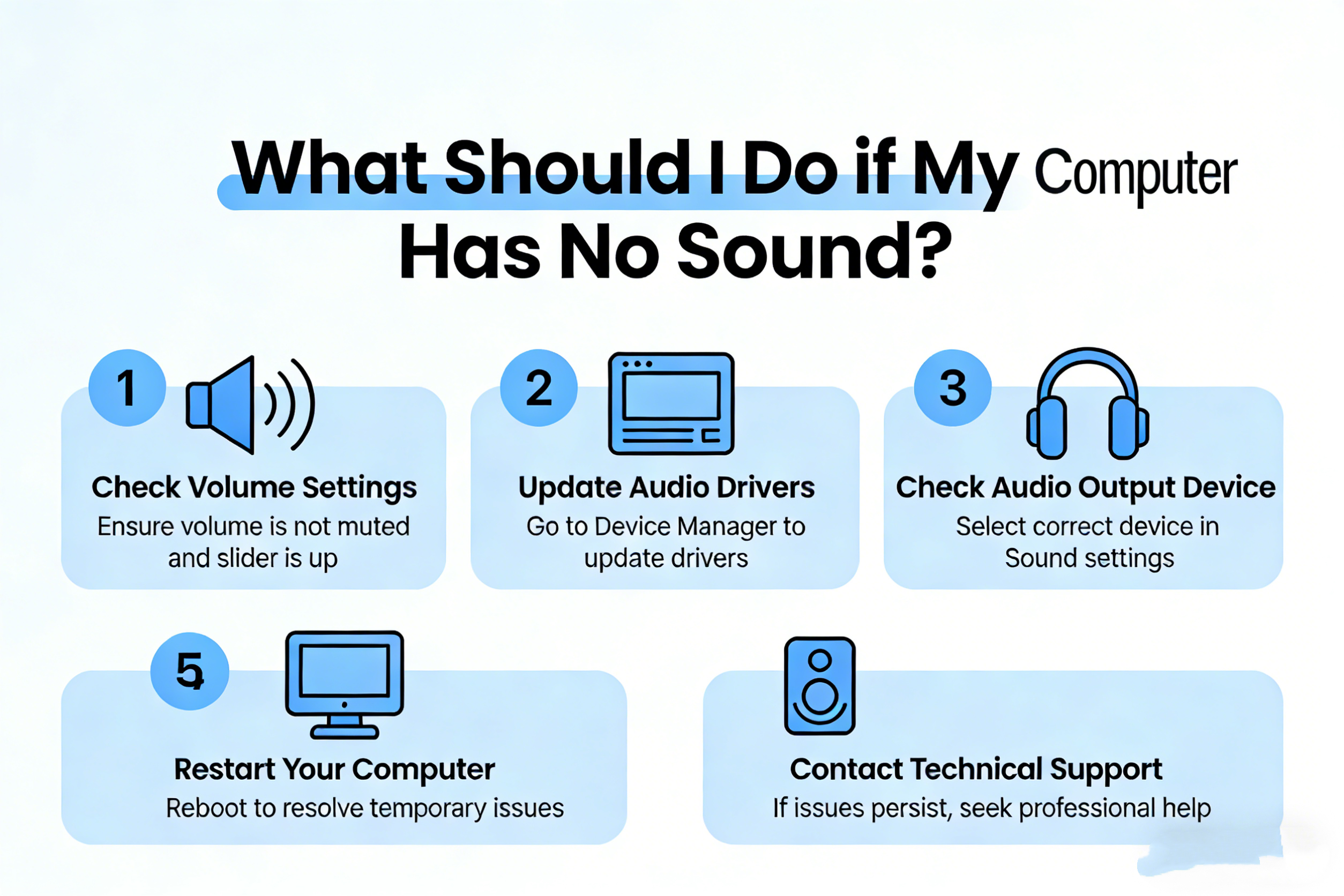
It can be incredibly frustrating when you sit down to enjoy your favorite music, video, or even a Zoom call, only to find that your computer has no sound. Thankfully, in most cases, this issue is easily resolved. Whether you’re using Windows or macOS, here are a few steps you can follow to troubleshoot and restore your audio.
1. Check the Volume and Mute Settings
It might sound simple, but the first thing to check is whether your computer’s volume is muted or turned down too low. This can happen inadvertently, especially if your system has a physical volume knob or dedicated hotkeys on the keyboard.
- For Windows: Click the speaker icon in the bottom right corner of the taskbar. Ensure that the volume slider is up and that the sound isn’t muted.
- For macOS: Click on the speaker icon in the menu bar at the top of the screen. Ensure the volume is up and that it’s not muted.
2. Check Audio Output Settings
If the volume is fine and there is still no sound, check your audio output settings. Sometimes, your computer might be set to output audio to the wrong device, such as an HDMI-connected display or Bluetooth device.
- For Windows: Right-click the speaker icon in the taskbar and select Open Sound settings. Under the Output section, make sure the correct device (like your speakers or headphones) is selected.
- For macOS: Click the Apple logo in the top left corner, select System Preferences, and then Sound. Under the Output tab, make sure the correct audio device is selected.
3. Restart Your Computer
Sometimes, a simple restart can resolve many issues, including sound problems. Restarting your computer allows it to refresh the audio driver and settings, which can often fix sound problems that arise from software glitches.
4. Check the Audio Drivers (Windows)
Outdated or corrupt audio drivers are one of the most common causes of no sound on a Windows PC. To fix this:
- Right-click the Start menu and select Device Manager.
- Expand the Sound, video and game controllers section.
- Right-click your audio device (e.g., Realtek High Definition Audio) and select Update Driver.
- Choose Search automatically for updated driver software and follow the prompts.
If that doesn’t resolve the issue, you can try uninstalling the device and then rebooting your computer to reinstall the driver.
5. Check for Windows Updates (Windows)
Make sure your system is up to date, as some updates include important audio driver fixes. To check for updates:
- Open the Start menu and go to Settings.
- Select Update & Security and then Check for updates.
- Install any pending updates and restart your computer.
6. Reset the PRAM/NVRAM (Mac)
For Mac users, resetting the PRAM (Parameter RAM) or NVRAM (Non-Volatile Random-Access Memory) can fix many audio-related problems.
- Turn off your Mac.
- Turn it back on and immediately press and hold the Option, Command, P, and R keys at the same time.
- Hold the keys for about 20 seconds, then release them. Your Mac will restart.
- Once it reboots, check if the sound is working again.
7. Try External Speakers or Headphones
If you’re using built-in speakers and the sound isn’t working, try plugging in headphones or external speakers. This can help you determine if the issue is with the speakers themselves or with your computer’s audio output.
If the sound works with external speakers or headphones, your computer’s built-in speakers might need to be repaired or replaced.
8. Check the Audio Settings in Applications
If sound works for some applications but not others, the issue might be specific to the application. Check the volume settings within the app (such as in video players, media apps, or web browsers). For instance, YouTube or streaming apps may have their own volume control.
9. Run the Troubleshooter (Windows)
Windows includes a built-in troubleshooter for audio issues that might help detect and fix problems automatically.
- Right-click the speaker icon in the taskbar and select Troubleshoot sound problems.
- Follow the on-screen instructions to diagnose and resolve the issue.
10. Check the Sound Settings for Bluetooth Devices
If you’re using Bluetooth headphones or speakers, make sure they are properly connected to your computer.
- For Windows: Go to Settings > Devices > Bluetooth & other devices. Ensure your Bluetooth device is paired and connected.
- For macOS: Open System Preferences > Bluetooth and check that your Bluetooth device is connected.
11. Verify the Audio Hardware (Advanced)
If none of the above solutions work, there could be an issue with your computer’s audio hardware. This is less common but could occur due to physical damage or hardware failure. If your computer is under warranty, contact the manufacturer for support. Otherwise, you may need to seek help from a professional technician to diagnose any hardware issues.
Conclusion
No sound on your computer can be an annoying issue, but with the right troubleshooting steps, it’s usually a quick fix. Start by checking basic things like volume and output settings, then move on to more advanced solutions such as updating drivers or resetting hardware settings. If all else fails, seeking professional help for hardware issues may be necessary. With these steps, you can get your sound back in no time and enjoy all your media without interruption!