







Facebook Twitter Instagram
    Trending
    • What Amount of e-Liquid is Lethal to a Human?
    • VOOPOO’s ARGUS G4 & ARGUS G4 mini: One Cartridge, Triple Vibes
    • What to do if the flashlight on my vivo phone doesn’t work? Suggestions for repairing the flash malfunction.
    • Rendering images of the Samsung Galaxy S26 FE phone have been Released, and it is expected to be launched in October
    • Honor WIN Turbo is equipped with a 10,000mAh super-large battery: it can run games continuously for 14 hours without interruption.
    • Huawei Nova 16 series of mobile phones have been showcased on the official website
    • The Flagship Tablet Huawei MatePad Pro Max has been Officially Announced
    • RH-BM11 Tuya WiFi Baby Monitor Review: Smart Monitoring for Modern Parents
    Facebook YouTube
    IGeeKphone China Phone, Tablet PC, VR, RC Drone News, Reviews
    • HOME
      • NEWS
        • DeepSeek
        • ChatGPT
        • Minecraft
    • Amazon
    • PHONE
      • Top Phones For Your First Choice
      • Phone Comparison
      • Xiaomi
      • Blackview
      • Doogee
      • Black Shark
      • Geekbuying
      • Banggood
      • TEMU
      • TikTok
      • Aliexpress
      • Walmart
      • MercadoLibre
      • Lazada
    • TOP VAPE Awards for 2026
    • VAPES
      • E-CIGAR Upcoming
      • Vape News
      • Vape Deals
      • Vape Comparison
      • Vape Guide
      • Giveaway
    • BEST VAPE
      • Best Vape Stores
      • Best Starter Vape Kits
      • Best Vapes for Beginners
      • Best Disposable Vapes
      • Best Pod Systems
      • Best Pod Mod Vapes
      • Best Mods
      • Best Nicotine Pouches
      • Best Clearomizers/Tanks
      • Best E-Liquid
      • Best EGO/Pens
      • Best Vapes for Nic Salt E-Juice
      • Best Vapes to Quit Smoking
      • RDA vs. RDTA vs. RTA
    • Best Vape Brand 2026
      • VAPORESSO
      • VOOPOO
      • OXVA
      • NEXA BAR
      • MASKKING VAPE
      • SP2S
      • IPLAY
      • TODOO
      • MRFOG
      • LOSTVAPE
      • VEIIK
    • REVIEW
      • E-cigar Review
      • Phones
      • Tablet PC
      • TV Box
      • RC Drone
      • Wearables
      • Camera
      • Accessories
      • VR Headset
    • MORE
      • TABLET
        • Chuwi
        • INNOCN
        • Teclast
        • Top Tablet for Your First Choice
        • Tablet/Laptop Comparison
      • RC DRONE
      • CAMERA
      • WEARABLES
        • OneOdio
        • BlitzWolf
        • Top Smartwatch for First Choice
      • 3D PRINTER
        • 3D Printer Review
        • Anycubic
        • FLSUN
        • Xtool
        • LONGER
        • Top 3D printer to Choose First
      • POWER STATION
        • Oukitel
        • FOSSIBOT
      • GAMING
        • Top Gaming Products
      • E-BIKE
        • Samebike
        • Happyrun
        • ENGWE
      • SMART HOME
      • TV BOX
      • ACCESSORIES
      • VR HEADSET
      • CLOTHES
      • AUTO CAR
    • DEAL
    • VAPE LAWS
    • Shop
    IGeeKphone China Phone, Tablet PC, VR, RC Drone News, Reviews
    You are at:Home»Guide»What Should I Do if My Computer has No Sound?
    Guide

    What Should I Do if My Computer has No Sound?

    Brady CottonBy Brady CottonApril 8, 2026
    Facebook Twitter Pinterest LinkedIn Tumblr Email

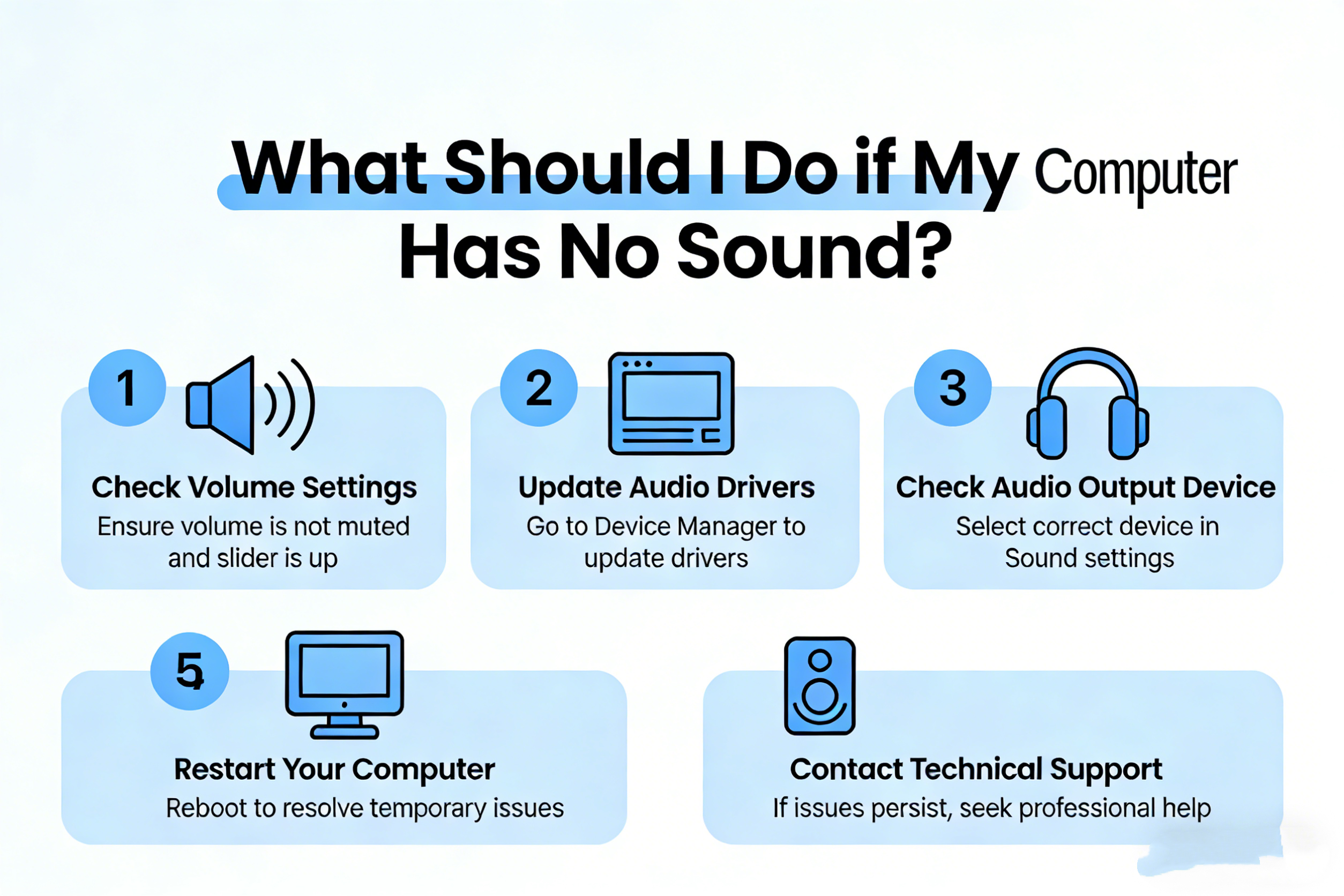
    It can be incredibly frustrating when you sit down to enjoy your favorite music, video, or even a Zoom call, only to find that your computer has no sound. Thankfully, in most cases, this issue is easily resolved. Whether you’re using Windows or macOS, here are a few steps you can follow to troubleshoot and restore your audio.

    1. Check the Volume and Mute Settings

    It might sound simple, but the first thing to check is whether your computer’s volume is muted or turned down too low. This can happen inadvertently, especially if your system has a physical volume knob or dedicated hotkeys on the keyboard.

    • For Windows: Click the speaker icon in the bottom right corner of the taskbar. Ensure that the volume slider is up and that the sound isn’t muted.
    • For macOS: Click on the speaker icon in the menu bar at the top of the screen. Ensure the volume is up and that it’s not muted.

    2. Check Audio Output Settings

    If the volume is fine and there is still no sound, check your audio output settings. Sometimes, your computer might be set to output audio to the wrong device, such as an HDMI-connected display or Bluetooth device.

    • For Windows: Right-click the speaker icon in the taskbar and select Open Sound settings. Under the Output section, make sure the correct device (like your speakers or headphones) is selected.
    • For macOS: Click the Apple logo in the top left corner, select System Preferences, and then Sound. Under the Output tab, make sure the correct audio device is selected.

    3. Restart Your Computer

    Sometimes, a simple restart can resolve many issues, including sound problems. Restarting your computer allows it to refresh the audio driver and settings, which can often fix sound problems that arise from software glitches.

    4. Check the Audio Drivers (Windows)

    Outdated or corrupt audio drivers are one of the most common causes of no sound on a Windows PC. To fix this:

    1. Right-click the Start menu and select Device Manager.
    2. Expand the Sound, video and game controllers section.
    3. Right-click your audio device (e.g., Realtek High Definition Audio) and select Update Driver.
    4. Choose Search automatically for updated driver software and follow the prompts.

    If that doesn’t resolve the issue, you can try uninstalling the device and then rebooting your computer to reinstall the driver.

    5. Check for Windows Updates (Windows)

    Make sure your system is up to date, as some updates include important audio driver fixes. To check for updates:

    1. Open the Start menu and go to Settings.
    2. Select Update & Security and then Check for updates.
    3. Install any pending updates and restart your computer.

    6. Reset the PRAM/NVRAM (Mac)

    For Mac users, resetting the PRAM (Parameter RAM) or NVRAM (Non-Volatile Random-Access Memory) can fix many audio-related problems.

    1. Turn off your Mac.
    2. Turn it back on and immediately press and hold the Option, Command, P, and R keys at the same time.
    3. Hold the keys for about 20 seconds, then release them. Your Mac will restart.
    4. Once it reboots, check if the sound is working again.

    7. Try External Speakers or Headphones

    If you’re using built-in speakers and the sound isn’t working, try plugging in headphones or external speakers. This can help you determine if the issue is with the speakers themselves or with your computer’s audio output.

    If the sound works with external speakers or headphones, your computer’s built-in speakers might need to be repaired or replaced.

    8. Check the Audio Settings in Applications

    If sound works for some applications but not others, the issue might be specific to the application. Check the volume settings within the app (such as in video players, media apps, or web browsers). For instance, YouTube or streaming apps may have their own volume control.

    9. Run the Troubleshooter (Windows)

    Windows includes a built-in troubleshooter for audio issues that might help detect and fix problems automatically.

    1. Right-click the speaker icon in the taskbar and select Troubleshoot sound problems.
    2. Follow the on-screen instructions to diagnose and resolve the issue.

    10. Check the Sound Settings for Bluetooth Devices

    If you’re using Bluetooth headphones or speakers, make sure they are properly connected to your computer.

    • For Windows: Go to Settings > Devices > Bluetooth & other devices. Ensure your Bluetooth device is paired and connected.
    • For macOS: Open System Preferences > Bluetooth and check that your Bluetooth device is connected.

    11. Verify the Audio Hardware (Advanced)

    If none of the above solutions work, there could be an issue with your computer’s audio hardware. This is less common but could occur due to physical damage or hardware failure. If your computer is under warranty, contact the manufacturer for support. Otherwise, you may need to seek help from a professional technician to diagnose any hardware issues.

    Conclusion

    No sound on your computer can be an annoying issue, but with the right troubleshooting steps, it’s usually a quick fix. Start by checking basic things like volume and output settings, then move on to more advanced solutions such as updating drivers or resetting hardware settings. If all else fails, seeking professional help for hardware issues may be necessary. With these steps, you can get your sound back in no time and enjoy all your media without interruption!

    Share. Facebook Twitter Pinterest LinkedIn Tumblr Email

    Related Posts

    What to do if the flashlight on my vivo phone doesn’t work? Suggestions for repairing the flash malfunction.

    List The Best Employee Monitoring Software of 2025

    Why does the newly bought computer become more and more sluggish the more it is used?

    Leave A Reply Cancel Reply

    You must be logged in to post a comment.

    voopoo G4 Mini
    oxva xlim 3 ultra
    sp2s sen x disposable vape
    • Popular
    • 3D Printer REVIEW
    • XIAOMI
    May 17, 2026

    iPlay Nova 45K Review – High Puff Performance with a Futuristic Twist

    May 17, 2026

    Vaporesso XROS 6 & XROS 6 Mini Review – The Evolution of Portable Vaping

    May 7, 2026

    OXVA Xlim Go Lite Review: Compact, Powerful, and Beginner-Friendly

    April 18, 2026

    VOOPOO DRAG 6 Hands on Review: Vape Beast with Smart Power & Premium Control

    December 26, 2025

    ACMER ASCARVA 4S: Precision CNC Power for Makers, DIYers & Small Workshops

    June 23, 2024

    ACMER P2 20W Laser Engraver Fixed Focus Engraving: Hands on Review

    May 30, 2024

    xTool F1 Ultra Review: World’s First 20W Fiber & 20W Diode Laser Engraver

    May 30, 2024

    Anycubic Kobra 3 Combo Review: The Multicolor Masterpiece?

    May 23, 2026

    Xiaomi Speaker Pro 50W Speaker Review: Available on Banggood

    May 21, 2026

    Xiaomi 17 Max Smartphone Released: 8000mAh battery, 20-megapixel Leica main camera

    May 20, 2026

    The Benchmark scores of Xiaomi 17 Max phone have been revealed: Qualcomm’s 5th-Generation Snapdragon 8 Supreme Edition Chip

    May 19, 2026

    Xiaomi 17 Max smartphone is the first to feature a 8000mAh Jinshajiang battery. The official long video endurance test shows that it can last for over 33 hours.

    fc 26 coins
    New Arrivals
    • Vaporock X1 Pod System Kit Vaporock X1 Pod System Kit
    • Aspire Cyber G Slim Aspire Cyber G Slim
    • Aspire Loomix Pod Vape Kit Aspire Loomix Pod Vape Kit
    • Geek Bar Pulse X 2 50K Disposable Geek Bar Pulse X 2 50K Disposable
    • VOOPOO Drag H40 Pro VOOPOO Drag H40 Pro
    • DOOGEE Tab E3 Max Tablet PC DOOGEE Tab E3 Max Tablet PC
    • DOOGEE V Max 2 Pro Rugged Phone DOOGEE V Max 2 Pro Rugged Phone
    • Realme P5 Pro Realme P5 Pro
    • Innokin Coolfire Z Air Pod Mod Kit Innokin Coolfire Z Air Pod Mod Kit
    About
  • Igeekphone.com provides the first global tech news and reviews about smartphone, vapes, e-cigar, smart home, 3D printers, e-bike,tablets, RC drones, VR headset, and other accessories. It's the best platform to improve your brand and product.
  • Contact us: info@igeekphone.com
  • Check Our Privacy Policy Here.
  • Note: *Right now we have US editor and EU editors for review, especially for Amazon US and EU.
  • *Shop and Compare Price Here*
  • Facebook
  • Youtube
  • OUR BEST VAPE PARTNERS
  • VAPE ONLINE STORE
  • HAYATI PRO MAX PLUS
  • VAPORESSO
  • VOOPOO
  • OXVA
  • NEXA
  • MASKKING
  • SP2S
  • IPLAY
  • TODOO
  • OTHER BEST PARTNERS
  • SVBONY
  • Chuwi
  • Blackview
  • Fossibot
  • Unihertz
  • Flsun
  • Anycubic
  • Xtool
  • Oukitel
  • Mukkpet Ebike
  • Ugreen
  • Copyright © 2026 igeekphone

    Type above and press Enter to search. Press Esc to cancel.