










In today’s fast-paced digital world, managing your computer’s energy consumption and ensuring it operates efficiently is more important than ever. Whether you’re trying to conserve power, automate tasks, or simply don’t want to leave your computer running all night, there are multiple ways to set your computer to shut down automatically. In 2026, technology has evolved, offering a variety of tools and methods to make this process easier and more flexible than ever before.
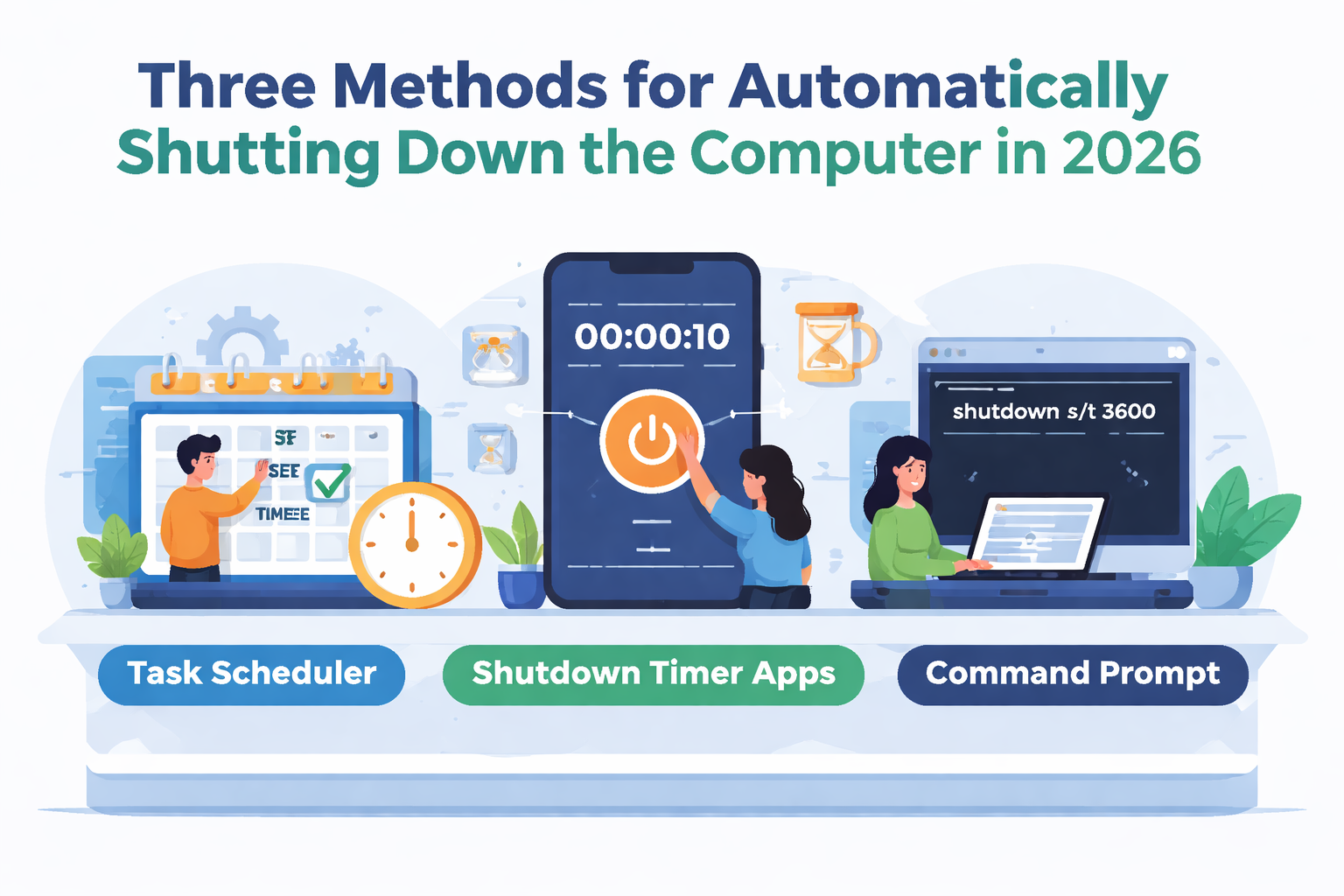
Here are three effective methods to automatically shut down your computer, tailored to suit various user needs:
1. Using Built-in Operating System Features (Windows, macOS, Linux)
Windows:
Windows has a built-in task scheduling tool called Task Scheduler that allows you to set a specific time for your computer to shut down. Here’s how to use it:
- Step 1: Open the Task Scheduler by typing “Task Scheduler” in the Start menu search bar and clicking on the application.
- Step 2: In the Task Scheduler window, click on Create Basic Task in the right-hand panel.
- Step 3: Give the task a name, such as “Auto Shutdown,” and choose Daily, Weekly, or any preferred trigger for shutting down.
- Step 4: In the Action section, select Start a Program and browse to shutdown.exe (located in
C:\Windows\System32\shutdown.exe). - Step 5: Add /s /f in the Add arguments box to force the shutdown and close any running applications.
- Step 6: Set the start time and complete the task creation.
Your Windows PC will now automatically shut down at the scheduled time.
macOS:
macOS offers a built-in Energy Saver feature that lets you schedule shutdown times:
- Step 1: Go to System Preferences and click on Energy Saver.
- Step 2: In the Schedule section, select Shut Down and choose a time for the automatic shutdown.
- Step 3: Apply the changes, and your Mac will shut down on the scheduled day and time.
This is a simple method for Mac users who want to schedule their system’s shutdown without installing third-party apps.
Linux:
Linux systems also offer several ways to schedule shutdowns using terminal commands. One of the easiest methods is using the cron job scheduler:
- Step 1: Open a terminal window.
- Step 2: Type
crontab -eto open the cron configuration file. -
Step 3: To shut down the computer at a specific time, add a line like:
30 22 * * * /sbin/shutdown -h now
This command will shut down the system at 10:30 PM every day. Modify the time and command as needed.
2. Using Third-Party Software Applications
While operating systems provide built-in tools for scheduling shutdowns, third-party applications offer additional features and a more user-friendly interface for those who prefer a simplified method. In 2026, some popular tools include:
Shutdown Timer:
Shutdown Timer is a lightweight third-party app that allows users to set precise shutdown, restart, or log-off schedules. It’s an easy-to-use tool that works across most Windows versions.
- Step 1: Download and install Shutdown Timer from a reliable source.
- Step 2: Open the app and select Shutdown under the “Action” drop-down menu.
- Step 3: Set the time you want the computer to shut down and customize any additional actions (like restarting or hibernating).
- Step 4: Save the settings, and the application will automatically shut down your PC at the scheduled time.
This method is perfect for users who want an intuitive interface with more control over how their computer shuts down.
MacKeeper (For macOS):
MacKeeper is another useful tool for macOS users, providing a variety of system management features, including scheduled shutdowns. After installing MacKeeper, you can schedule automatic shutdowns, clean-ups, and even backups.
- Step 1: Install MacKeeper from the official website.
- Step 2: Open MacKeeper and navigate to Shut Down Scheduler.
- Step 3: Set the time for the shutdown and apply the changes.
This approach is useful for users who prefer an all-in-one utility to manage their Mac’s performance and shutdown schedule.
3. Using Voice Assistants and Smart Home Automation
In 2026, AI-powered voice assistants like Amazon Alexa, Google Assistant, and Apple Siri can play a role in managing your computer’s power settings. If you have your computer connected to a smart home automation system, you can set voice-controlled commands to shut it down.
Amazon Alexa:
With Alexa Routines, you can schedule your PC’s shutdown if your computer is connected to a smart plug or has Alexa compatibility.
- Step 1: Open the Alexa app and create a new Routine.
- Step 2: Set the trigger (e.g., “At 9 PM every day”) and the action to Turn off the PC via the smart plug or compatible Alexa device.
Google Assistant:
Google Assistant users can integrate their PC with smart plugs that are compatible with the Google Home app. Using simple voice commands or routines, you can schedule your PC to shut down.
- Step 1: Ensure your computer is plugged into a smart plug and connected to Google Home.
- Step 2: Use the Google Home app to set a routine that turns off the smart plug at the designated time.
Apple HomeKit (For macOS):
Apple users with HomeKit-enabled smart devices can integrate shutdown routines for their Macs, leveraging Siri commands or the Home app for automation.
- Step 1: Set up your Mac with HomeKit compatible devices.
- Step 2: Use Siri or the Home app to set a scheduled shutdown routine.
This method offers convenience, especially for smart home enthusiasts who want voice-activated control over their tech.
Conclusion
Automatically shutting down your computer can save energy, improve security, and extend the life of your device. In 2026, you have several methods at your disposal to automate this process:
- Built-in Operating System Tools: Windows, macOS, and Linux all offer native options for scheduling shutdowns.
- Third-Party Software: Apps like Shutdown Timer for Windows and MacKeeper for macOS provide enhanced control and ease of use.
- Voice Assistants & Smart Home Automation: For those with smart home setups, using voice assistants like Amazon Alexa or Google Assistant provides an effortless way to schedule shutdowns.
Whether you’re looking for a simple solution or something more integrated into your smart home ecosystem, these methods offer flexibility and control over your system’s power management.