










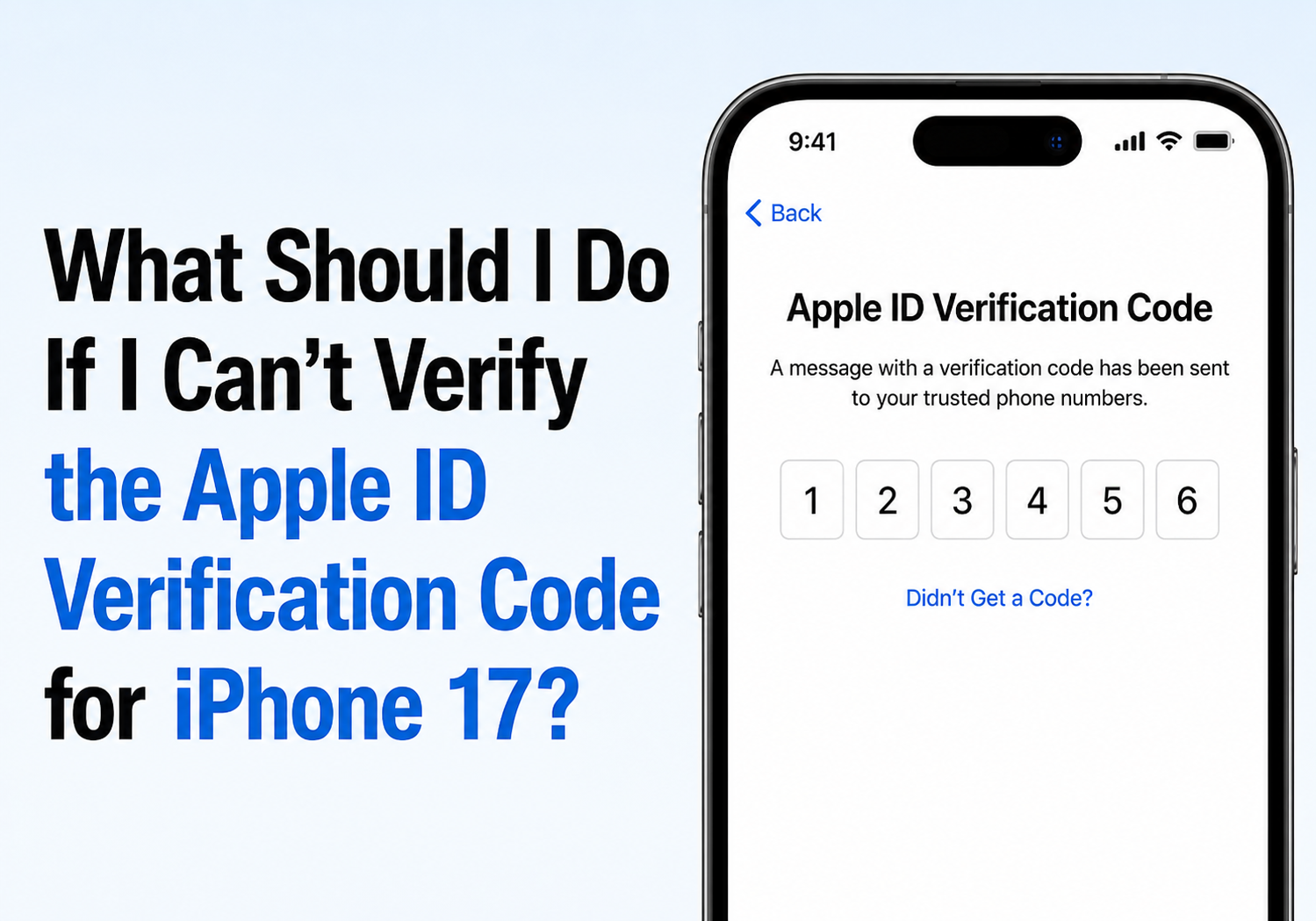
Apple’s two-factor authentication (2FA) system is designed to keep your Apple Account secure, but it can also become frustrating when you’re unable to receive or verify the six-digit verification code required to sign in. If you’ve recently purchased an iPhone 17, restored your device, changed phone numbers, or are setting up your Apple Account on a new device, verification issues can temporarily prevent access to iCloud, the App Store, Apple Music, and other Apple services.
Fortunately, most Apple ID verification problems can be resolved with a few troubleshooting steps.
Why Apple ID Verification Fails
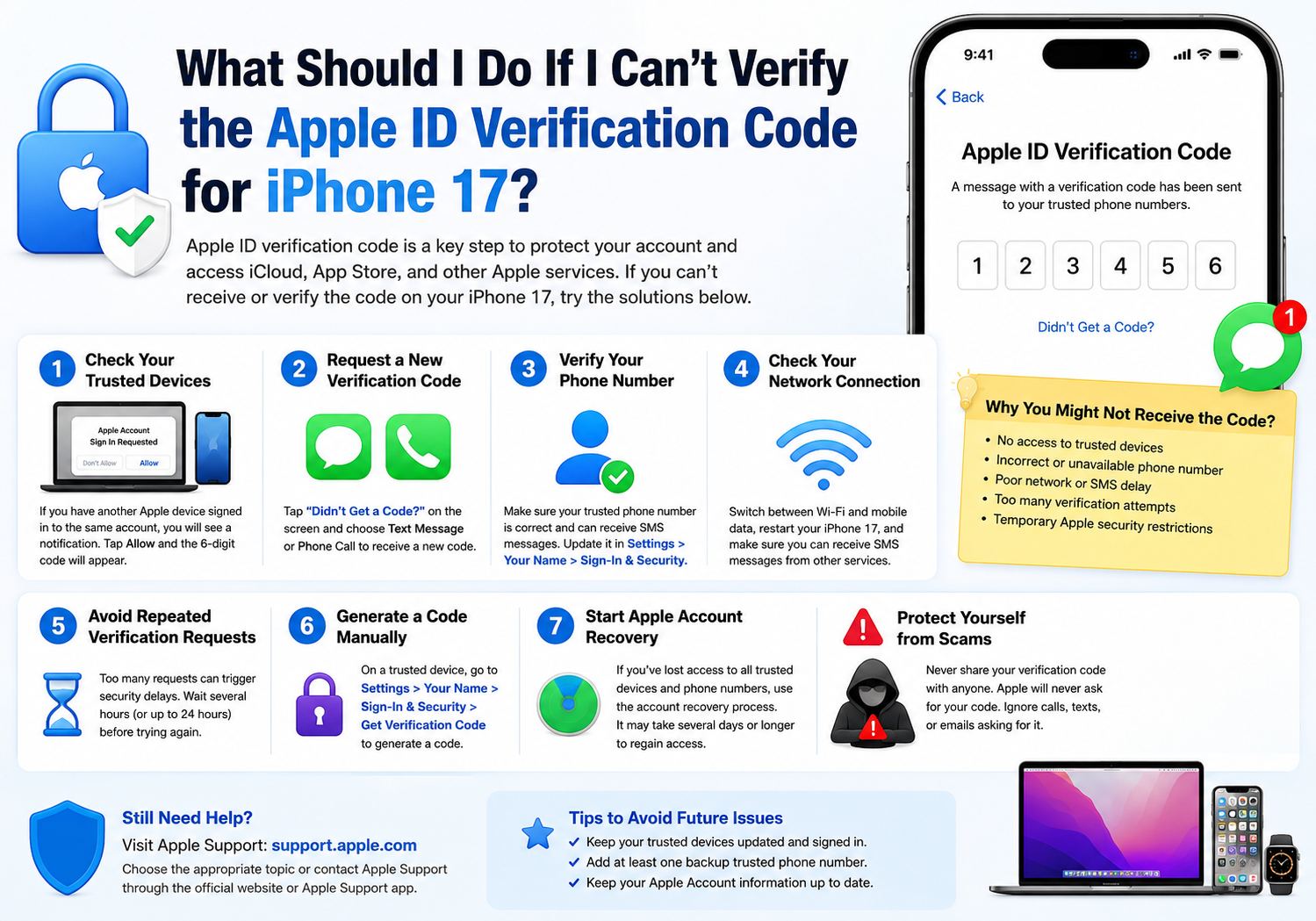
Apple requires a verification code whenever you sign in to your Apple Account on a new device, browser, or after certain security-related changes. The code is typically sent to a trusted Apple device or a trusted phone number associated with your account. If the code cannot be delivered or verified, common causes include:
- No access to trusted devices
- Incorrect trusted phone number
- Poor network connectivity
- Delayed SMS delivery
- Outdated Apple Account information
- Too many verification attempts
- Temporary Apple security restrictions
Apple’s two-factor authentication system relies on trusted devices and trusted phone numbers to verify your identity. If either is unavailable, additional account recovery steps may be required.
1. Check Your Trusted Devices
If you already own another Apple device signed in to the same Apple Account, such as an iPad, Mac, or older iPhone, Apple may automatically display the verification code there.
Look for a notification that says:
“Apple Account Sign In Requested”
Tap Allow, and the six-digit verification code should appear on the trusted device. Apple states that trusted devices are the primary method for receiving verification codes.
2. Request a New Verification Code
If no code appears automatically:
- On the verification screen, tap Didn’t Get a Code?
- Select Text Message or Phone Call.
- Wait for the new code to arrive.
- Enter the code immediately.
Apple officially supports receiving verification codes through SMS or automated phone calls sent to trusted phone numbers.
3. Verify Your Phone Number
Many verification failures occur because the trusted phone number is outdated or inaccessible.
Ask yourself:
- Is this still the number linked to my Apple Account?
- Can this number receive SMS messages?
- Has the number recently changed?
- Is roaming enabled if I’m traveling?
Apple recommends maintaining at least one additional trusted phone number whenever possible to avoid lockouts.
4. Check Your Network Connection
Verification codes may not arrive if your device has connectivity problems.
Try the following:
- Switch between Wi-Fi and mobile data.
- Turn Airplane Mode on and off.
- Restart your iPhone 17.
- Ensure your SIM card is active.
- Confirm that SMS messages from other services are arriving normally.
Poor connectivity is one of the most common reasons verification codes fail to arrive on time.
5. Avoid Repeated Verification Requests
Many users repeatedly tap “Send Code” when a message doesn’t arrive immediately. This can sometimes trigger temporary security delays.
If you’ve requested multiple codes within a short period:
- Stop requesting new codes.
- Wait several hours or up to 24 hours.
- Try again later.
Community reports indicate that Apple’s security systems may temporarily limit verification requests after repeated attempts.
6. Generate a Verification Code Manually
If you still have access to another trusted Apple device, you can manually generate a verification code.
On iPhone or iPad:
- Open Settings.
- Tap your name.
- Select Sign-In & Security.
- Tap Get Verification Code.
This generates a fresh code directly from your trusted device. Apple includes this option specifically for situations where automatic delivery fails.
7. Start Apple Account Recovery
If you’ve lost access to all trusted devices and trusted phone numbers, account recovery may be your only option.
To begin:
- Attempt to sign in.
- Select Didn’t Get a Code?
- Choose Can’t use this phone number.
- Follow Apple’s account recovery instructions.
Apple notes that account recovery can take several days or longer depending on the information available to verify your identity. Apple Support cannot bypass or accelerate this process.
Protect Yourself from Verification Code Scams
If you receive an unexpected verification code, do not share it with anyone.
Apple warns that scammers frequently impersonate Apple Support and attempt to convince users to reveal their six-digit verification codes. Apple employees will never ask for your verification code over the phone, email, or text message.
If someone contacts you claiming to be Apple Support and requests your verification code, assume it is a scam and contact Apple directly through official channels.
Final Thoughts
Most Apple ID verification problems on the iPhone 17 can be resolved by checking trusted devices, confirming your trusted phone number, requesting a new code, or manually generating a verification code from another Apple device. If you’ve lost access to all verification methods, Apple’s account recovery process remains the safest way to regain access.
To avoid future verification issues, keep multiple trusted devices connected to your Apple Account and maintain at least one backup trusted phone number. These simple precautions can save significant time and frustration when signing in to a new iPhone or recovering your account.