









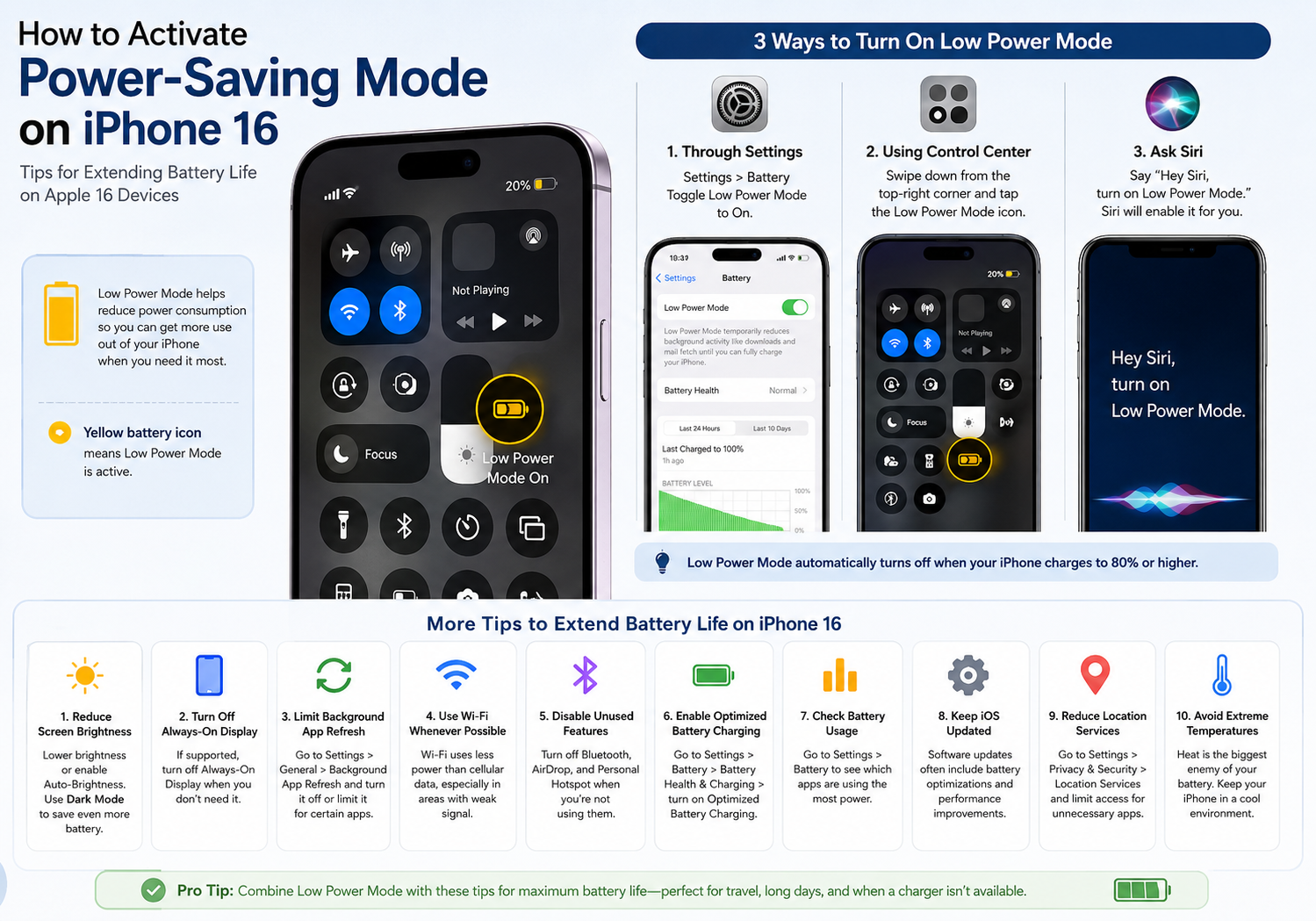
Battery life is one of the most important factors for smartphone users, especially when you’re traveling, working remotely, or spending long hours away from a charger. While the iPhone 16 lineup offers excellent battery performance thanks to Apple’s latest A-series chip and iOS optimizations, enabling Low Power Mode can significantly extend usage time when your battery starts running low.
In this guide, we’ll explain how to activate Low Power Mode on your iPhone 16 and share practical tips to maximize battery life throughout the day.
What Is Low Power Mode?
Low Power Mode is a built-in iOS feature designed to reduce power consumption by temporarily disabling or limiting certain background activities.
When enabled, your iPhone automatically makes several adjustments, including:
- Reducing background app refresh
- Lowering automatic downloads
- Limiting some visual effects
- Reducing screen refresh rate where applicable
- Delaying certain iCloud syncing tasks
- Optimizing system performance for better battery efficiency
You’ll know Low Power Mode is active when the battery icon turns yellow.
How to Turn On Low Power Mode on iPhone 16
Activating Low Power Mode only takes a few seconds.
Method 1: Through Settings
- Open Settings.
- Tap Battery.
- Toggle Low Power Mode to On.
Once activated, the battery indicator in the status bar will change from green to yellow.
Method 2: Using Control Center
For faster access:
- Open Control Center by swiping down from the top-right corner of the screen.
- Tap the Low Power Mode icon (if it has been added).
If you don’t see the icon:
- Go to Settings > Control Center.
- Add Low Power Mode to your controls.
This allows you to enable or disable the feature with a single tap.
Method 3: Ask Siri
You can also activate Low Power Mode hands-free by saying:
- “Hey Siri, turn on Low Power Mode.”
Siri will enable the feature immediately.
When Does Low Power Mode Turn Off?
Low Power Mode automatically turns off once your iPhone charges to 80% battery or higher.
You can also disable it manually at any time through Settings or Control Center.
Additional Ways to Extend Battery Life on iPhone 16
While Low Power Mode is highly effective, combining it with a few simple habits can help your iPhone last even longer.
1. Reduce Screen Brightness
The display is one of the largest power consumers.
To save battery:
- Lower brightness manually.
- Enable Auto-Brightness in Accessibility settings.
- Use Dark Mode, especially on OLED-equipped iPhone 16 models.
2. Turn Off Always-On Display (Supported Models)
If your iPhone 16 model supports Always-On Display, disabling it can help reduce battery drain.
Go to:
Settings > Display & Brightness > Always On Display
Toggle it off when battery life is a priority.
3. Limit Background App Refresh
Many apps continue updating even when you’re not using them.
To reduce background activity:
- Open Settings.
- Tap General.
- Select Background App Refresh.
- Turn it off completely or disable it for selected apps.
4. Use Wi-Fi Whenever Possible
Wi-Fi generally consumes less power than mobile data, especially in areas with weak cellular reception.
Whenever available, connect to a stable Wi-Fi network instead of relying on 5G.
5. Disable Unused Wireless Features
Turn off features you’re not actively using, including:
- Bluetooth
- AirDrop
- Personal Hotspot
These can all consume power when left enabled.
6. Enable Optimized Battery Charging
Apple includes a feature that helps reduce battery aging by learning your charging habits.
To enable it:
- Open Settings.
- Tap Battery.
- Select Battery Health & Charging.
- Turn on Optimized Battery Charging.
This helps preserve long-term battery health.
7. Check Battery Usage
To identify battery-hungry apps:
- Open Settings.
- Tap Battery.
- Scroll down to view battery usage by app.
If an app consumes unusually high power, consider limiting its background activity or updating it.
8. Keep iOS Updated
Apple regularly releases software updates that include battery optimizations and performance improvements.
Go to:
Settings > General > Software Update
Install the latest version whenever available.
9. Reduce Location Services
Some apps constantly access your location.
To adjust permissions:
- Open Settings.
- Tap Privacy & Security.
- Select Location Services.
- Set unnecessary apps to While Using the App or Never.
10. Avoid Extreme Temperatures
Lithium-ion batteries perform best between 16°C and 22°C (62°F–72°F).
Avoid exposing your iPhone to:
- Direct sunlight
- Hot vehicles
- Freezing temperatures
Extreme heat is particularly harmful to long-term battery health.
Is Low Power Mode Safe to Use All the Time?
Yes. Low Power Mode is completely safe and is designed by Apple to reduce power consumption without harming your device.
However, because it limits certain background functions and performance, most users only enable it when battery life becomes a concern or when they know they won’t have access to a charger for an extended period.
Final Thoughts
iPhone 16 series already delivers impressive battery efficiency, but Low Power Mode remains one of the easiest and most effective ways to extend battery life during busy days or while traveling. By combining this feature with smart charging habits, reduced background activity, and optimized display settings, you can enjoy significantly longer usage without sacrificing the overall user experience.
Whether you’re streaming videos, navigating with Maps, taking photos, or working on the go, these simple battery-saving techniques will help ensure your iPhone 16 keeps going when you need it most.