






Facebook Twitter Instagram
    Trending
    • Germany plans to significantly increase tobacco taxes, and the price of cigarettes may approach 12 euros per pack by 2030.
    • How to Clear System Trash on iPhone 17 Pro: A Complete Guide to Free Up Storage
    • Full specifications of Samsung Z Fold8 Ultra are revealed. Release date: July 22nd.
    • Huawei Pura 100 series: Dual-sized straight screen + double-layer OLED. Expected to be released next year?
    • The Mac version of ChatGPT has been exposed for unauthorized access to local files, raising concerns about user data leakage.
    • Xiaomi Mijia Dust Removal Device 3 Pro is now available: 72,000 high-frequency sweeps, effortlessly removing all the dust at 499 yuan
    • Xiaomi has released the model of the robot base: Xiaomi-Robotics-1
    • Honor Robot Phone is Ready. The world’s first dual-color robot phone is unveiled.
    Facebook YouTube
    IGeeKphone China Phone, Tablet PC, VR, RC Drone News, Reviews
    • HOME
    • BREAKING NEWS
      • AI NEWS
    • Amazon
    • PHONE
      • Top Phones For Your First Choice
      • Phone Comparison
      • Xiaomi
      • Blackview
      • Doogee
      • Black Shark
      • Geekbuying
      • Banggood
      • TEMU
      • TikTok
      • Aliexpress
      • Walmart
      • MercadoLibre
      • Lazada
    • TOP VAPE Awards for 2026
    • VAPES
      • E-CIGAR Upcoming
      • Vape News
      • Vape Deals
      • Vape Comparison
      • Vape Guide
      • VAPE LAWS
      • Giveaway
    • BEST VAPE
      • Best Vape Stores
      • Best Starter Vape Kits
      • Best Vapes for Beginners
      • Best Disposable Vapes
      • Best Pod Systems
      • Best Pod Mod Vapes
      • Best Mods
      • Best Nicotine Pouches
      • Best Clearomizers/Tanks
      • Best E-Liquid
      • Best EGO/Pens
      • Best Vapes for Nic Salt E-Juice
      • Best Vapes to Quit Smoking
      • RDA vs. RDTA vs. RTA
    • Best Vape Brand 2026
      • VAPORESSO
      • VOOPOO
      • OXVA
      • NEXA BAR
      • MASKKING VAPE
      • SP2S
      • IPLAY
      • TODOO
      • MRFOG
      • LOSTVAPE
      • VEIIK
    • REVIEW
      • E-cigar Review
      • Phones
      • Tablet PC
      • TV Box
      • RC Drone
      • Wearables
      • Camera
      • Accessories
      • VR Headset
    • MORE
      • TABLET
        • Chuwi
        • INNOCN
        • Teclast
        • Top Tablet for Your First Choice
        • Tablet/Laptop Comparison
      • RC DRONE
      • CAMERA
      • WEARABLES
        • OneOdio
        • BlitzWolf
        • Top Smartwatch for First Choice
      • 3D PRINTER
        • 3D Printer Review
        • Anycubic
        • FLSUN
        • Xtool
        • LONGER
        • Top 3D printer to Choose First
      • POWER STATION
        • Oukitel
        • FOSSIBOT
      • GAMING
        • Top Gaming Products
      • E-BIKE
        • Samebike
        • Happyrun
        • ENGWE
      • SMART HOME
      • TV BOX
      • ACCESSORIES
      • VR HEADSET
      • CLOTHES
      • AUTO CAR
    • DEAL
    • Shop
    IGeeKphone China Phone, Tablet PC, VR, RC Drone News, Reviews
    You are at:Home»Guide»How to Clear System Trash on iPhone 17 Pro: A Complete Guide to Free Up Storage
    Guide

    How to Clear System Trash on iPhone 17 Pro: A Complete Guide to Free Up Storage

    Brady CottonBy Brady CottonJuly 16, 2026
    Facebook Twitter Pinterest LinkedIn Tumblr Email

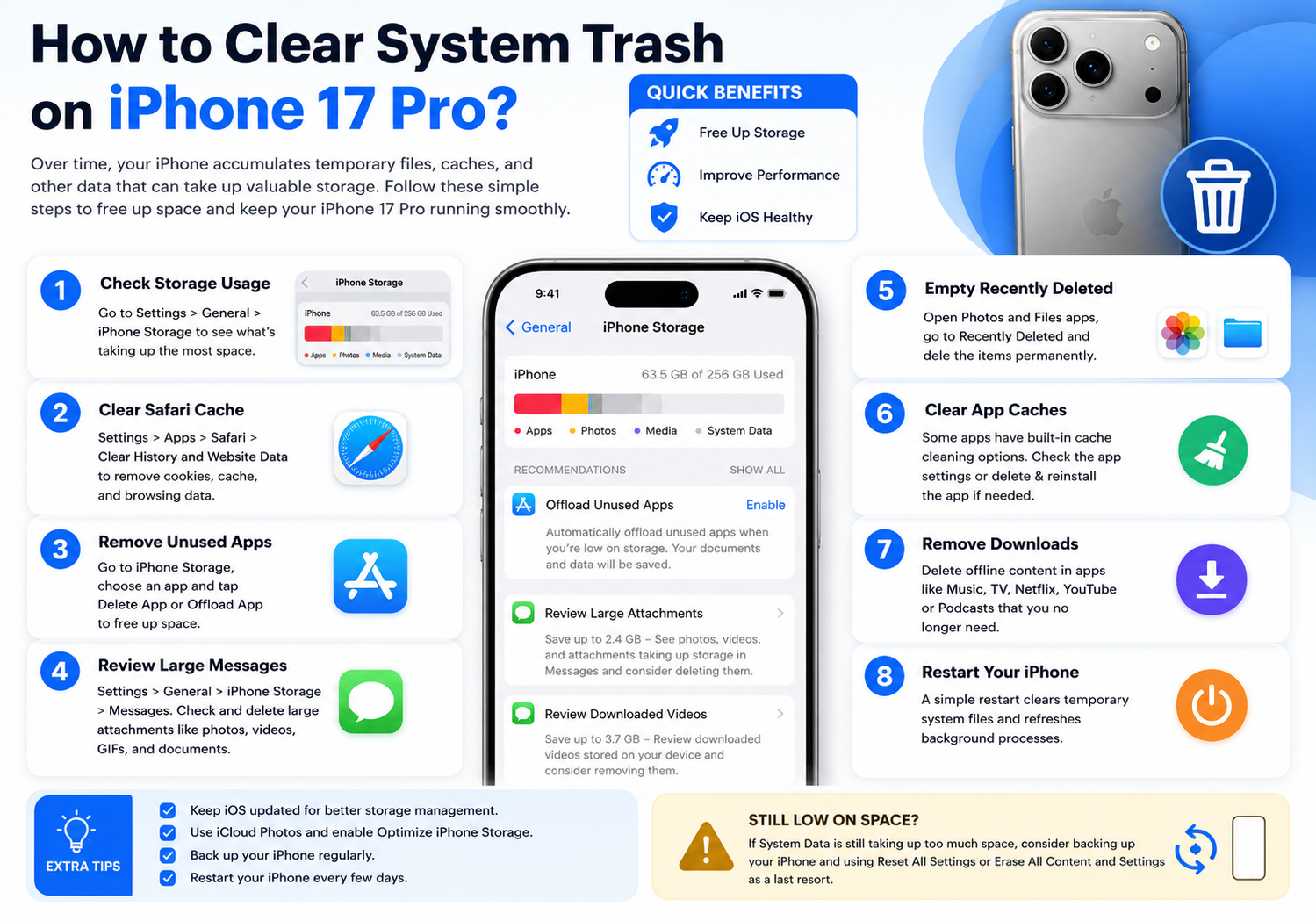
    If your iPhone 17 Pro is running low on storage or feels slower than usual, clearing system trash can help recover valuable space and improve overall performance. While iOS doesn’t include a traditional “trash cleaner” like some desktop operating systems, it does accumulate temporary files, app caches, browser data, and system logs over time.

    This guide explains the safest and most effective ways to clear system trash on your iPhone 17 Pro without deleting your important photos, messages, or apps.

    What Is System Trash on iPhone?

    System trash refers to temporary files that iOS creates during normal use. These files aren’t necessarily harmful, but they can occupy significant storage over time.

    Common examples include:

    • App cache
    • Safari website data
    • Temporary download files
    • Streaming media cache
    • System logs
    • Siri cache
    • Old software update files
    • Message attachments
    • Recently deleted files

    Unlike Android, iOS automatically manages many temporary files, but manual cleanup can still reclaim several gigabytes of storage.

    Check What’s Using Your Storage

    Before deleting anything, see what’s consuming the most space.

    Steps:

    1. Open Settings.
    2. Tap General.
    3. Select iPhone Storage.
    4. Wait a few moments while iOS analyzes your storage.

    You’ll see a breakdown of:

    • Apps
    • Photos
    • Media
    • Messages
    • System Data
    • iOS

    This helps determine where cleanup will have the greatest impact.

    Clear Safari Cache

    Safari often stores website data, cookies, and cached images that accumulate over months of browsing.

    To clear Safari data:

    1. Open Settings.
    2. Tap Apps > Safari (or Safari, depending on your iOS version).
    3. Select Clear History and Website Data.
    4. Confirm the action.

    This removes:

    • Browsing history
    • Cookies
    • Cached files
    • Website data

    Your bookmarks and saved passwords remain intact if synced with iCloud.

    Remove Unused Apps

    Apps you rarely use can occupy hundreds of megabytes—or even several gigabytes.

    Option 1: Delete Apps

    1. Go to Settings > General > iPhone Storage.
    2. Tap an app.
    3. Select Delete App.

    Option 2: Offload Apps

    Choose Offload App instead.

    This removes the app while keeping:

    • Documents
    • User data
    • Settings

    When you reinstall the app, your data is restored.
    Delete Large Message Attachments

    Photos, videos, GIFs, and voice messages can silently consume storage.

    To review them:

    1. Open Settings.
    2. Go to General > iPhone Storage.
    3. Select Messages.
    4. Review:
      • Photos
      • Videos
      • GIFs
      • Stickers
      • Documents

    Delete any attachments you no longer need.


    Empty the Recently Deleted Folder

    Deleted files remain on your device for about 30 days unless you remove them permanently.

    Photos

    1. Open Photos.
    2. Go to Recently Deleted.
    3. Tap Delete All or remove selected items.

    Files App

    1. Open Files.
    2. Tap Recently Deleted.
    3. Permanently delete unwanted files.

    Restart Your iPhone

    A simple restart clears various temporary system files and refreshes background processes.

    To restart your iPhone 17 Pro:

    1. Press and hold the Side button and either Volume button.
    2. Slide to power off.
    3. Wait about 30 seconds.
    4. Turn the phone back on.

    Many temporary caches are automatically cleared during reboot.


    Update to the Latest Version of iOS

    Apple frequently improves storage management and system optimization through software updates.

    To check for updates:

    1. Open Settings.
    2. Tap General.
    3. Select Software Update.
    4. Install any available updates.

    New versions of iOS often resolve bugs that cause excessive System Data growth.


    Clear App Cache (When Supported)

    Some apps allow you to remove cached files without deleting the app.

    Examples include:

    • Spotify
    • Telegram
    • TikTok
    • Netflix
    • Chrome
    • Microsoft Edge

    Look in each app’s Settings menu for options like:

    • Clear Cache
    • Free Up Space
    • Remove Downloads

    If an app doesn’t provide this feature, deleting and reinstalling it often clears accumulated cache.


    Remove Offline Downloads

    Downloaded media can occupy large amounts of storage.

    Check apps such as:

    • Apple Music
    • Apple TV
    • Netflix
    • Disney+
    • YouTube Premium
    • Podcasts

    Delete movies, TV shows, playlists, or podcasts you’ve already finished.


    Enable Automatic Storage Optimization

    iOS includes built-in tools that help manage storage automatically.

    Go to:

    Settings > General > iPhone Storage

    Recommended options may include:

    • Offload Unused Apps
    • Review Large Attachments
    • Optimize Photos
    • Empty Recently Deleted items

    Enabling these features helps prevent storage from filling up again.


    Optimize Photos with iCloud

    If you use iCloud Photos, enable storage optimization.

    Navigate to:

    Settings > Photos

    Turn on:

    Optimize iPhone Storage

    Your iPhone stores smaller versions of photos locally while full-resolution originals remain safely in iCloud, freeing up significant storage.


    Reset System Cache (If Storage Is Still Full)

    If System Data continues to consume an unusually large amount of storage after trying the steps above, you can perform a full reset.

    1. Back up your iPhone using iCloud or a computer.
    2. Go to Settings > General > Transfer or Reset iPhone.
    3. Choose Erase All Content and Settings.
    4. Restore from your backup during setup.

    This can significantly reduce excessive system storage caused by accumulated temporary files or corrupted caches.

    Note: This is a last-resort option. Make sure your backup is complete before erasing the device.


    Tips to Keep Your iPhone 17 Pro Clean

    To minimize future storage issues:

    • Restart your iPhone every few days.
    • Delete unused apps regularly.
    • Clear Safari data occasionally.
    • Remove downloaded videos after watching them.
    • Empty the Recently Deleted folders monthly.
    • Keep iOS updated.
    • Review storage usage every few weeks.

    These simple habits help maintain smooth performance and maximize available storage.

    Final Thoughts

    Although the iPhone 17 Pro doesn’t offer a one-tap “system cleaner,” iOS includes several built-in tools that make it easy to reclaim storage safely. By clearing browser data, deleting old downloads, managing app caches, reviewing message attachments, and using features like Offload Unused Apps and Optimize iPhone Storage, you can free up space without sacrificing important data.

    Regular maintenance not only helps recover storage but also keeps your iPhone running efficiently, ensuring faster app launches, smoother multitasking, and plenty of room for new photos, videos, and apps.

    Share. Facebook Twitter Pinterest LinkedIn Tumblr Email

    Related Posts

    How to take Panoramic Photos with iPhone Air?

    How to Clear up Insufficient Memory on a Mobile Phone?

    How to Split Screen on iPad: 2026 iPad Split-Screen Mode Operation Guide

    Leave A Reply Cancel Reply

    You must be logged in to post a comment.

    voopoopintch
    oxva nexlim 2
    sp2s sen x disposable vape
    • Popular
    • 3D Printer REVIEW
    • XIAOMI
    July 13, 2026

    OXVA Nexlim 2 Mini Pod Vape Hands on Review

    July 13, 2026

    OXVA Nexlim 2 Pod Vape Hands on Review

    June 21, 2026

    iPlay LUMO 8K Review – A Compact Prefilled Pod Kit with Big Flavor and Everyday Convenience

    June 21, 2026

    iPlay HOOLA 150K Review – A Cloud-Chasing Giant with Music, Modes & Massive Longevity

    December 26, 2025

    ACMER ASCARVA 4S: Precision CNC Power for Makers, DIYers & Small Workshops

    June 23, 2024

    ACMER P2 20W Laser Engraver Fixed Focus Engraving: Hands on Review

    May 30, 2024

    xTool F1 Ultra Review: World’s First 20W Fiber & 20W Diode Laser Engraver

    May 30, 2024

    Anycubic Kobra 3 Combo Review: The Multicolor Masterpiece?

    July 16, 2026

    Xiaomi Mijia Dust Removal Device 3 Pro is now available: 72,000 high-frequency sweeps, effortlessly removing all the dust at 499 yuan

    July 16, 2026

    Xiaomi has released the model of the robot base: Xiaomi-Robotics-1

    July 15, 2026

    Redmi K100 Pro Specifications Released: Snapdragon 8E5 + 185Hz ultra-fast refresh rate display

    July 15, 2026

    Xiaomi has launched the Mi Home Smart Bathroom Lamp P1 with human sensing function

    fc 26 coins
    New Arrivals
    • OnePlus Nord 6 OnePlus Nord 6
    • Realme 16 Lite Realme 16 Lite
    • Vivo IQOO 16 Vivo IQOO 16
    • Vivo X400 Pro Vivo X400 Pro
    • Vivo X400 smartphone Vivo X400 smartphone
    • ZTE Nubia Z90 Ultra ZTE Nubia Z90 Ultra
    • Redmi 16 5G Redmi 16 5G
    • Thunder Cloud X Vaping Bogan Bonza Pro Mechanical Mod Thunder Cloud X Vaping Bogan Bonza Pro Mechanical Mod
    • iqoo Watch GT 2 iqoo Watch GT 2
    About
  • Igeekphone.com provides the first global tech news and reviews about smartphone, vapes, e-cigar, smart home, 3D printers, e-bike,tablets, RC drones, VR headset, and other accessories. It's the best platform to improve your brand and product.
  • Contact us: info@igeekphone.com
  • Check Our Privacy Policy Here.
  • Note: *Right now we have US editor and EU editors for review, especially for Amazon US and EU.
  • *Shop and Compare Price Here*
  • Facebook
  • Youtube
  • OUR BEST VAPE PARTNERS
  • VAPE ONLINE STORE
  • HAYATI PRO MAX PLUS
  • VAPORESSO
  • VOOPOO
  • OXVA
  • NEXA
  • MASKKING
  • SP2S
  • IPLAY
  • TODOO
  • OTHER BEST PARTNERS
  • SVBONY
  • Chuwi
  • Blackview
  • Fossibot
  • Unihertz
  • Flsun
  • Anycubic
  • Xtool
  • Oukitel
  • Mukkpet Ebike
  • Ugreen
  • Copyright © 2026 igeekphone

    Type above and press Enter to search. Press Esc to cancel.