






Facebook Twitter Instagram
    Trending
    • Is It Legal to Buy and Use Nicotine Pouches in England?
    • EU “TPD3” Enters a New Phase as Fragmented E-Cigarette and Nicotine Pouch Rules Push Market Toward Regulatory Reconfiguration
    • From Its First Device in 2017 to a 48% Market Share in Korea: KT&G Reviews a Decade of Heated Tobacco Expansion at Seoul’s lil Archive
    • Xiaomi 18 Series Reportedly Set to Debut on September 24 With Snapdragon 8E6
    • GLM-5.3 Released: Zhishu Claims New Open-Source AI Leader With Major Gains in Coding and Agentic Tasks
    • Smart Estate Planning: The Role of Technology in Securing Your Family’s Future
    • Exploring Vaping Products: A Guide to Types and Choices
    • How to Take Panoramic Photos with iPhone Air?
    Facebook YouTube
    IGeeKphone China Phone, Tablet PC, VR, RC Drone News, Reviews
    • HOME
    • BREAKING NEWS
      • AI NEWS
    • Amazon
    • PHONE
      • Top Phones For Your First Choice
      • Phone Comparison
      • Xiaomi
      • Blackview
      • Doogee
      • Black Shark
      • Geekbuying
      • Banggood
      • TEMU
      • TikTok
      • Aliexpress
      • Walmart
      • MercadoLibre
      • Lazada
    • TOP VAPE Awards for 2026
    • VAPES
      • E-CIGAR Upcoming
      • Vape News
      • Vape Deals
      • Vape Comparison
      • Vape Guide
      • VAPE LAWS
      • Giveaway
    • BEST VAPE
      • Best Vape Stores
      • Best Starter Vape Kits
      • Best Vapes for Beginners
      • Best Disposable Vapes
      • Best Pod Systems
      • Best Pod Mod Vapes
      • Best Mods
      • Best Nicotine Pouches
      • Best Clearomizers/Tanks
      • Best E-Liquid
      • Best EGO/Pens
      • Best Vapes for Nic Salt E-Juice
      • Best Vapes to Quit Smoking
      • RDA vs. RDTA vs. RTA
    • Best Vape Brand 2026
      • VAPORESSO
      • VOOPOO
      • OXVA
      • NEXA BAR
      • MASKKING VAPE
      • SP2S
      • IPLAY
      • TODOO
      • MRFOG
      • LOSTVAPE
      • VEIIK
    • REVIEW
      • E-cigar Review
      • Phones
      • Tablet PC
      • TV Box
      • RC Drone
      • Wearables
      • Camera
      • Accessories
      • VR Headset
    • MORE
      • TABLET
        • Chuwi
        • INNOCN
        • Teclast
        • Top Tablet for Your First Choice
        • Tablet/Laptop Comparison
      • RC DRONE
      • CAMERA
      • WEARABLES
        • OneOdio
        • BlitzWolf
        • Top Smartwatch for First Choice
      • 3D PRINTER
        • 3D Printer Review
        • Anycubic
        • FLSUN
        • Xtool
        • LONGER
        • Top 3D printer to Choose First
      • POWER STATION
        • Oukitel
        • FOSSIBOT
      • GAMING
        • Top Gaming Products
      • E-BIKE
        • Samebike
        • Happyrun
        • ENGWE
      • SMART HOME
      • TV BOX
      • ACCESSORIES
      • VR HEADSET
      • CLOTHES
      • AUTO CAR
    • DEAL
    • Shop
    IGeeKphone China Phone, Tablet PC, VR, RC Drone News, Reviews
    You are at:Home»Guide»How to Record with Your iPhone Screen Off: A Complete Guide to Black Screen Recording
    Guide

    How to Record with Your iPhone Screen Off: A Complete Guide to Black Screen Recording

    Brady CottonBy Brady CottonJuly 14, 2026
    Facebook Twitter Pinterest LinkedIn Tumblr Email

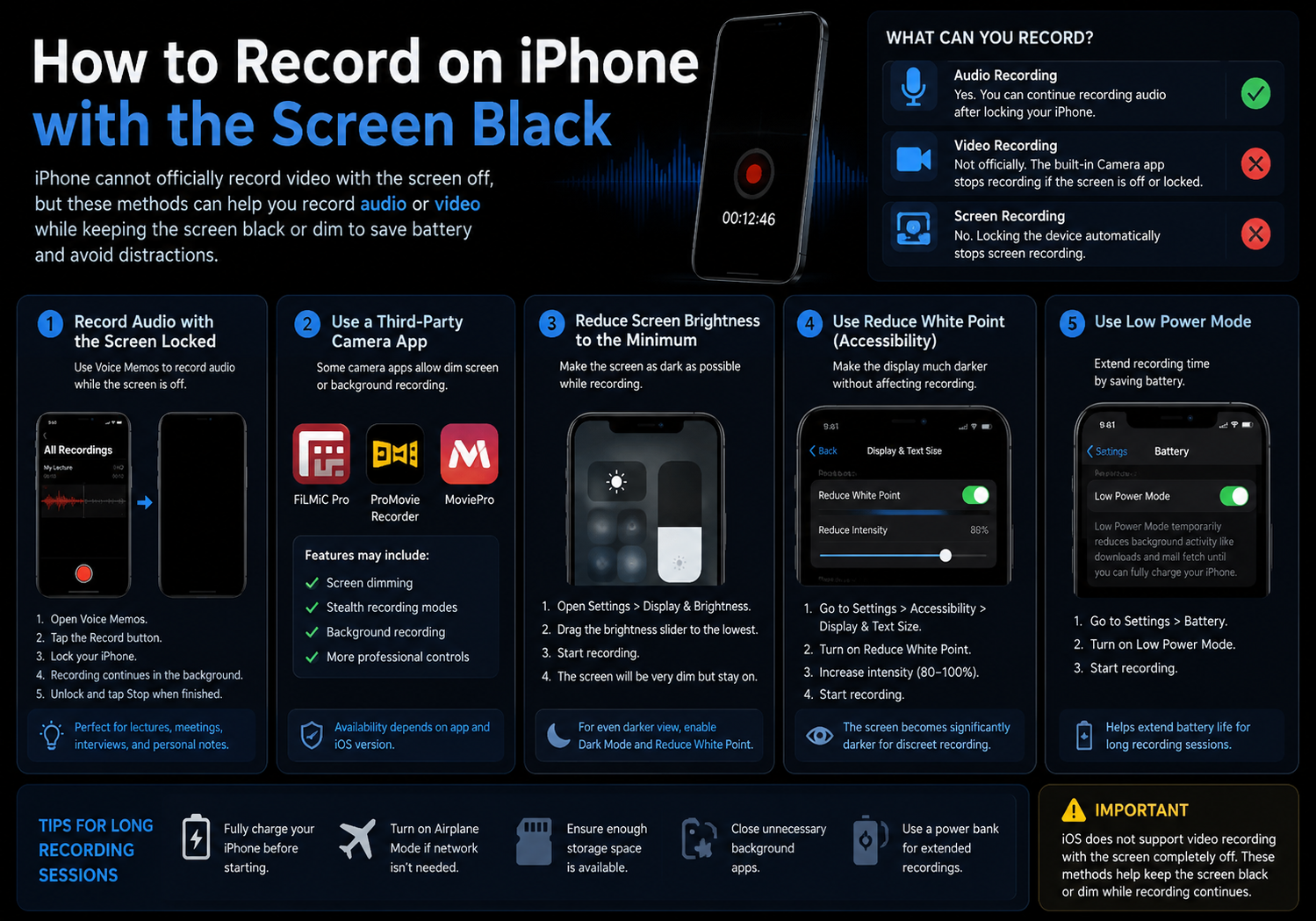
    Many iPhone users wonder whether it’s possible to record audio or video while the screen appears to be off or black. Whether you’re trying to save battery, avoid attracting attention during a lecture, or simply keep your display from lighting up unnecessarily, there are a few ways to achieve a “black screen” recording experience on an iPhone.

    It’s important to note that iOS does not officially support recording video while the display is completely turned off. However, there are several practical methods that allow you to record while the screen is dimmed, locked, or effectively black to the user.

    Here’s everything you need to know.

    Can an iPhone Record with the Screen Completely Off?

    The answer depends on what you’re trying to record.

    • Voice recording: Yes. You can continue recording audio after locking your iPhone.
    • Video recording: Not officially. The built-in Camera app stops recording if the screen is turned off or the device is locked.
    • Screen recording: No. Locking the device automatically ends screen recording.

    For video recording, any method that keeps the screen black generally relies on third-party apps or special accessibility settings rather than native iOS functionality.

    Method 1: Record Audio with the Screen Locked

    If your goal is to record sound rather than video, the built-in Voice Memos app makes it simple.

    Steps

    1. Open Voice Memos.
    2. Tap the Record button.
    3. Once recording has started, press the Side Button to lock the iPhone.
    4. The screen turns off, but audio recording continues in the background.
    5. Unlock your phone when you’re finished and tap Stop.

    This is the easiest and most battery-efficient way to record meetings, interviews, lectures, or personal notes.

    Method 2: Use a Third-Party Camera App

    Some professional camera applications allow video recording while the display is dimmed or covered with a black overlay.

    Examples include:

    • FiLMiC Pro
    • ProMovie Recorder
    • MoviePro

    These apps may include features such as:

    • Screen dimming during recording
    • Stealth recording modes
    • Background recording options (where permitted)

    Availability varies by app and iOS version.
    Method 3: Reduce Screen Brightness to the Minimum

    If you simply want the display to appear almost black, lowering the brightness is a practical solution.

    Steps

    1. Open Settings → Display & Brightness.
    2. Drag the brightness slider to the lowest level.
    3. Open the Camera app and begin recording.
    4. The screen remains on, but consumes much less power.

    For even darker viewing:

    • Enable Dark Mode
    • Turn on Reduce White Point

    Enable Reduce White Point

    1. Go to Settings → Accessibility.
    2. Select Display & Text Size.
    3. Turn on Reduce White Point.
    4. Increase the intensity to around 80–100%.

    The display becomes significantly darker while recording continues normally.

    Method 4: Use Guided Access

    Guided Access helps prevent accidental touches during recording.

    How to enable it

    1. Open Settings.
    2. Go to Accessibility.
    3. Tap Guided Access.
    4. Turn it on.
    5. Start recording.
    6. Triple-press the Side Button.
    7. Start Guided Access.

    This won’t turn the display off, but it locks the current screen and disables unintended interactions.

    Method 5: Use Low Power Mode

    If your primary concern is battery life during long recordings, Low Power Mode can help.

    Enable Low Power Mode

    1. Open Settings.
    2. Tap Battery.
    3. Enable Low Power Mode.

    This reduces background activity while allowing video recording to continue normally.

    Tips for Long Recording Sessions

    To maximize recording time:

    • Fully charge your iPhone before starting.
    • Lower screen brightness.
    • Turn on Airplane Mode if network connectivity isn’t needed.
    • Close unnecessary background apps.
    • Use sufficient available storage.
    • Connect to an external power bank for extended recordings.

    Why Doesn’t Apple Allow Video Recording with the Screen Off?

    Apple’s Camera app is designed to stop recording when the device is locked for several reasons:

    • Protecting user privacy
    • Preventing unauthorized recordings
    • Maintaining consistent camera security
    • Avoiding accidental recordings in a pocket or bag

    As a result, iOS does not provide an official “record with screen off” option for video.

    Frequently Asked Questions

    Can I record video after locking my iPhone?

    No. Once the iPhone is locked, the Camera app stops recording.

    Can I record audio with the screen off?

    Yes. Voice Memos and many third-party audio recording apps continue recording after the display is locked.

    Does Screen Recording continue when the phone locks?

    No. Screen Recording automatically stops when the device locks.

    Is there a hidden Apple feature for black screen video recording?

    No. Apple currently does not offer an official feature that allows video recording while the display is completely off.

    Final Thoughts

    Although iPhones cannot officially record video with the screen completely turned off, there are several practical alternatives depending on your needs. For audio recordings, simply locking the device works perfectly. For video, reducing brightness, enabling accessibility features like Reduce White Point, or using compatible third-party camera apps can create a near-black screen experience while recording continues.

    For most users, combining minimum brightness, Reduce White Point, and Low Power Mode offers the best balance between battery efficiency and uninterrupted recording, making it an effective solution for longer recording sessions without significantly illuminating the display.

    Share. Facebook Twitter Pinterest LinkedIn Tumblr Email

    Related Posts

    Smart Estate Planning: The Role of Technology in Securing Your Family’s Future

    How to Take Panoramic Photos with iPhone Air?

    Key Elements of SEO Implemented by Your Trusted San Francisco SEO Agency

    Leave A Reply Cancel Reply

    You must be logged in to post a comment.

    voopoopintch
    oxva nexlim 2
    sp2s sen x disposable vape
    • Popular
    • 3D Printer REVIEW
    • XIAOMI
    July 13, 2026

    OXVA Nexlim 2 Mini Pod Vape Hands on Review

    July 13, 2026

    OXVA Nexlim 2 Pod Vape Hands on Review

    June 21, 2026

    iPlay LUMO 8K Review – A Compact Prefilled Pod Kit with Big Flavor and Everyday Convenience

    June 21, 2026

    iPlay HOOLA 150K Review – A Cloud-Chasing Giant with Music, Modes & Massive Longevity

    December 26, 2025

    ACMER ASCARVA 4S: Precision CNC Power for Makers, DIYers & Small Workshops

    June 23, 2024

    ACMER P2 20W Laser Engraver Fixed Focus Engraving: Hands on Review

    May 30, 2024

    xTool F1 Ultra Review: World’s First 20W Fiber & 20W Diode Laser Engraver

    May 30, 2024

    Anycubic Kobra 3 Combo Review: The Multicolor Masterpiece?

    August 14, 2026

    Xiaomi 18 Series Reportedly Set to Debut on September 24 With Snapdragon 8E6

    August 14, 2026

    Xiaomi 18 Rumored to Debut Snapdragon 8 Supreme Edition Gen 6, Starting Price Could Exceed 5,499 Yuan

    August 14, 2026

    Xiaomi HyperOS 4 Beta Rollout Begins: First Batch of Devices Now Receiving Update

    August 13, 2026

    Xiaomi MIX Fold 5 Teased in HyperOS 4 Beta Poster, Hinting at the Company’s Next Large-Screen Foldable

    fc 26 coins
    New Arrivals
    • Pod Juice Tobacco Series E-juice Pod Juice Tobacco Series E-juice
    • Huawei Watch GT 7 Pro Huawei Watch GT 7 Pro
    • Huawei Watch GT 7 Huawei Watch GT 7
    • Vapetasia Better Salt Series E-juice Vapetasia Better Salt Series E-juice
    • JNR Mega Box Pro 50K Disposable Vape JNR Mega Box Pro 50K Disposable Vape
    • HQD SiSA 80K Hookah Disposable Vape HQD SiSA 80K Hookah Disposable Vape
    • VOZOL SWAP 70K Disposable Vape VOZOL SWAP 70K Disposable Vape
    • Oppo Reno16 F Oppo Reno16 F
    • Oppo Reno16c Oppo Reno16c
    About
  • Igeekphone.com provides the first global tech news and reviews about smartphone, vapes, e-cigar, smart home, 3D printers, e-bike,tablets, RC drones, VR headset, and other accessories. It's the best platform to improve your brand and product.
  • Contact us: info@igeekphone.com
  • Check Our Privacy Policy Here.
  • Note: *Right now we have US editor and EU editors for review, especially for Amazon US and EU.
  • *Shop and Compare Price Here*
  • Facebook
  • Youtube
  • OUR BEST VAPE PARTNERS
  • VAPE ONLINE STORE
  • VAPORESSO
  • VOOPOO
  • OXVA
  • NEXA
  • MASKKING
  • SP2S
  • IPLAY
  • TODOO
  • OTHER BEST PARTNERS
  • SVBONY
  • Chuwi
  • Blackview
  • Fossibot
  • Unihertz
  • Flsun
  • Anycubic
  • Xtool
  • Oukitel
  • Mukkpet Ebike
  • Ugreen
  • Copyright © 2026 igeekphone

    Type above and press Enter to search. Press Esc to cancel.